Your client portal is the branded interface your clients log into. Workspaces live inside the portal and contain everything related to your client: tasks, files, messages, projects, and billing. Learn how to create a workspace →
Before inviting your first client, you'll want to configure your portal, how it looks, how clients access it, and what they can do once they're in.
All portal settings live under Settings > Client Portal.
Want to see it before you build it? Explore a live example of a client portal: w-agency.hubflo.com
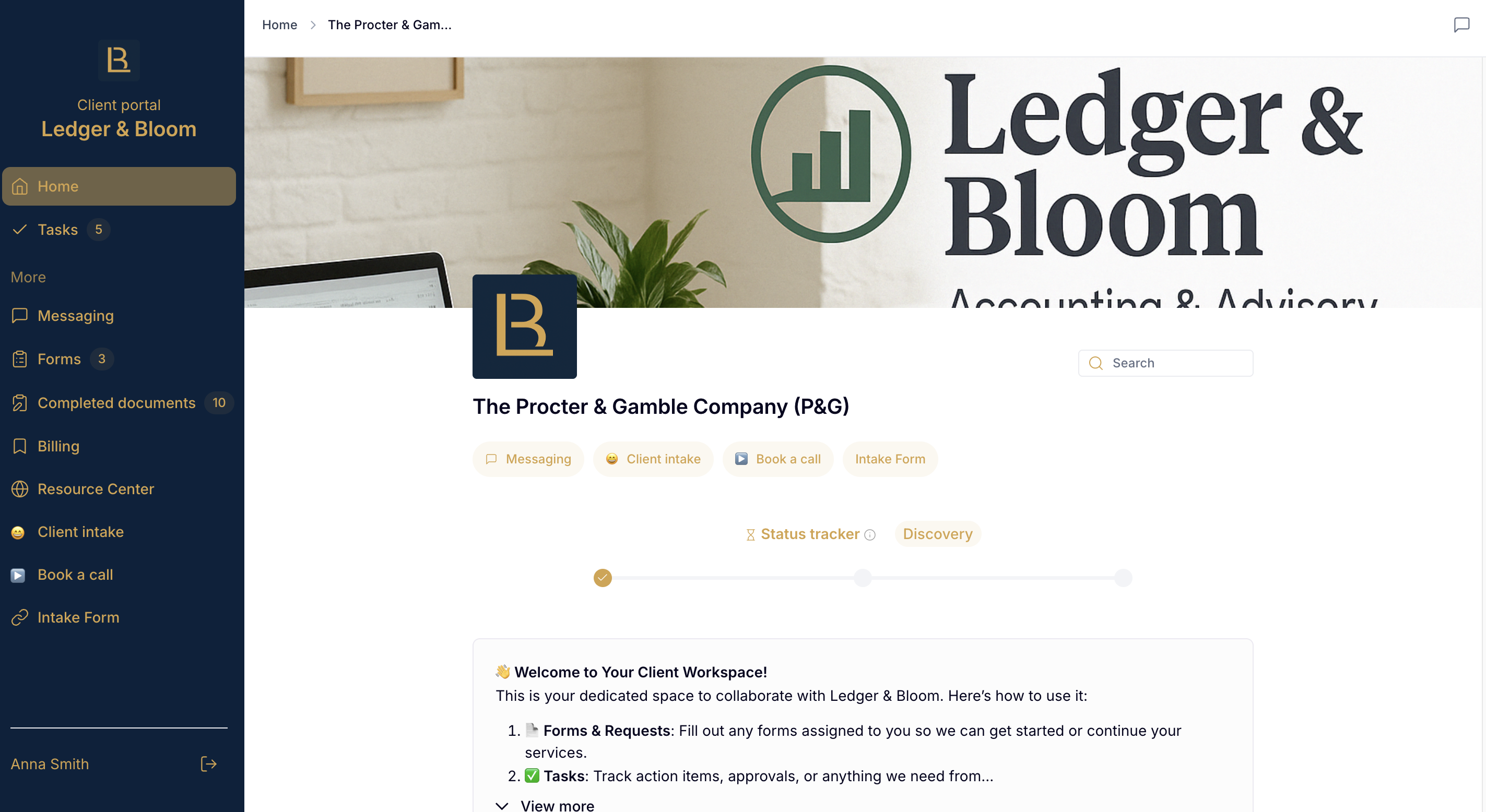
Go to Settings > Appearance to update your branding elements. These are all the settings you can configure to style your portal:
Logo: your company logo, displayed across the portal (Recommended size: 300 x 300)
Company name: shown to clients
Cover image: the banner image clients see when they log in (Recommended size: 1920 x 320)
Accent color: used for icons and buttons throughout the portal
Sidebar color: the background color of the navigation sidebar
Sidebar text color: the text color used in the sidebar
Your portal is automatically live at a Hubflo subdomain, for example, yourcompany.hubflo.com.
You can update it under Settings > Domain & general.
If you'd prefer to host your portal on your own domain (e.g. portal.yourcompany.com), you can connect a custom domain instead.
Your public profile is what clients see on the portal sign-in page before they log in.
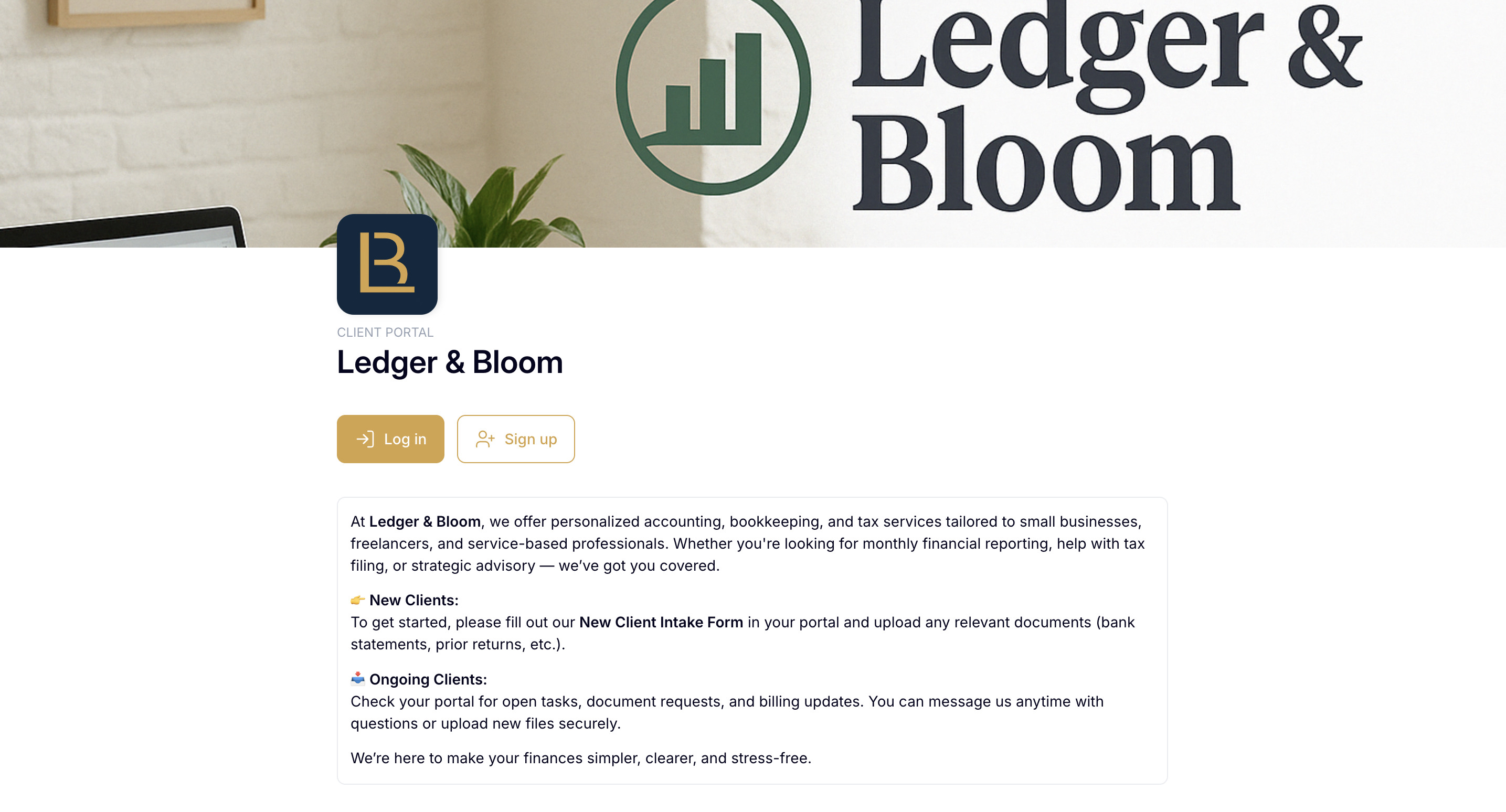
Go to Settings > Domain & general to configure:
Title: your portal name
Headline: a short catchphrase displayed under your title
Description: describe your services and provide any instructions for clients
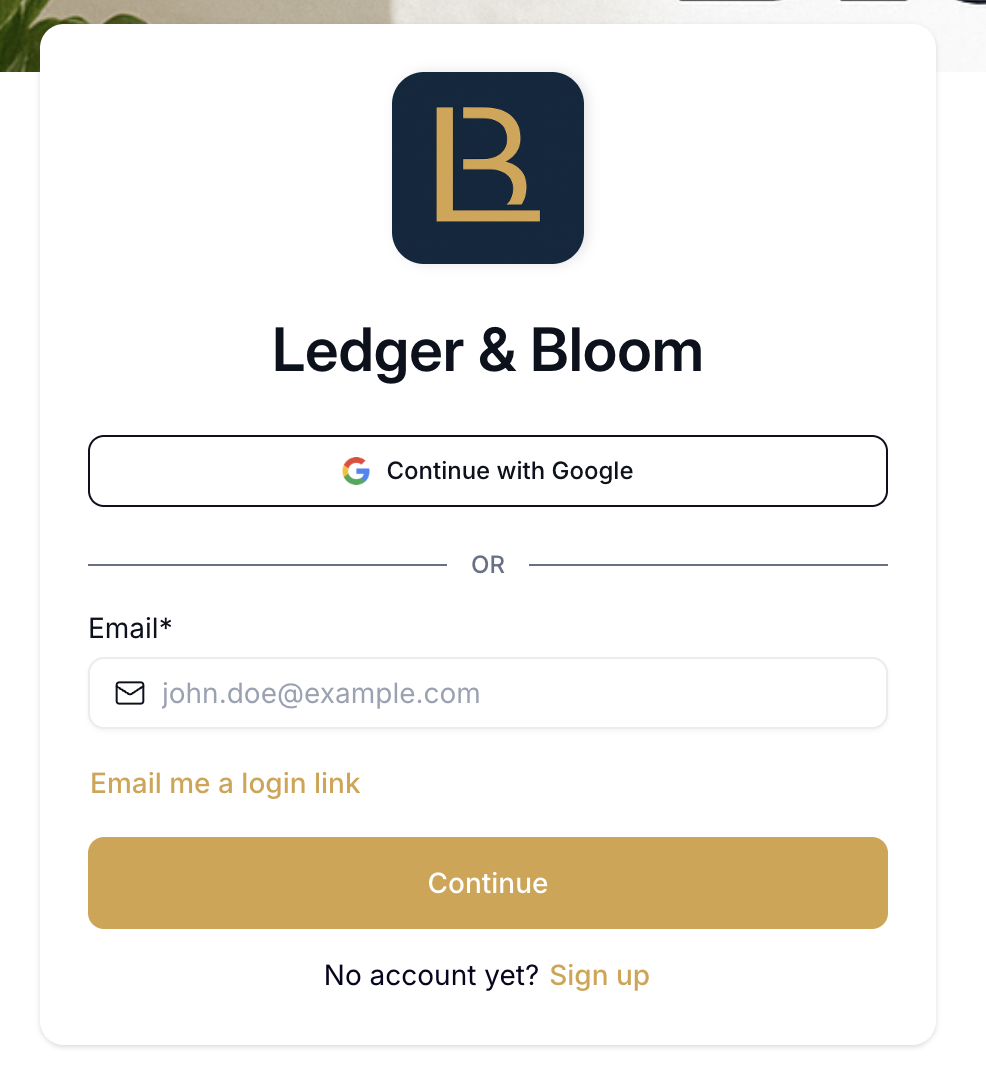
Go to Settings > Authentication & SSO to control how clients access your portal.
Allow clients to authenticate with Google: clients can sign in using their Google account.
Allow clients to authenticate with a login link: clients receive a one-time secure link by email instead of using a password.
Allow clients to sign up without being invited: clients can create their own account from your portal without a direct invite. When enabled, a Sign Up button appears on your portal page.
2FA for clients: requires clients to verify their identity via email each time they log in.
For more detail on each authentication method, see Authentication Methods for Your Client Portal →
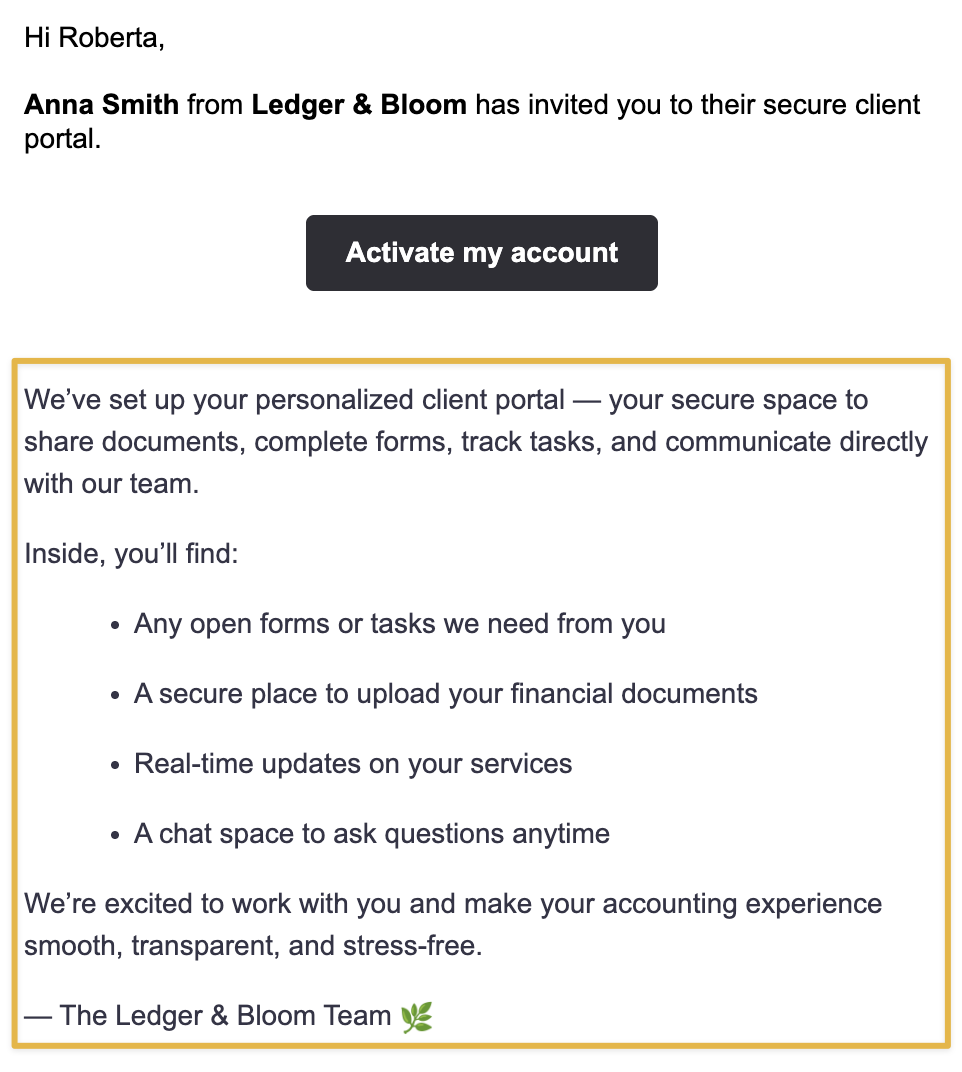
Go to Settings > Domain & general to customize two things clients see when they're first invited:
Message to include in the client portal email invite: the message included in the invite email Hubflo sends.
Default pinned note for client workspaces: a note that automatically appears at the top of every new client workspace. Use it as a welcome message or to share instructions. You can customize it per workspace after creation.
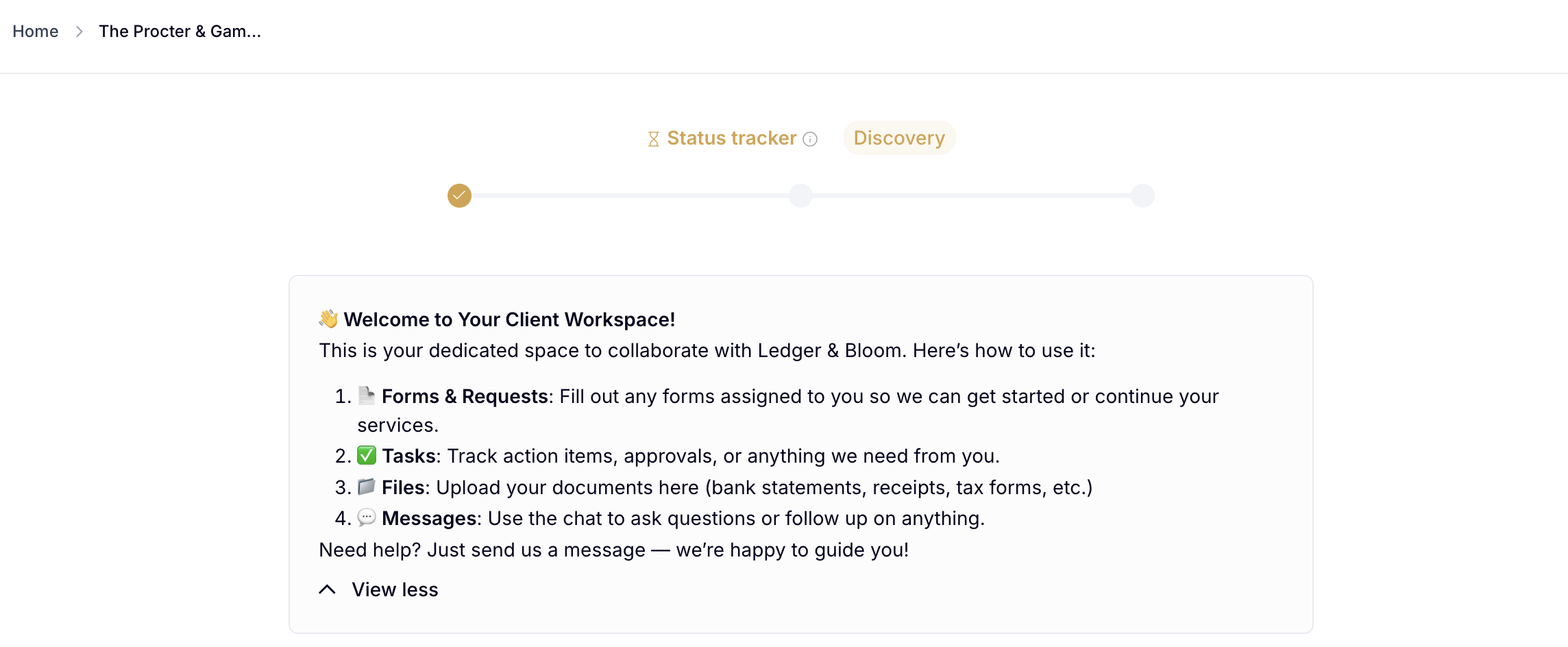
Global Items are links and embeds that appear pinned at the top of every client workspace, things like a Calendly booking link, an intake form, or a welcome video. They're ideal for content that applies to all clients.
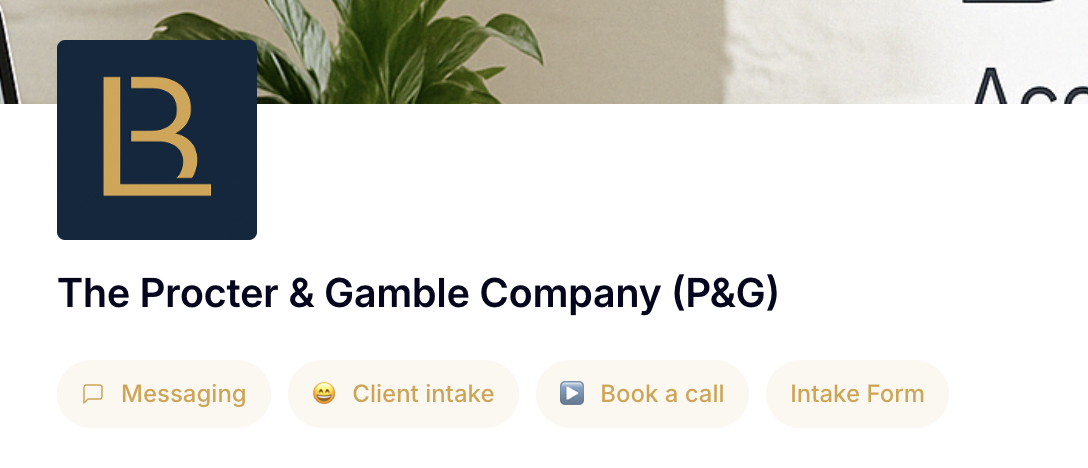
Go to Settings > Global Items to add your first embed or link.
Learn how to set up Global Items →
The Resource Center is a shared space inside your portal where you can publish content that's useful to all clients like onboarding guides, FAQs, tools, and more. It appears automatically in the client navigation once you've added your first item.
Go to Workspaces > Resource Center to set it up.
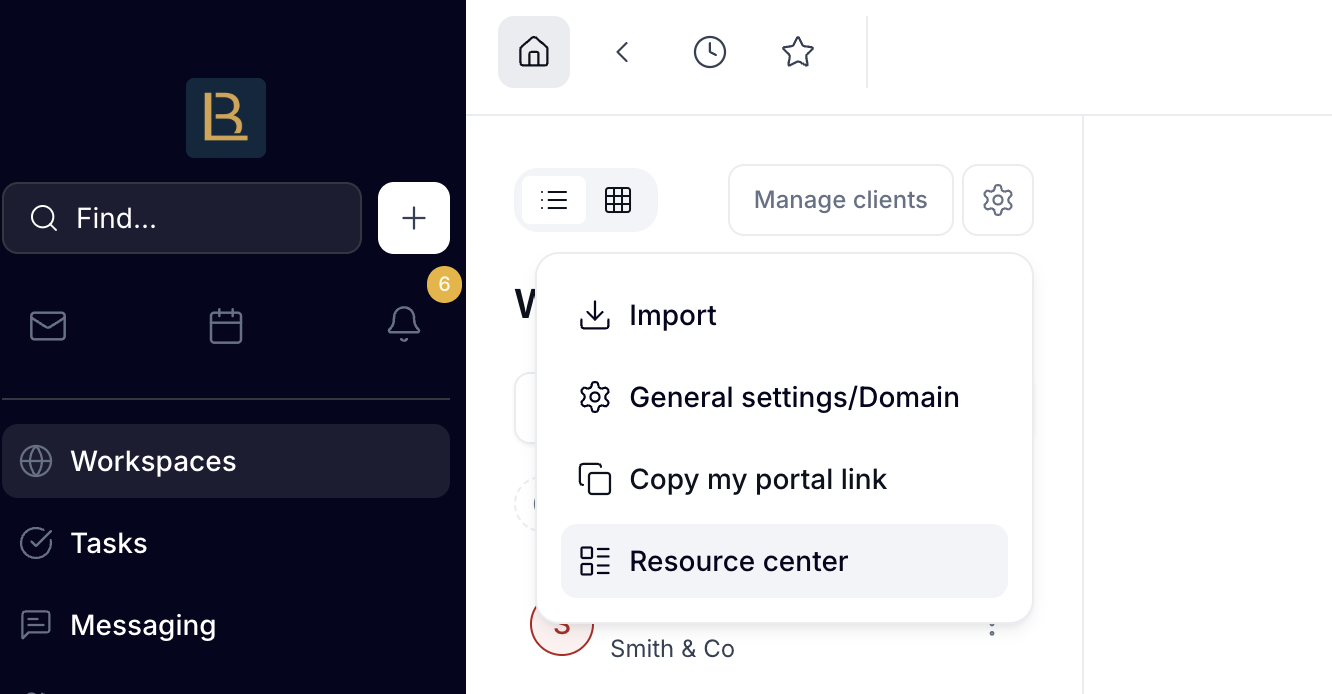
Learn how to set up your Resource Center →
Go to Settings > Visibility & behaviour to control how content, projects, and tasks are displayed to clients across all workspaces.
Display tasks to clients: choose between a list grouped by status, a list grouped by project sections, or a board grouped by project sections
Display folders and files: set the default sort order for files and folders (manual, alphabetical, or by creation date)
Display project stages on client workspaces: show or hide project stages in the client view
Display smartdocs to all contacts from the same company: when enabled, all contacts from the same company can see smartdocs shared in any workspace
Display proposals and invoices to all contacts from the same company: same behavior for billing items
Hide internal team members' names from clients in chatrooms: when enabled, clients see all messages as coming from your company name
Go to Settings > Client Permissions to set default permissions for all clients across every workspace.
Allow clients to create and edit folders and move files
Allow generating a public link for a folder
Allow clients to delete their own files
Allow clients to create tasks
Client task editing rights (choose whether clients can edit all tasks or only the ones assigned to them).
Default tasks access (choose whether clients can view all tasks in a workspace or only their assigned tasks).

To send SMS notifications to clients when they receive a new message, connect your Twilio account under Settings > Client SMS.
You'll need your Twilio Account SID, Auth token, and a registered phone number.
To add tracking or analytics to your portal, enter your Google Tag Manager ID under Settings > Domain & general.
Toggle on Allow search engines to index my client portal if you want your portal to be publicly discoverable.
