When you invite a client to Hubflo, they get access to your branded portal. They log in once and land directly in their workspace, a dedicated space set up for them, with everything you've chosen to share.
Clients access your portal through your Hubflo subdomain (yourbusiness.hubflo.com) or your custom domain if you've set one up. You can also add a cover image and a welcome message to the sign-in page.
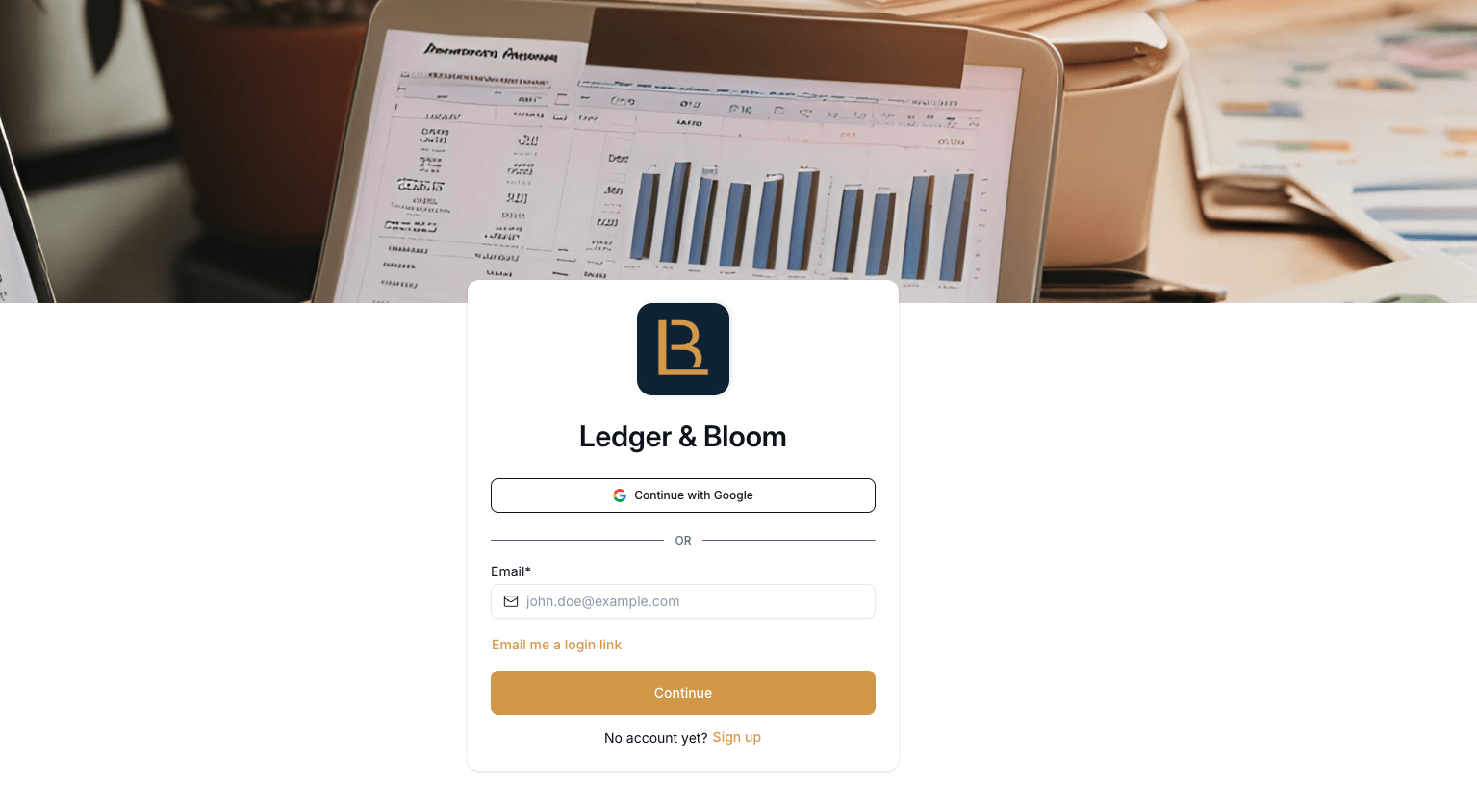
Depending on the authentication settings you've enabled, clients can sign in with:
A password
A magic link sent to their email
Google SSO
If you've turned on self-signup, clients will also see a Sign Up button on the page and can register on their own without a direct invite from you. Otherwise, they'll need an invite before they can access the portal.
Note: Your portal is hosted on your dedicated Hubflo subdomain (e.g. yourbusiness.hubflo.com). You can also set up a custom domain to make it fully branded. Learn how in Set Up Your Custom Domain.
What clients can see and do depends on the permissions you've configured. You control access to tasks, folders, the chatroom, and billing items. See Invite clients and manage access to workspaces for details.
Clients navigate their workspace from the left-hand menu. Here's what's available to them:
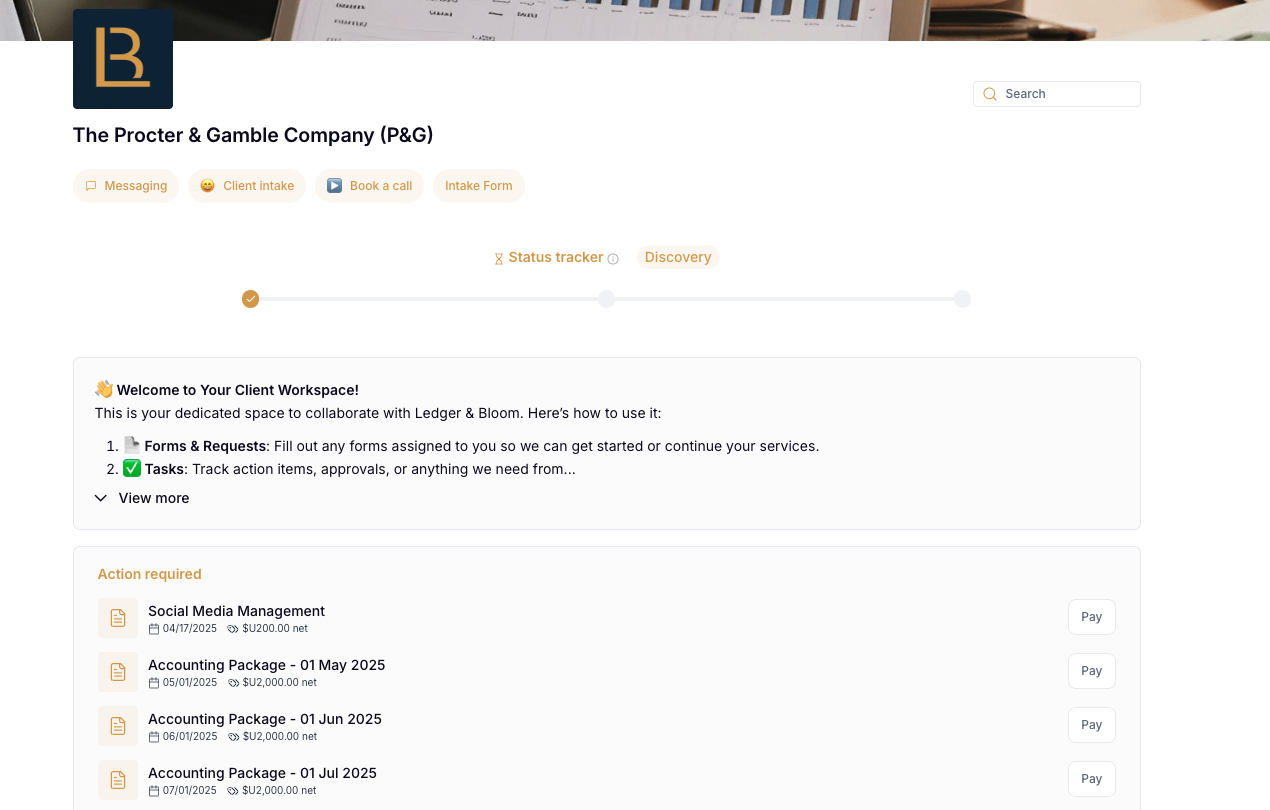
Home: where clients land after logging in. Shows the workspace cover image, logo, workspace name, and any quick-access shortcuts (global items) you've pinned at the top (see below).
Tasks: tasks assigned to them or shared for visibility, depending on the permissions you've set.
Folders: any folders you've created and shared inside the workspace. Folder names are set by you, so clients see whatever labels you've given them.
Messaging: a direct messaging space between you and your client, inside the portal.
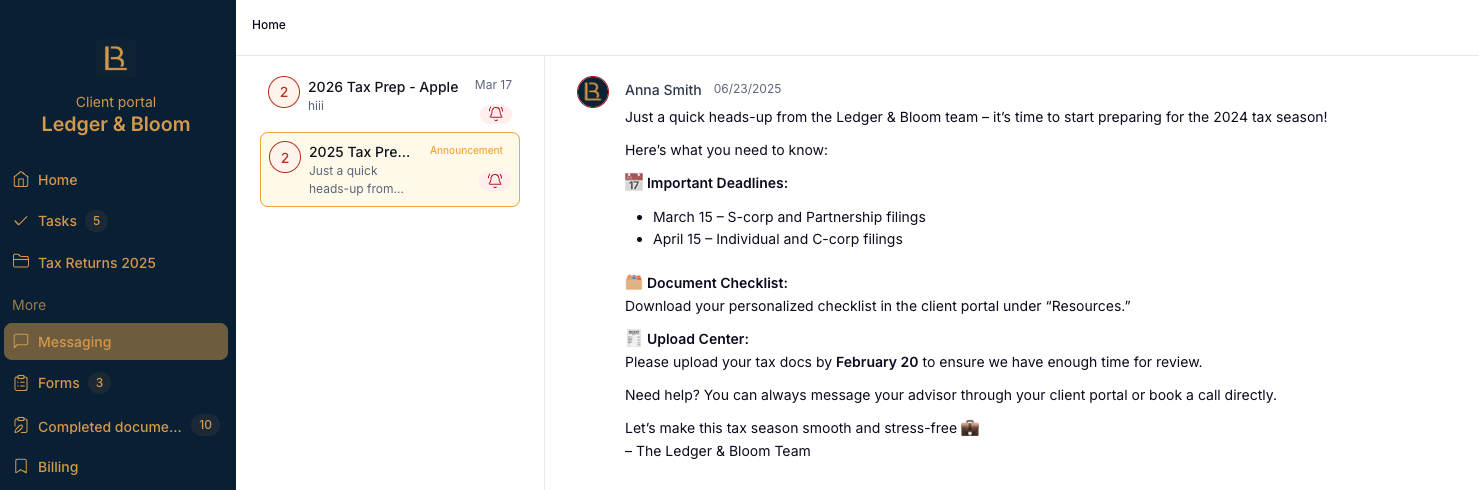
Forms: any forms you've shared with them, such as intake forms, feedback requests, or file request forms.
Completed documents: a running log of signed contracts, completed smartdocs, and other finalized documents.
Billing: a centralized view of any proposals and invoices you've sent them, with the option to pay directly.
Resource Center: a shared space visible to all your clients. Use it for general resources, onboarding guides, company updates, or evergreen content.
Embedded apps: any tools you've embedded directly in the workspace, like Calendly, Google Sheets, Loom, or Notion. These appear as named items in the left navigation, so clients can access them without leaving the portal.
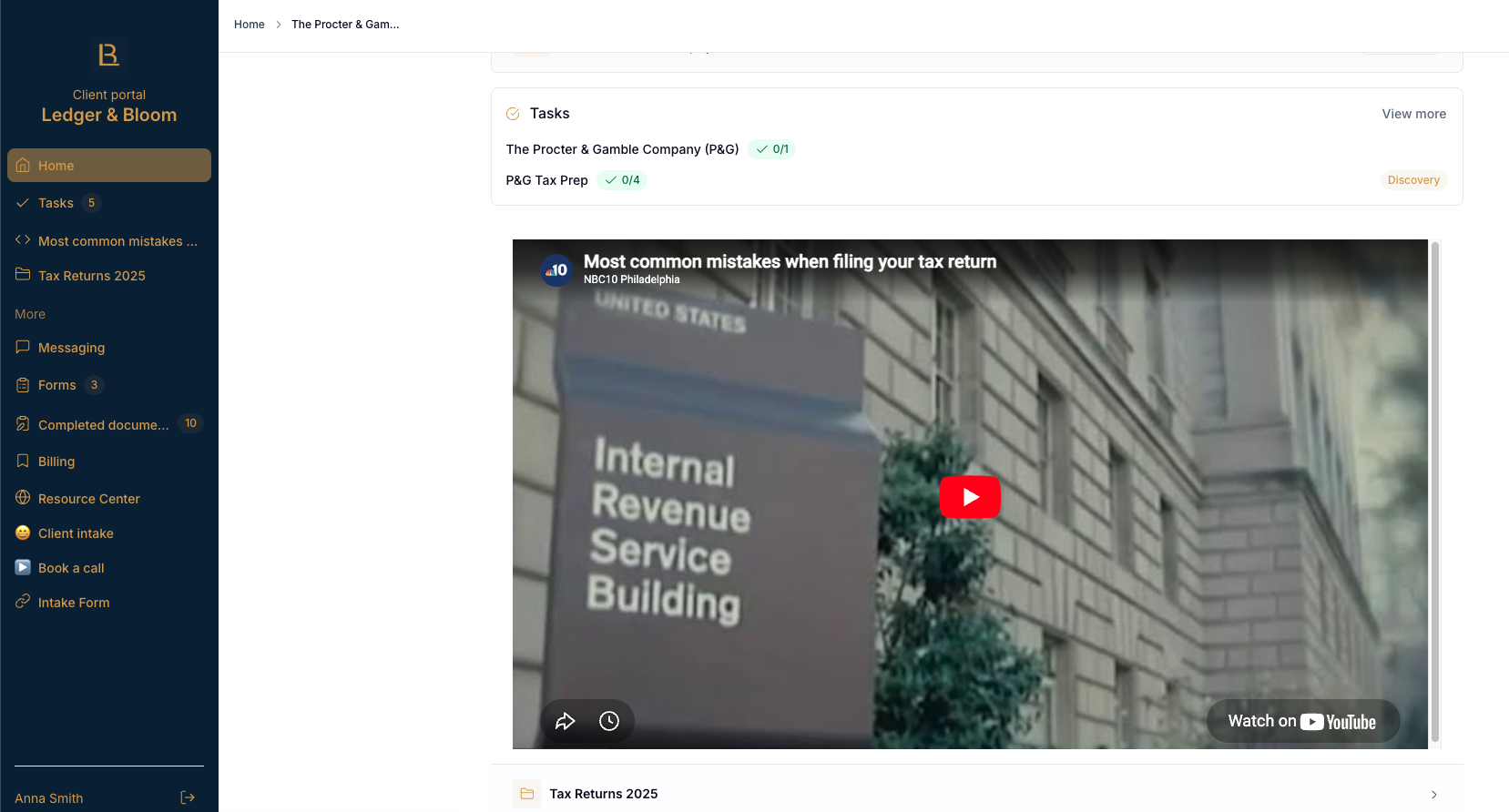
Global items are shortcuts that appear at the top of every client workspace. They're useful for things all clients need access to like a booking link, an intake form, a video intro, or a service overview.
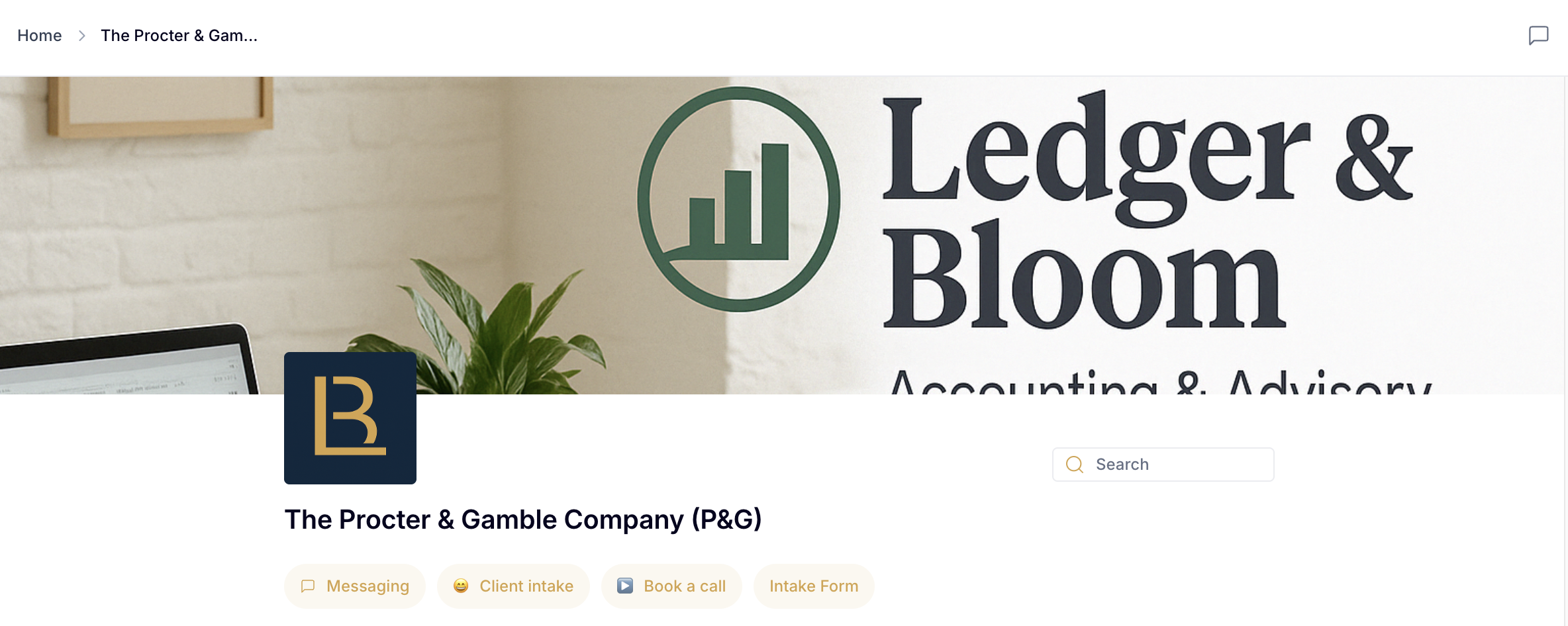
Clients see them as clickable buttons on the workspace home page. You set them up once in Settings > Global Items and they appear automatically across all workspaces.
