
Set up your domain
By default, your portal is live at a Hubflo subdomain, for example, yourcompany.hubflo.com. You can update that subdomain or connect a custom domain (like portal.yourcompany.com) under Settings > Domain & general
A custom domain keeps the experience fully on-brand and removes any reference to Hubflo in the URL your clients see.
Configure client authentication
Go to Settings > Authentication & SSO to control how clients sign in to your portal. You can enable one or more of the following:
Google sign-in: clients can authenticate using their Google account instead of a password.
Login link: clients receive a one-time secure link by email each time they log in. No password required.
Self sign-up: clients can create their own account from your portal without a direct invite from you. When enabled, a Sign Up button appears on your portal page.
Two-factor authentication (2FA): requires clients to verify their identity via email each time they log in, adding an extra layer of security.
For a deeper look at each method, see Authentication Methods for Your Client Portal →
Make it easy for clients to find your portal
Once your portal is live, share the link anywhere your clients might look for it.
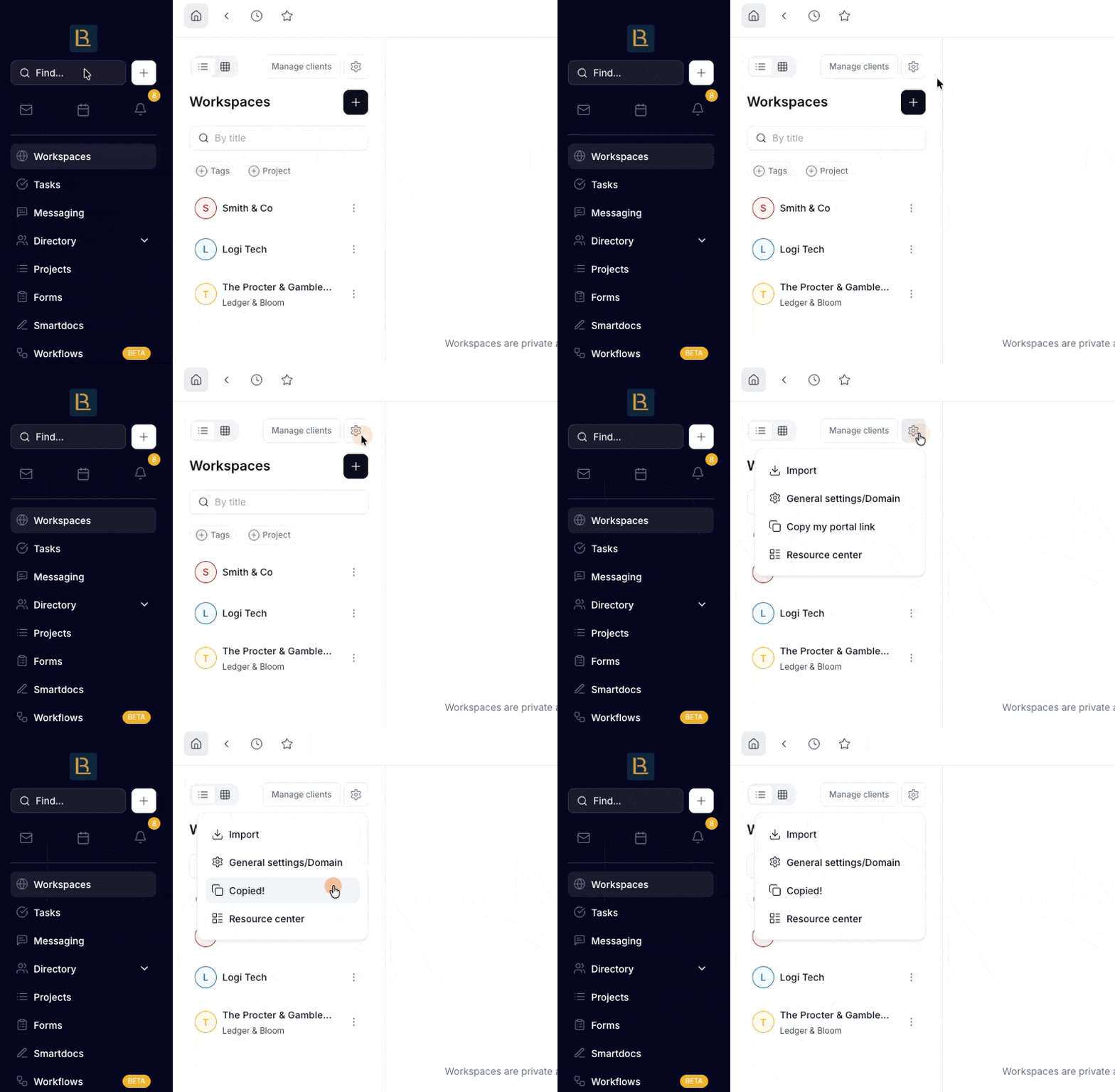
Copy your portal link
Go to Workspaces in your Hubflo sidebar
Click Settings
Click Copy my portal link
Add it to your website
Most businesses place a "Client Portal" or "Client Portal Login" button in their top navigation menu, website footer, or Services and Contact pages. Use a clear label so clients know exactly what they're clicking.
Add it to your email signature
Your portal link is just as useful in your email signature as it is on your website! It keeps access one click away for any client you're already in contact with.