Projects are how you track client work, manage your team's time, and forecast revenue in Hubflo. Each project lives on a board, moves through stages, and connects directly to the client workspace your clients see.
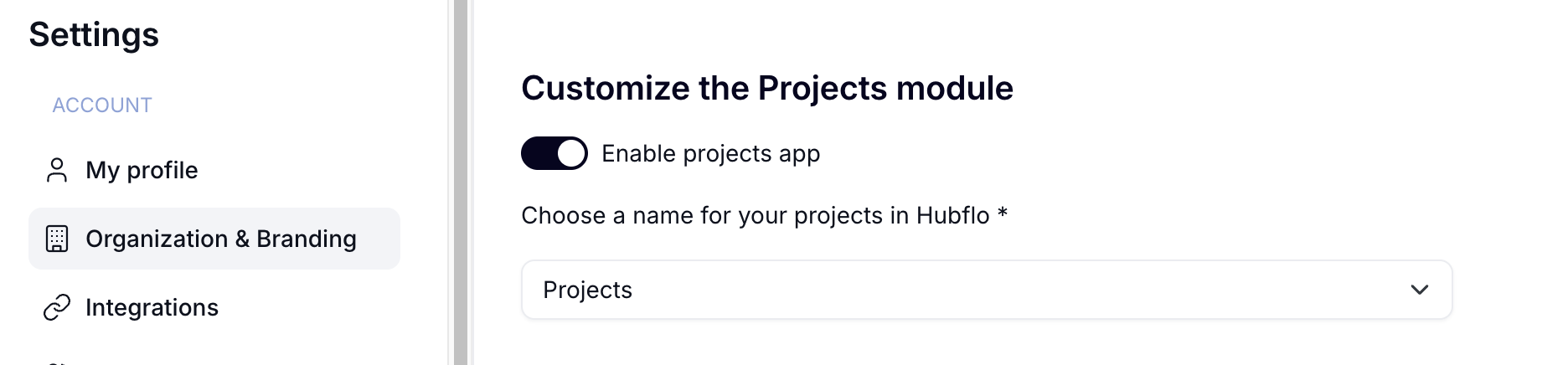
If your team uses a different term for this type of work, such as "Matters," "Engagements," or "Jobs", you can rename the module to match your workflow. If you do not need it at all, you can turn it off entirely.
Both options are available in Settings > Modules & menu.
Go to Projects in the sidebar.
Click "New" in the top right.
Choose one of the following:
Project: creates a standalone project with no client workspace
Project + Workspace: creates both and links them
Note: A workspace is the client-facing environment where clients can view progress, access files, and communicate with your team. You can create a project on its own, or create a project and a workspace together to save time.
Title: Visible to clients, be sure to use a clear, descriptive name
Client / Contact: Links the project to the right stakeholder
Owner: The team member responsible for the project
Other Participants: Additional internal collaborators (optional)
Stage: The current stage in your process
Estimated Revenue: Used for revenue forecasting (optional)
Start Date: Defaults to the creation date if left blank
End Date: Set this if the project has a known deadline (optional)
Workspace Template: Available when creating a project and workspace together
Tags: Helps with filtering (e.g., "Corporate," "Tax Filing," "Q2 2025")
Create Chat Room: Toggle on to add a dedicated messaging space for the client if creating a project and workspace
Every project belongs to a board. A board represents a category of work, for example, "Annual Tax Filings" or "Sales Pipeline."
To add a new board, click the + icon next to your existing boards, directly below the Projects header.

To add or edit the stages within a board, click the gear icon next to that board's tab. From there you can define each stage and set its properties:
Field | What It Means |
Stage Name | Labels the step (e.g., "New," "Work in Progress," "Filed") |
Status | Marks the stage as |
Win Probability (%) | Estimates the likelihood of completing or closing this work |
When to use Win Probability: This field is most useful for sales pipelines or situations where the client has not yet confirmed the work. It lets you forecast revenue based on how likely each deal is to close.
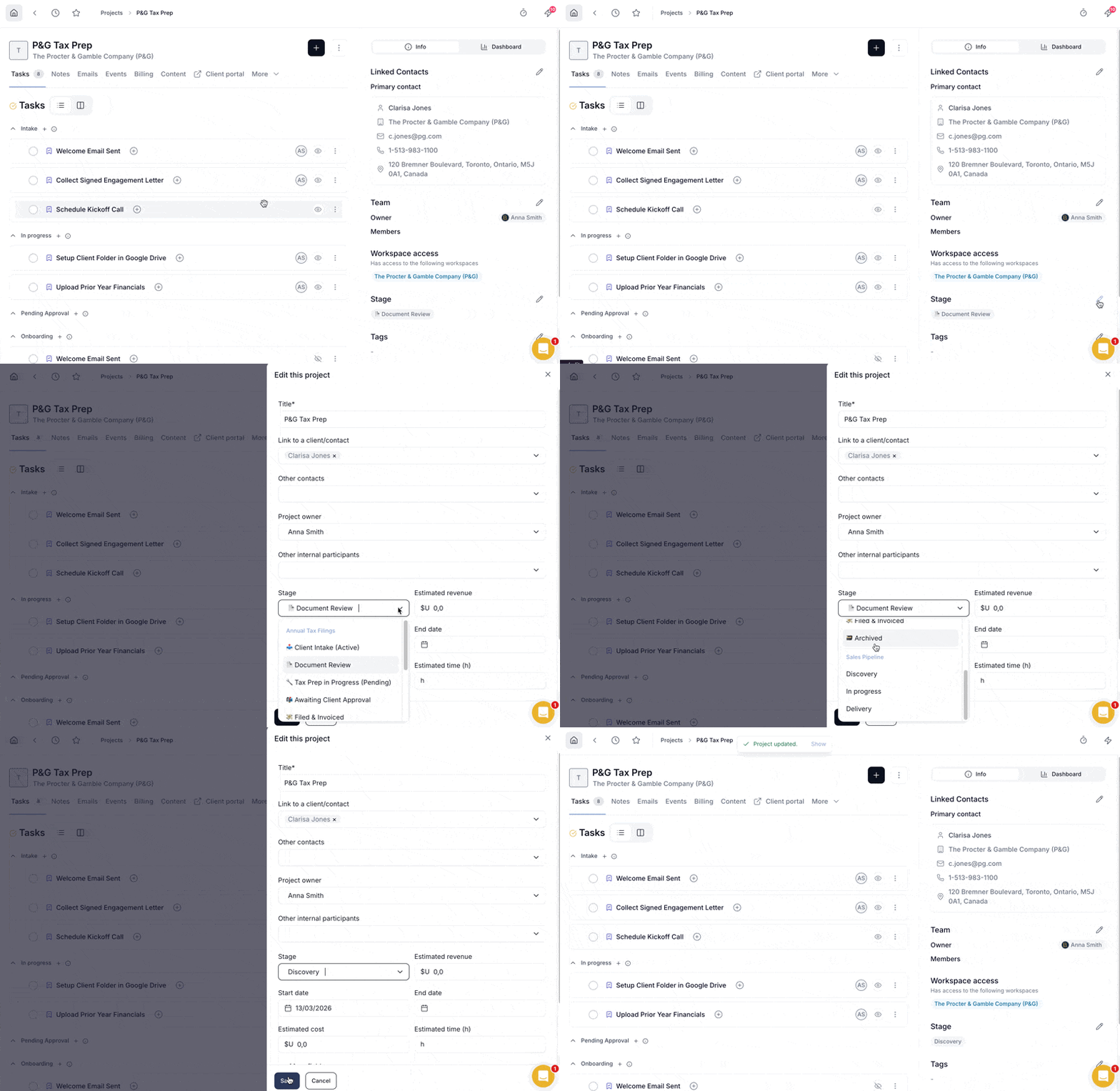
Open the project
In the sidebar, scroll down to Stage
Click the pencil icon
Select the stage from the destination board
Click Save
Note: Hubflo supports a maximum of 100 stages across all boards.
By default, project stages are not shown to clients. You can control this in two ways:
Show stages on the workspace: In Settings > Visibility & behaviour, enable "Display project status (tracker and badges) across client portal home and workspaces" to make your stages visible in the client portal.
Mark a stage as internal: Stages set to internal are hidden from clients. Hidden stages are not shown in the client portal. If a project is currently in a hidden stage, clients will see the previous visible stage instead.
The status tracker shows the current project stage on the client workspace. Its behavior depends on how many projects are linked to the workspace and whether the toggle "Display project stages on client workspaces" is enabled.
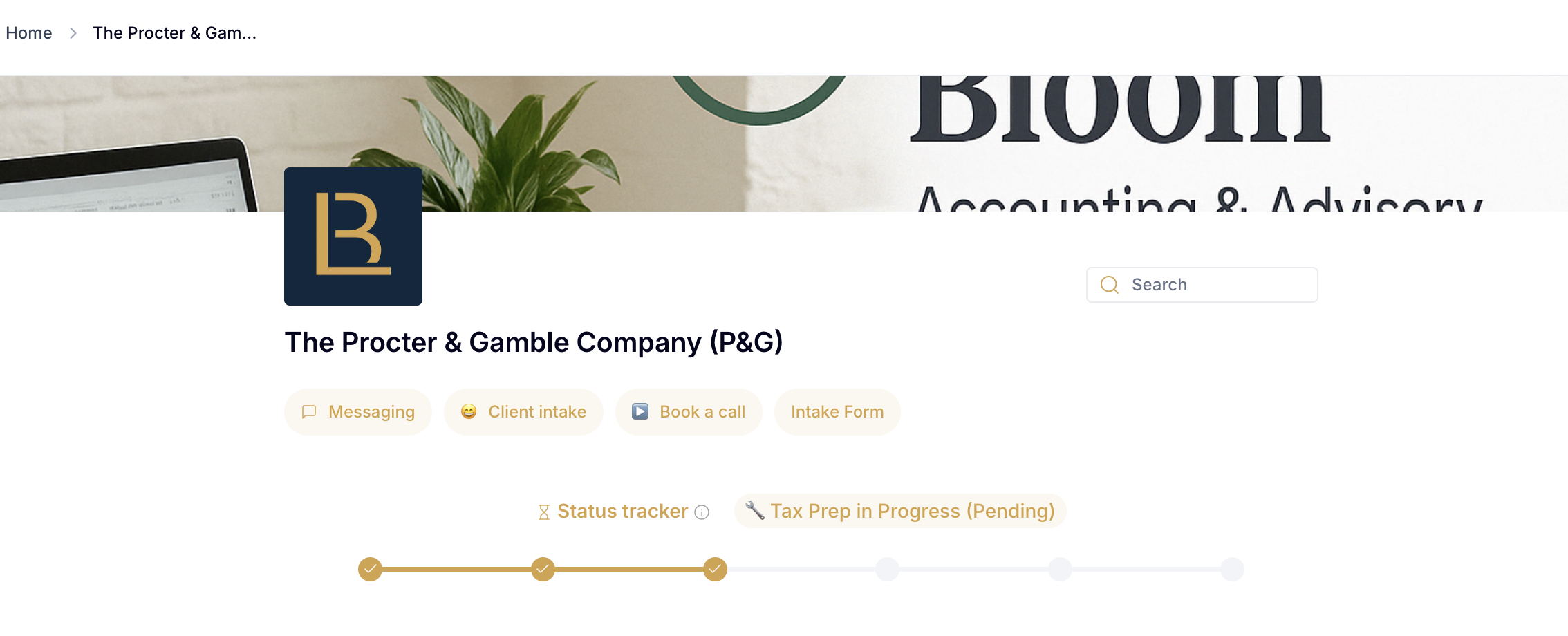
One project linked to the workspace: the status tracker is visible on the workspace home and in the project task list.
Multiple projects linked: the status tracker appears only in each project's task list, not on the workspace home.
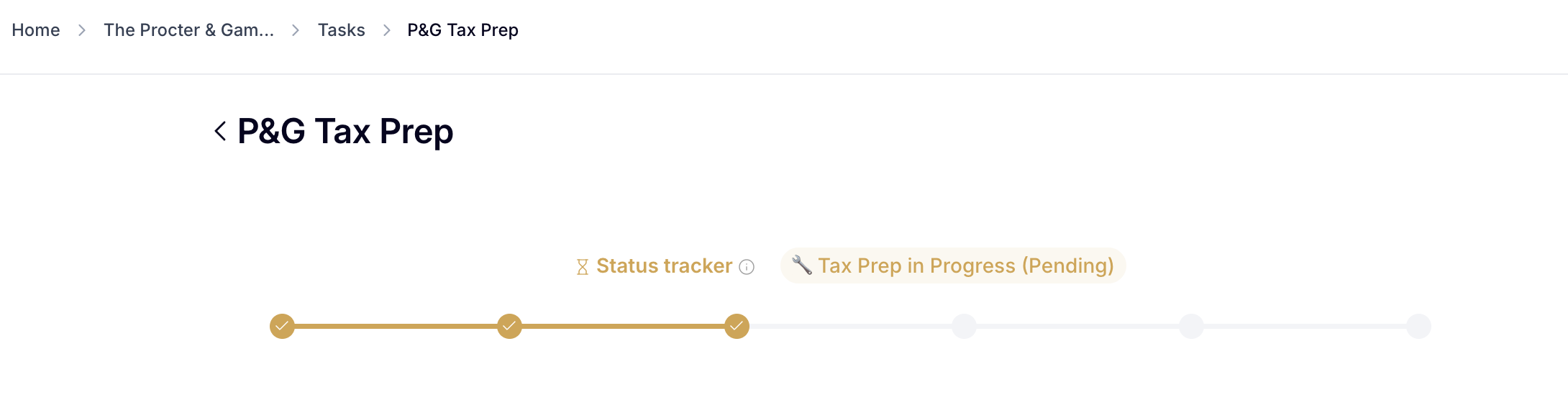
Stage badges are visible throughout the workspace.
The status tracker is not visible anywhere on the workspace.
Status badges are not displayed.
For more details on turning on the status tracker, see Showing project status on your client portal.
To connect a project stage to an automation tool like Zapier, copy the Stage API ID from your board settings. Click the gear icon and the link icon next to the stage.
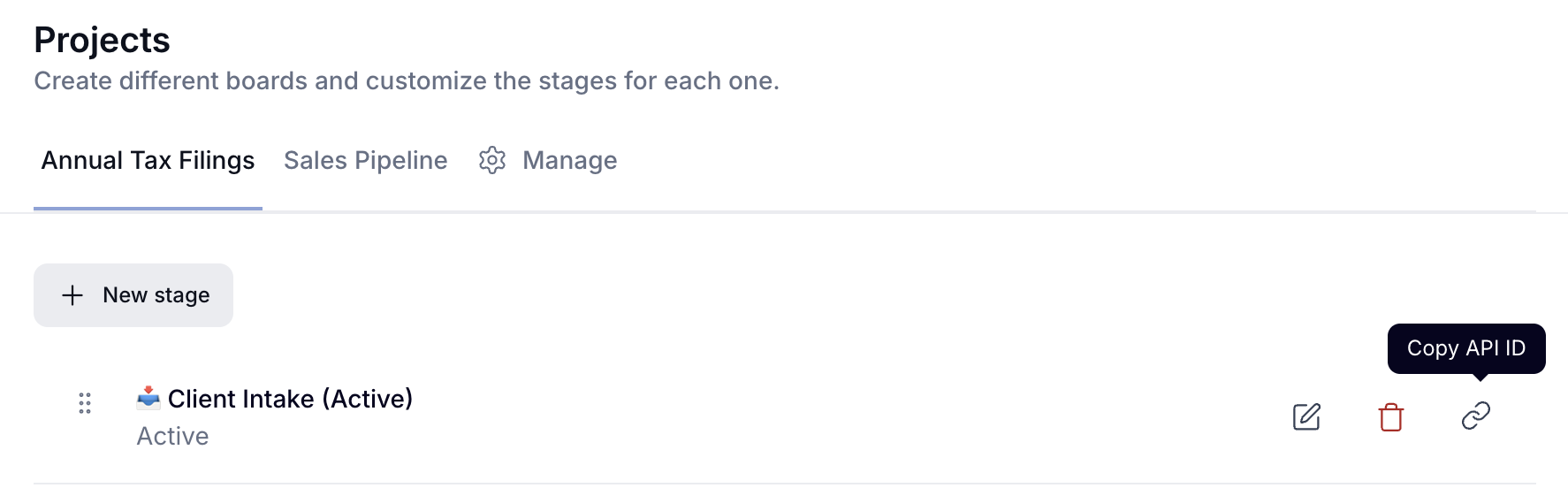
Examples of what you can automate:
Send a welcome email when a project is created
Trigger an internal reminder if a project sits in a stage longer than a set number of days
Create tasks or notify teammates when a project moves to a new stage
Alert your billing team when a project reaches "Filed and Invoiced"
Once a project is created, everything is managed from the project file found in Projects in the sidebar.
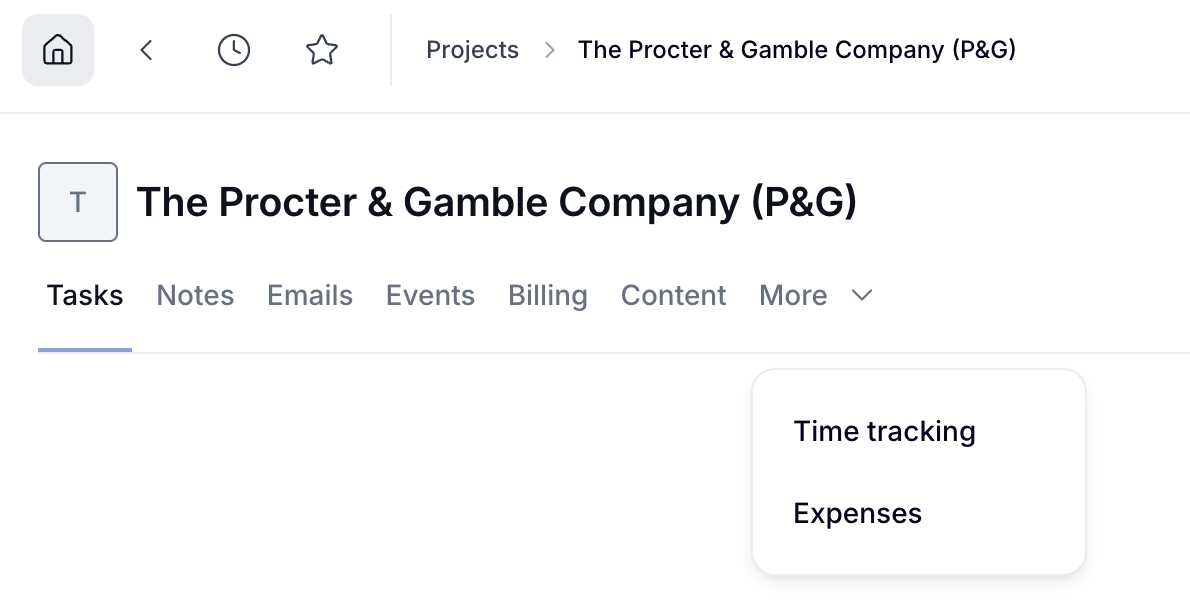
The project file includes:
Tasks: all work items linked to this project
Notes: internal comments, meeting notes, or reminders
Emails: view or send client emails linked to this project
Events: schedule meetings, calls, or deadlines
Billing: invoices tied to this project
Content: contracts, tax documents, spreadsheets, and forms
Time Tracking and Expenses: log time manually or automatically, and record project-related costs such as software fees, contractor payments, or travel.
The right-hand panel shows supporting details: linked contacts, the project owner and any other team members involved, the workspace this project is linked to, a dashboard to track revenue, and any tags or properties you have added.
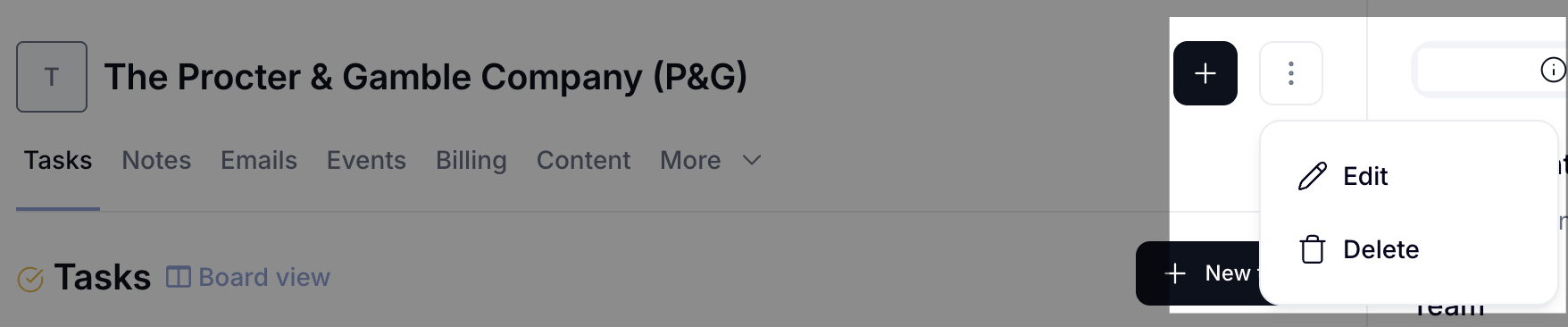
Click the three-dot menu (. . .) at the top of the project file to:
Edit: update the project name, stage, dates, tags, or any other details
Delete: permanently remove the project
Important: Deleting a project permanently removes all associated tasks and time entries. This cannot be undone.
Click the + icon or any of the other options at the top of the project file to add anything related to this project. You can create and link all the following items to projects:
Proposals
Invoices
Files
Links
Time entries
Expenses
If your project is linked to a workspace, you can also view and manage it from there. Go to the workspace and open the Tasks and Projects tab. You will find the project tracker and all related tasks in one place.
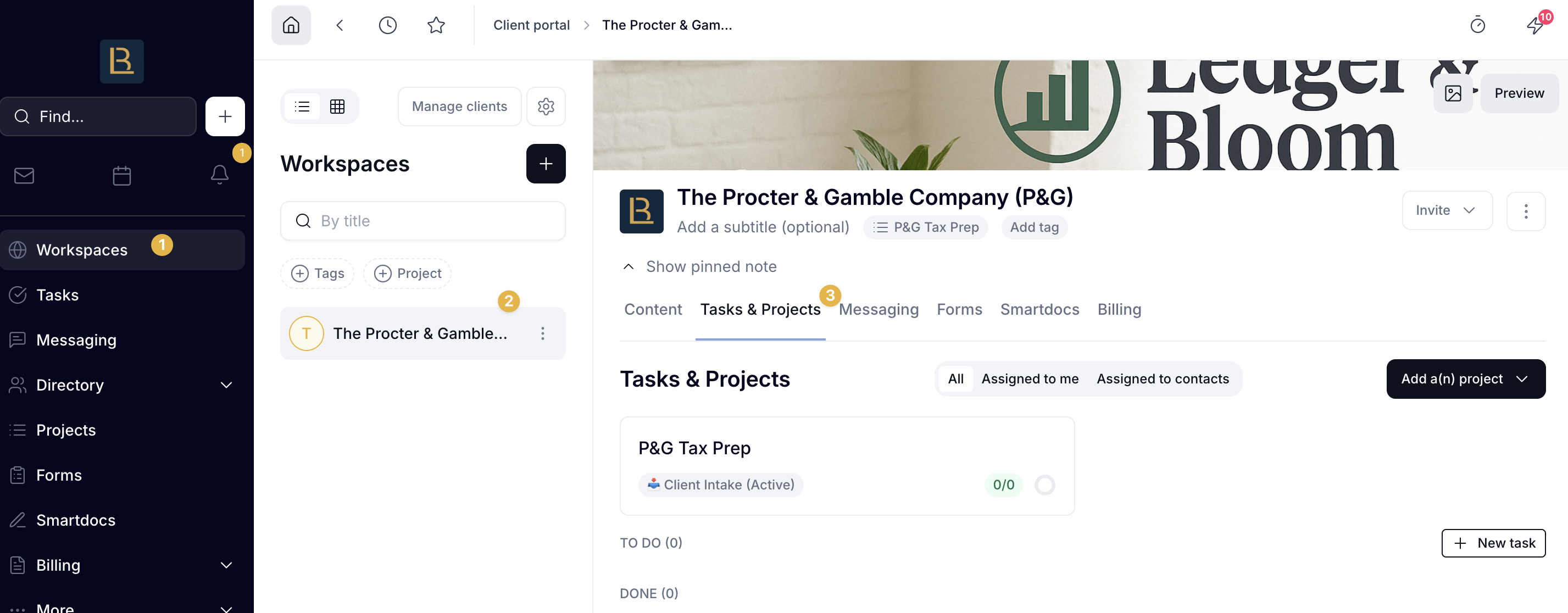
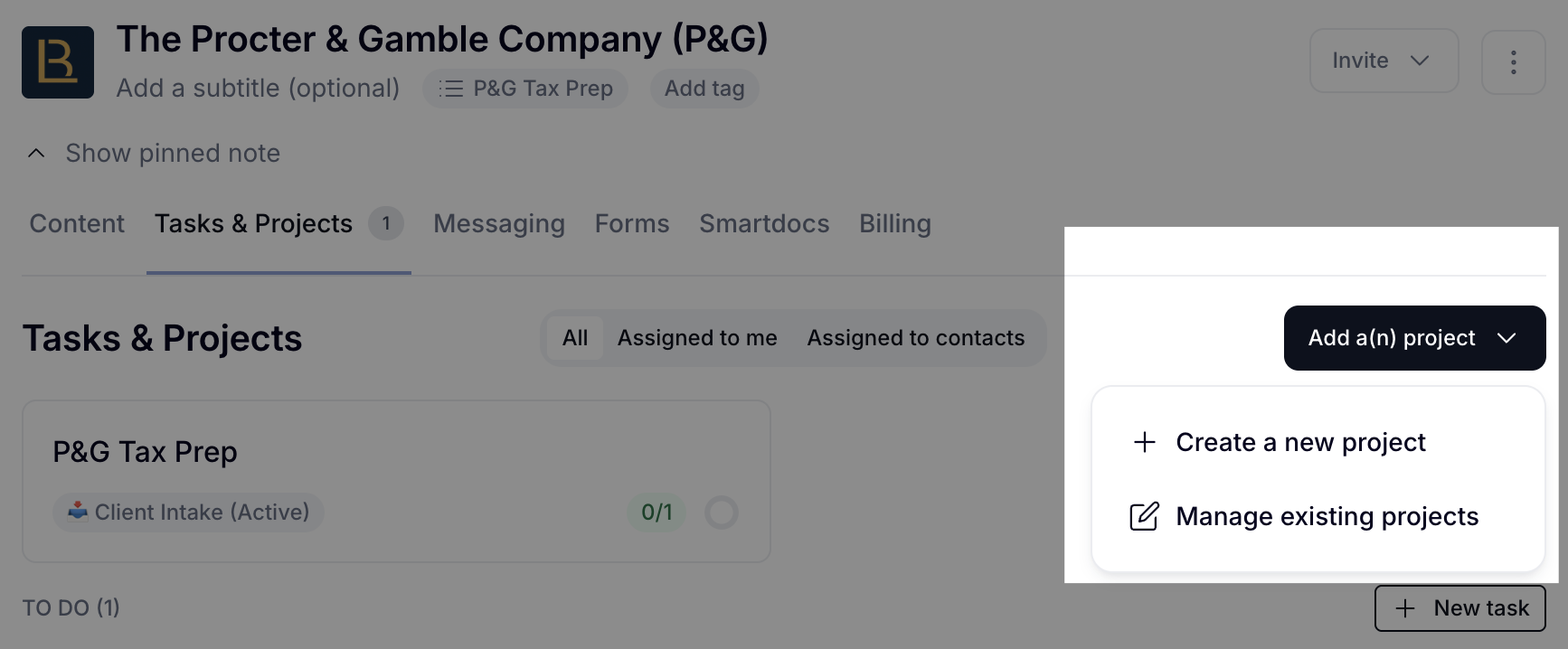
To link an additional project to the workspace, click Add Project from that tab.
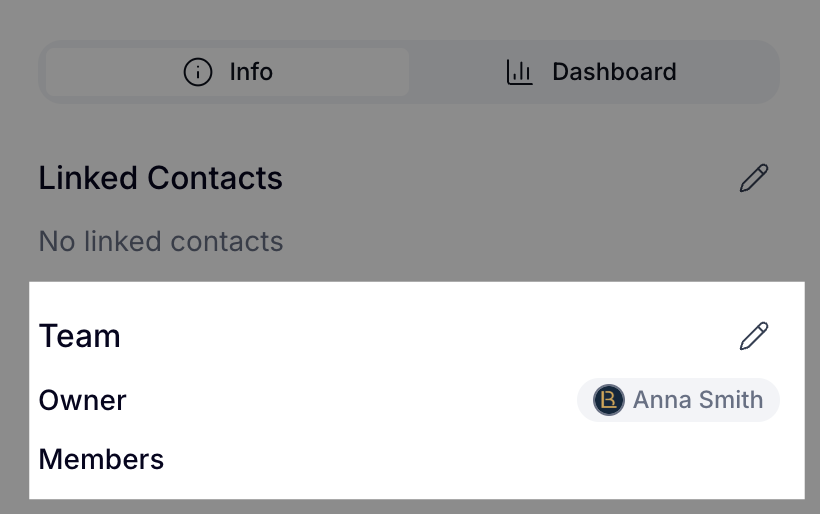
Go to the project page and find the Team section on the right. Click the pencil icon, then select the person's name. They will immediately have access to the project.
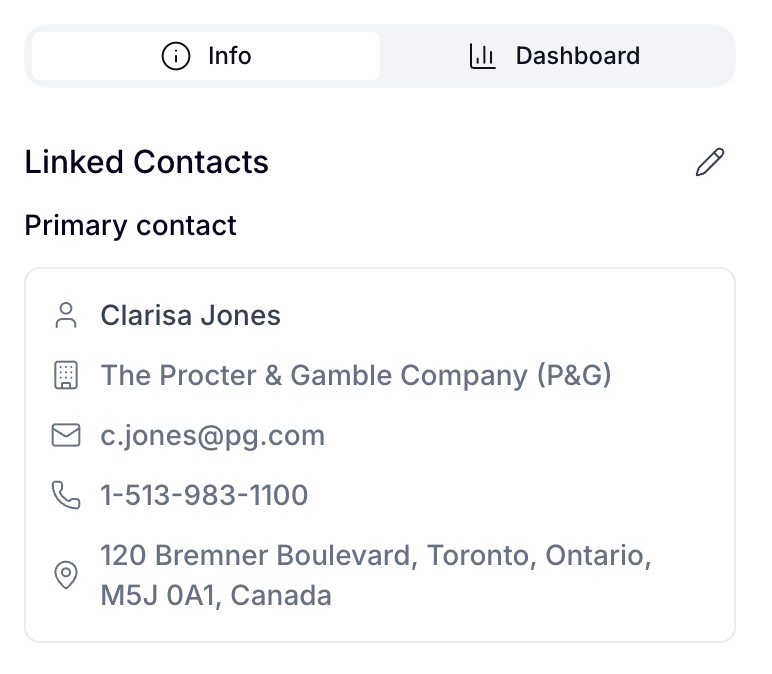
The Info panel shows key contact details for the linked client. Use the pencil icon to edit contact information.
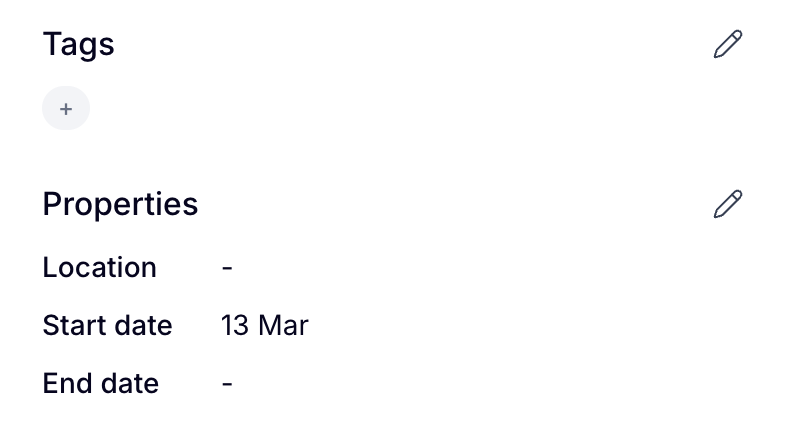
From the Info panel, add Tags to organize and filter projects across your board (e.g., "Corporate," "Q2 2025"). Add Properties like Location, Start Date, and End Date to keep your pipeline organized.
There are three types of tasks in Hubflo:
Workspace tasks belong to the workspace itself, not tied to any specific project. They can be visible to your team only, or shared with clients through the portal.
Project tasks are linked to a specific project. Projects can include tasks that are visible only to your team or shared with clients.
Internal tasks are not linked to any workspace or project. They can't be assigned to clients and are visible to internal members.
Go to the Tasks tab inside your project to view and add tasks. Tasks can be displayed in List view or Board (Kanban) view.
Task sections divide a project's task list into organized groups, by phase, task type, team, or whatever fits your workflow.
To add a section, open a project, go to the Tasks tab, and click + New section. You can name it from scratch or select a saved section template.
Section templates are managed in Settings > Templates. Once applied to a project, task details like due dates, assignees, and tags can all be edited without affecting the original template.
For more instructions, see Create Section & Task Templates.
Project tasks are visible to clients in the portal, unless you toggle off their access. You can control visibility at the individual task level directly within the project by toggling the eye icon on or off.

For a full overview of task types, visibility settings, and permissions, see Getting Started with Tasks.
