The Directory is Hubflo's built-in CRM. It's where you manage all the people and organizations you work with such as clients, partners, contractors, leads, and more.
It's divided into two sections:
Contacts: individual people
Companies: businesses or organizations
Once added, contacts and companies can be linked to projects, tasks, workspaces, invoices, and proposals.
The number of clients you can invite to the Client Portal depends on your plan. Visit the Pricing page for details.
Go to Directory in the sidebar
Select Contacts or Companies
Click New in the top-right corner
Fill in the relevant fields
For Contacts, key fields include:
Type: Client, Partner, Contractor, or Lead
Priority: Low, Medium, or High
Category: Professional or Individual
Company (if applicable)
If you're migrating from another tool, you can bulk import using a CSV or Excel file.
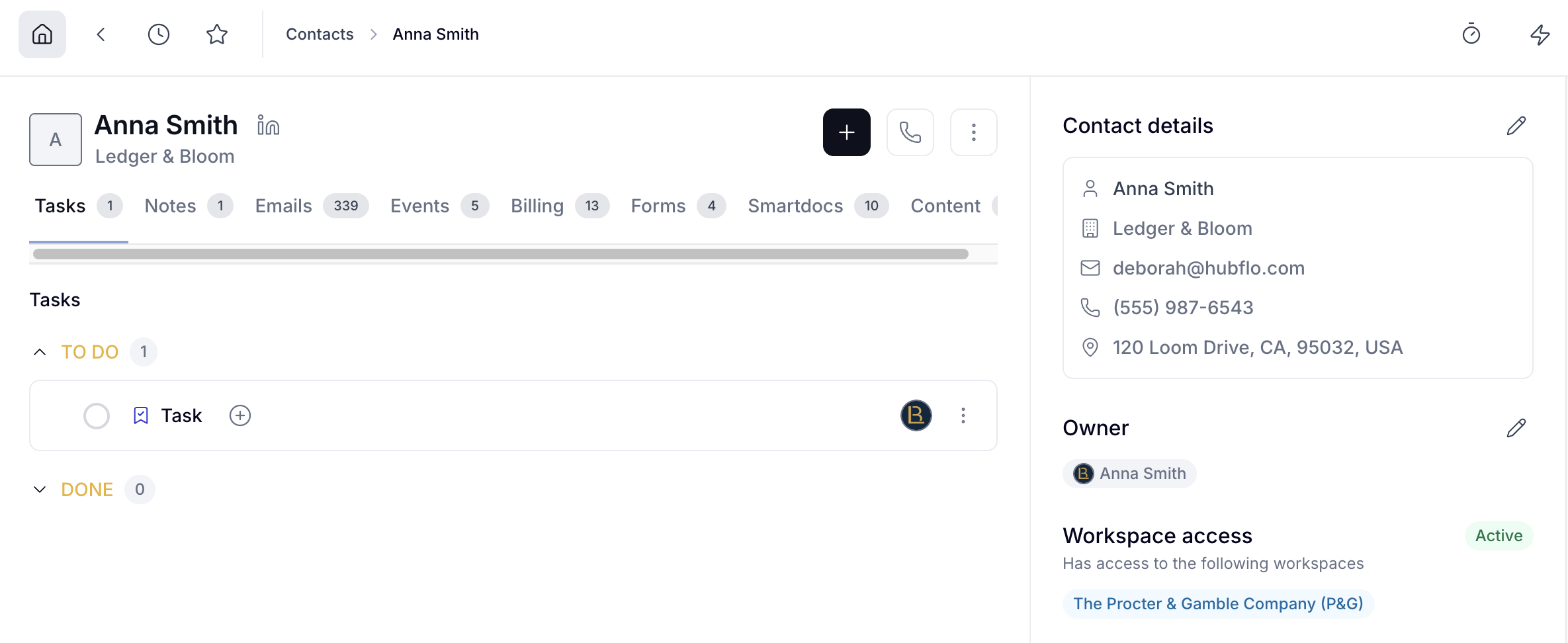
Each contact has a dedicated record where all their information and activity lives in one place.
Tasks: manage and track work related to this contact
Notes: add internal notes visible only to your team
Emails: full email history synced to the contact
Events: scheduled meetings and calendar events
Billing: invoices, proposals, and recurring payments
Forms: forms sent to or submitted by this contact
Smartdocs: documents shared with this contact
Content: files and links shared with the contact
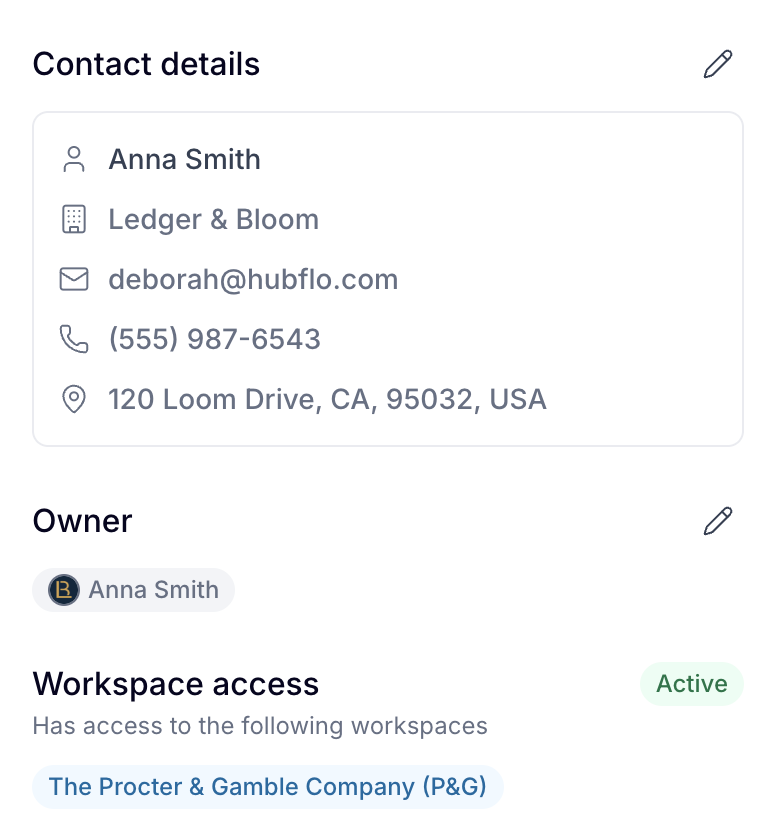
Contact details panel (right side) shows their name, company, email, phone, address, owner, workspace access, tags, linked projects, priority, and any custom properties you've added.
From the record, you can also:
Click the call icon to trigger a call directly
Click + to add a project, note, email, event, proposal, invoice, recurring invoice, file, link, or time entry
Toggle Subscribed to my newsletter to note the contact's marketing preference (informational only)

The properties panel in each contact and company record can be customized to show the fields most relevant to your team.
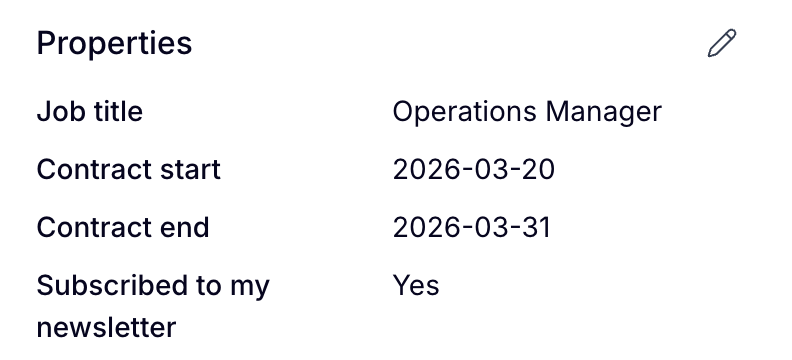
Go to Settings > Contact properties.
From here you can toggle fields on or off and reorder them to control what appears in the sidebar and in what order.
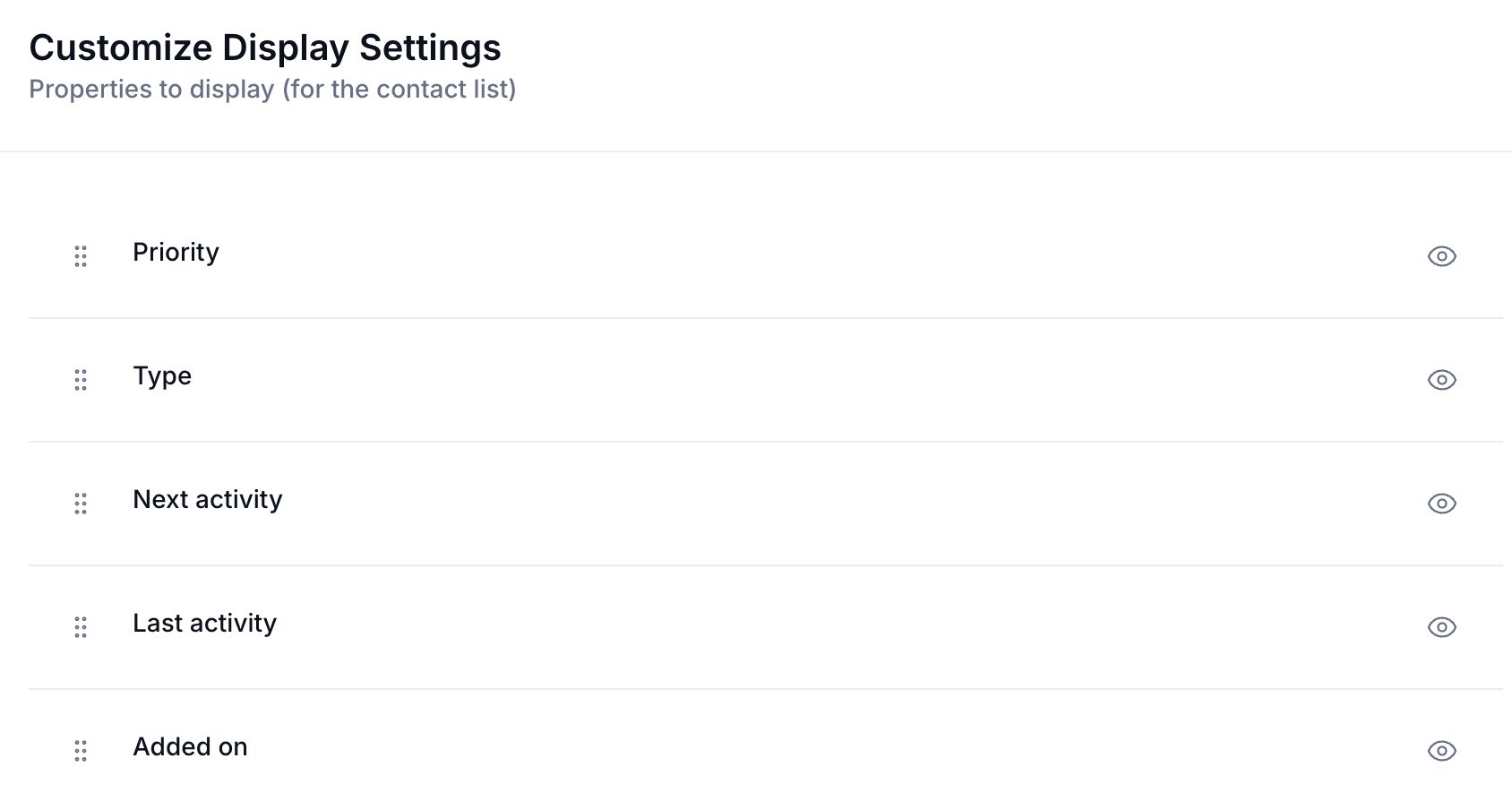
To add custom fields beyond Hubflo's defaults, go to Settings > Custom Fields or learn more about custom fields.
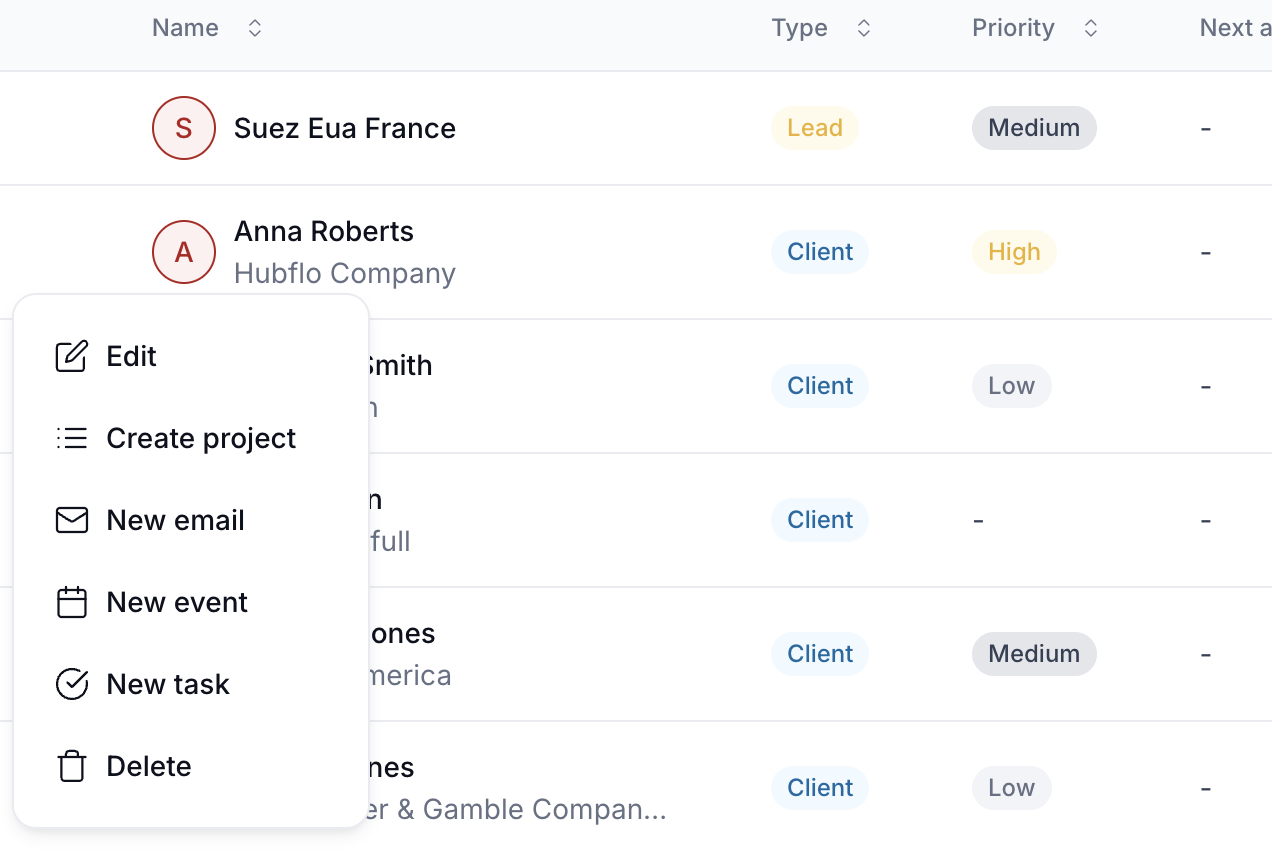
Click the three dots (⋯) next to any contact to:
Edit their information
Create a new project
Send an email
Schedule an event
Create a new task
Delete it
Hubflo can automatically update contact and company records, reducing manual data entry for your team.
When a client fills out a form or Smartdoc, Hubflo updates their Directory profile with the submitted data. If the client is logged into the Client Portal, forms can also pre-fill with their existing information.
→ Learn how to sync form data with your CRM
If the contact has no billing history:
Click the three dots (⋯) next to their name
Click Delete
Confirm the deletion

If the contact has billing history (invoices, proposals, or recurring payments):
Deletion must be handled by the support team. Contact Hubflo Support with written confirmation. All associated billing items will be deleted and cannot be recovered.
Prefer not to delete? Tag the contact as "Archived" or "Inactive" and use a filtered view to keep your main list clean. Note that tagged contacts will still appear in the main Contacts view.
Once your contacts are in the Directory, you're ready to invite them to their workspaces → Invite clients to workspaces.
