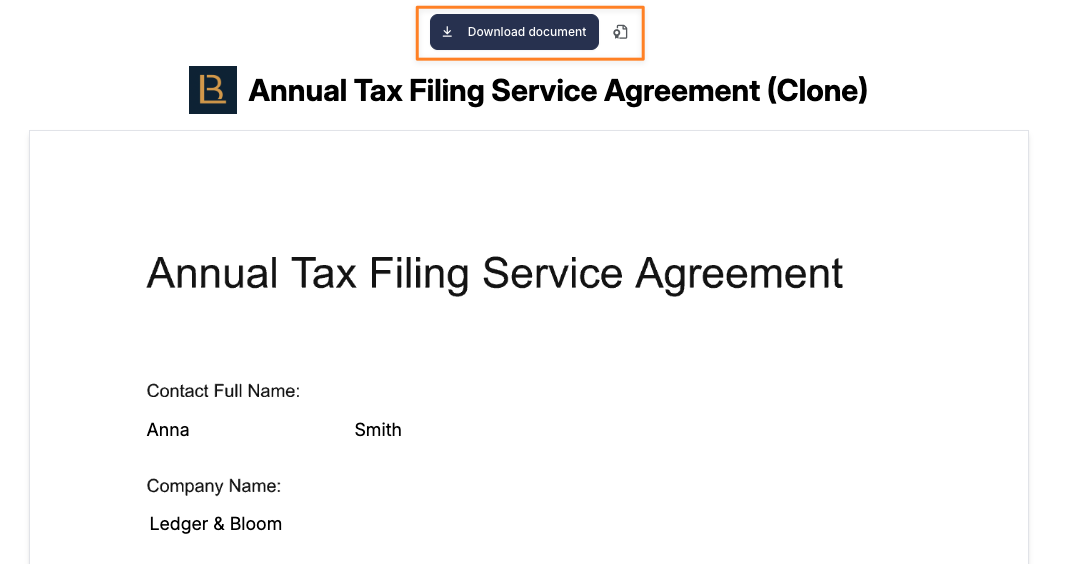
Click Send next to the Smartdoc. You can choose an existing contact from your Hubflo CRM, or select Create and send to add a new contact on the spot.
The client receives an email with a secure link to the Smartdoc.
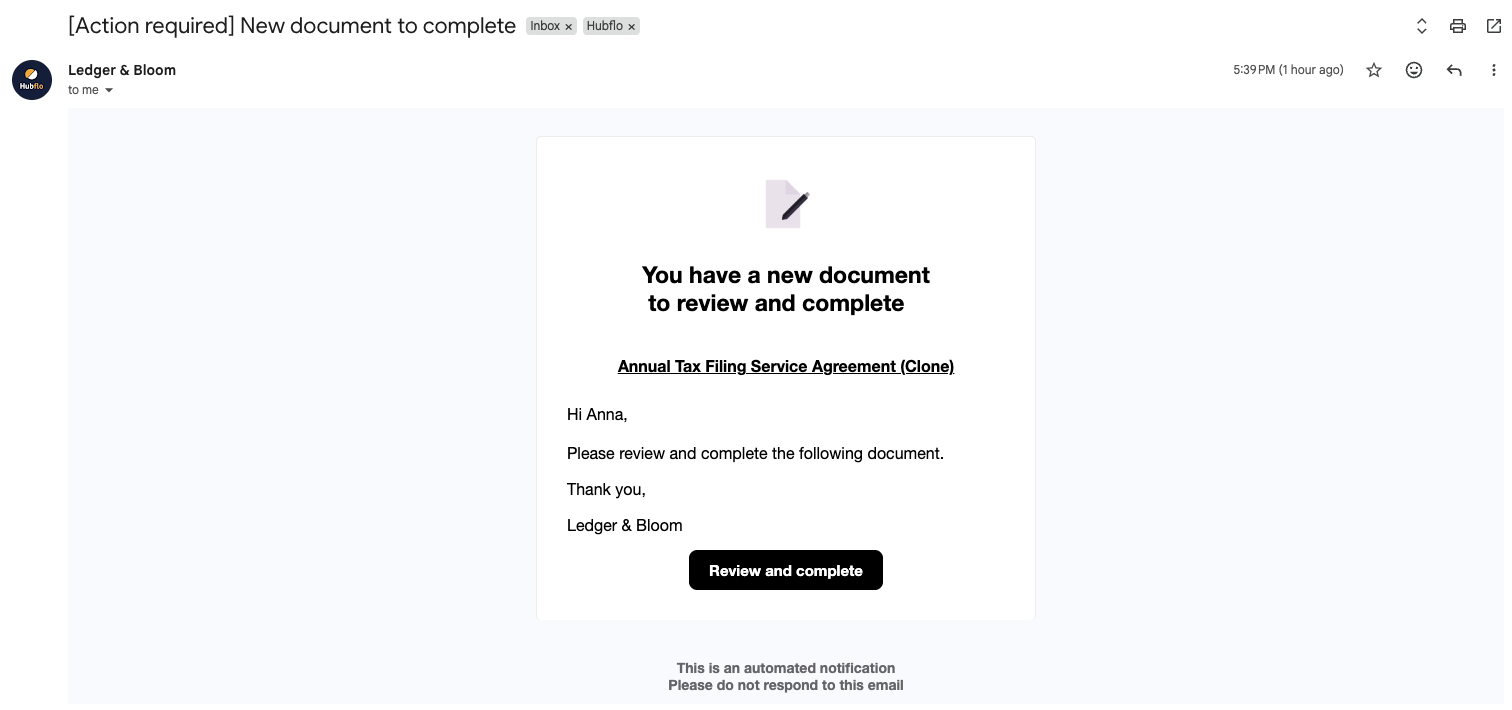
When a smartdoc is assigned:
The client receives an initial email notification
2 follow-up reminders are sent every 3 days until the document is completed

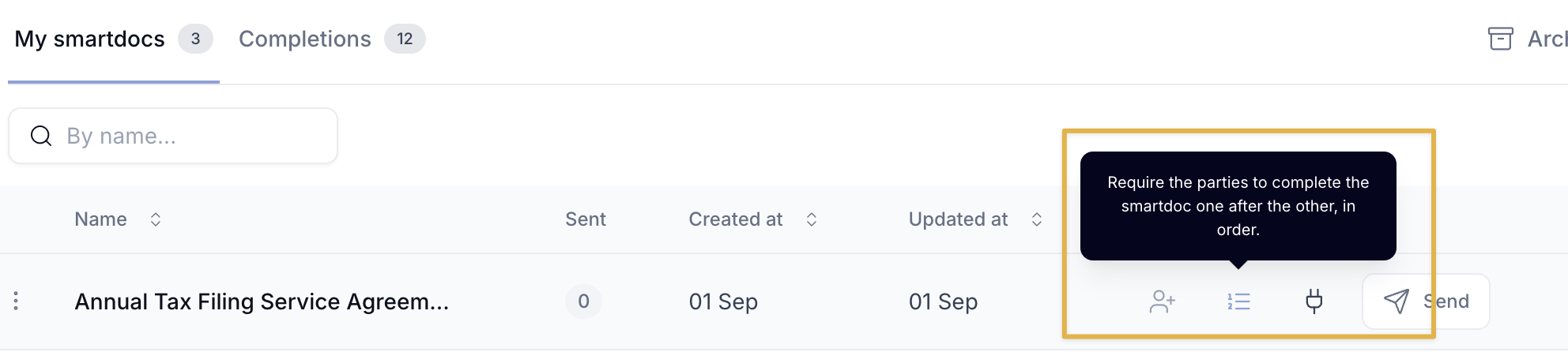
To require them to sign in sequence, go to Smartdocs > My smartdocs and select the signing order icon next to the Smartdoc.
Once it's on, only the first party is notified. The send modal numbers each party so you can confirm the order before sending. Each next party is invited automatically as soon as the person before them signs.
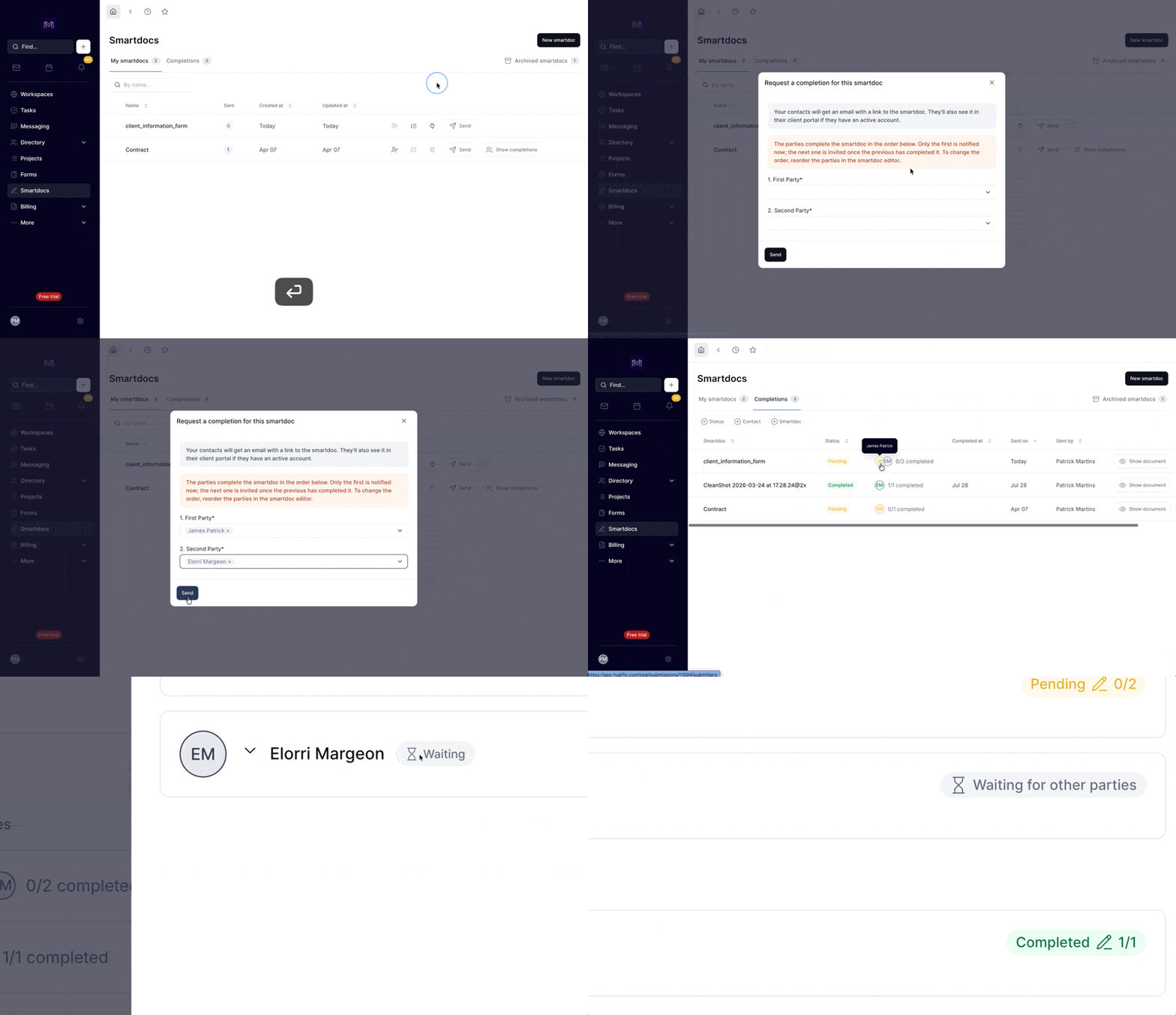
A few things to know once it's sent:
A copied link only works for whoever's turn it is so anyone else who opens it sees a waiting screen.
Reminders only go to whoever's turn it currently is.
The order is locked in for that send. Editing the Smartdoc's parties afterward won't change the order for sends already in progress.
Automatically send a Smartdoc to every new client who is invited to your portal. Ideal for standard onboarding documents like intake forms, NDAs, or service agreements.
From the Smartdocs list, toggle on Auto-assign next to the Smartdoc.

From that point on, every new client joining a workspace will automatically receive this Smartdoc.
Send a Smartdoc directly from within a workspace without leaving the workspace view. The Smartdoc is automatically linked to that workspace.
Go to Workspaces
Open the workspace and go to the Smartdocs tab.
Click Request a Completion.
Select the Smartdoc and the contact(s) to send it to.
Click Send to confirm.
When you send a Smartdoc, your client can access and complete it in two ways:
Your client receives an email with a secure link to the Smartdoc. They can open it, fill in all required fields, and submit it directly from their browser.
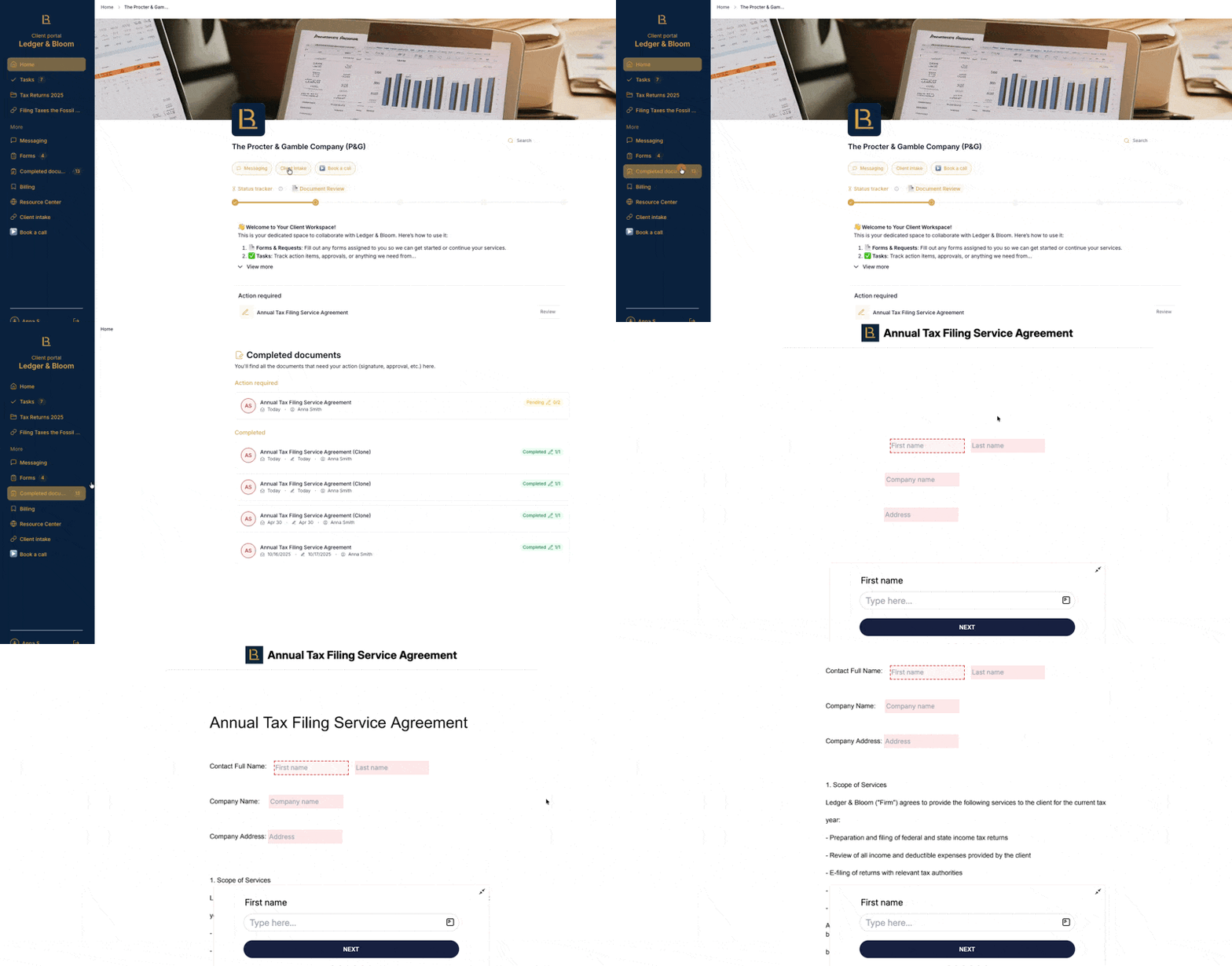
Clients who have accepted a workspace invitation can also access their Smartdocs from the portal. They'll see a Completed documents section in the sidebar, which shows:
Documents that are pending their signature or completion
Documents they have already completed

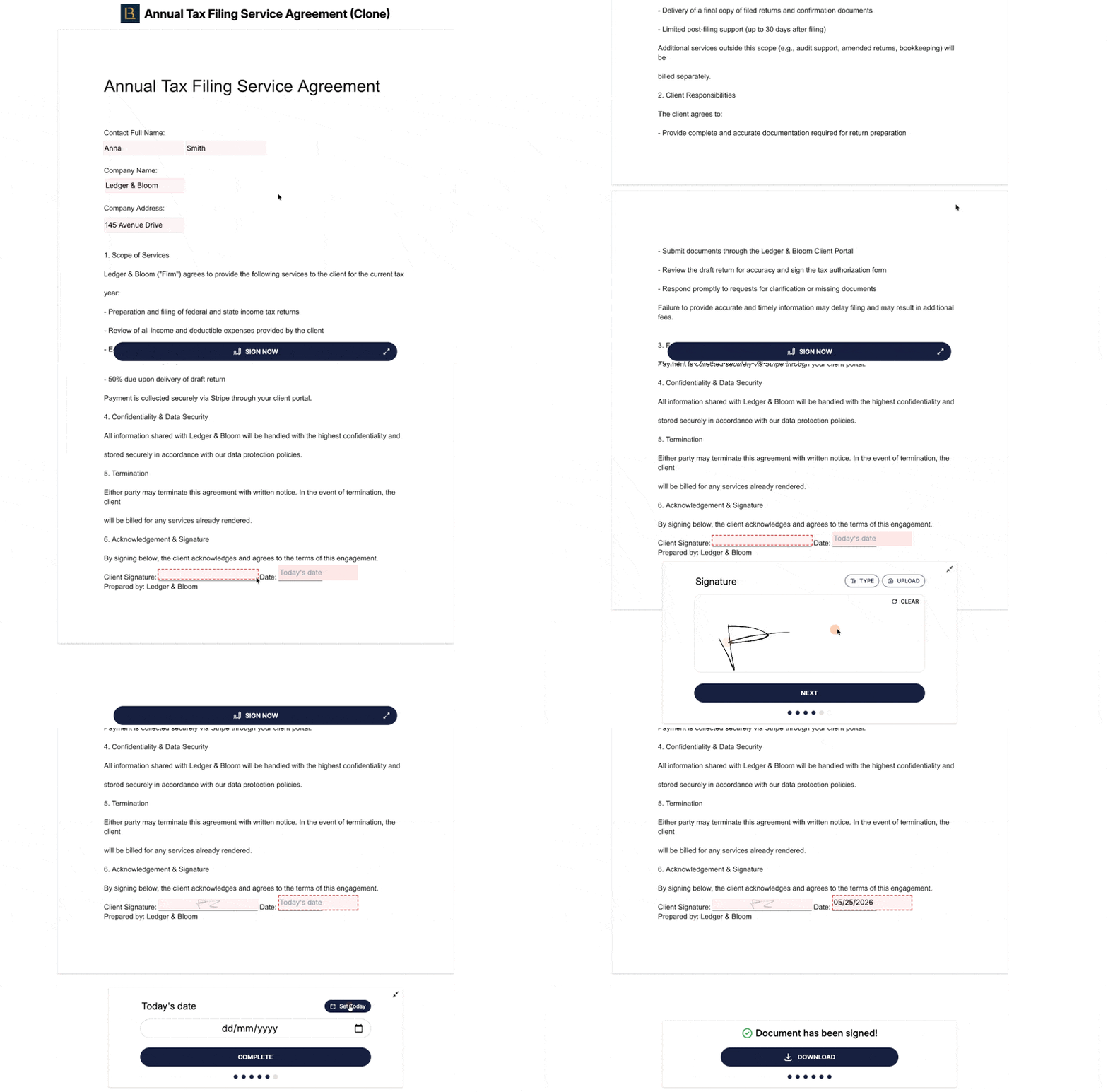
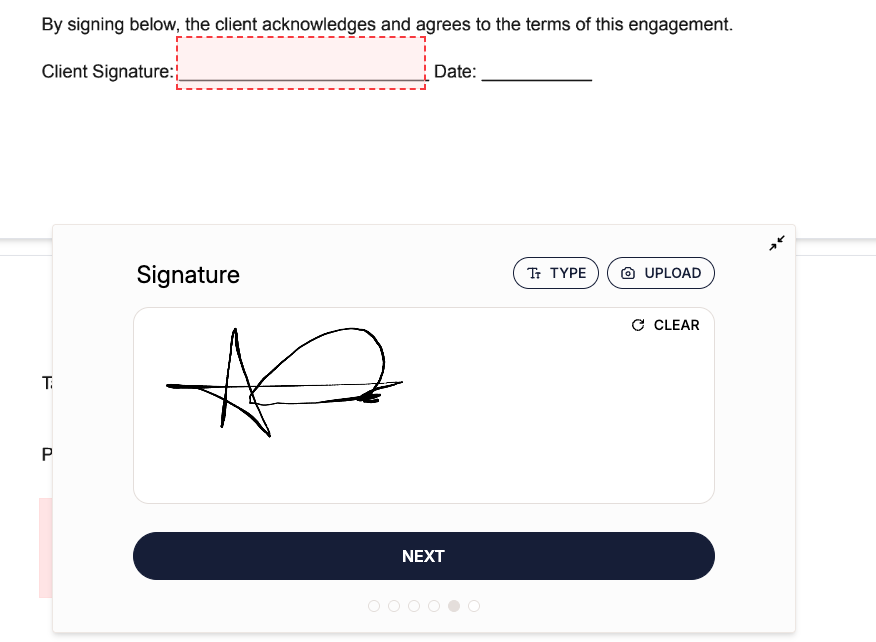
When completing a Smartdoc, clients can add their signature in three ways:
Type their name and Hubflo generates a signature
Draw their signature using their mouse or touchscreen
Upload an image of their handwritten signature
Once submitted, the client can download the completed document from the same page.