Once a Smartdoc is sent, you can track its progress, follow up with clients, and keep your Smartdocs list organized from the Smartdocs page.
Search for a Smartdoc by name from the list, or press Cmd+K (Ctrl+K on Windows) to pull one up quickly.
Go to Smartdocs → Completions to see the status of every Smartdoc you've sent.
Each signer shows their status—pending (yellow), waiting (grey), or completed (green)—so you can see at a glance who's holding things up.
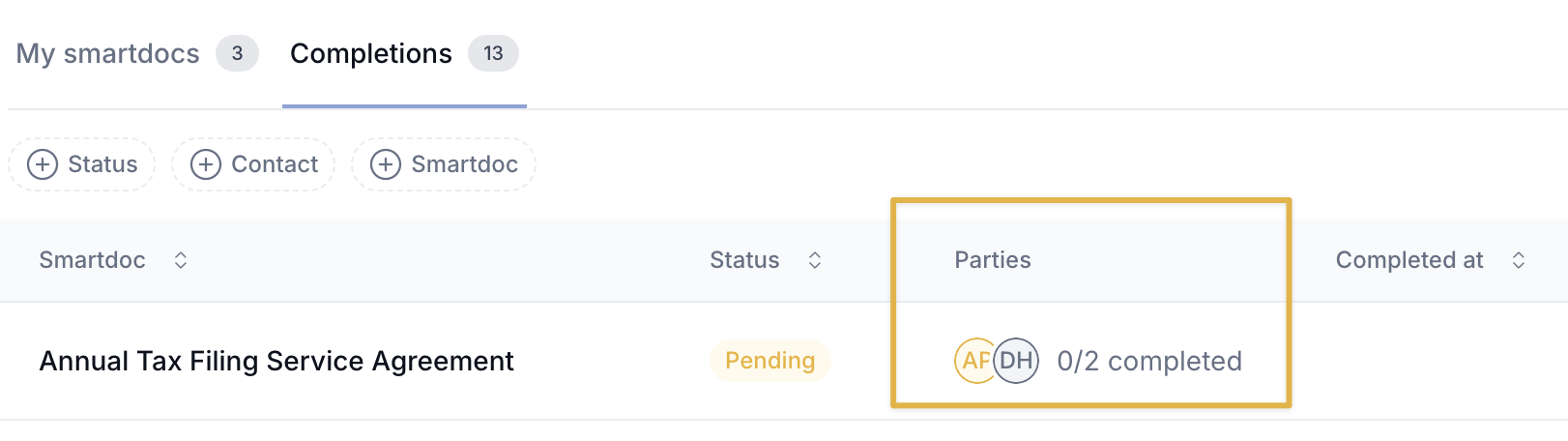
Waiting means the signer is next in a signing order but hasn't received a smartdoc yet. Each party also shows how many of the two automatic reminders they've received, and when.
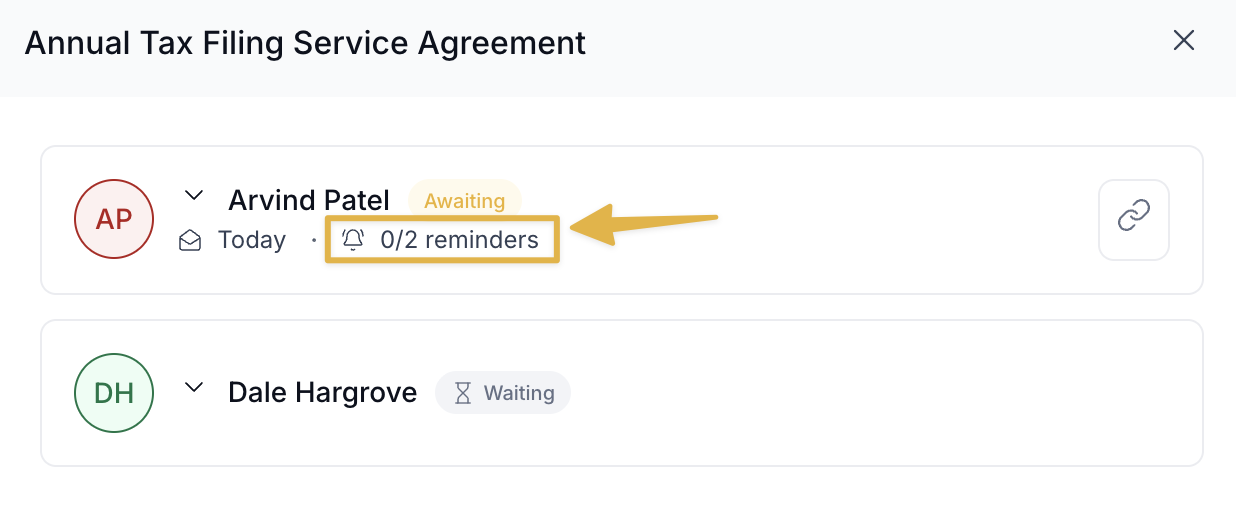
Hubflo automatically sends up to 2 reminder emails to clients who haven't completed their Smartdoc, so you don't have to follow up manually.

To duplicate a smartdoc:
Navigate to Smartdocs in your Hubflo admin.
Find the smartdoc you want to duplicate.
Click the three-dot menu icon (⋯) on the left side of that smartdoc.
Select Duplicate from the dropdown.
A new copy of your smartdoc will be created with the same name followed by "(clone)".

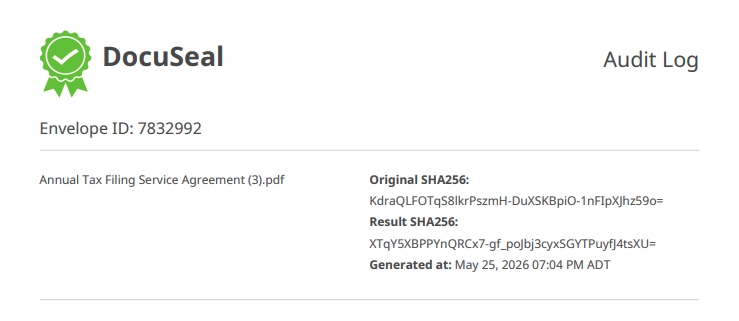
Once a client completes and signs a Smartdoc, you can download the signed document and a completion certificate. The certificate, provided by DocuSeal, confirms when the document was signed and by whom.
Go to Smartdocs → Completions.
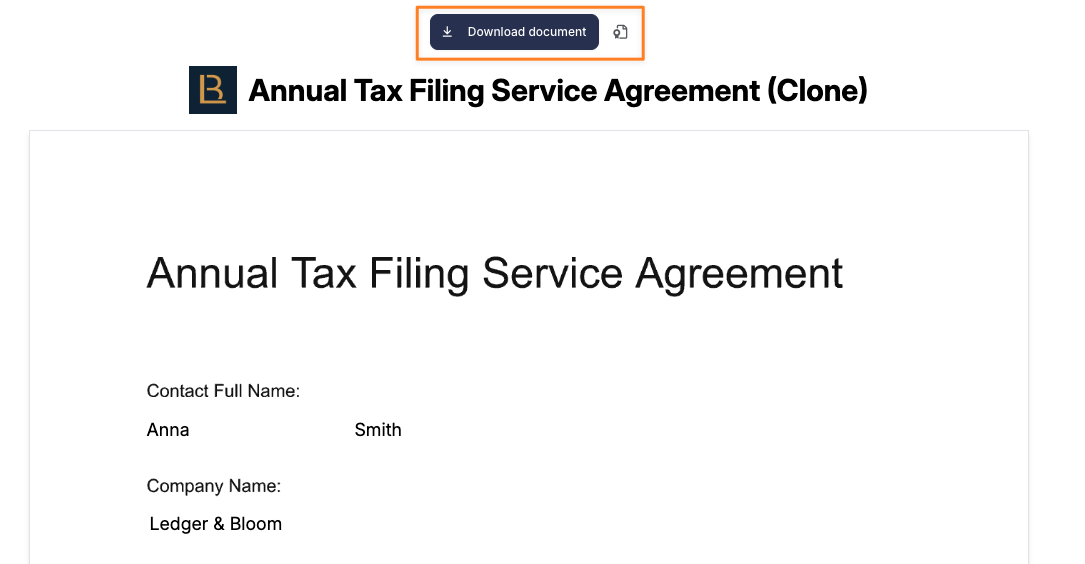
Find the Smartdoc and click Show Document.
Click Download Document to save the signed copy, or click the signature icon next to it to download the completion certificate.
You can delete a completion, but only if it is still pending and has not yet been signed. Completed and signed documents cannot be deleted.
Smartdocs cannot be deleted, but you can archive ones you're no longer using to keep your list clean. All completed docs remain accessible after archiving.

To archive: click Archive next to the Smartdoc.
To unarchive: go to the Archived Smartdocs tab, find the document, and click Unarchive.