A workspace is a dedicated space for collaborating with each client. It brings together files, tasks, messages, forms, and billing, everything your client accesses through their portal.
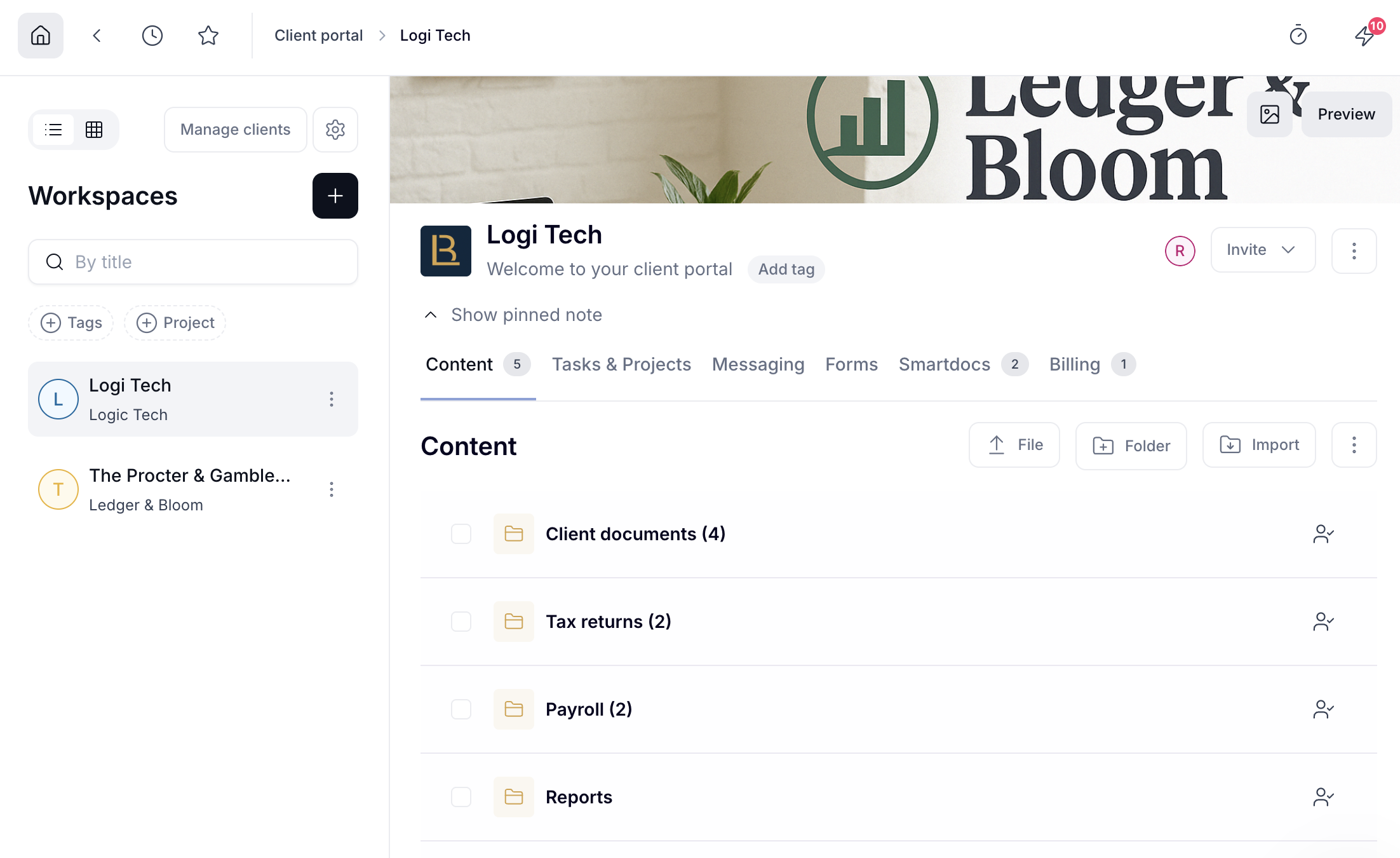
You have an internal view of every workspace that works as your back office. From there, you control what clients can see and do when they log in to the portal.
For example, an accounting firm could create a workspace for each client during tax season, uploading returns and statements in Content, tracking review and approval tasks in Tasks & Projects, and sending invoices through Billing.
Before creating your first workspace, configure your Client Portal under Settings > Client Portal. This is where you set Global Permissions, the rules that govern what clients can see and do across all your workspaces.
Setting this up first ensures your clients have the right access from the start.
Click Workspaces in the sidebar.
Click the + icon.
Add a title (this is visible to your client).
Toggle on Chatroom if you want clients to be able to message you through this workspace.
Add tags if needed. Tags let you filter workspaces once you have many.
Tip: If you work with clients who have similar setups, create a workspace template to save time.
To create a workspace template, open a workspace, click the three-dot menu on the right, and select Convert into a template.
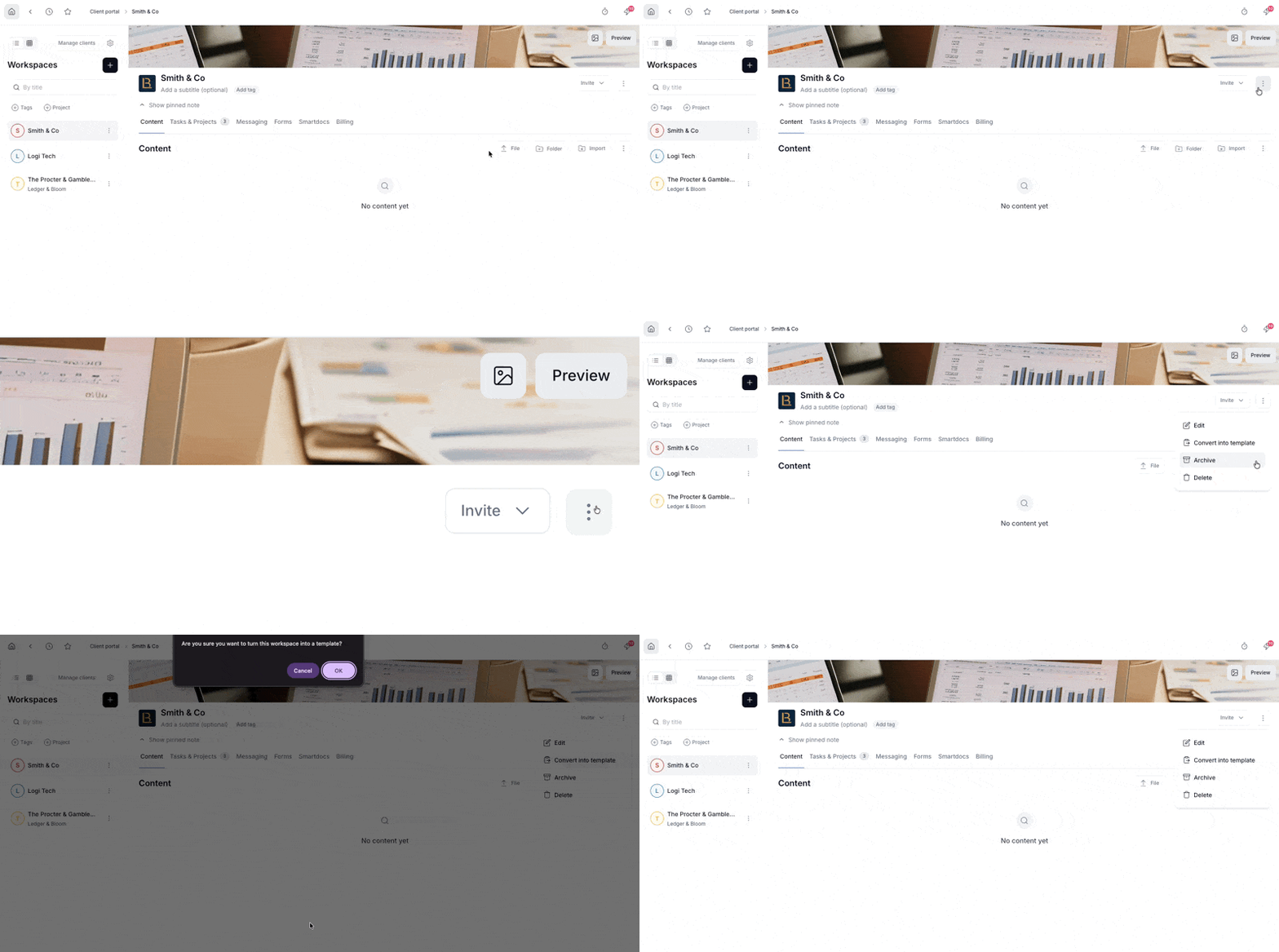
You have two ways to check the client experience:
Click Preview in the top right of any workspace to see and build the workspace in context. This is useful for getting a sense of the layout as you're setting things up, but it doesn't reflect the exact view your client will see based on their specific permissions.
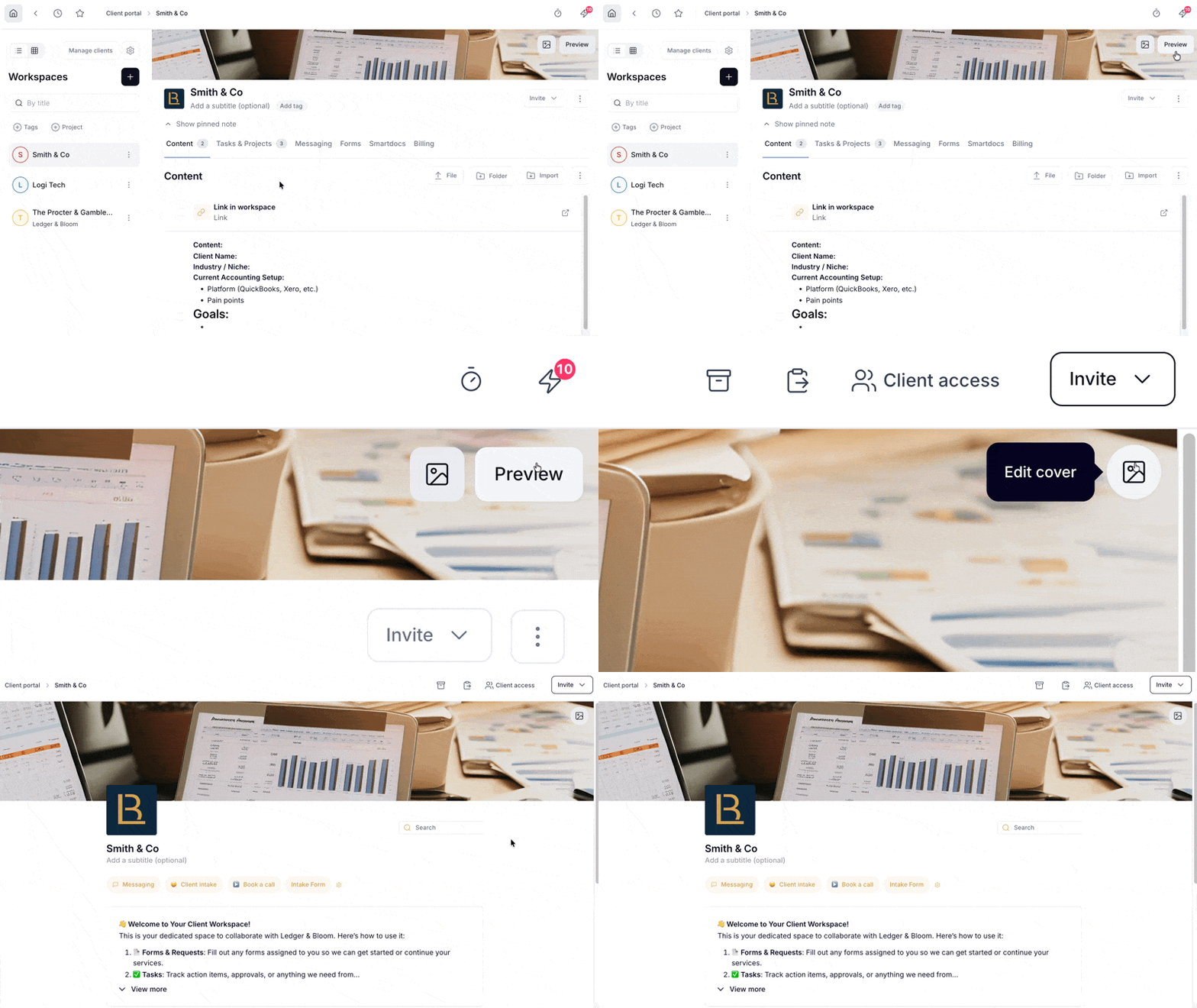
To see the workspace exactly as a client would, invite yourself using your own email address. This gives you full client-side access with the same permissions applied, so you can check visibility and layout exactly as they would experience it.
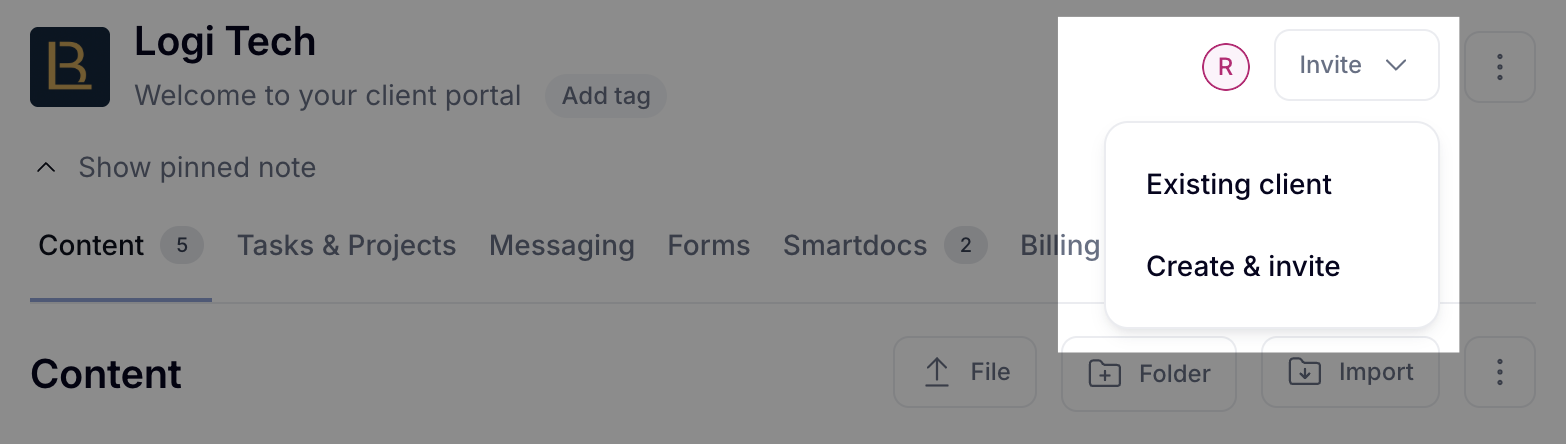
Click the Invite dropdown and choose to invite an existing client or create and invite a new one.
What clients can see and do depends on the permissions you've configured. You control access to tasks, folders, the chatroom, and billing items. See Manage client access to the workspace for details.
💬 Need more help? Chat with us anytime via the bubble in the bottom-right corner or email [email protected]. We’re happy to help!
