
To create a folder, go to the Content tab inside the workspace and click Folder. Once created, click the three dots next to any folder to:
Rename it or add a description
Move it to another location
Add a shortcut to another workspace
Client folder visibility
Each folder has a permissions icon you can click to control visibility. You can set a folder as public (visible to all clients in the workspace) or restrict access to specific contacts.
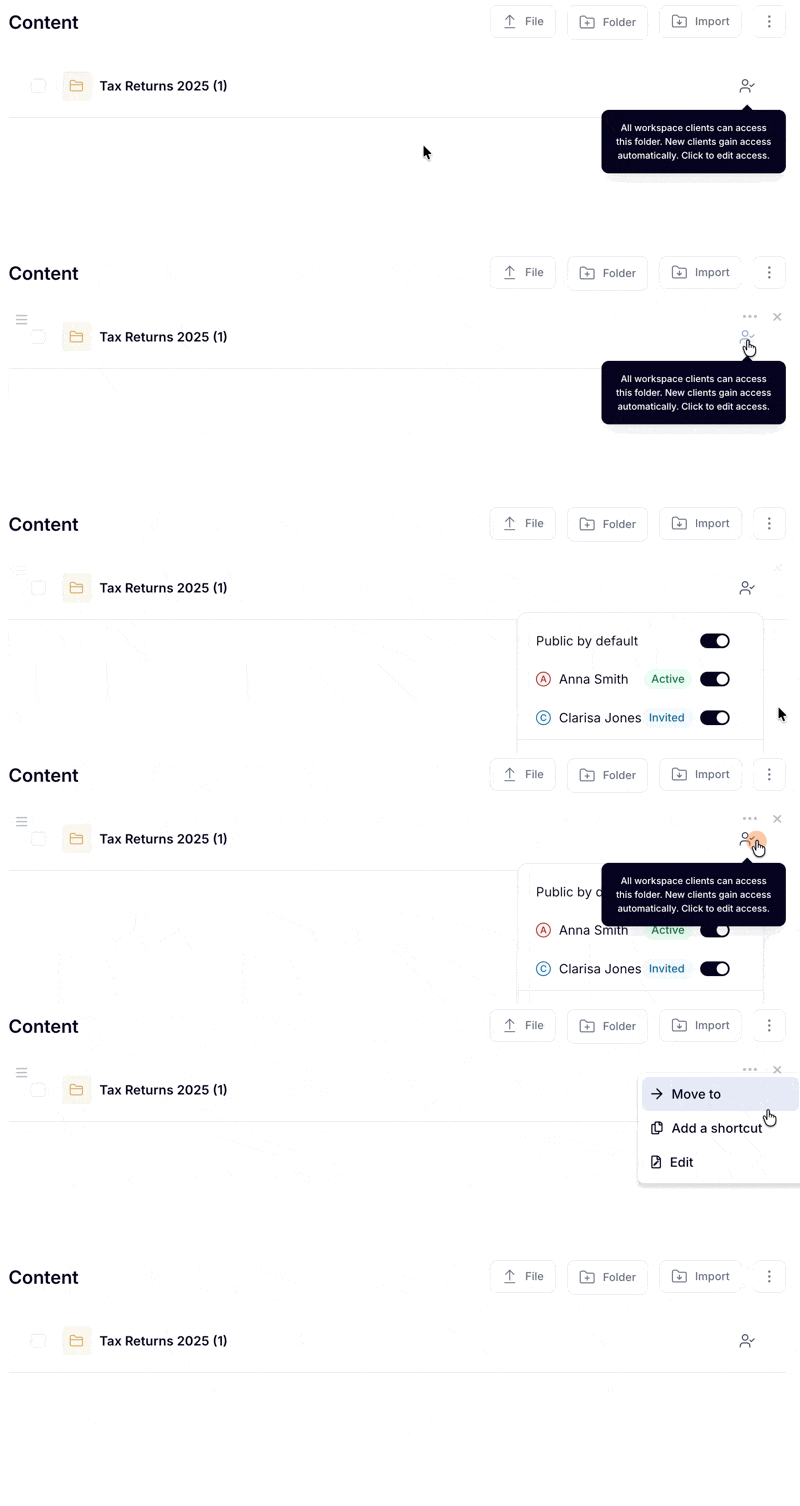
When Public by default is on, new clients added to the workspace automatically have access to this folder.

Manage files in folders
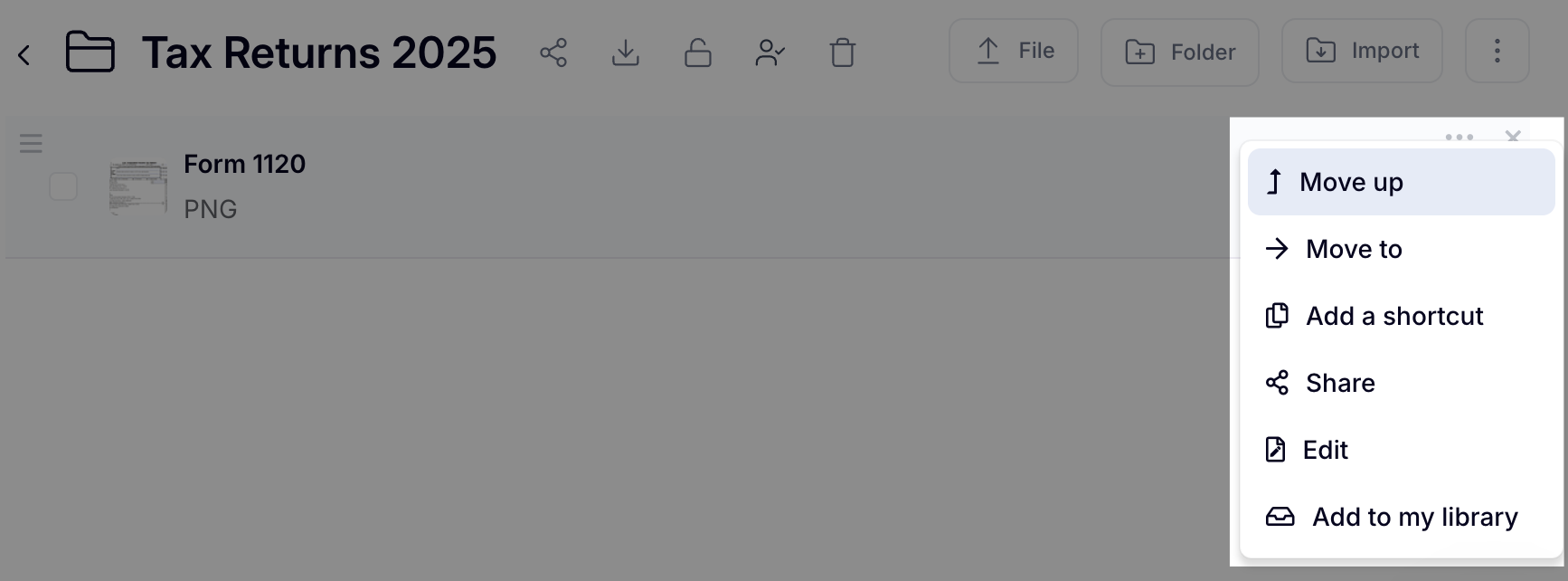
Click the three dots next to any file to:
Reorder the file within its current location
Move the file to another folder or workspace
Add a shortcut and create a reference to the file in another workspace without moving the original
Generate a direct link to the file, making it easy for your internal team to find it quickly
When editing a file, you can:
Update the title
Add tags to make it easier to filter and find later
Link to contacts so the file appears in the Content tab of that contact's record
Link to projects so the file appears in the Content tab of that project's record
Save the file to your personal library for quick access