New to workspaces? Start with Create a workspace and invite clients →
Once you've created a workspace and invited your client, the workspace becomes your shared operating space for that relationship. Everything you share with a client and everything your client does in response, like uploading files, completing forms, signing documents, paying invoices—shows here.
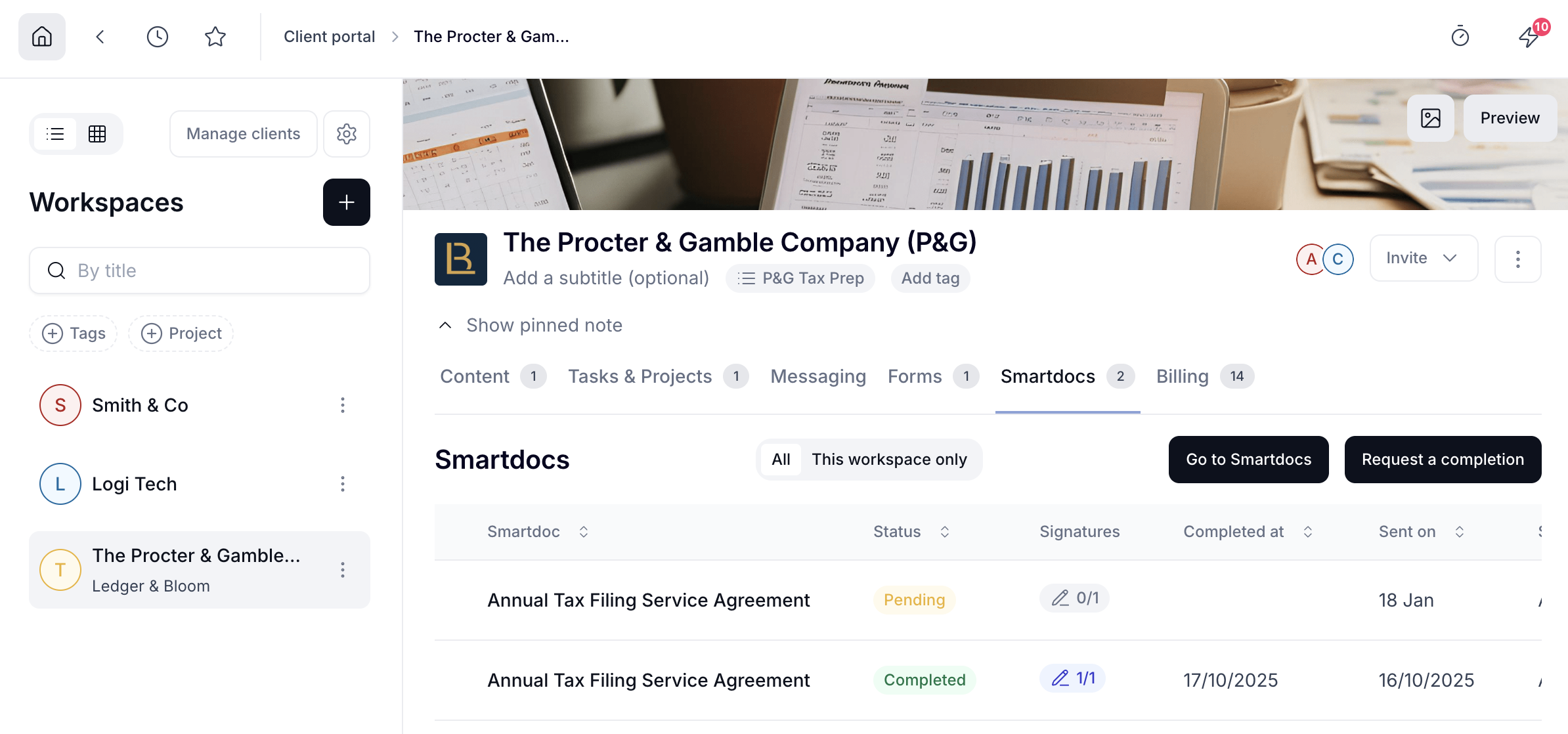
From your side, the workspace has two layers:
what you see and manage internally, and
what your client actually sees when they log into their portal.
This article walks you through what you can do from the admin side, and how to make sure your client's experience looks and works the way you intend.
To get started, click Workspaces in the left sidebar.
Switch between views using the list and grid icons at the top of the Workspaces page.
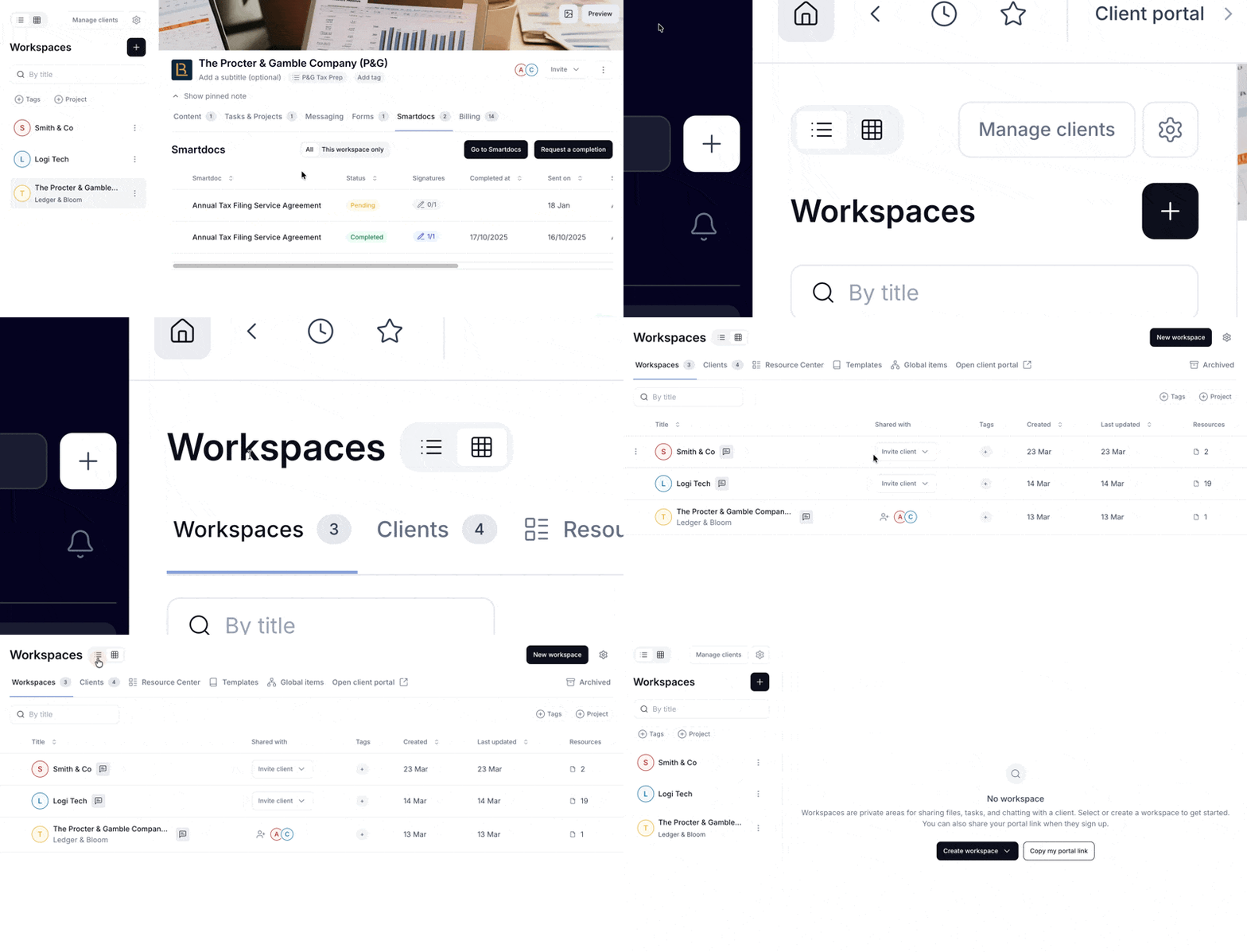
List view opens the internal admin side of a workspace. This is where you do the operational work, requesting form or Smartdoc completions, creating invoices and proposals, managing files and tasks.
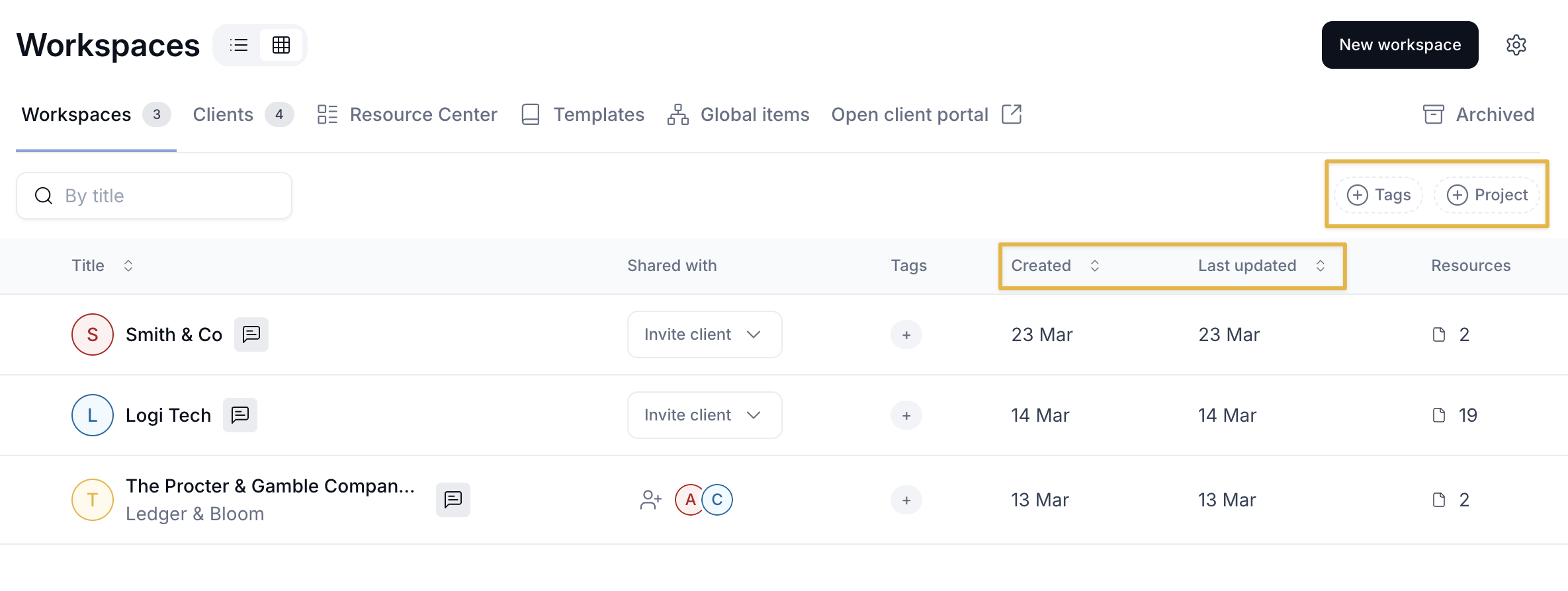
Table view shows all your workspaces in rows, with the columns shared with, tags, created date, last updated date, and resources. Clicking into a workspace from table view opens the client-facing preview.
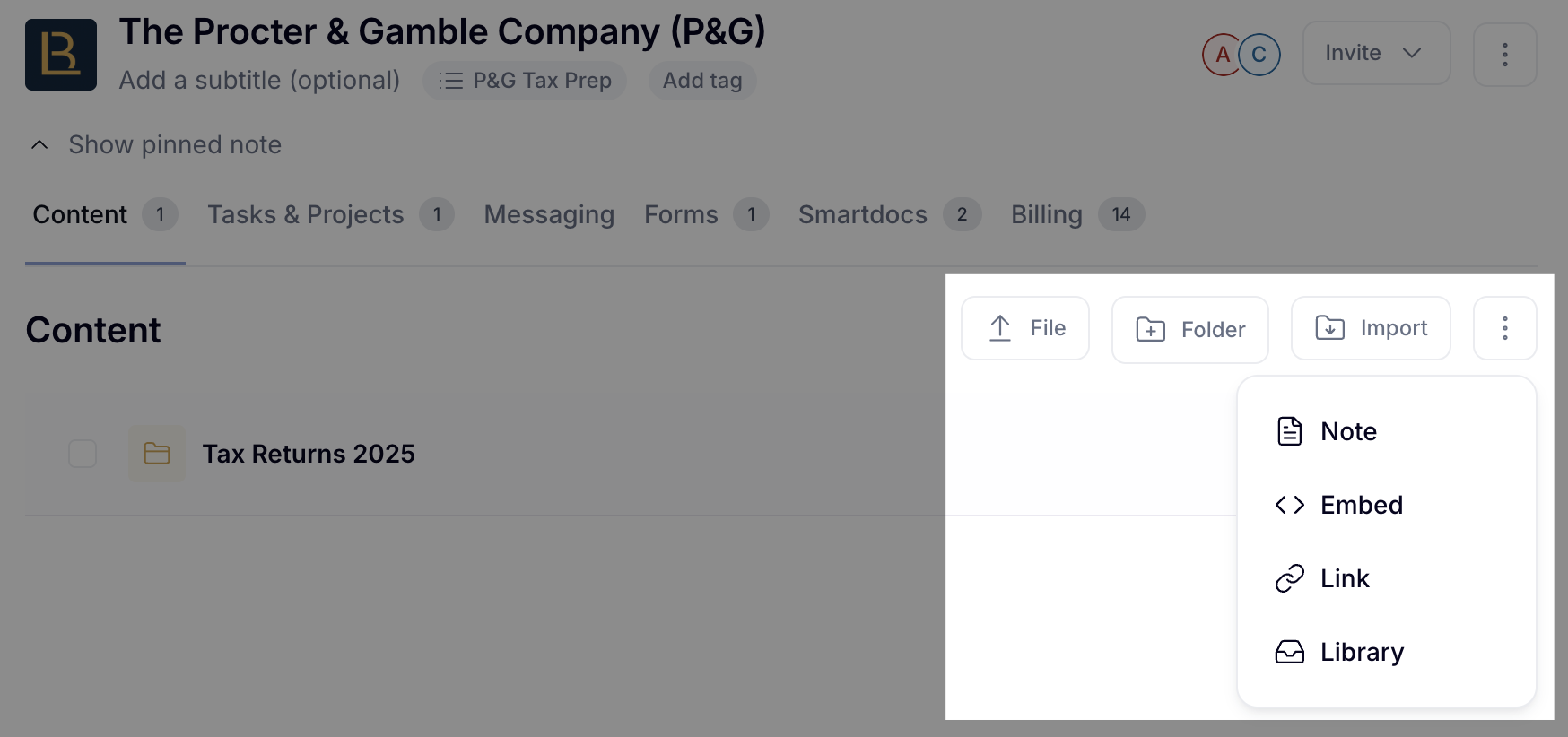
Open a workspace and go to the Content tab. You'll see buttons to add:
Files: upload a file directly from your computer
Folders: create a folder to organize your content. Give it a name and optionally an icon.
Import: upload zip files
Click the three-dot menu to add:
Notes: add a text note visible to clients, useful for instructions or context
Embeds: add an external tool like a Notion page, Google Sheet, Calendly page, or Loom video. You can display it inline so it appears directly in the workspace, or as a click-to-open item that loads in a separate page.
Links: add a URL. You can link it to a contact or project so it also appears in that record's Content tab
Library: pull in a file you've already saved to your Hubflo library
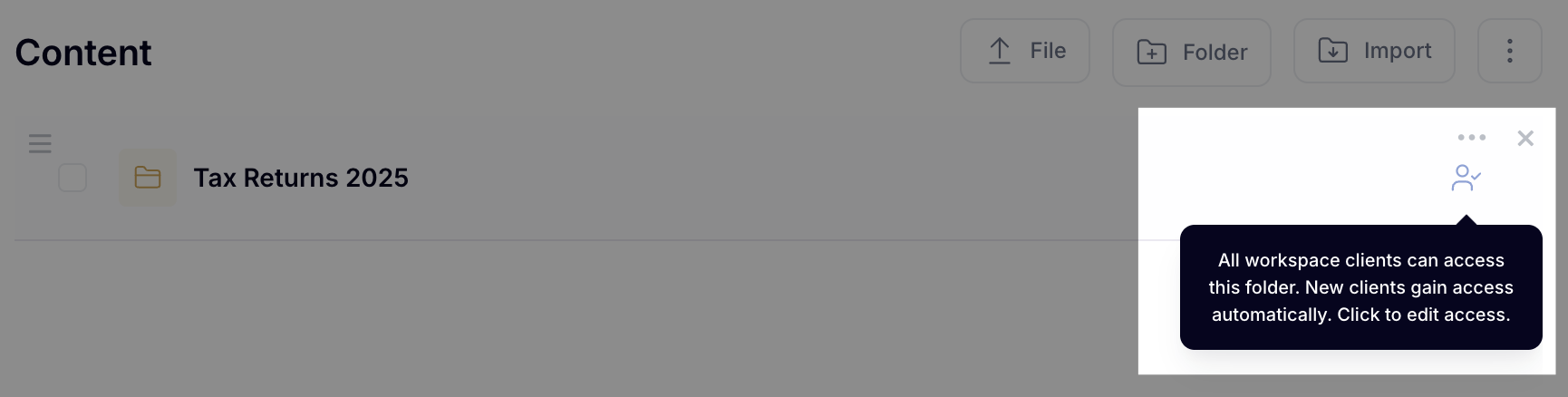
Each folder has a permissions icon you can click to control visibility. You can set a folder as public (visible to all clients in the workspace) or restrict access to specific contacts.
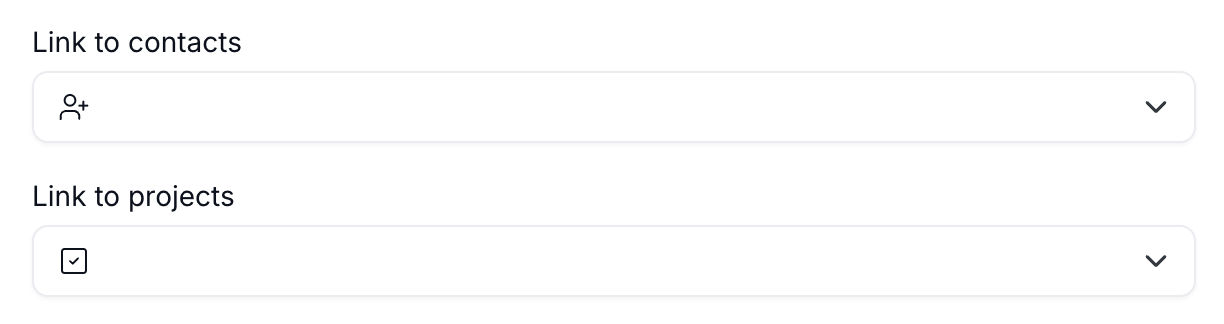
When you add a file, note, or link, you can link it to a contact or a project. Once linked, that item also appears under the Content tab of that contact or project record, so your team can find it from either place.
Go to the Tasks & Projects tab to see all tasks in this workspace.
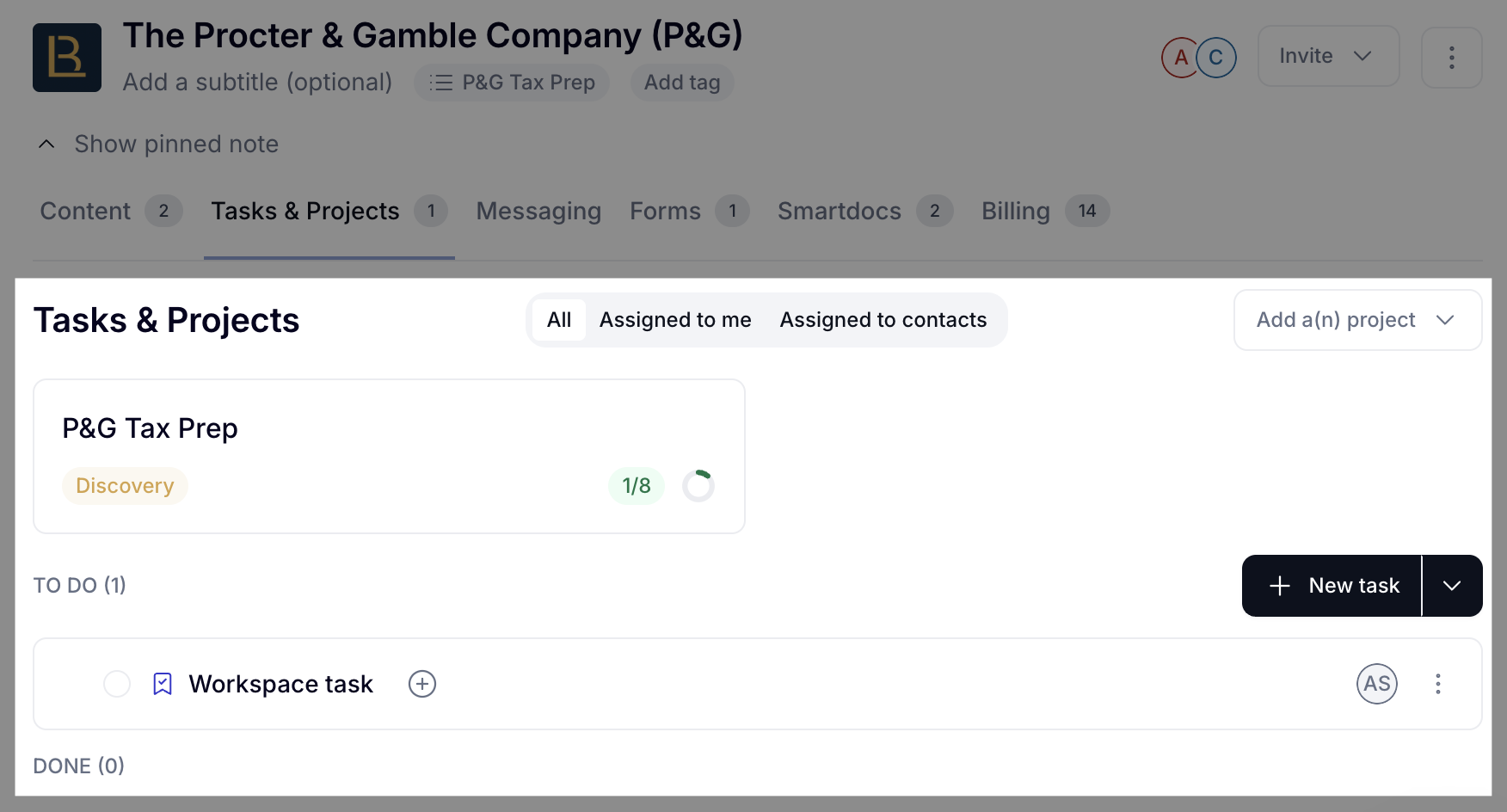
Use the filters at the top to view:
All tasks in the workspace
Assigned to me shows tasks assigned to you
Assigned to contacts shows tasks assigned to clients
There are three types of tasks in Hubflo: internal tasks, workspace tasks, and project tasks. Learn more about tasks →
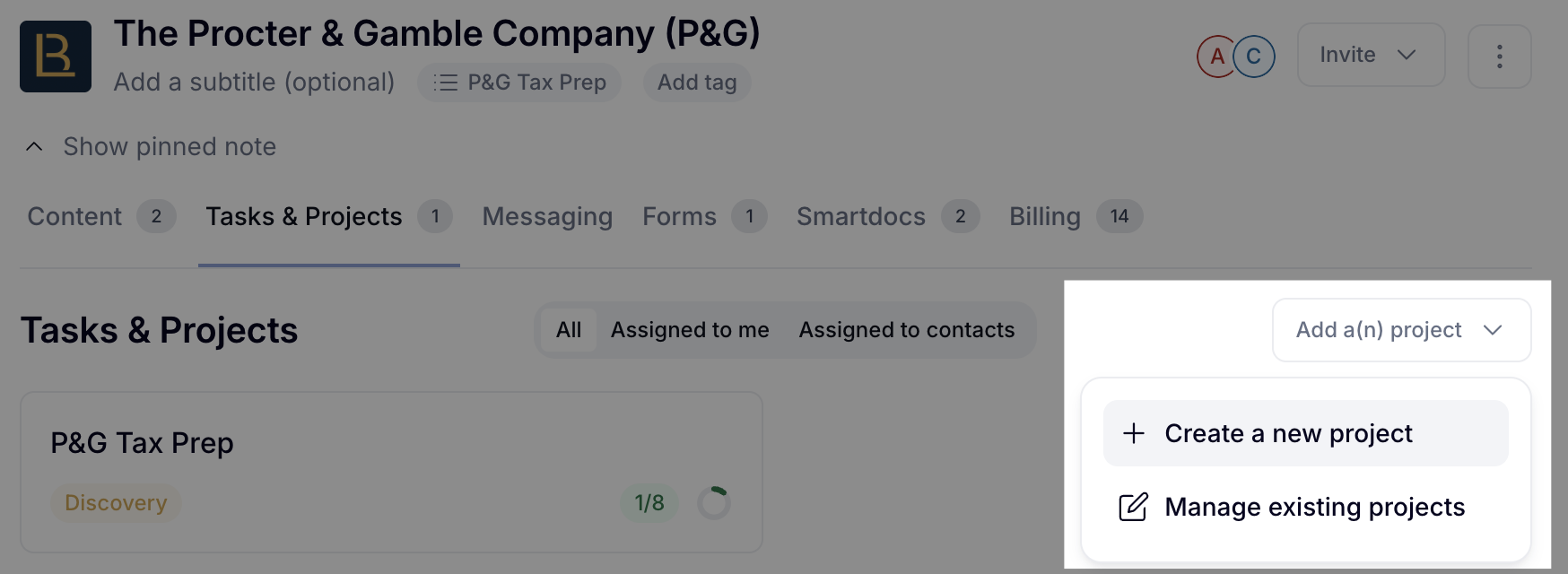
Go to Tasks & Projects > Add a project to link a project to a workspace. This connects your internal project work to the client workspace, and if enabled, clients can see project progress through a status tracker in their portal.
If you enabled the chatroom when creating the workspace, the Messaging tab is where you communicate with clients directly from their portal. You can exchange messages, share files, and write internal notes your clients can't see.
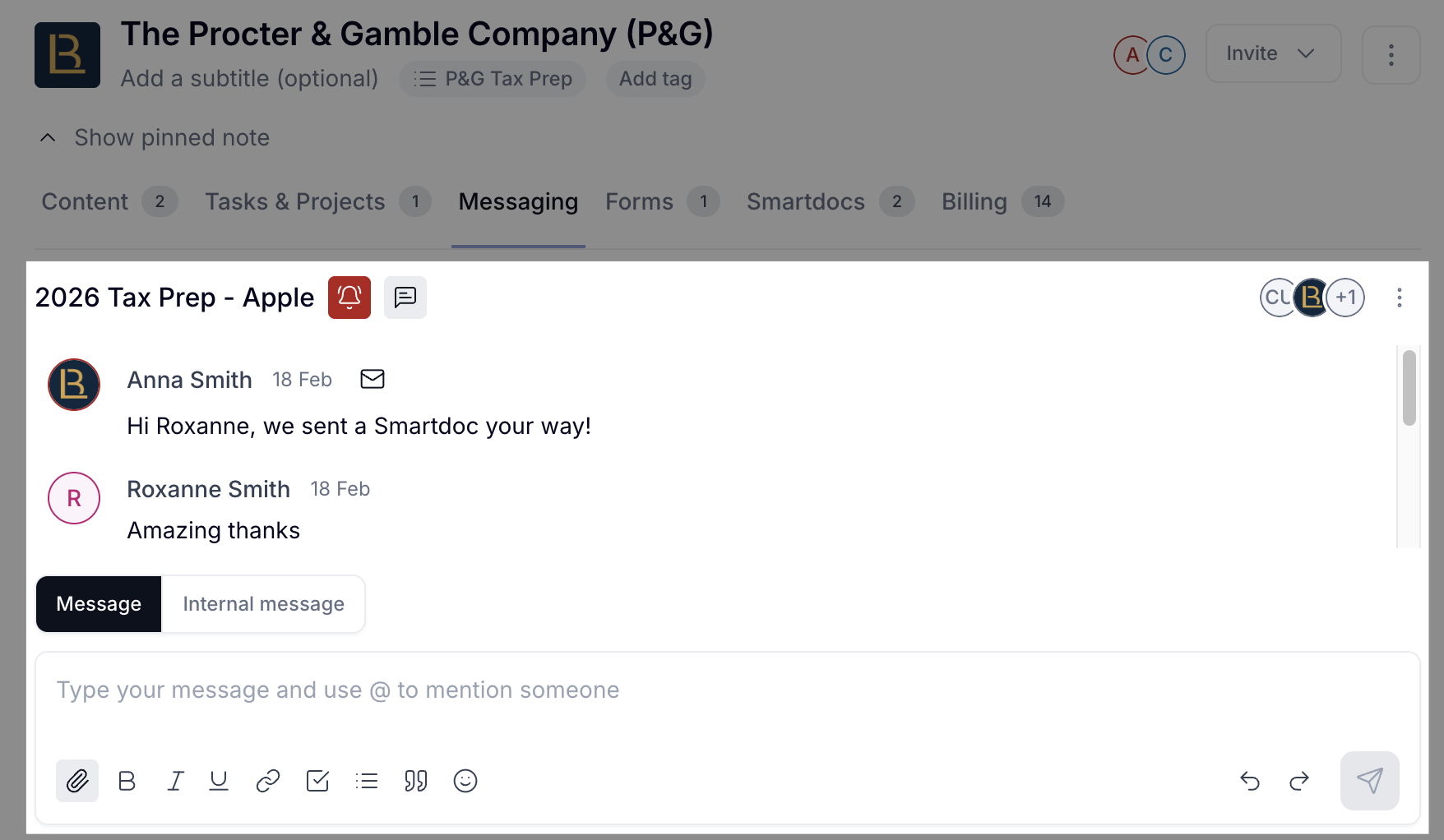
When creating a conversation, choose between:
Chat Room (two-way, clients can reply) or,
Announcement (one-way, clients can read only).
Clients can also reply via email without logging into the portal.
Under the Forms tab you can see all forms across your account or filter to show only forms from this workspace. From here you can also request a form completion if a client hasn't submitted yet. Form responses automatically update the client's contact or company record in your Directory.
The Smartdocs tab works the same way, see all Smartdocs or filter to this workspace, and request a completion if needed. When a client submits a Smartdoc, their Directory record updates automatically with the information they entered.
The Billing tab shows all invoices and proposals for this client. You can create a new invoice or proposal directly from here without leaving the workspace.
In table view you can sort by created date or last updated date by clicking the column headers. Use + Tags and + Project filters at the top of the workspace list to narrow down your view.
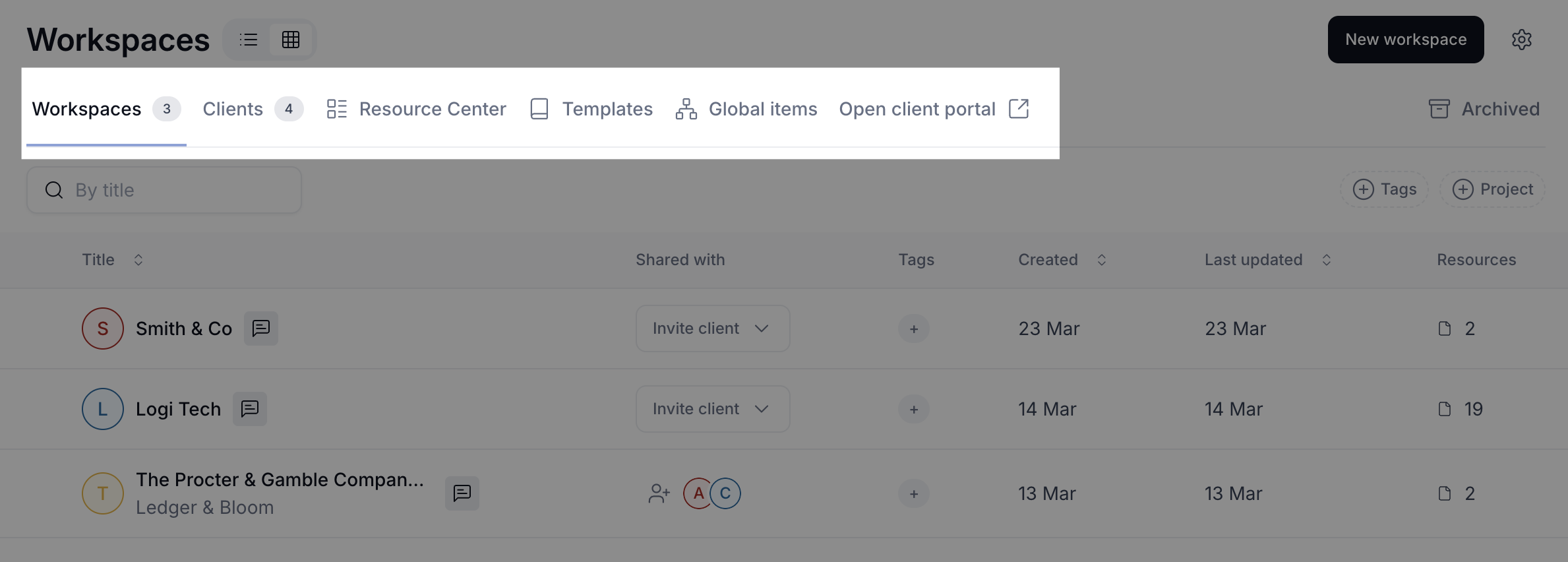
From the table view header you can access:
Clients to see all clients across all workspaces in one place
Resource Center a shared space visible to all clients regardless of which workspace they're in. Learn more about the Resource Center →
Templates to manage your workspace templates
Global items to manage content that appears in every client's portal. Learn more about Global Items →
Open client portal opens your portal as it appears to clients (log in required)
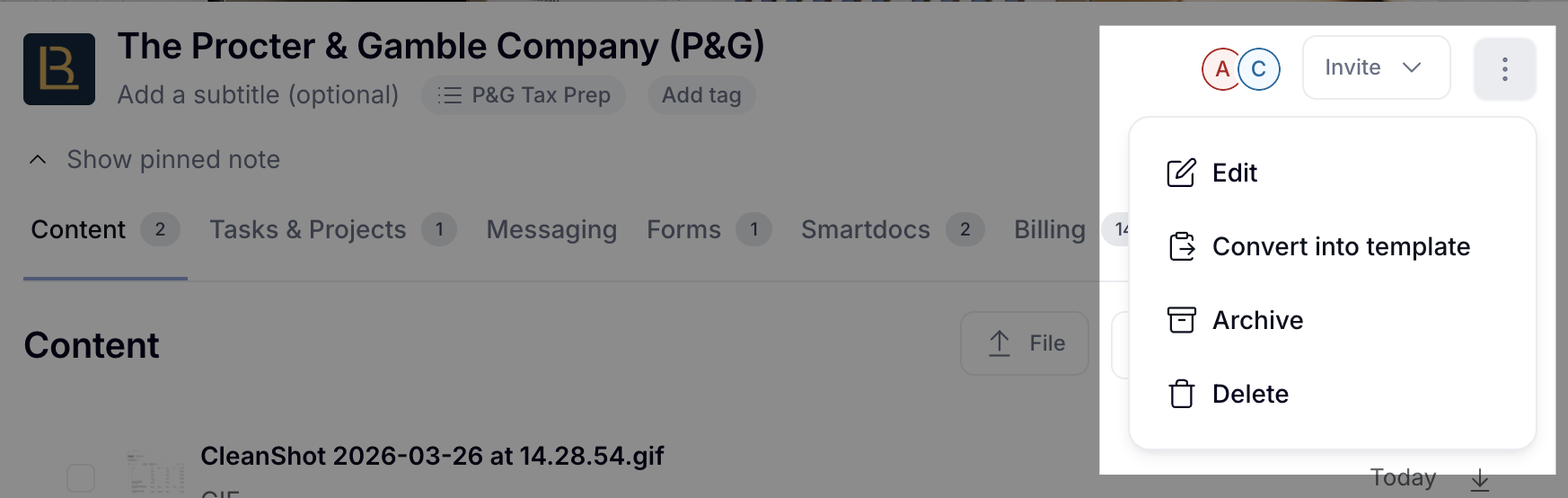
Click the three-dot menu on any workspace to:
Edit title, subtitle, description, and tags.
Convert to template and save this workspace as a reusable template.
Archive moves the workspace to Archived Workspaces.
Delete permanently removes the workspace and its content. Items shared in other workspaces or saved to your library are not affected. This cannot be undone.
💬 Need more help? Chat with us anytime via the bubble in the bottom-right corner or email [email protected]. We're happy to help!
