Uploading content to workspaces

Learn how to upload files, create folders, add notes, links, and embeds in your Hubflo workspace.

Written by Hubflo Team
Updated yesterday

The Content section in each workspace is where your team can upload, organize, and manage files, notes, links, and embeds to share with clients. And when clients upload content through their portal, and anything they share appears here automatically.

All files, notes, links, and embeds are also saved to the shared content library automatically.

To get started:

  1. Go to Workspaces

  2. Select the workspace you want to work in

  3. Click Content

Adding content

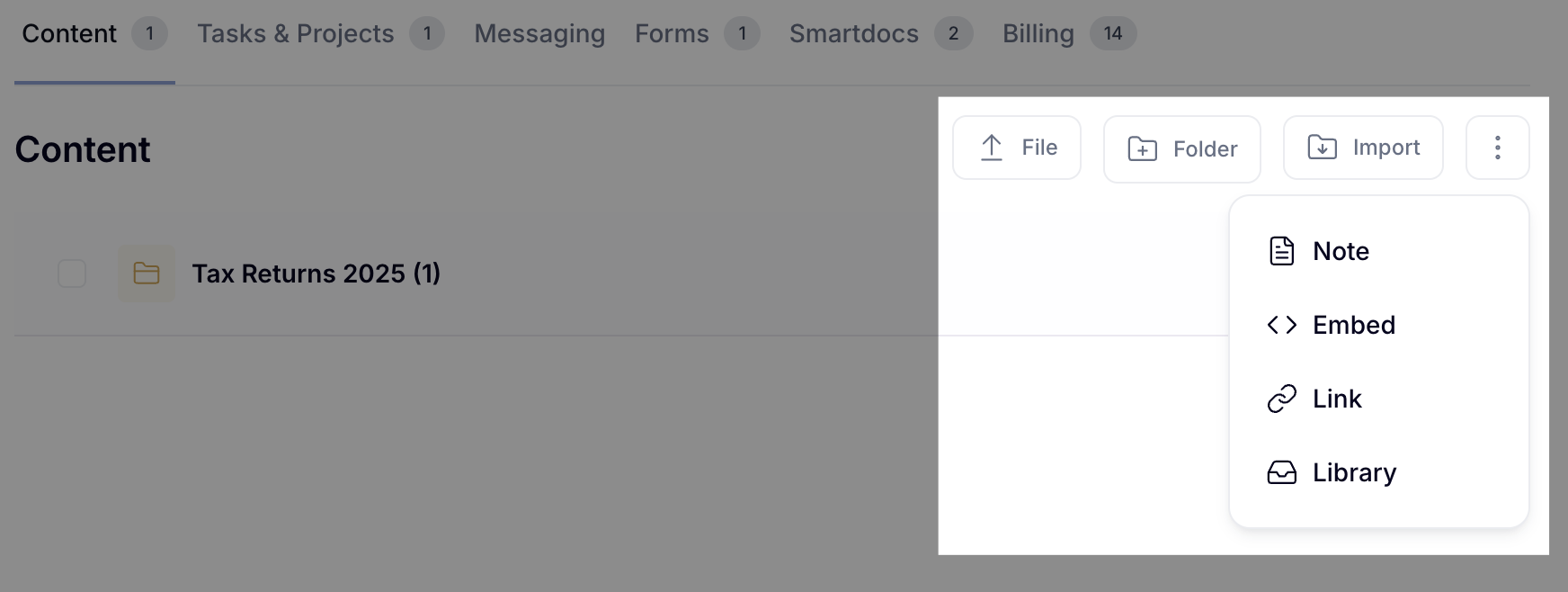
From the Content section, you can add content directly to the root of the workspace or inside a folder. Use the buttons at the top right:

  • File: upload a file from your device

  • Folder: create a new folder to organize your content

  • Import: upload a zip file to the workspace

For other content types, click the three-dot menu and choose:

  • Note: add a text note

  • Embed: embed an external tool or URL

  • Link: add a URL

  • Library: insert an item from your personal library directly into this workspace

Looking for how clients upload files? See How clients upload content to their portal.

Creating and managing folders

To create a folder, go to the Content tab inside the workspace and click Folder. Once created, click the three dots next to any folder to:

  • Rename it or add a description

  • Move it to another location

  • Add a shortcut to another workspace

Client folder visibility

Each folder has a permissions icon you can click to control visibility. You can set a folder as public (visible to all clients in the workspace) or restrict access to specific contacts.

When Public by default is on, new clients added to the workspace automatically have access to this folder.

Note: You can give clients permission to create folders and move files. To do so, go to Settings > Global Permissions.

Managing files

Click the three dots next to any file to:

  • Reorder the file within its current location

  • Move the file to another folder or workspace

  • Add a shortcut and create a reference to the file in another workspace without moving the original

  • Generate a direct link to the file, making it easy for your internal team to find it quickly

When editing a file, you can:

  • Update the title

  • Add tags to make it easier to filter and find later

  • Link to contacts so the file appears in the Content tab of that contact's record

  • Link to projects so the file appears in the Content tab of that project's record

  • Save the file to your personal library for quick access

Moving files vs. adding a shortcut of files in a workspace

Move to

Relocates the file from its current location to a new folder or workspace. Once moved, it no longer appears in the original location. You can move files:

  • From the root into a folder or subfolder

  • From a folder back to the root

  • From one workspace to another

Add shortcut

Creates a reference to the file in a workspace without moving the original. The file stays where it is, and the shortcut can be removed from the destination without affecting the original.

Important: If you edit a file that has been added as a shortcut, your changes will also apply to the original file.

Adding a shortcut from a chatroom

If a file was shared in a chatroom, you can add a shortcut to it directly into a workspace folder without moving the original.

  1. Go to Messaging and open the relevant chatroom

  2. Find the file you want

  3. Click the shortcut icon next to the file

  4. Select the destination workspace and folder

  5. Click Add

You'll be redirected to the folder so you can confirm the file is in place. The original file stays in the chatroom.

Adding a shortcut from a form

  1. Go to Forms and select the relevant form

  2. Click the Answers tab

  3. Select "Show details"

  4. Click the shortcut icon next to the file

  5. Select the destination workspace and folder

  6. Click Add

Downloading all files from a workspace

To download all files from a workspace folder at once:

  1. Go to Workspaces and select the workspace

  2. Click Content

  3. Select the folder you want to download

  4. Click the Download button

Depending on the file size, you'll receive an email once the download is ready.

Bulk actions

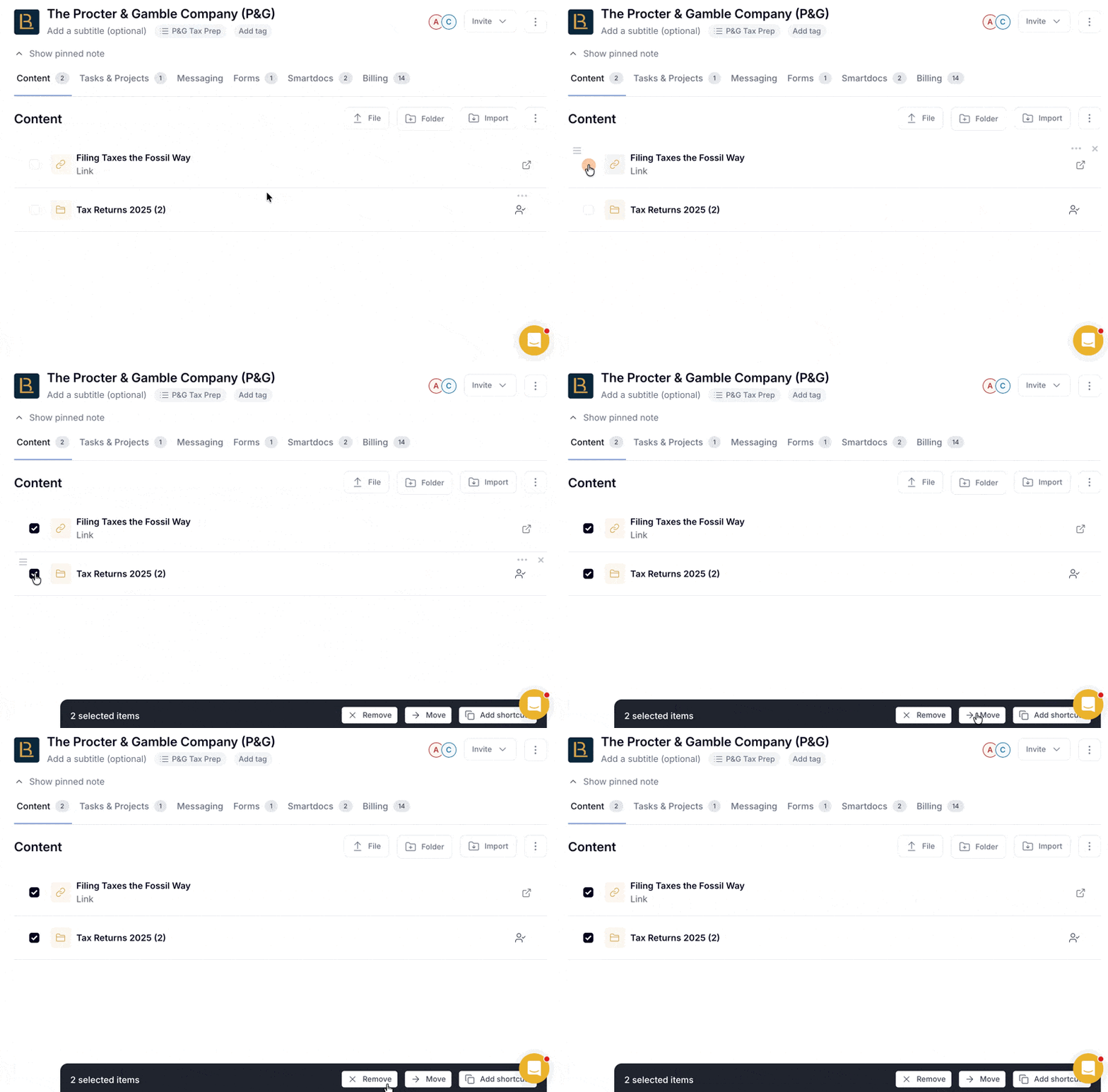
To act on multiple items at once, hover over any file or folder and use the checkboxes to select them. A toolbar appears at the bottom of the screen with the following options:

  • Remove

  • Move to move all selected items to another folder or workspace

  • Add Shortcut to create shortcuts for all selected items in another location
Note: Even if you remove a file, note, link, or embed from a workspace, it will still be available in your Content library. Head to More > Content to find it.

Did this answer your question?