
The Content section is your organization's central library. Every file, note, link, and embed added anywhere in Hubflo, whether in a workspace, a contact record, or a project, is automatically saved here.
Within the Content section, each user can also maintain a personal library: a filtered view of the items they use most often.
To get to the content library, go to More > Content in the sidebar.
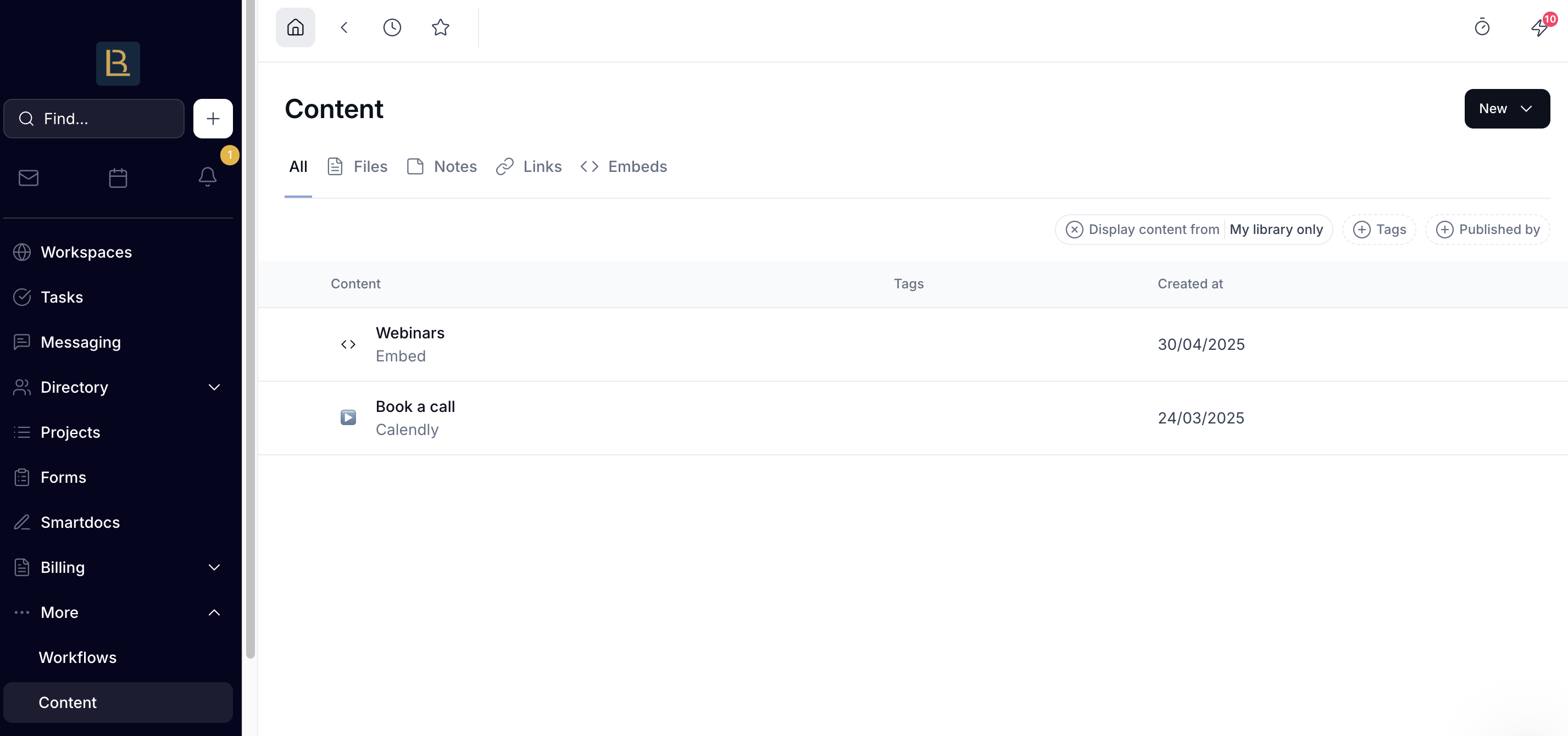
Browsing and filtering content
Use the tabs at the top to filter by content type: All, Files, Notes, Links, or Embeds.
Use the filters on the right to narrow things down further:
Display content from to choose My library only to see just your personal library, or All content to see everything across your organization
Tags to filter by tag
Published by to filter by the team member who added the content

Adding content
To add new content directly to the library, click New and choose:
File to upload a file from your device
Note to create a text note
Link to save a URL
Embed to embed an external tool or URL
Linking content to contacts and projects
Anything uploaded or created in a Content tab, from anywhere in the app, is automatically saved here.
However, when adding content from this section, you can link it to one or more contacts or projects. When linking content to contacts or projects, the item will appear in the Content tab of those records.
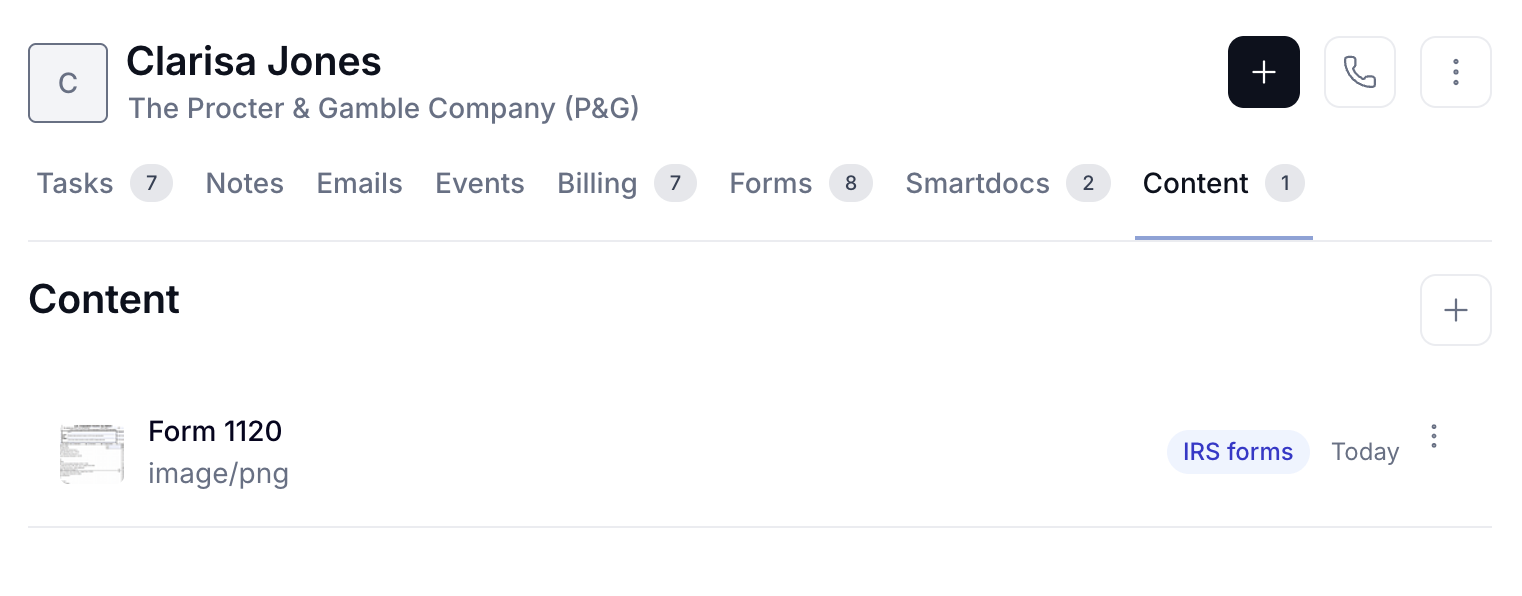
Managing content
Click the three dots next to any item to:
Add a shortcut and place the item in a workspace without moving it from the library
Share and generate a direct link to the item (available for files and notes only)
Edit and update the title, add tags, link to contacts or projects
Add to my library / Remove from my library and save or unsave the item from your personal library view
Delete and remove the item from the library entirely (this cannot be undone).
Reusing content across Hubflo
Once content is saved to the library, you can insert it anywhere you see the Library button, including inside workspaces and when creating proposals.
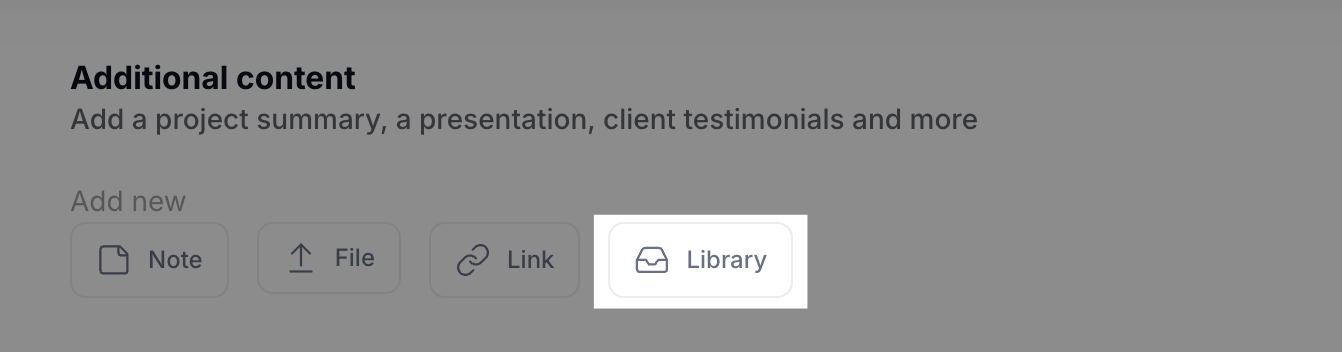
Note: Even if you delete a file from a workspace, you can always find it in your Content library for future use.