When you want a file to appear in a workspace, you have two options depending on whether you want to relocate it or simply reference it from a new place.
Move to physically relocates the file to a different location. You can move files:
From the root into a folder or subfolder
From a folder back to the root
From one workspace to another
Add shortcut leaves the file exactly where it is and places a link to it in the destination instead.
Use a shortcut when you need the same file to be accessible from multiple places, or when you don't want to disturb where the original lives—for example, a file shared in a chatroom or submitted through a form.
Important: Shortcuts are references, not copies. Editing a file through a shortcut changes the original.
Adding a shortcut from a chatroom
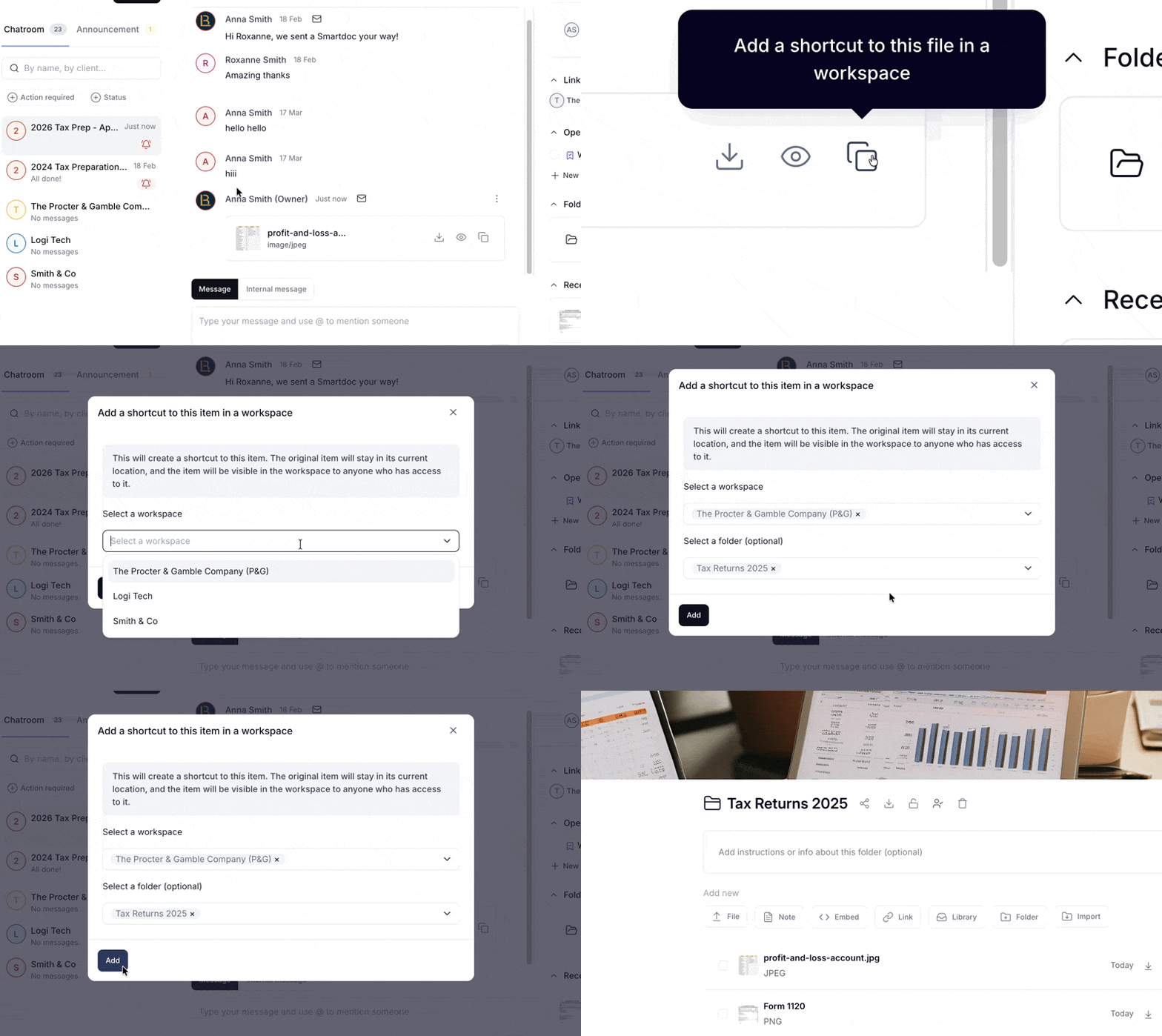
If a file was shared in a chatroom, you can add a shortcut to it directly into a workspace folder without moving the original.
Go to Messaging and open the relevant chatroom
Find the file you want
Click the shortcut icon next to the file
Select the destination workspace and folder
Click Add
You'll be redirected to the folder so you can confirm the file is in place. The original file stays in the chatroom.
Adding a shortcut from a form
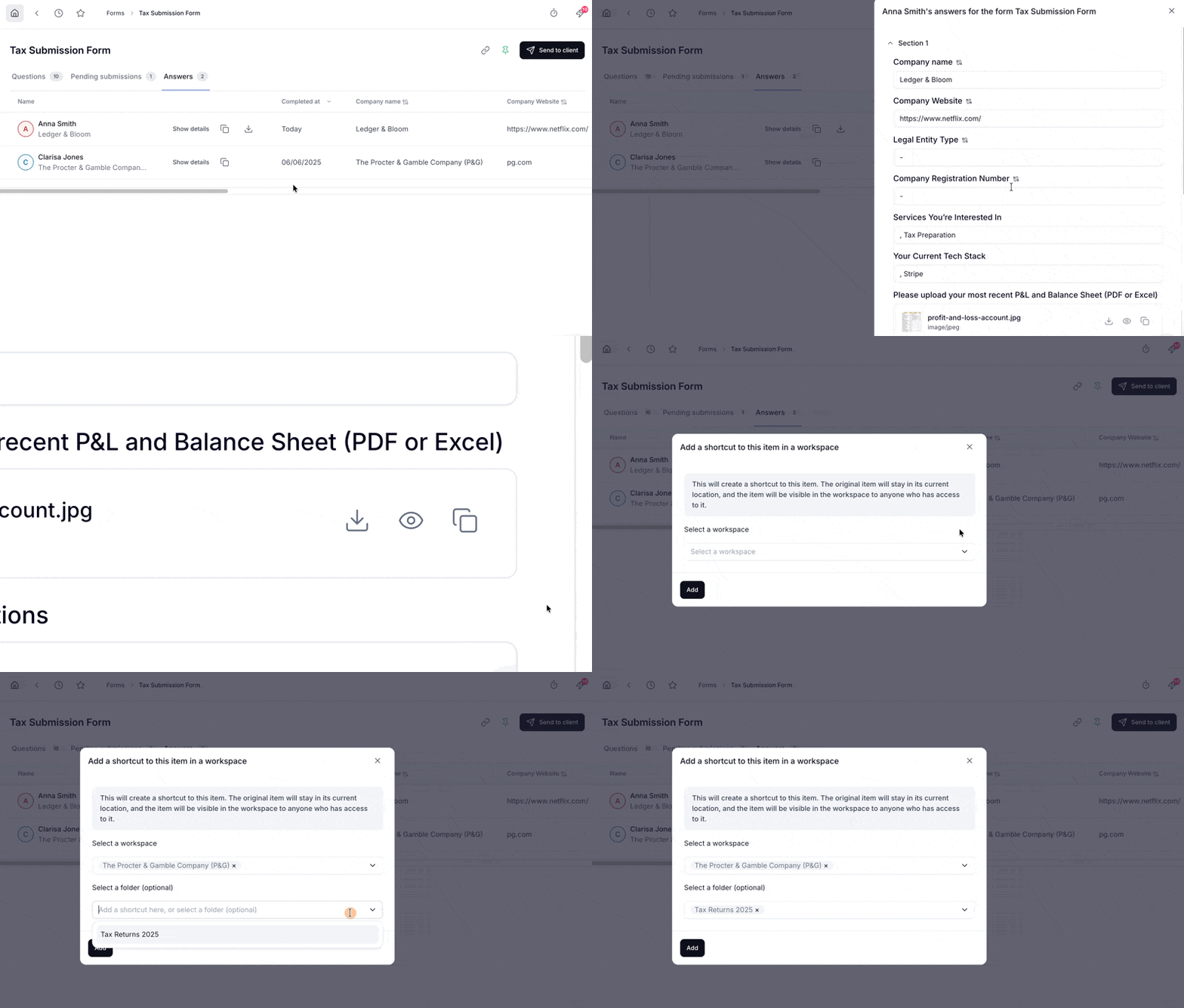
Go to Forms and select the relevant form
Click the Answers tab
Select "Show details"
Click the shortcut icon next to the file
Select the destination workspace and folder
Click Add