
Every workspace in Hubflo has two views: the admin view and the preview. The admin view is your back office, useful for managing documents, billing, and content.
Preview mode shows you exactly what your client sees when they log into their portal. It's also a fully functional building environment, so you can set up and organize a workspace visually, in context, without switching back and forth.
How to enter preview mode
There are two ways to get there.
From list view: select a workspace from the sidebar, then click Preview in the top right of the admin panel on the right.
From table view: click directly on any workspace. This opens it in preview mode by default.
Add content to the workspace
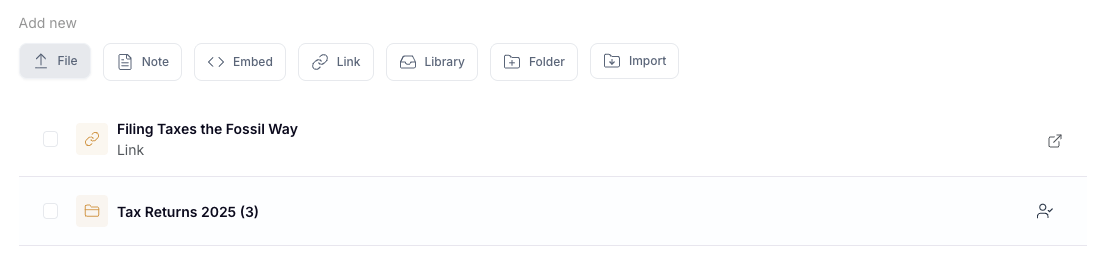
At the bottom of the workspace home page, you'll find the Add new bar. Click on:
File to upload from your computer
Note to add a text note
Embed to embed an external URL or tool
Link to add a hyperlink
Library to pull in content from your Hubflo library
Folder to create a folder to organize content
Import to bulk import zip files
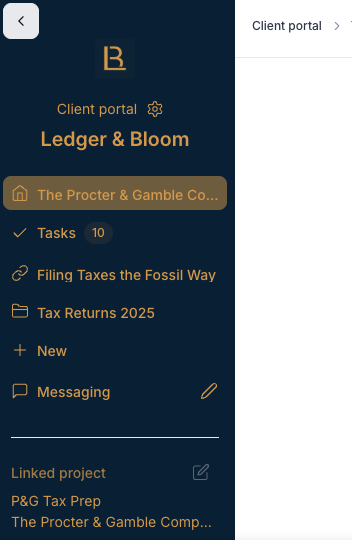
The left sidebar gives you direct access to:
Link a chatroom and connect a messaging room to this workspace so clients can reach you directly from their portal
+ New to create a new folder inside the workspace
Linked project (at the bottom of the sidebar) to connect an existing project or create a new one linked to this workspace
Manage global items
On the home page, click the gear icon next to any global item to edit or remove it. Global items are shared across all workspaces, managing them here updates them everywhere they appear.

Manage clients and permissions (top right)
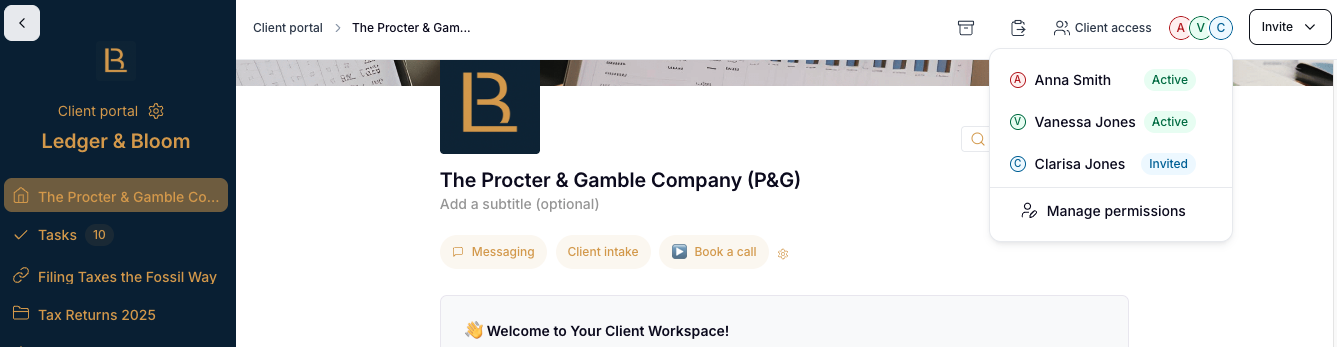
The top right corner of preview mode gives you access to workspace-level controls:
Invite to add new clients to the workspace directly
Client access to manage permissions for existing clients, controlling what they can see and do
Convert to template to save this workspace as a reusable template for future clients
Archive to archive the workspace when the engagement is complete