
How to create a recurring invoice
The process is the same as creating a one-time invoice, with a few extra settings to configure.
Click New > Recurring Invoice
Add your line items, set payment terms, and configure payment methods the same way you would for a one-time invoice. Learn how →
Configure the recurring schedule
In the Settings tab, you'll find the recurring-specific options:
Setting | What it does |
Generate first invoice on | The date the first invoice is created and sent |
Then generate other invoices every | How often to repeat, for example, every 1 month |
Automatic invoice sending | Toggle on to send invoices automatically. Toggle off to create them as drafts for you to review before sending. |
End the recurring invoice on | Optional. Leave blank to keep billing ongoing with no end date. |
Auto-charge with Stripe
If you've connected Stripe, auto-charge is on by default for recurring invoices.
If your client has a saved payment method, they are charged automatically on each billing date, no action needed from them.
If they don't have one saved yet, the first invoice includes a prompt for them to add a card. All subsequent invoices are then charged automatically.
Tip: Make sure Stripe is toggled on in the Payment section of the invoice. Learn how to set up Stripe →
Manage a recurring invoice
Go to Billing > Invoices and click the Recurring tab to see all active recurring invoices.
From here you can:
Pause or deactivate a recurring invoice to stop future invoices from being generated
Edit the schedule, line items, or settings at any time
View the history of all invoices generated from that recurring series
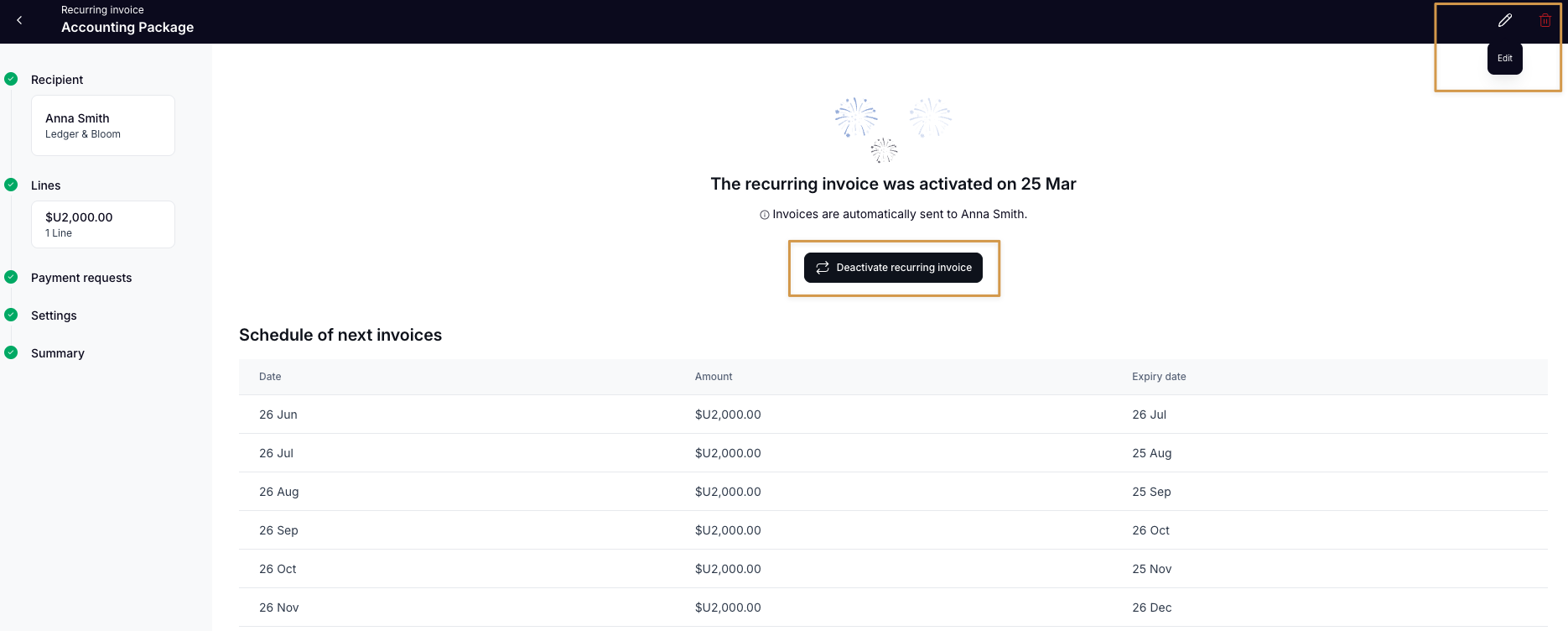
Change the recipient
You can update who a recurring invoice is sent to at any time. You need to deactivate the recurring invoice first before the recipient can be changed.
Open the recurring invoice
Click Deactivate recurring invoice
Click Recipient on the left
Click the recipient name, then click Change Contact
Select the new contact
Reactivate the recurring invoice when you're ready
Note: Adding multiple recipients to a single recurring invoice is not currently supported.