
Hubflo gives you two ways to collect payments online from clients: connecting Stripe for a fully integrated experience, or adding a payment link from any platform you already use.
Option 1: Connect Stripe
Once connected, clients can pay invoices by card directly from their portal, save a payment method for future invoices, and be charged automatically on recurring invoices.
Set up Stripe
Go to Settings ⚙️ > Integrations
Find the Stripe integration and click Activate
You'll be asked to either create a new Stripe account or log into an existing one
Once connected, Stripe is enabled by default on all new invoices.
Connect your Stripe account to Hubflo →
Enabling Stripe on a specific invoice
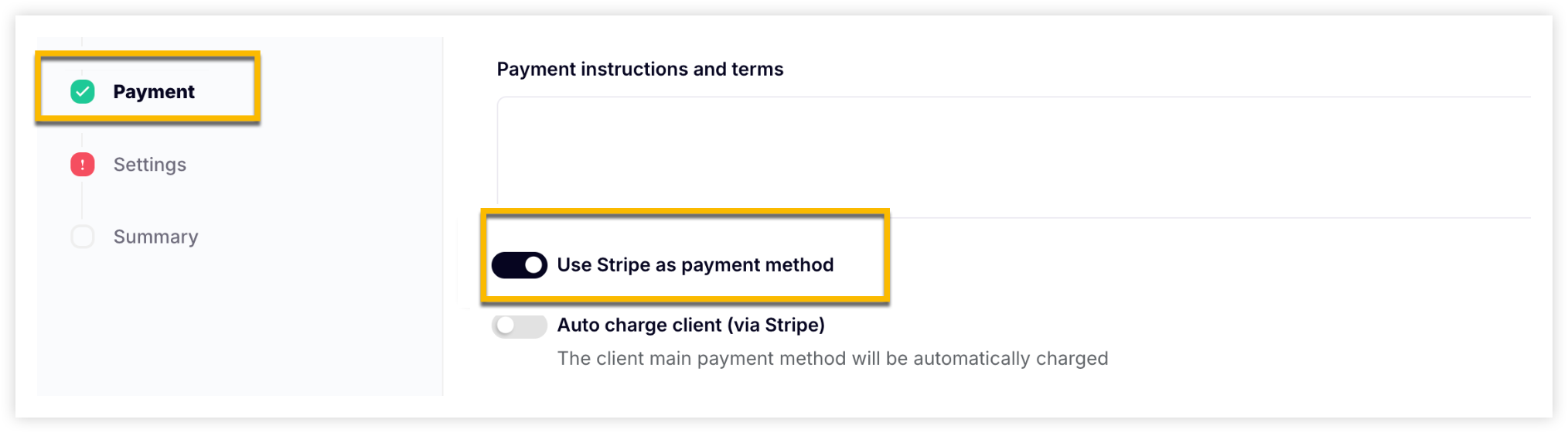
If you need to toggle Stripe on or off for a particular invoice, go to the Payment section when creating or editing the invoice and use the Use Stripe as payment method toggle.
How clients pay via Stripe
When you issue an invoice with Stripe enabled, your client:
Receives an email with a secure link to view and pay the invoice
Can access the invoice from the Billing tab in their client portal
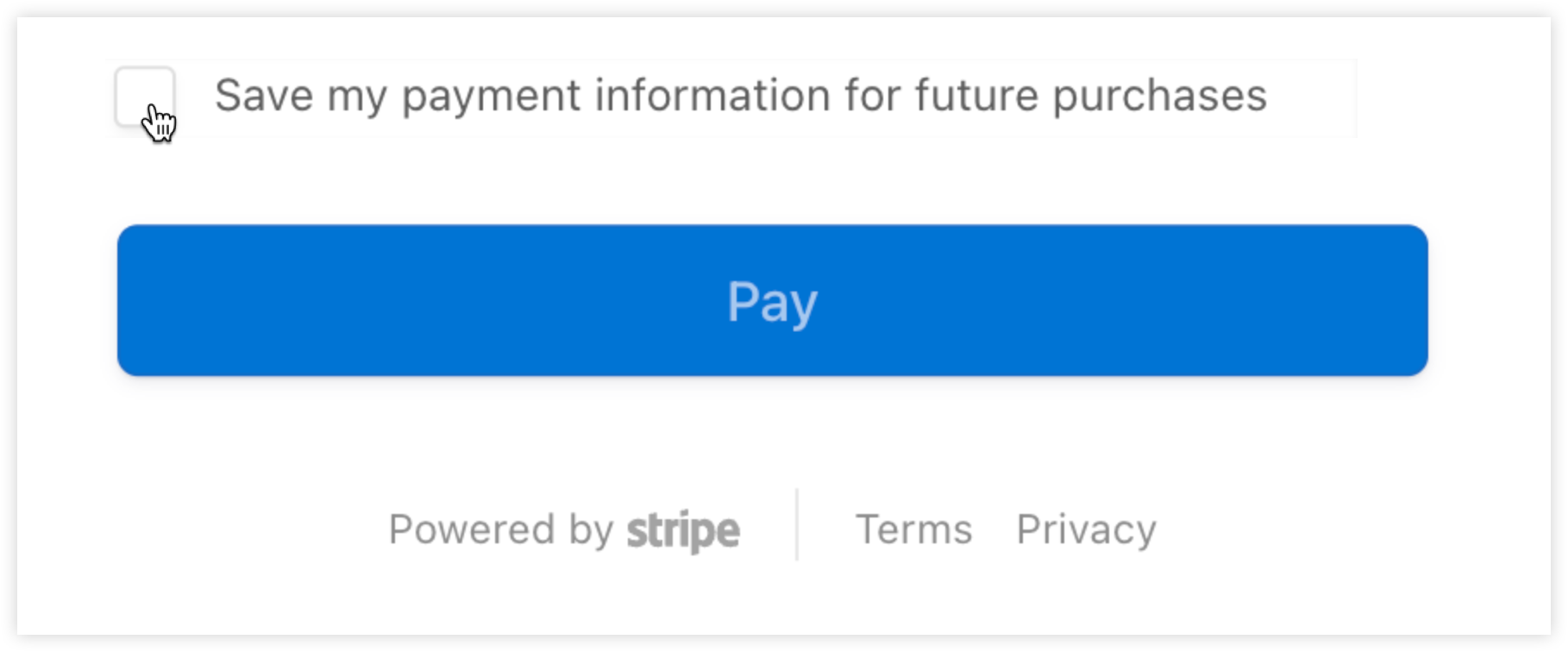
Can pay by card and save their payment method for future invoices
Auto-charge for recurring invoices
For recurring invoices, auto-charge is on by default. Here's how it works:
If the client has a saved payment method, they are charged automatically on each billing date
If they don't have one saved, the first invoice includes a prompt for them to add a card and subsequent invoices are then charged automatically
Note: Auto-charge for one-time invoices only works if the client has already saved a payment method.
How clients update their payment method
Clients can update their saved card at any time:
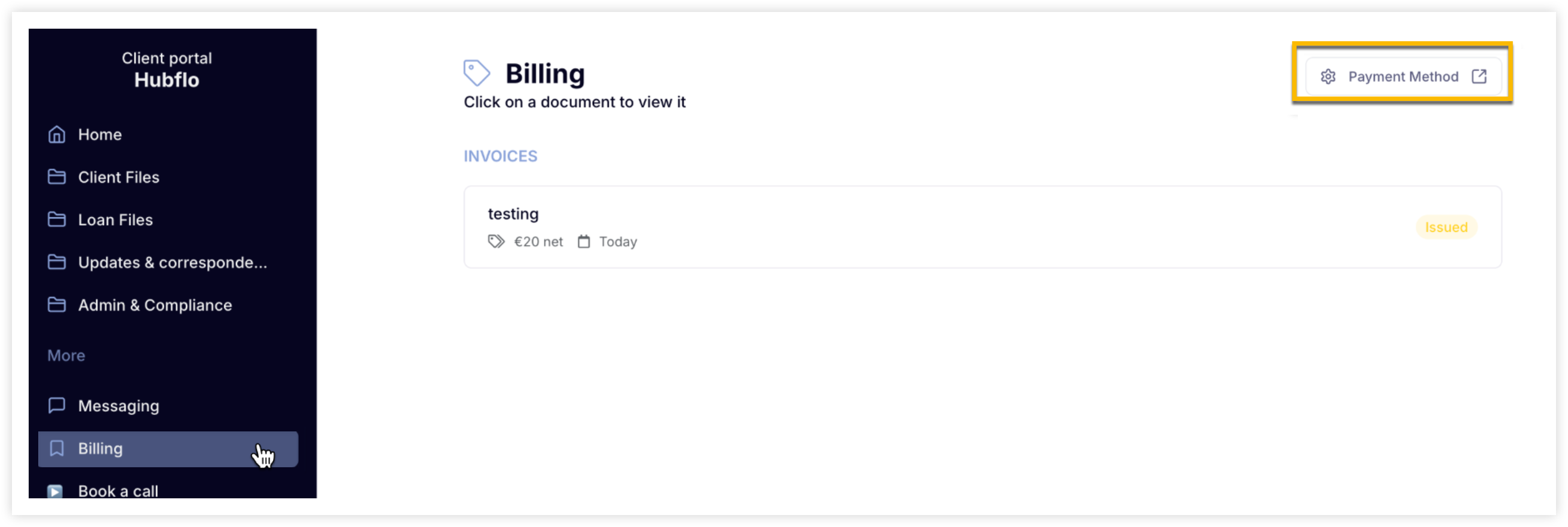
Go to Billing in their client portal
Click Payment Method
They'll be redirected to a secure Stripe-hosted page to update or remove their card
Option 2: Add a payment link
If you use another payment platform such as GoCardless, PayPal, or anything else, you can paste a payment link directly into any invoice.
When creating or editing an invoice, go to the Payment section and paste your link in the Payment URL field. It will appear as a clickable button on the client's invoice.

Note: Hubflo does not have a built-in payment processor. If Stripe isn't available in your region, the payment link field lets you use whichever platform works for you.