A proposal in Hubflo lets you send a client a formal, branded offer with pricing, payment terms, a service contract, and e-signature option included.
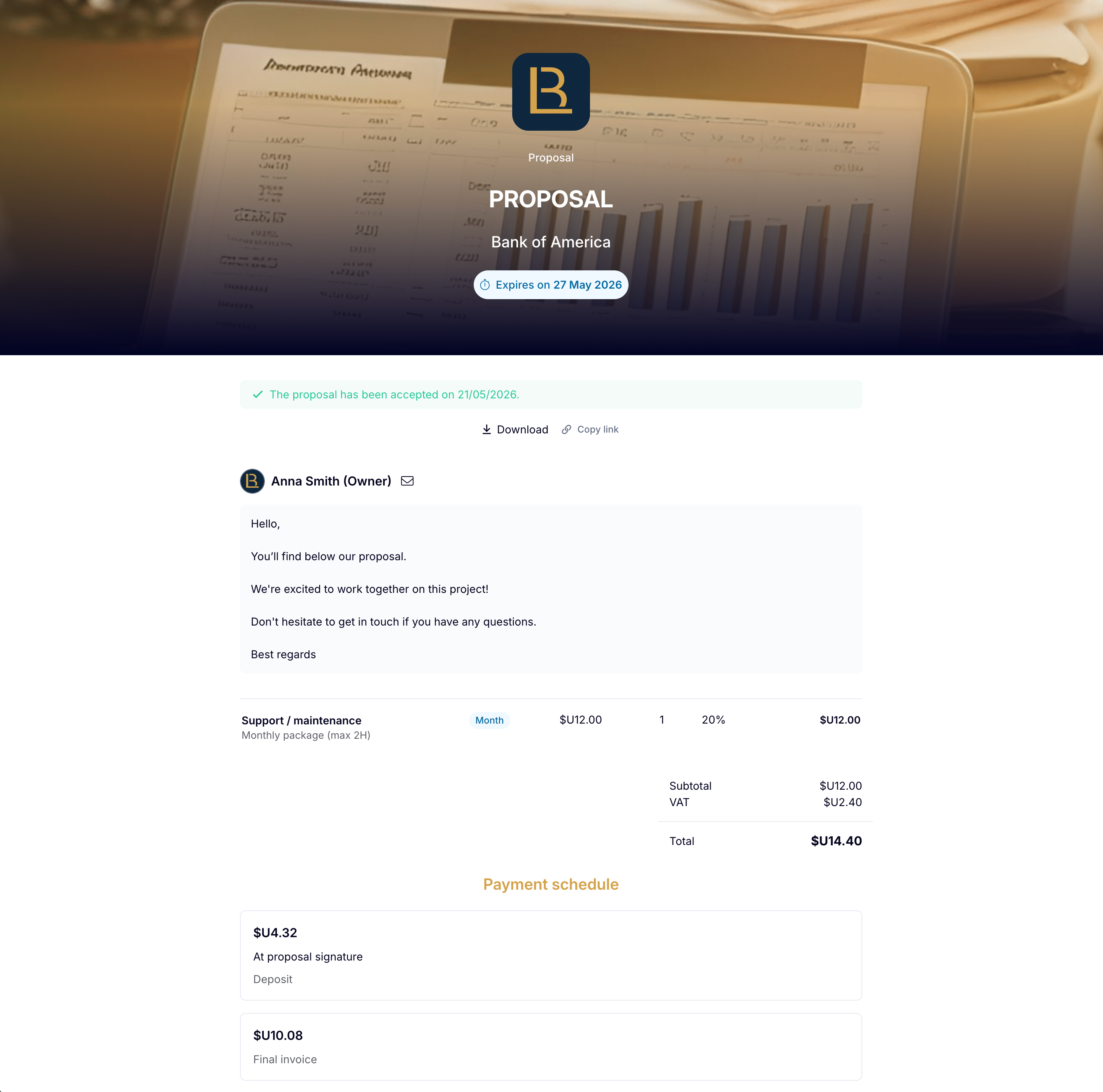
Once a client accepts, Hubflo automatically generates draft invoices based on the payment schedule you set.
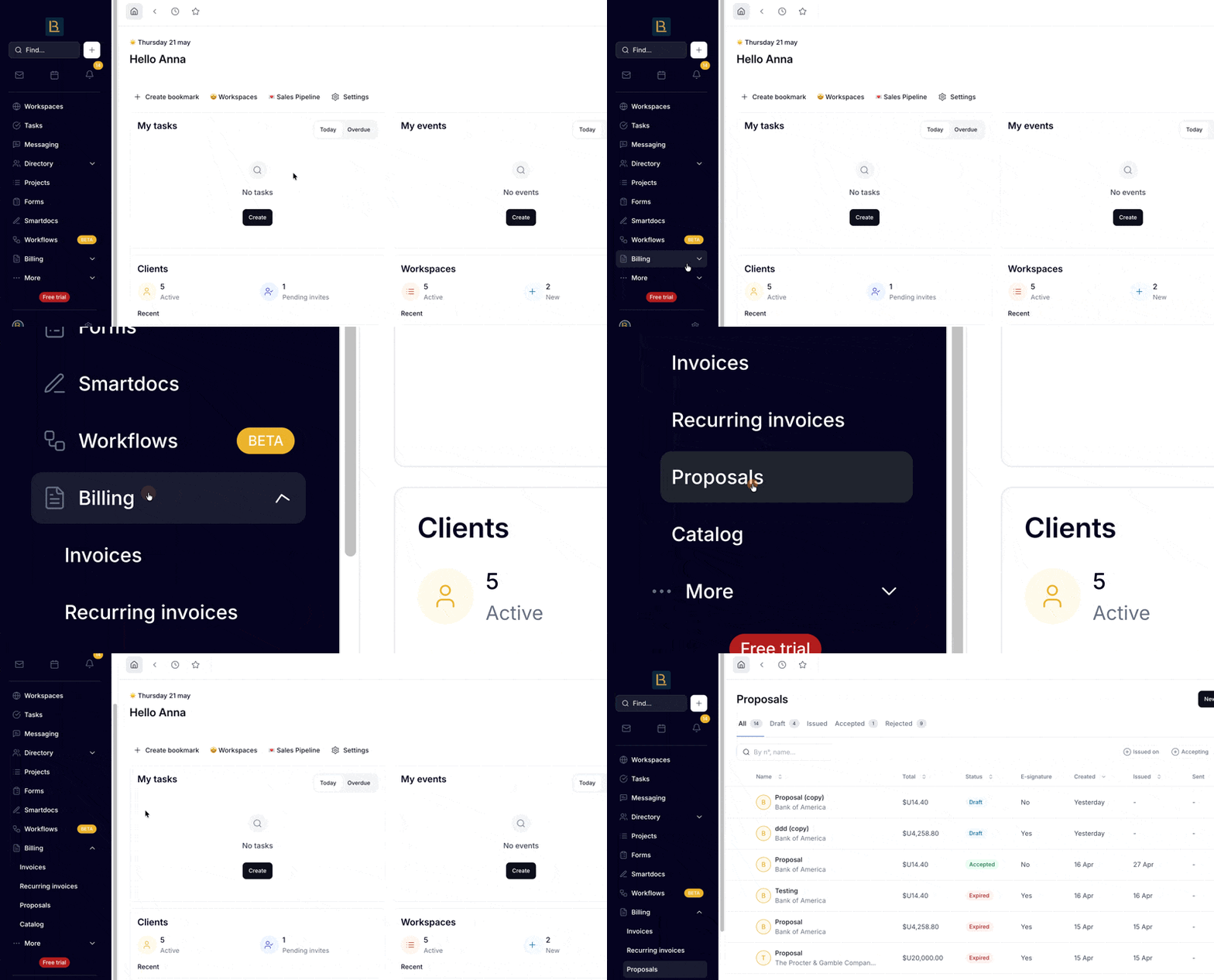
Go to Billing > Proposals in the left sidebar. Here you'll see all your proposals and can create new ones.
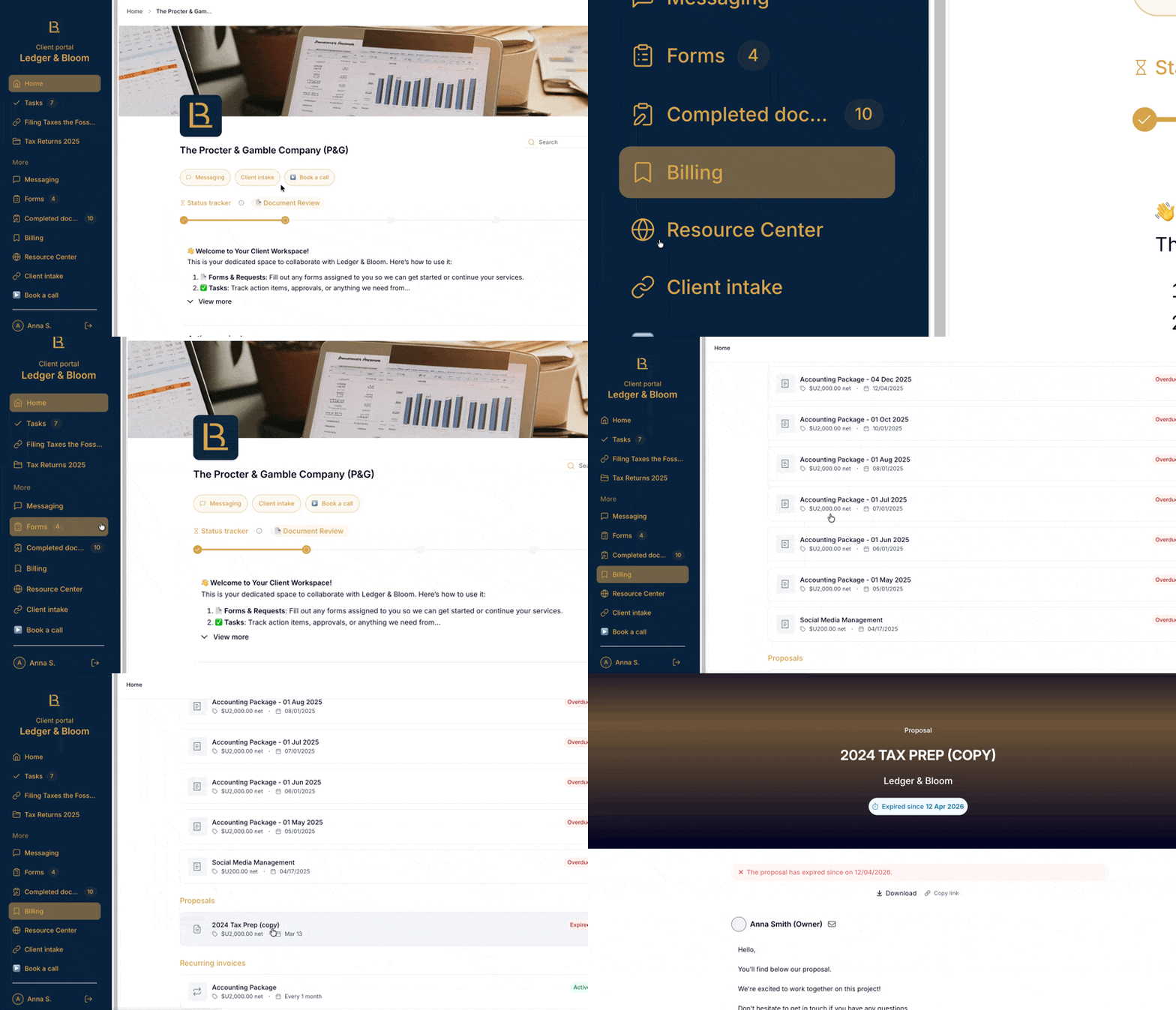
Clients can view their proposals by going to the portal and clicking Billing in the sidebar. They can also access a proposal directly from the email they receive when you send it.
Create branded proposals with your logo, colors, and fonts
Add line items from your catalog or packages
Set a payment schedule (one-time or multiple payments)
Attach a service contract for e-signature
Include case studies, brochures, or other supporting files
Send via email, a shareable link, or your own email
Track when a client opens, accepts, or rejects a proposal
Set up automated reminders for pending proposals
You can create a new proposal from three places in Hubflo.
Open the contact in your Directory and click +. The recipient is pre-filled.
Open the project and click +.
Go to Billing > Proposals in the sidebar.
Click New > Proposal.
(Optional) Link to a project. Skip this if the proposal isn't tied to a specific project yet.
(Optional) Copy a previous proposal. Hubflo copies its structure, line items, payment terms, and contract.
Add a client-facing title.
Click Create and continue.
Select the recipient. Choose an existing contact or create a new one. If you linked a project, Hubflo pre-fills the contact, click Change Contact to update it.
Add what you're offering and how much it costs. You can:
Add items manually (title + description + price)
Pick from your catalog or saved packages
Add section titles and subtotals to organize multi-part proposals
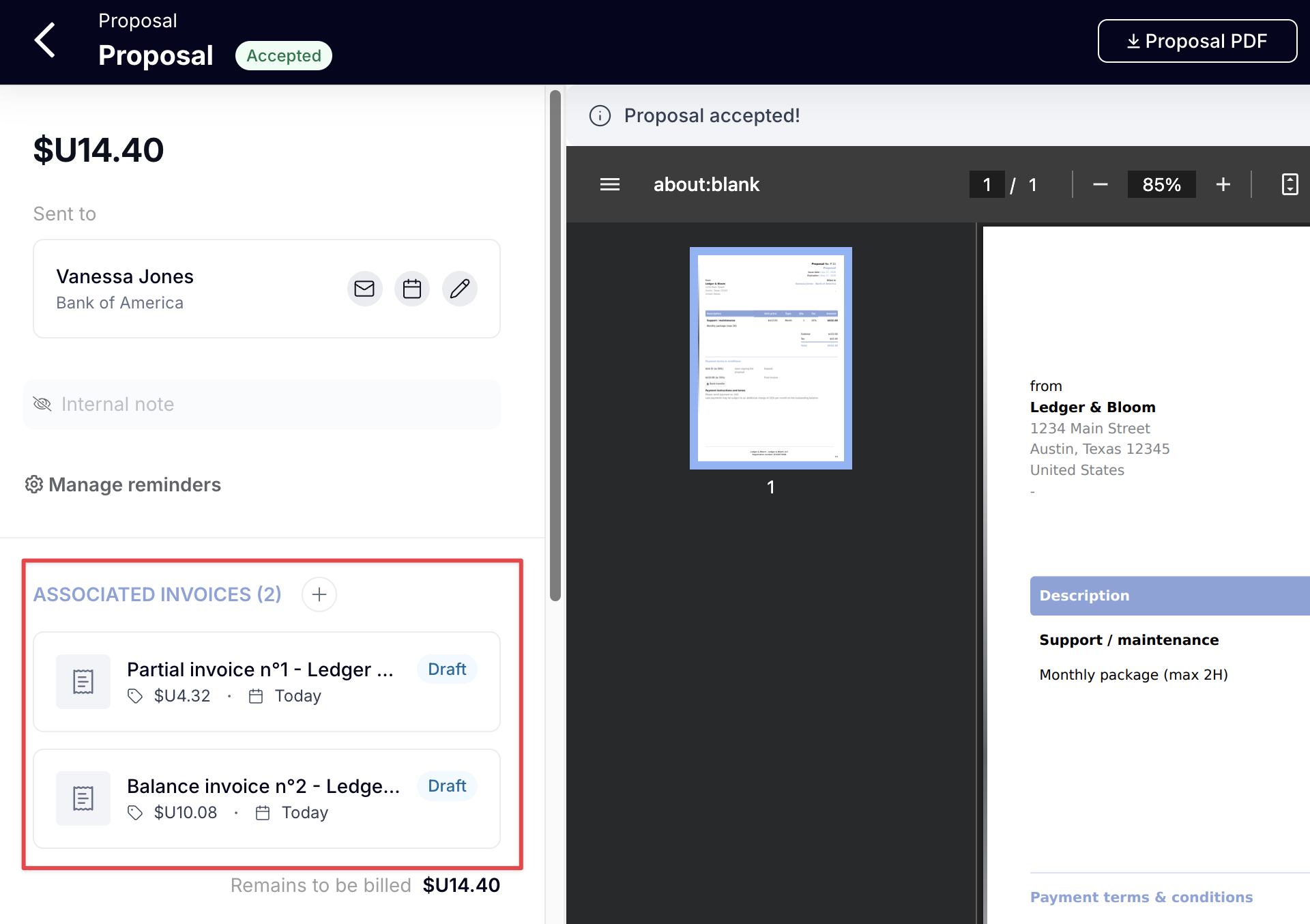
Choose how your client will pay. Once the proposal is accepted, Hubflo automatically creates draft invoices for each payment.
One-time payment so the client pays the full amount at once
Multiple payments to split into installments (e.g. 50% at signature, 50% on delivery). Set each amount as a percentage or fixed dollar amount, add due dates, and mark which payment is due at signature.
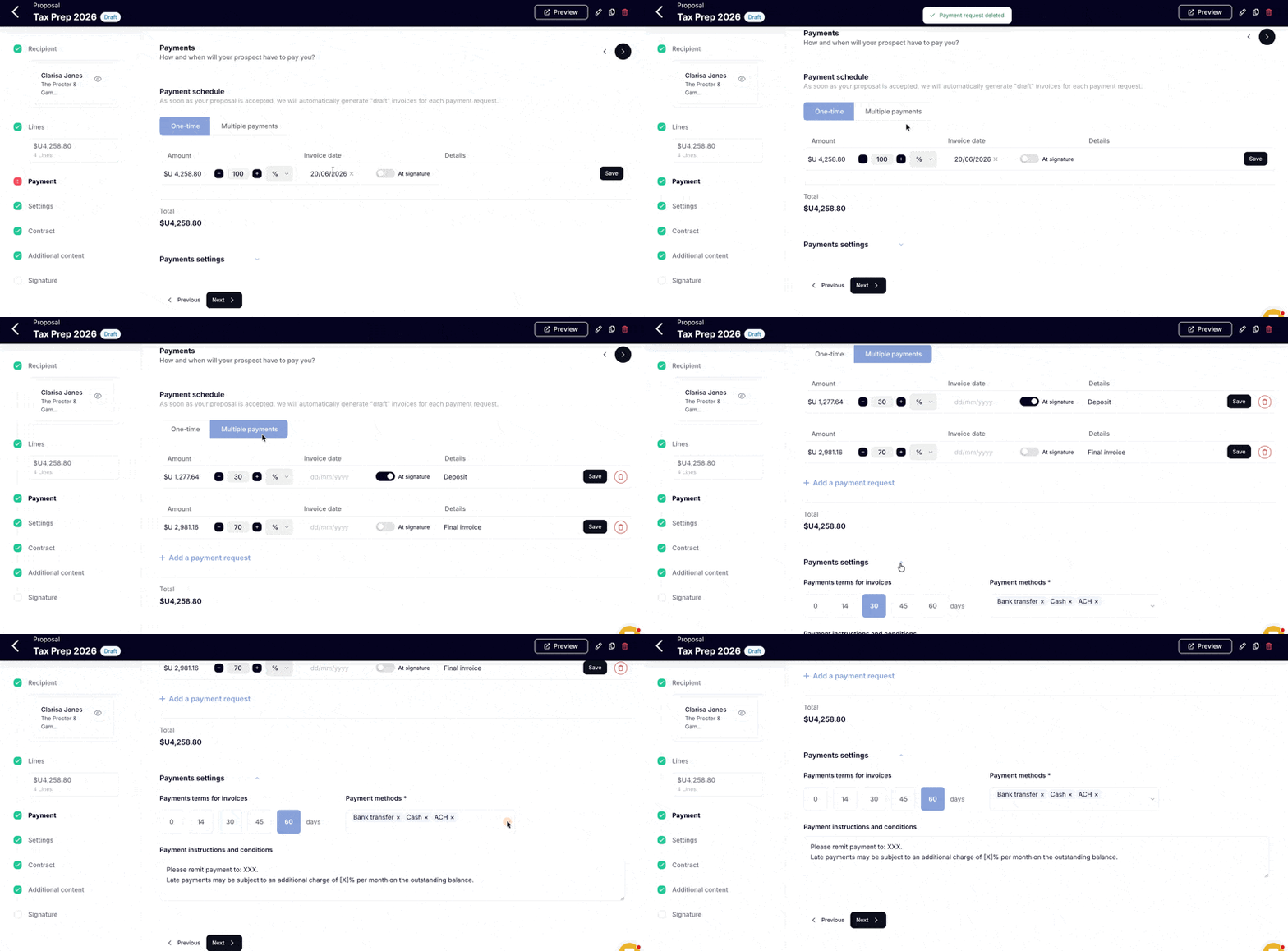
Set how many days the client has to pay after an invoice is issued: 0 (immediate), 14, 30, 45, or 60 days.
Choose which methods to accept: bank transfer, direct debit, ACH, PayPal, check, cash, or other (with custom instructions).
Use the free-text field to add banking details, reference numbers, early payment discounts, or late fee policies.
Tip: You can set default payment terms, methods, and instructions in Settings → Billing so you don't have to re-enter them every time. Changes you make per proposal won't affect your template.
You can set default proposal settings in Settings → Billing so you don't have to re-enter them every time.
Setting | What it does |
Expires in | How long the proposal stays valid (15, 30, 60, or 90 days). The expiration date is visible to the client. |
Introduction message | A short note your client sees in the email or on the public proposal page. Not included in the PDF. |
Proposal comment | A note that appears in the downloadable PDF, use it for disclaimers, legal terms, or key details. |
Set a custom issue date | Defaults to today. Change it if you need to align with a project or fiscal date. |
Attach a service contract for your client to review and sign alongside the proposal. Your client can sign both the proposal and contract online with legally binding e-signatures powered by Yousign.
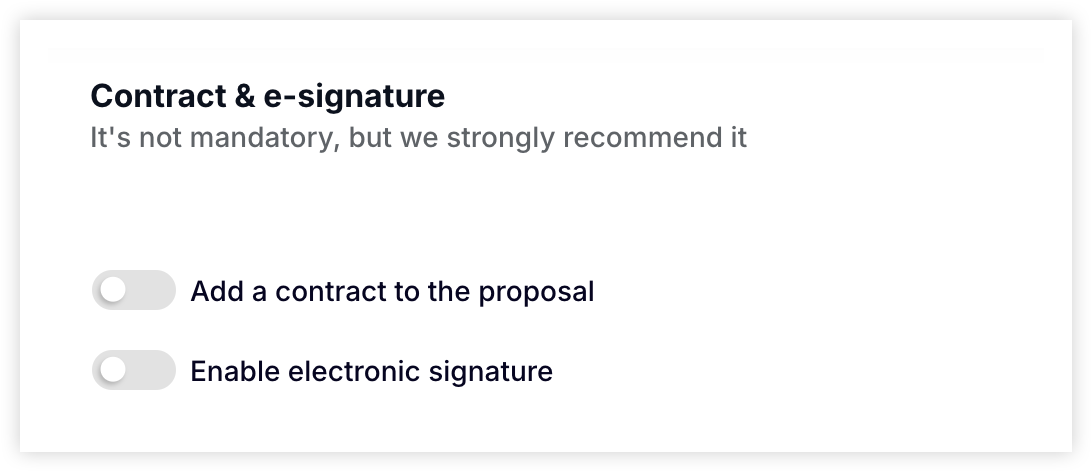
Learn how to add a contract and e-signature →
In Additional Content add documents or attachments such as:
Case study links
PDFs or brochures
Videos or images from your device, Google Drive, or Dropbox
Tip: Save reusable content in the Content module to add it to future proposals in seconds.
Your proposal is saved as a draft. Before issuing it:
Click Preview to review the layout
Generate a PDF preview to check formatting
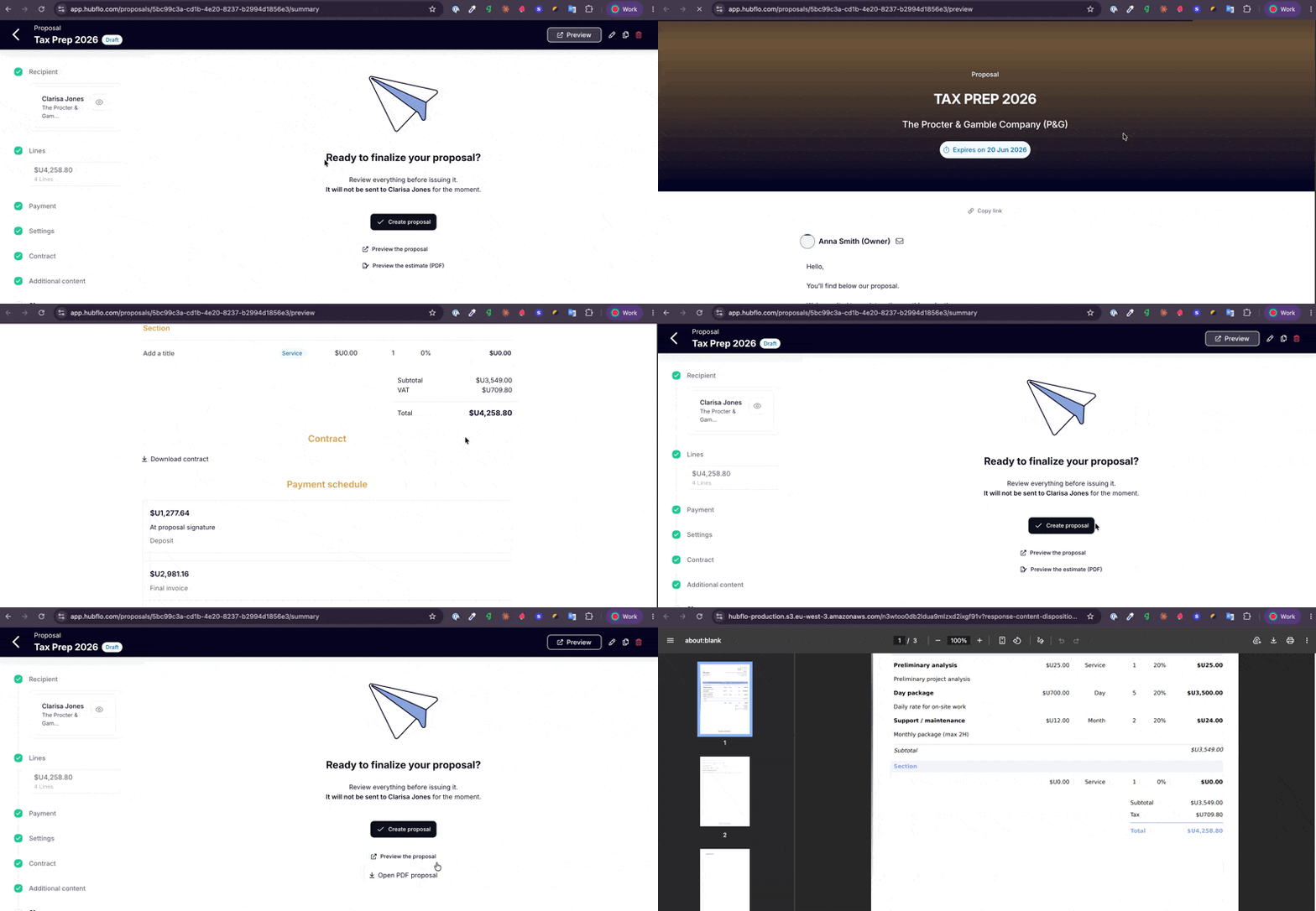
Once you're happy with the proposal, click Create proposal to issue it.
