
Once your proposal is ready, you have several options for getting it to your client.
Sending options
Send via email (using your connected inbox)
If you've connected your email inbox to Hubflo, you can write the email yourself or use the Introduction message template. The proposal is included as a secure link.
Click Send
Select Send by email (manual)
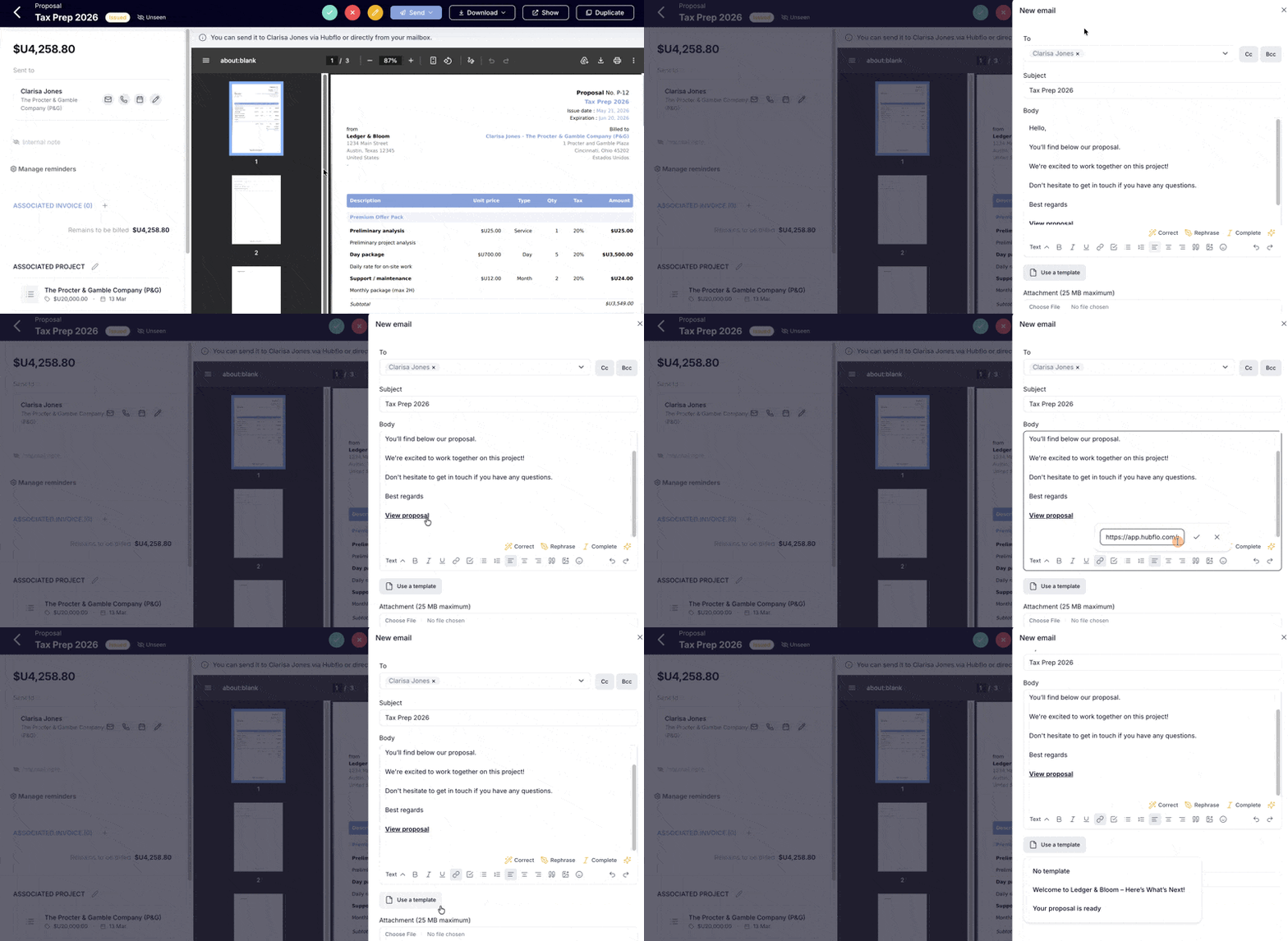
Note: Edit the Introduction message shown in the email from Settings → Billing.
Send with Hubflo's email template
Click Send > Via Hubflo (automated email) to send the proposal email automatically using a professional template. The client receives a secure link to view and respond to the proposal.
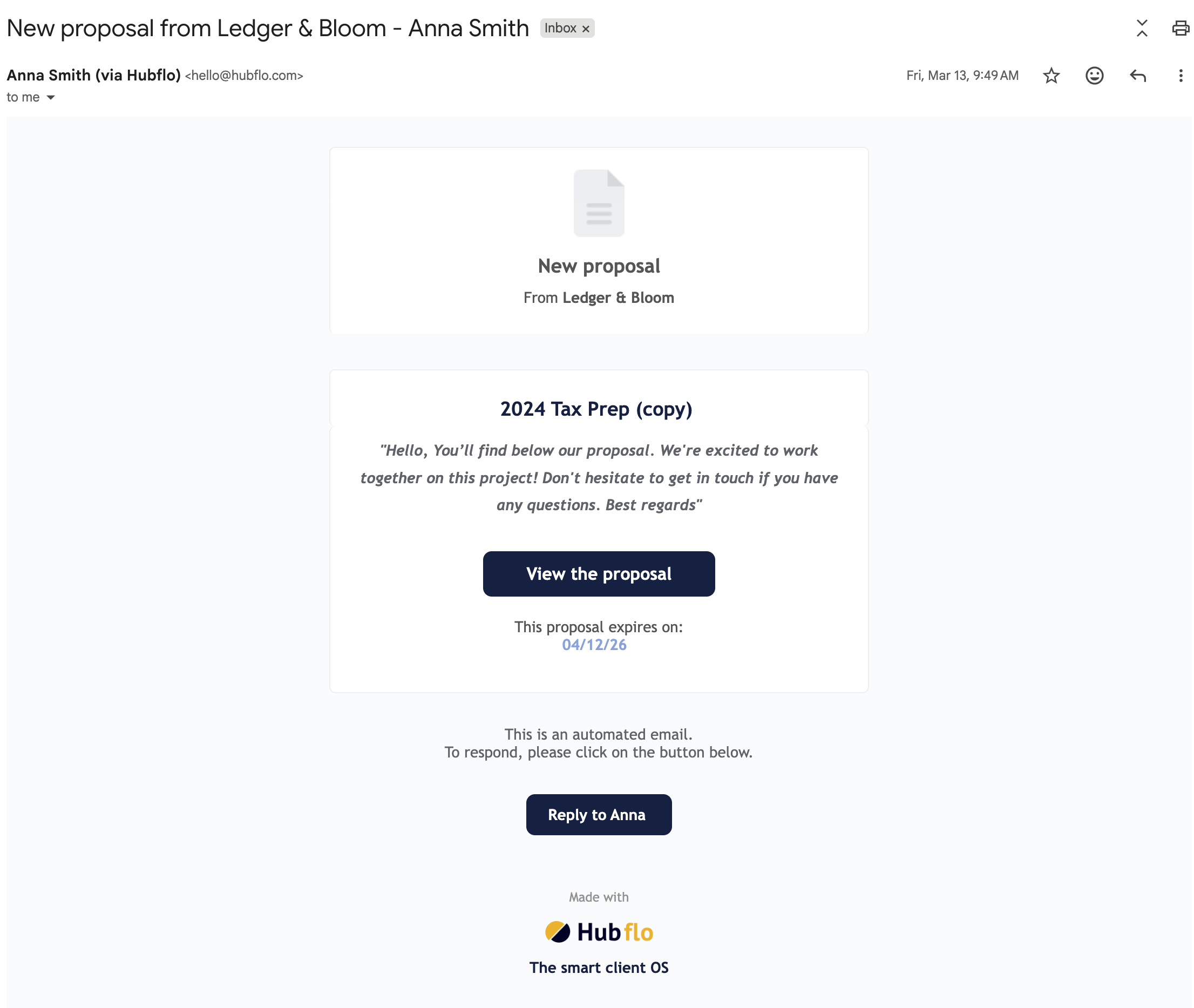
Tip: Before sending to the client, send a test email to yourself to preview exactly what they'll see.
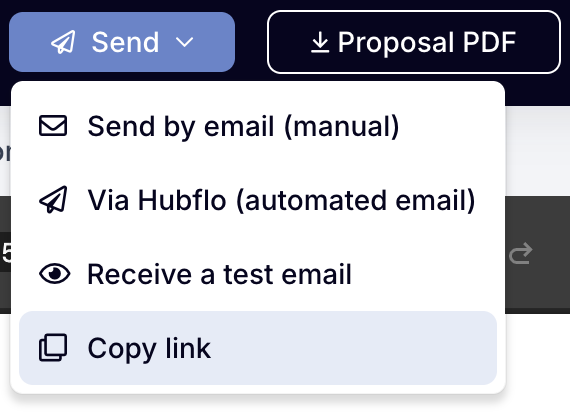
Share a link
Click Send > Copy link to copy the proposal link and send it via any channel such as text message, WhatsApp, another email tool, or your client portal.
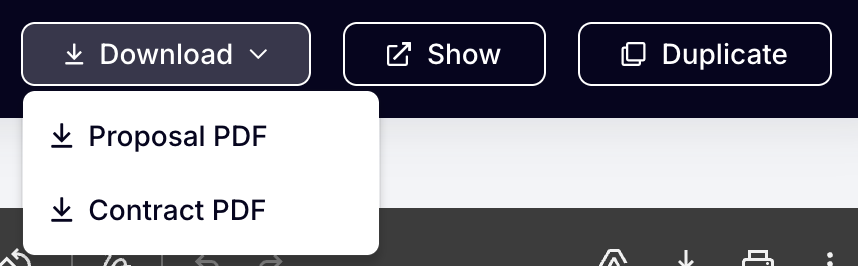
Download as PDF
You can download the proposal as a PDF and send it manually if you prefer full control over the message.
What the client sees
Clients can access a proposal in two ways:
Via the proposal link with no login required. They can view the proposal, download the PDF, and accept and sign it directly from the link.
Via the client portal for clients who have portal access. They can find their proposals by logging in and going to Billing in the sidebar.
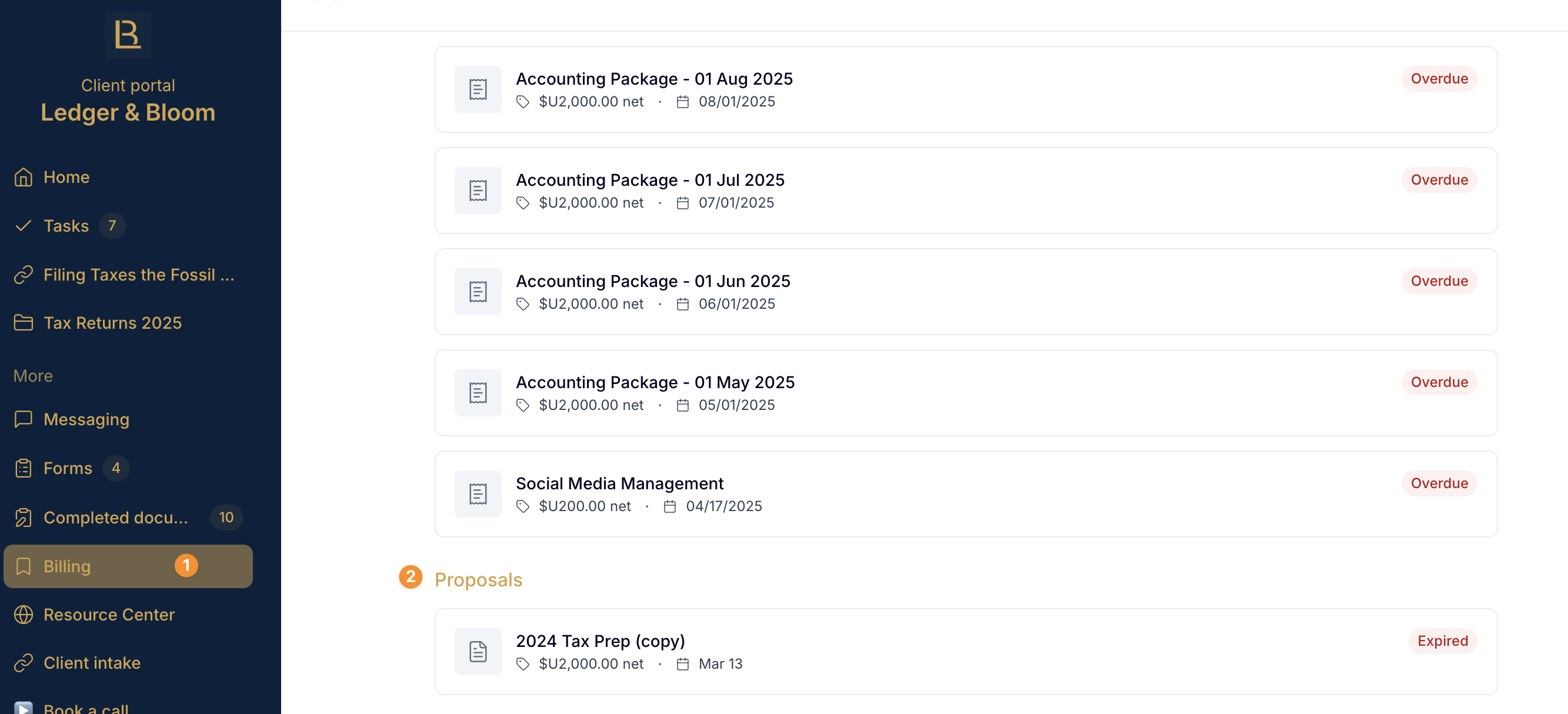
When a client opens their proposal, they see:
The proposal content and pricing
The expiration date
A button to download the proposal as a PDF
A button to download or sign the contract (if one is attached)
An Accept & sign button to accept the proposal and sign the contract online