
Welcome to your client portal! Your client portal is a secure, private workspace where you and your service provider can share files, track tasks, exchange messages—all in one place.
Access is by invitation only. Before you can log in, your service provider will add you to the portal and send you an invitation email to get your account set up. The steps below walk you through that process.
Activate your account
Step 1: Check your invitation email
You'll receive an email from your team with the subject line "Activate your client portal account" It will look something like this:
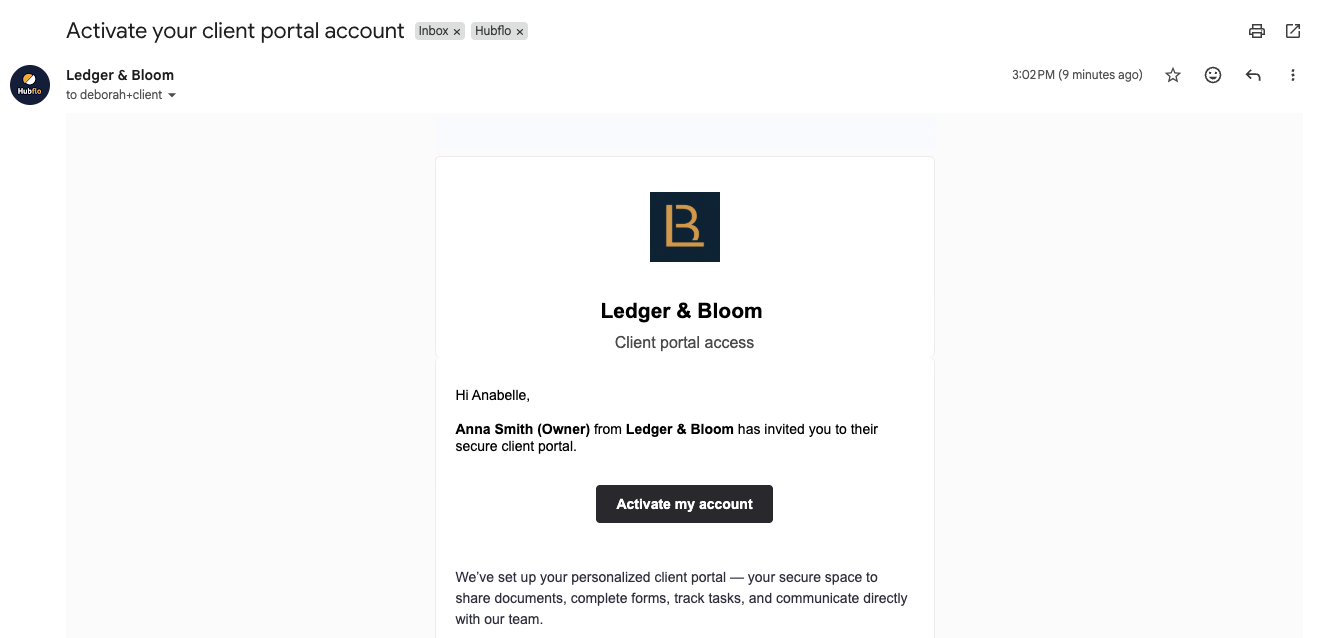
Open that email and click Activate my account. If the button doesn't work, copy and paste the link below it directly into your browser.
Don't see the email? Check your spam or junk folder. If it's not there, reach out to your service provider and ask them to resend the invitation.
Step 2: Set your password
After clicking the activation link, you'll be prompted to create a password. Your password must include:
At least 8 characters
One uppercase letter
One lowercase letter
One number
Once you've entered your password, click Activate my account. You'll be logged in automatically.
Step 3: Bookmark your portal
Once you're in, we recommend bookmarking your portal URL in your browser so you can get back easily anytime. Your portal link will look something like: https://ledger-bloom.hubflo.com
Logging back in
To log back into the portal, go to your bookmarked link (or the URL your team shared with you). Enter your email address and password on the sign-in page.
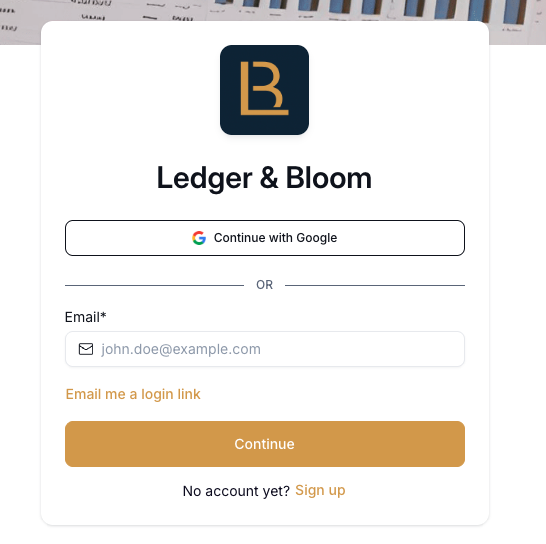
Other ways to sign in
Depending on how your service provider has set up your portal, you may also see the option to sign in with Google or to request a magic link (a one-time login link sent to your email—no password needed). If you don't see these options on the sign-in page, they haven't been enabled for your portal.