
This feature is available to owners and regular members. Limited members, contractors, and accountants cannot create invoices.
Time entries must be marked as billable and linked to a project to appear in the Bill back list.
Pull time entries into an invoice
Create a new invoice or open an existing one.
Make sure the invoice is linked to the relevant project (Hubflo can only pull in entries tied to that specific project).
At the Lines step, find the Bill back section and click +Time.
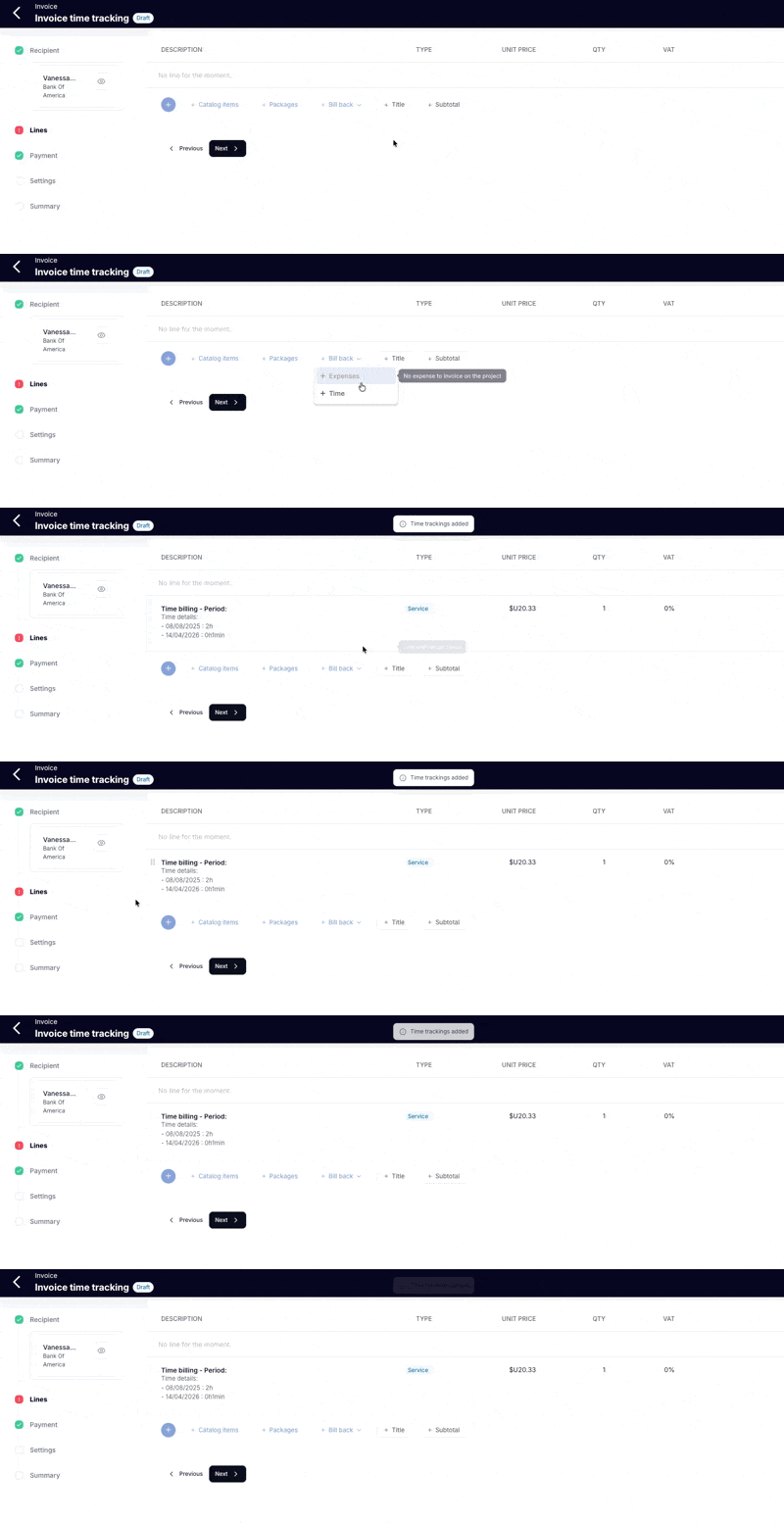
Hubflo will pull in all unbilled time entries that are marked as billable and linked to that project.
Once the invoice is issued, all included entries are automatically marked as billed and won't appear in future Bill back.
Invoice only some entries this month
Hubflo pulls in all unbilled entries at once, there's no way to select individual entries in the Bill back step. If you want to hold some entries back for a future invoice:
Go to More > Time.
Find the entries you don't want to include in this invoice.
Click the ⋯ (three dots) menu next to the entry.
Select Mark as billed.
Those entries will be excluded from the current Bill back and flagged so they can't be pulled into a future invoice automatically. If you need to reverse this, go back to the same ⋯ (three dots) menu and select No longer marked as billed.
Entries that have been billed through a previous invoice, or marked as billed manually, won't appear again in the Bill back list.
💬 Need help? Chat with us directly in your Hubflo dashboard or email us at [email protected].