Hubflo gives you three ways to log time depending on your preference. You can:
Enter it manually after the fact
Track it in real time with the live timer
Log it directly from a project or task without switching views.

Two things to keep in mind before creating your first entry:
Toggle Billable on. Every time entry has a Billable toggle. If it's off, the entry won't appear as an available line item when it comes time to invoice, regardless of whether a rate is set or a project is linked.
Link to a project. Hubflo pulls unbilled time entries into an invoice at the project level. If an entry isn't linked to a project, it can't be auto-imported into an invoice. You can still bill for it manually, but it won't show up in the Billed back section.
If you're logging internal time you don't intend to charge for, you can leave Billable off and skip the project link.
Go to More > Time in the Hubflo sidebar.
Click New time tracking.
Fill in the entry details:
Billable to toggle on if this time is chargeable.
Duration to set how long the work took.
Date of when the work was done.
Link to a project to select the relevant project.
Link to a task to select a specific task within that project. Linking to a specific task is optional and purely for your own organization.
Category to choose the type of work, such as Design, Development, or Admin.
Tags are optional, but good for additional filtering.
Hourly rate auto-populates from your profile.
Description a short note about what you worked on.
Click Create.
Click the 🧭 timer icon in the top-right corner of your Hubflo dashboard.
Fill in the entry details, same fields as a manual entry, except duration is captured automatically as the clock runs.
Click ▶ to start the timer.
When you're done, click ⏹ to stop and save the entry.

Open the relevant project.
Click + in the project's top menu bar.
Click Time to add your entry.
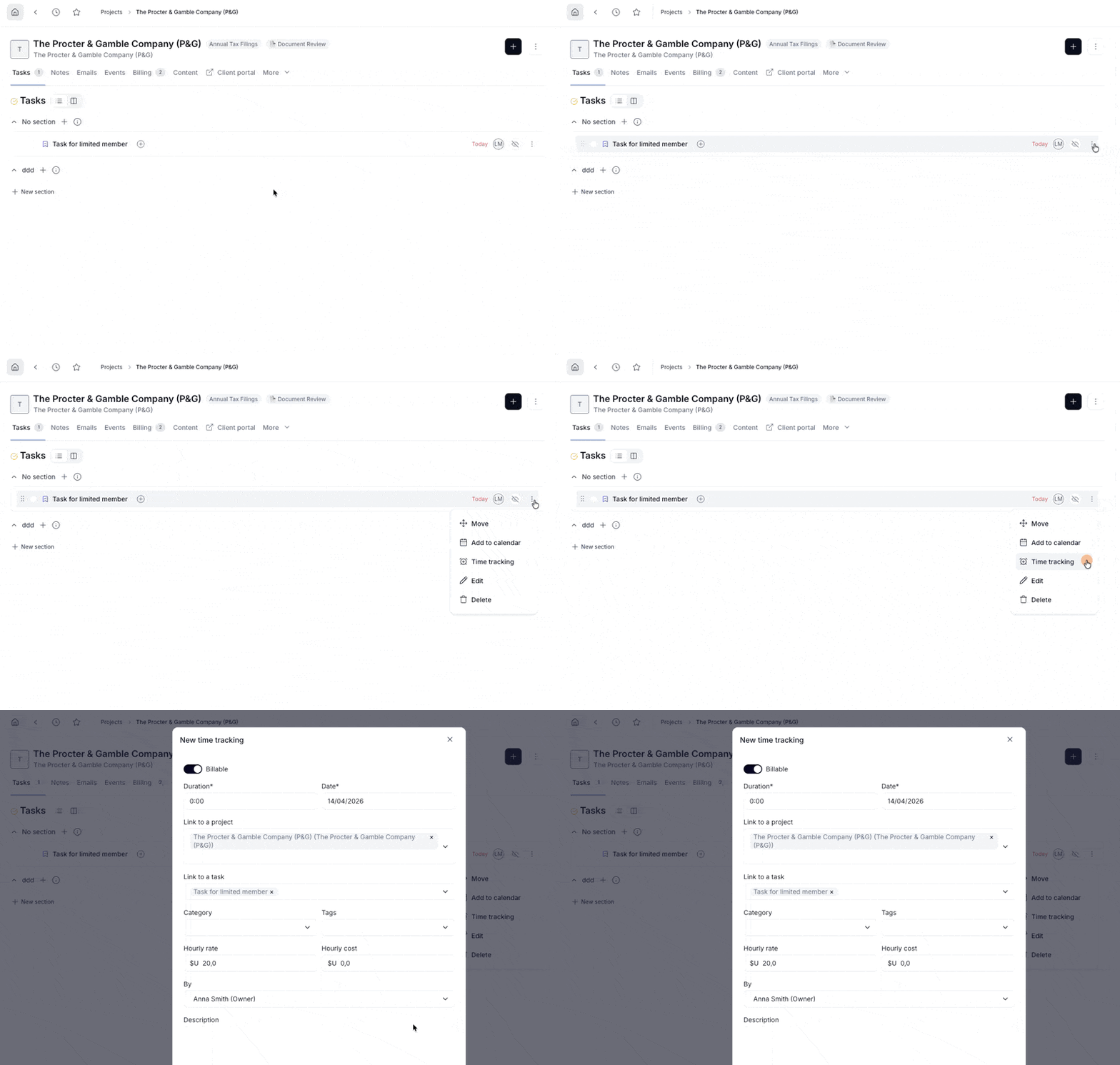
Open the relevant task.
Click the ⋯ (three dots) menu.
Select Time Tracking.
Add your entry.
What you see in the Time module depends on your role:
Owners and regular members can see all time entries logged across the team.
Limited members and contractors can only see their own entries, not those logged by other team members.
For a full breakdown of permissions, see Setting up and managing time tracking →
💬 Need help? Chat with us directly in your Hubflo dashboard or email us at [email protected].
