Time tracking in Hubflo gives you and your team a reliable record of where hours are going and a direct path to billing clients for them. This article walks you through setting everything up before your team starts logging, and explains how tracked time turns into an invoice.
Go to Settings > My Profile and fill in:
Hourly rate (excl. tax) is the rate billed to clients. This auto-populates on your time entries.
Hourly cost (excl. tax) is your internal cost for reporting and profitability. Only owners can see this field.
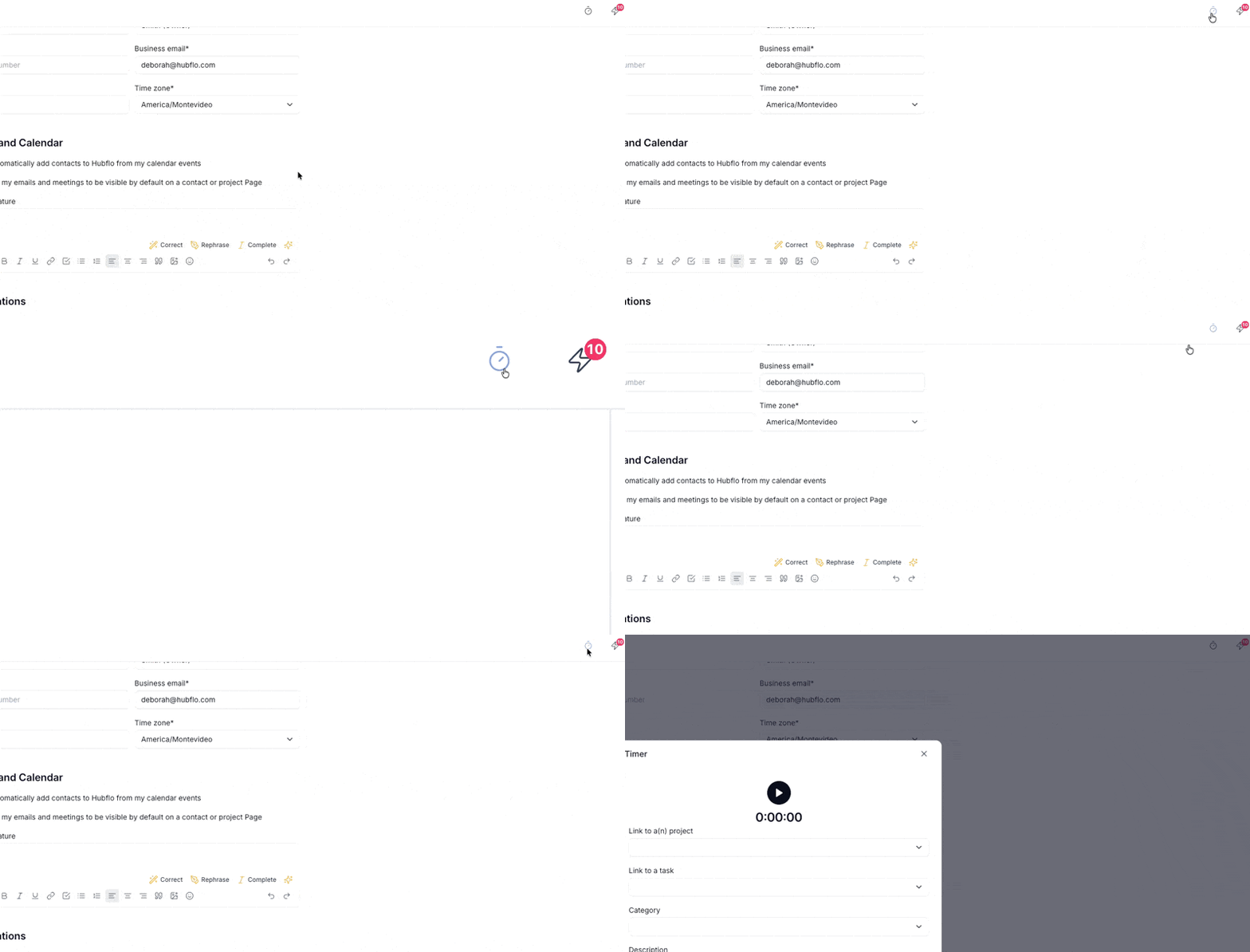
While you're here, toggle on Show timer in the header if you want quick access to the live timer while working.
You can set a default hourly rate for each team member so their entries are always billable at the right amount.
Go to Settings > Team & access find the team member, click Edit, and set their hourly rate under User Details.
A few things to know:
The rate you set auto-populates on that member's time entries.
Regular members can adjust their own rate when logging, your default is a starting point.
Limited members and contractors can't see or edit their rate. Whatever you set is what gets applied.
Owner | Regular member | Limited member | Contractor | Accountant | |
Log time | ✓ | ✓ | ✓ | ✓ | — |
View own time entries | ✓ | ✓ | ✓ | ✓ | — |
View team's time entries | ✓ | ✓ | — | — | — |
See hourly rate on entries | ✓ | ✓ | — | — | — |
See hourly cost on entries | ✓ | — | — | — | — |
Set own hourly rate | ✓ | ✓ | — | — | — |
Set team members' rates | ✓ | — | — | — | — |
Toggle timer in header | ✓ | ✓ | ✓ | ✓ | — |
Once rates and categories are in place, your team can start logging. There are three ways to do it, all covered in How to log time →:
Manual entry to log time after the fact from the Time module (More > Time).
Live timer to start and stop a clock in real time from any page.
From a project or task you can log time directly inside the relevant project or task without switching views.
Every entry includes a Billable toggle. Turning it on marks that entry as billable, which means it shows up in billing reports and can be pulled into a project-linked invoice. Turning it off is useful for internal time you don't intend to charge for.

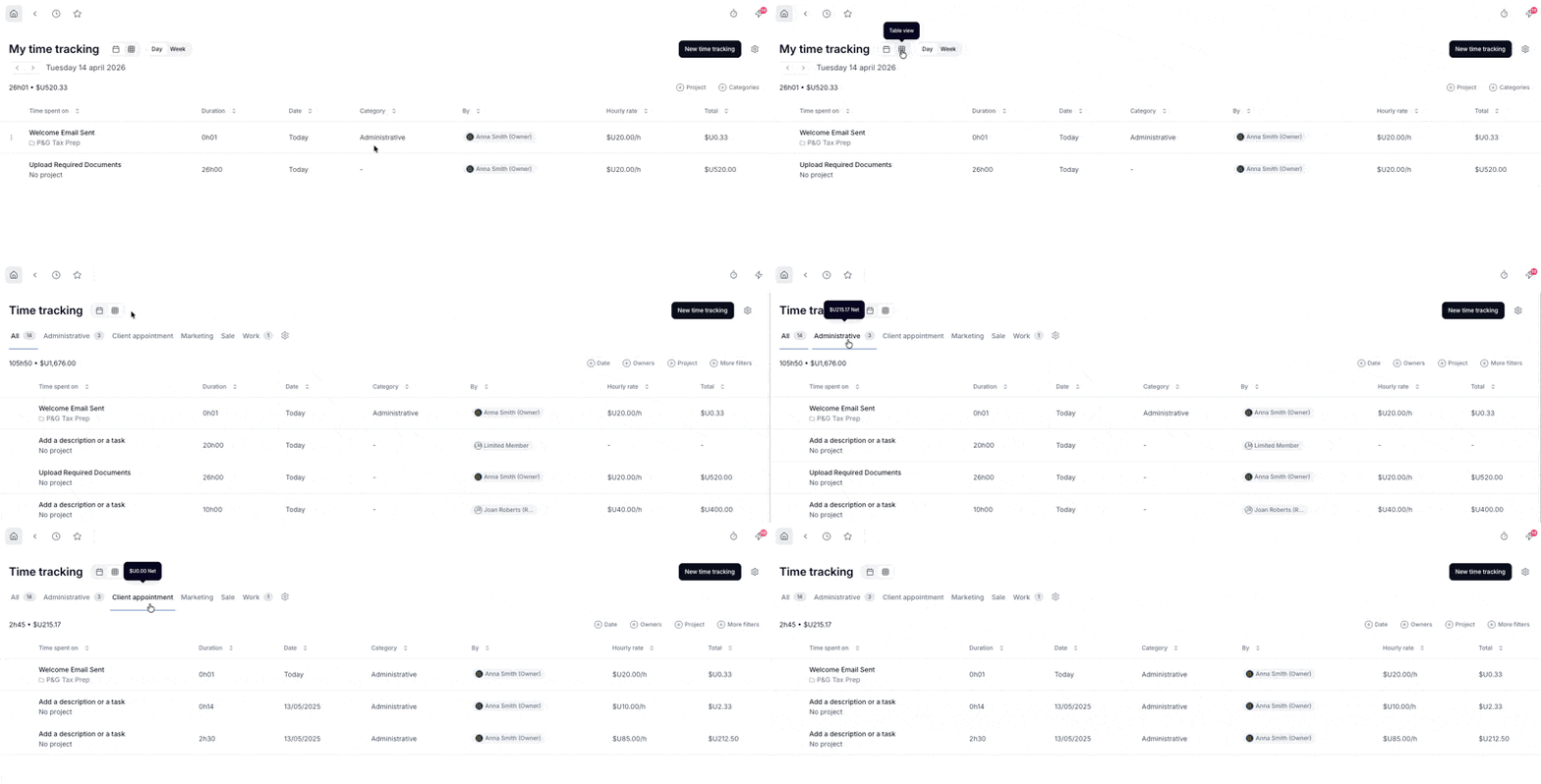
Go to More > Time to see all time logged across your workspace. Switch between two views using the icons at the top of the page:
Table view to see list-style, sortable by date, project, category, or team member.
Timesheet view to see a broader overview filterable by date range, owner, and project.
Note: As the owner, you can see all entries across the team. Regular members can too. Limited members and contractors only see their own.
Categories let you and your team label entries by type of work such as Design, Development, Admin, and so on.
Go to Settings > Categories
Click Time Tracking
Click + New Category
💬 Need help? Chat with us directly in your Hubflo dashboard or email us at [email protected].
