
You can log and categorize your business spending, and bill any project-related costs back to clients. Whether you're tracking what you've paid on behalf of a client or managing internal costs, everything stays in organized in one place.
Where to find expenses
Go to More in the left sidebar, then click Expenses.
What you can do with expenses
Log expenses with receipts, amounts, and VAT
Mark expenses as billable so they can be added to a client invoice
Link expenses to projects and companies
Track internal costs by category, tag, and internal members
Set up recurring expenses for predictable ongoing costs
Filter and organize by status, date, project, or category
Create a new expense
Click New Expense
Fill in the details
Click More fields to access additional options.
Set up a recurring expense
For expenses that repeat on a schedule, you can add a recurrence directly on the expense.
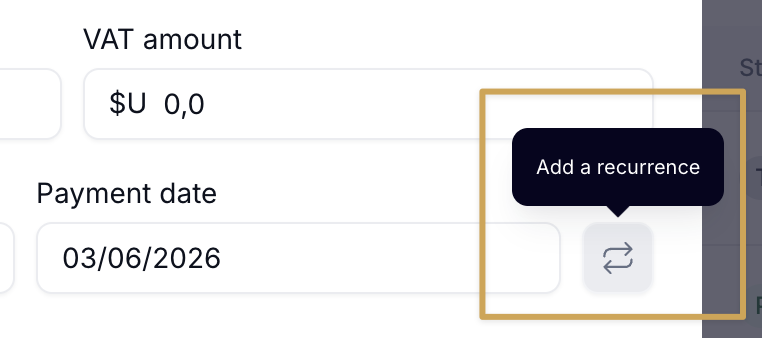
When creating an expense, click the recurrence icon (↺) next to the Payment date field and configure the schedule. The expense will appear under the Recurring group in your expenses list.
Create an expense from a project
Open the project
Click + → Expense
Fill in the details and make sure Billable is toggled on
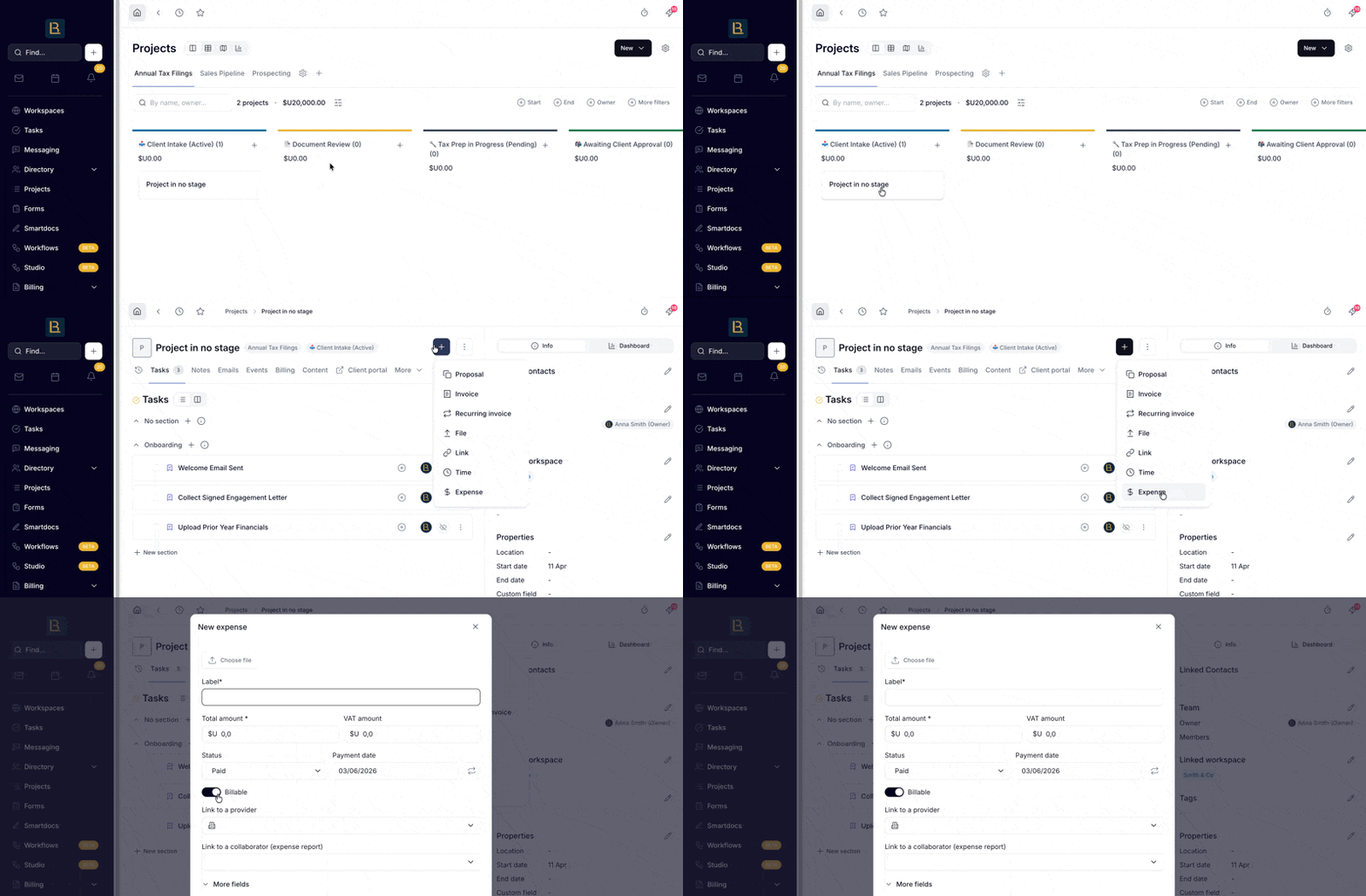
Expenses created from a project are automatically linked to it, making them ready to bill back to your client.
Learn how to bill back expenses on an invoice →
Organize and filter expenses
Expenses are automatically grouped by status in the sidebar:
To Validate: logged but not yet approved
To Pay: approved and awaiting payment
Paid: settled expenses
Recurring: expenses that repeat on a schedule

Use the filters at the top right to narrow your view by date, category, or project. Use More filters for advanced filters including tags, internal members, company, recurring expenses, and whether a receipt has been uploaded.
Export expenses
Click the gear icon ⚙️ next to the New Expense button to export the current view:
Export expenses (CSV): download a spreadsheet of all expenses in the current view
Export receipts (ZIP): download all uploaded receipts as a ZIP file