
If you want to add all your contacts to the Hubflo Directory at once, the fastest way is to prepare a spreadsheet with all the relevant information and import it in one go. Once your contacts are in, they'll be ready to link to projects, invoices, proposals, and more.
Download and prepare import template
Follow these steps to get your data organized and ready for Hubflo:
Set up your custom fields in Hubflo (Optional)
Hubflo comes with standard fields like name, email, and phone number. But if you track other details, like a client's region or any internal notes, you'll want to create those fields in Hubflo before you import. This way, your data goes exactly where it should.
How to create custom fields in Hubflo →
Download our template and fill it in
We provide a ready-made file for you to fill in with your contact's information. A few things to keep in mind as you fill it in:
Some fields only accept specific words. Use these exactly as written (copy and paste to be safe):
Contact Type:
Prospect/Lead,Client,Partner,Provider/ContractorPriority:
High,Medium,Low
Make sure things like phone numbers and email addresses are formatted consistently throughout (e.g., don't mix
+1 (555) 000-0000with5550000000).If you created custom fields with dropdown options: The options you type in your file must exactly match the ones you set up in Hubflo. Hubflo won't create new options on its own during the import.
Download the import template for contacts→
Start the import
Once your file is ready, here's how to bring it into Hubflo:
Go to Settings and click Import / Export in the menu
Click Start import
Drag your file into the box, or click to browse for it on your computer (your file should end in .csv, .xlsx, or .xls)
Click Next
Match your spreadsheet's columns to the right fields in Hubflo, for example, if your column is called "First Name," you'd map it to the Name field. If a column doesn't apply, you can skip it.
Click Next again, Hubflo will check your data for any issues
Once everything looks good, click Submit
Check for errors
After you upload, Hubflo will scan your file and flag anything that needs attention.
✅ White rows mean everything looks good.
🚫 Pink rows highlight issues. Click the darkened cells to view error messages.
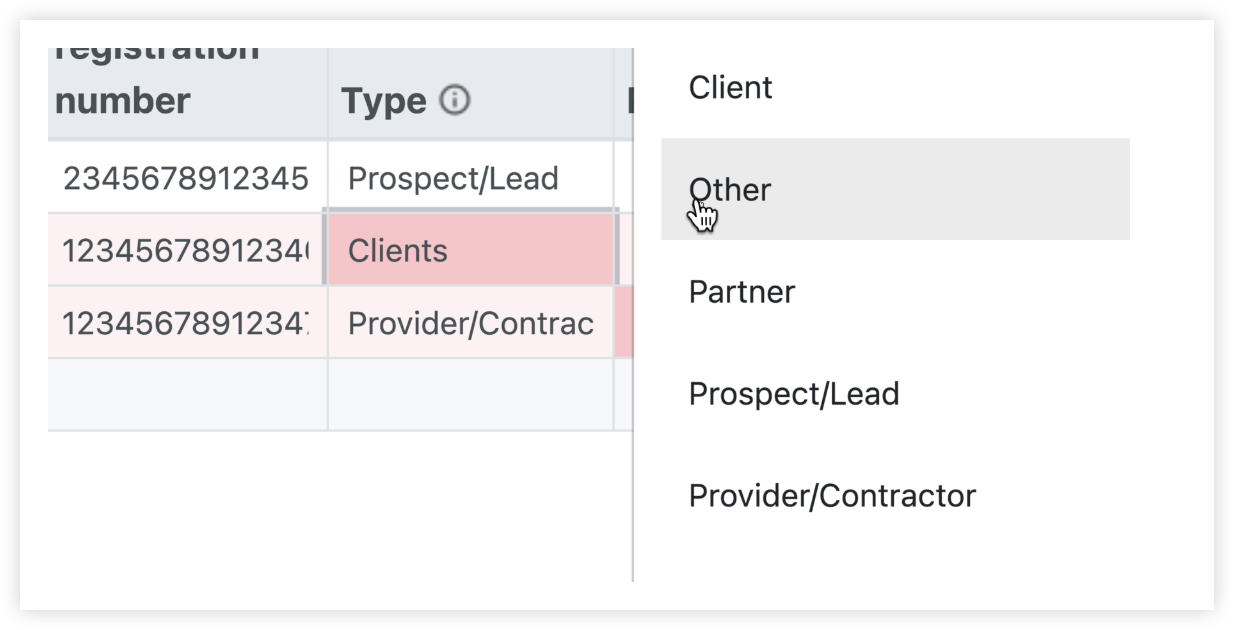
You can either fix it directly in Hubflo, or go back to your spreadsheet, make the changes, and upload the file again.
Note: If you upload a corrected file, it will replace the previous one. To make sure your import went through successfully, check Import History.
What's next?
Want to learn more about what you can do with contacts in Hubflo? See the complete guide to using the Hubflo Directory →