Whether you're onboarding a new client, responding to requests, or assigning tasks from a quick sync session with your team, the Hubflo Chrome Extension helps connect your work across platforms.
Install the extension from the Chrome Web Store
Copy your API Key from Settings > Integrations
Paste your API key and click Connect
Select your user profile from the list of users in your organization
Once installed and logged in, you can use the Hubflo extension to view tasks, workspaces, and contacts.
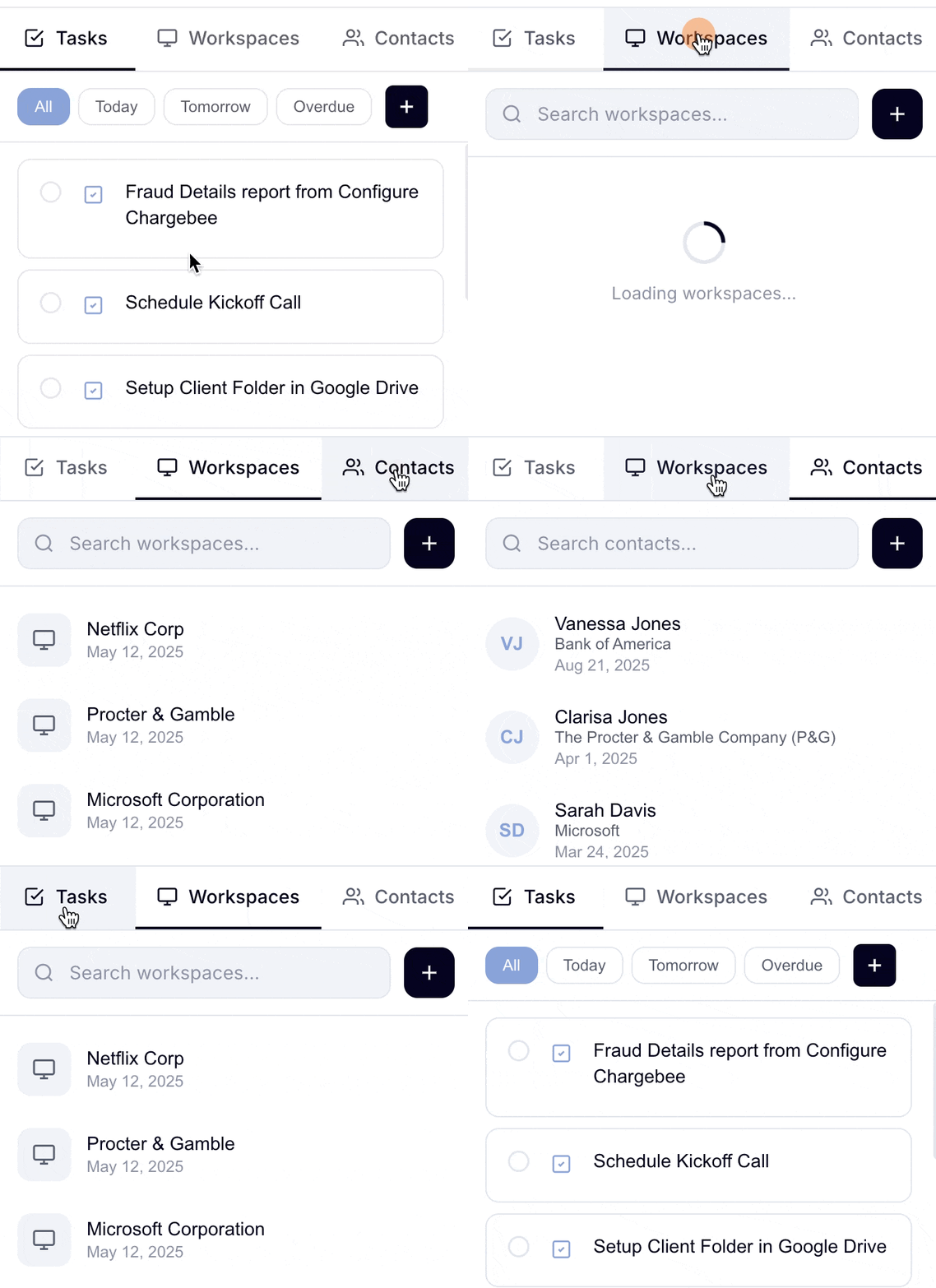
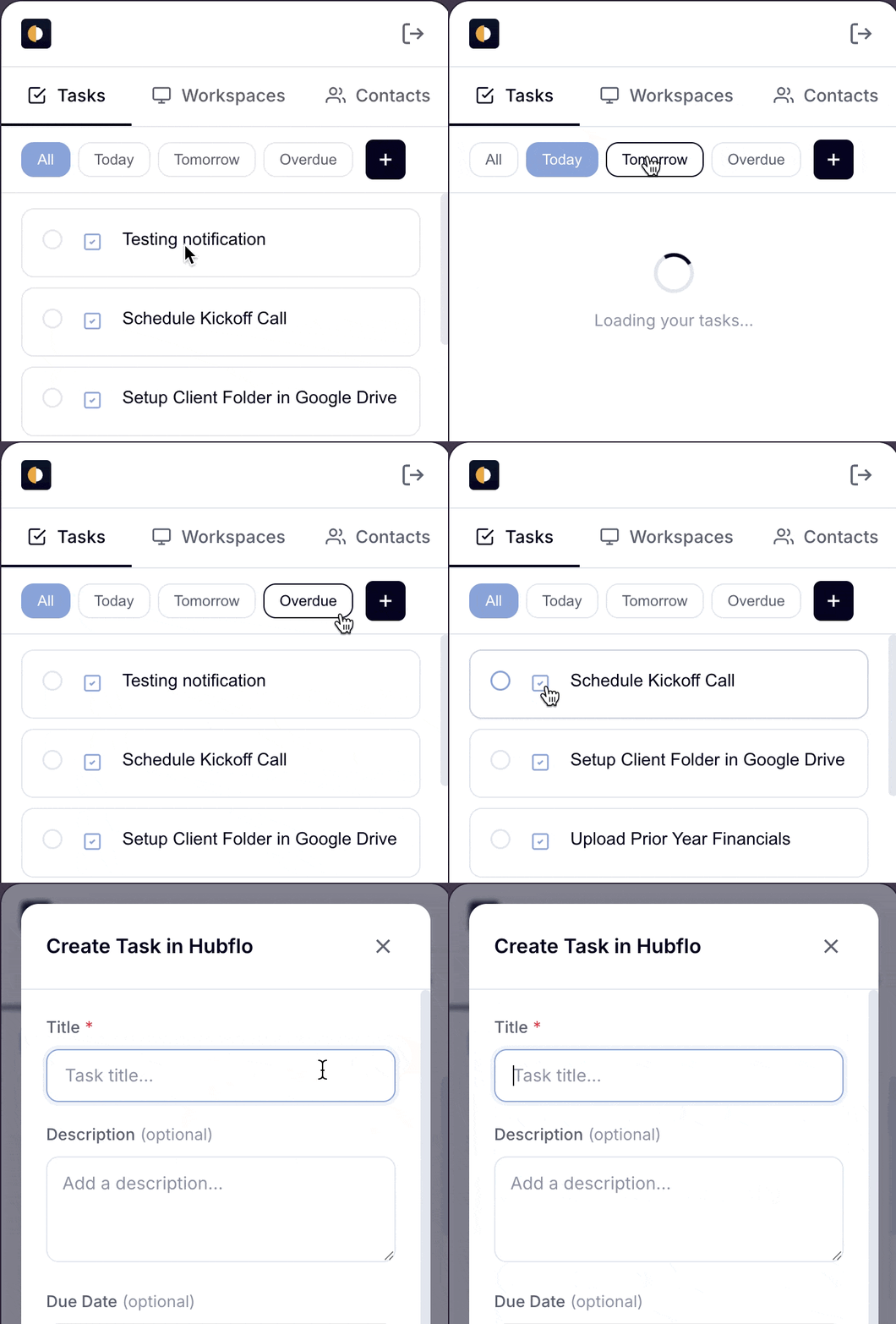
Click on Tasks to view all tasks assigned to you.
Filter by due date or status
Mark tasks as done or create new ones
Click + to create new tasks
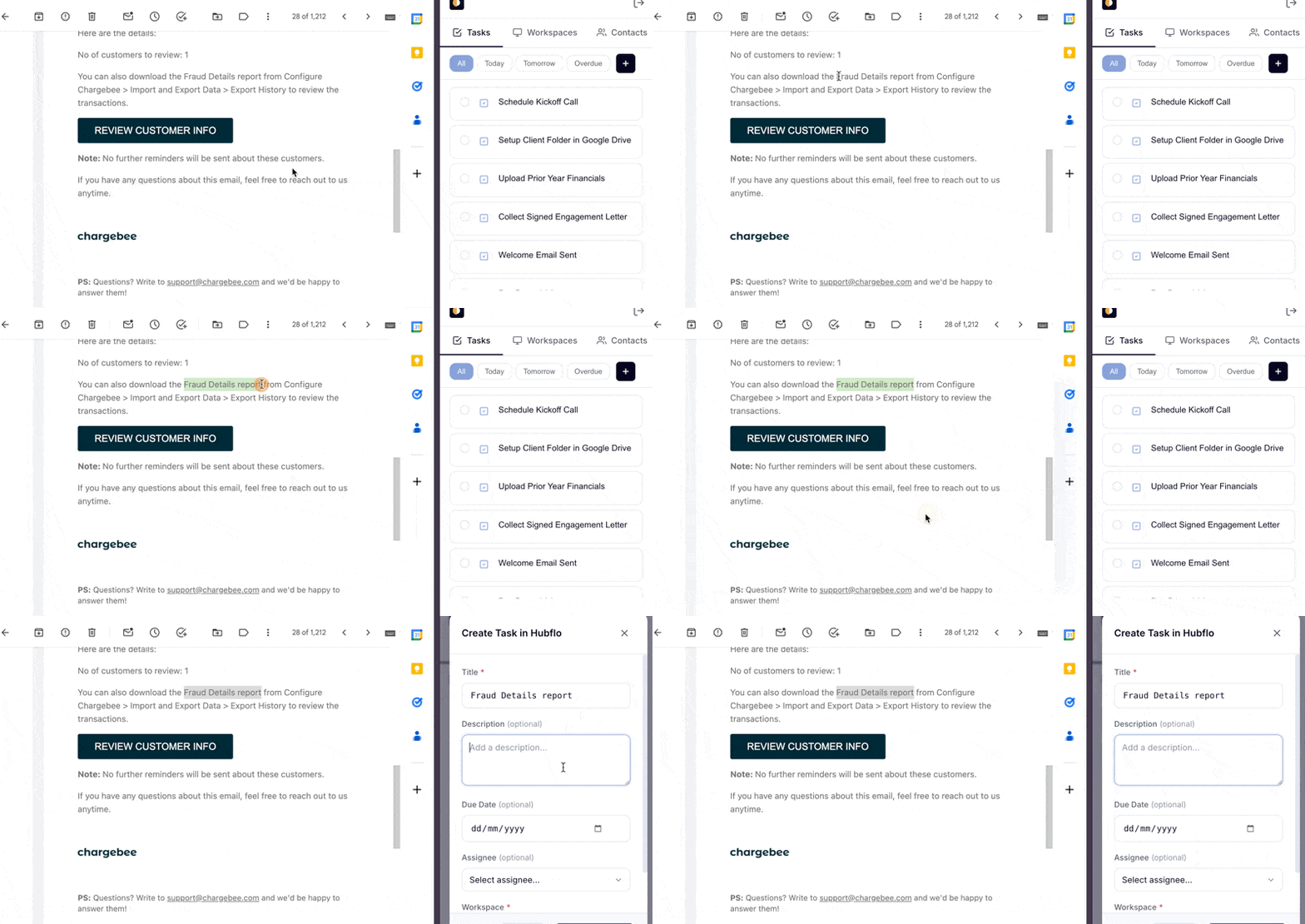
Create tasks from a page:
Right-click highlighted text
Click"Create Task in Hubflo"
Add details, assign it to a contact/workspace, and save.
Search and access workspaces and contacts.
Open folders, files, tasks, and forms from the extension panel
Upload files to workspaces and folders
Assign forms to email recipients and contacts
Create new and edit contacts and workspaces
Search through all active workspaces and contacts
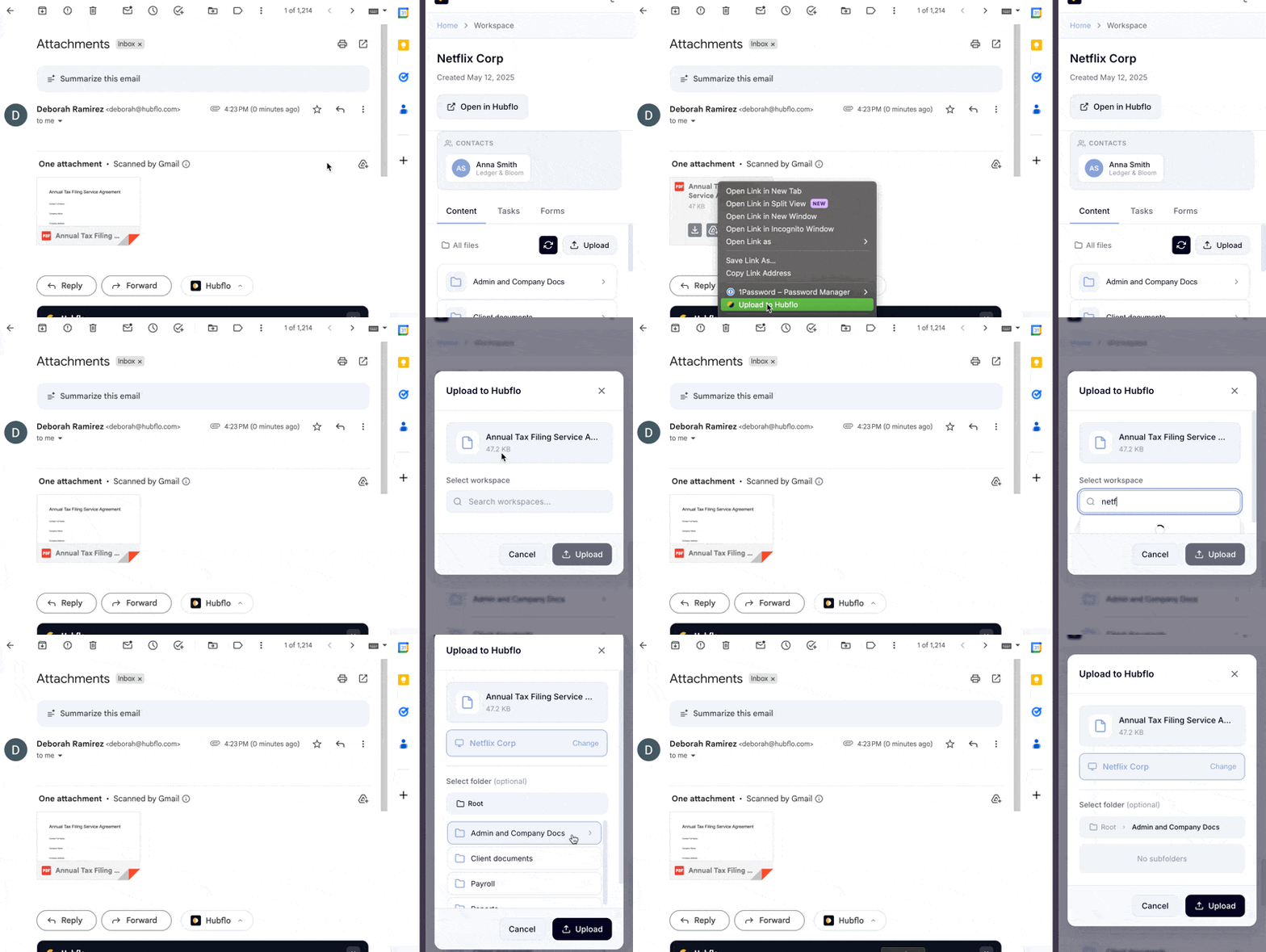
Upload files to Hubflo from a page:
Right-click an attachment
Click "Upload to Hubflo"
Select the target workspace and folder
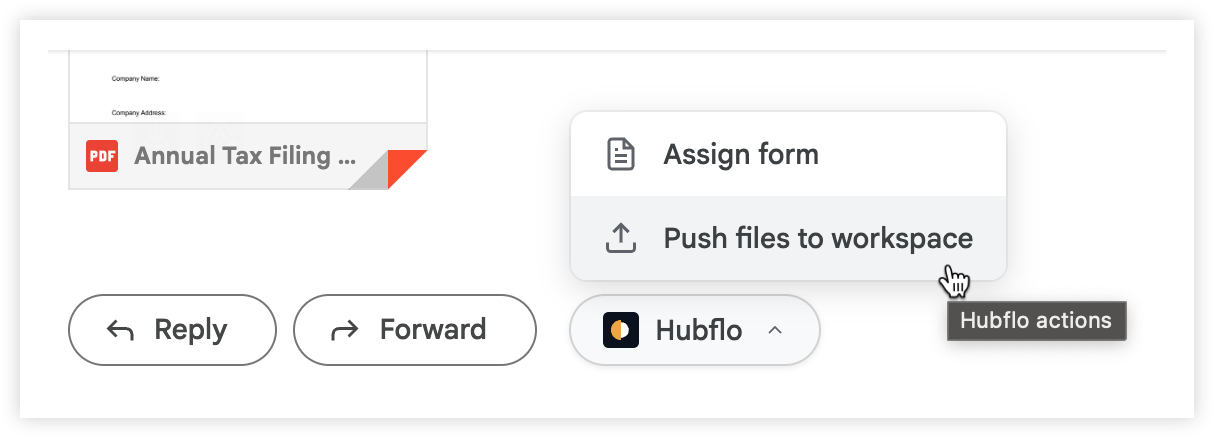
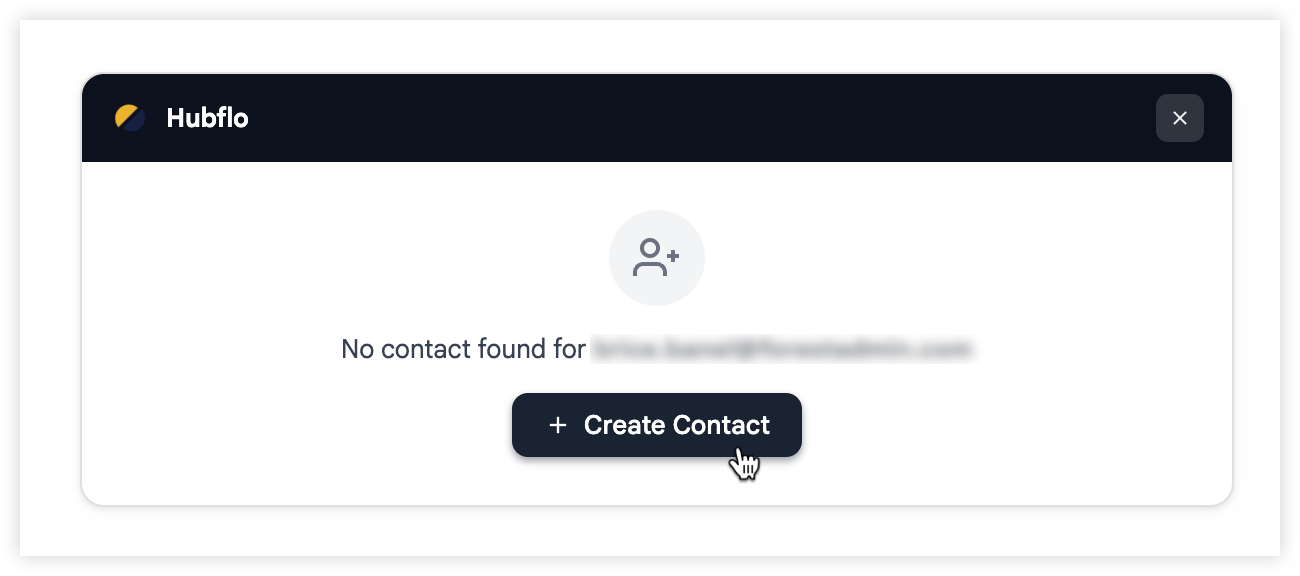
When viewing an email thread, Hubflo auto-detects an email recipient allowing you to:
Create a new contact and workspace
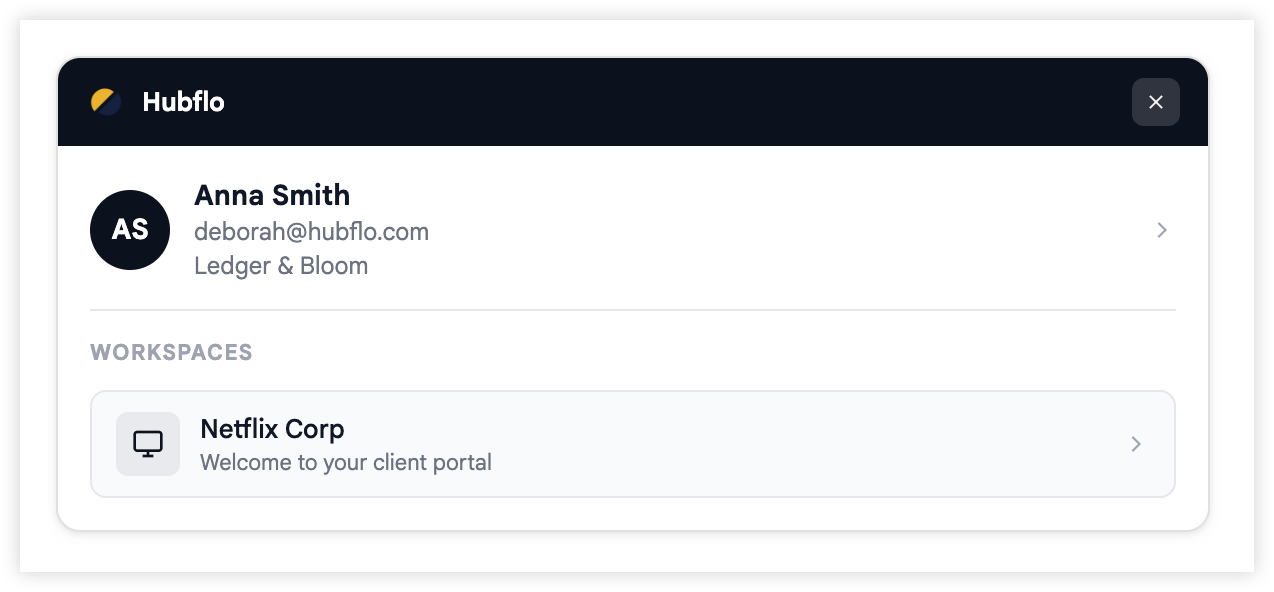
View and access Hubflo contacts and their workspaces
Send email attachments to a workspace and assign forms to contacts