A Flow template can reuse things you already have in Hubflo such as forms, links, embeds and notes in your content library. This article explains how to add them to a step, and what happens when you edit them later.
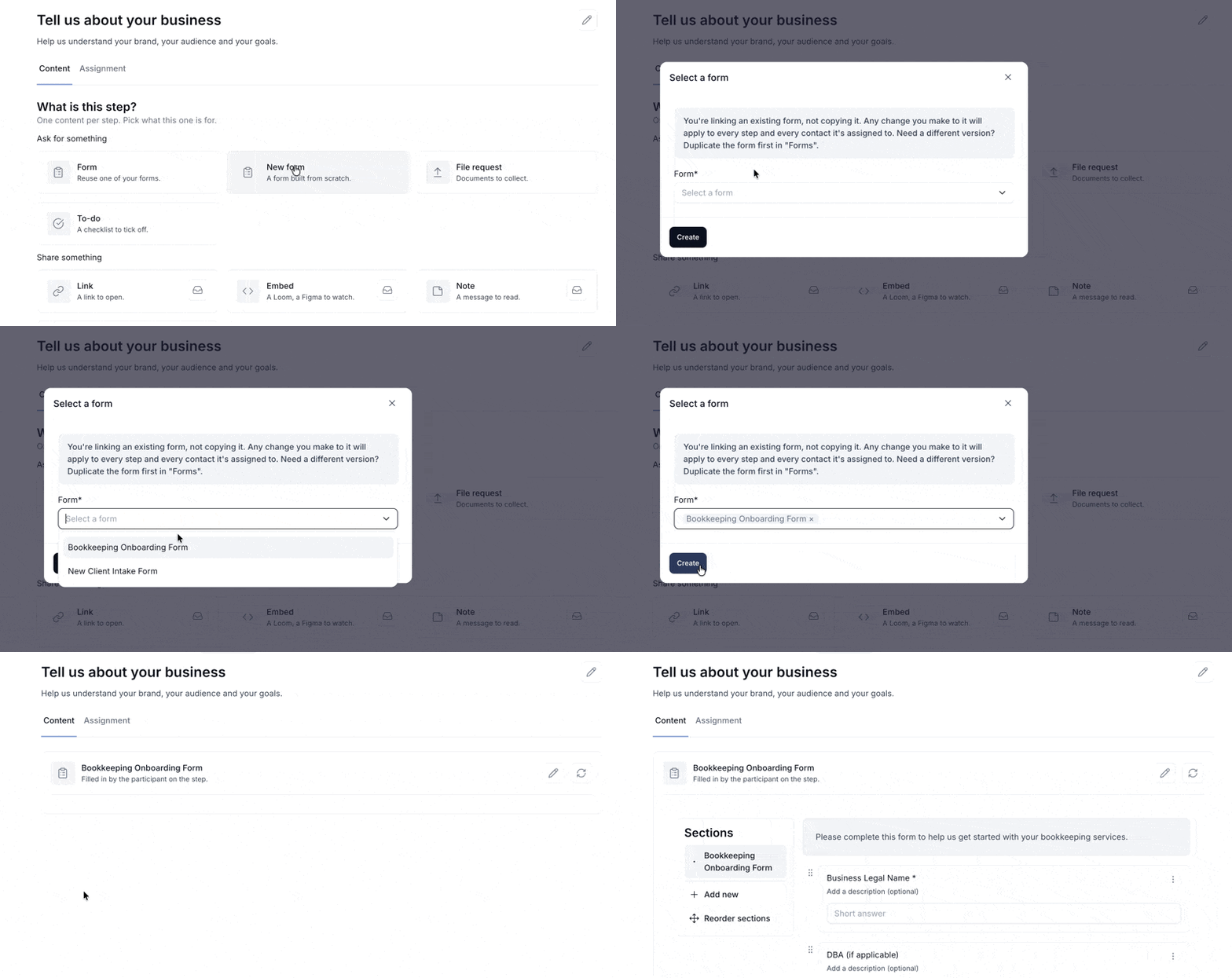
Choose Form on a step to pick one from your Forms.
The step points to the form itself. This means:
Answers collected through a Flow show up in Forms, like any other submission.
You can edit the form as usual.
A form used in a template can't be archived. The Archive button is greyed out and tells you which templates use it. To archive the form, first pick another form in those steps.

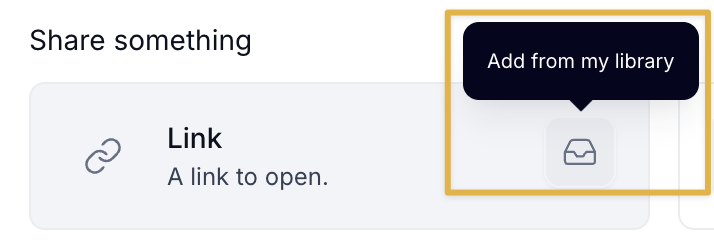
When choosing what the step holds, hover the Link, Embed or Note card.
Click the library icon on its right (Add from my library).
Pick the item. It's added to the step.
Clicking the card itself creates a new item instead. An item picked from your library isn't copied, it simply points to that item.

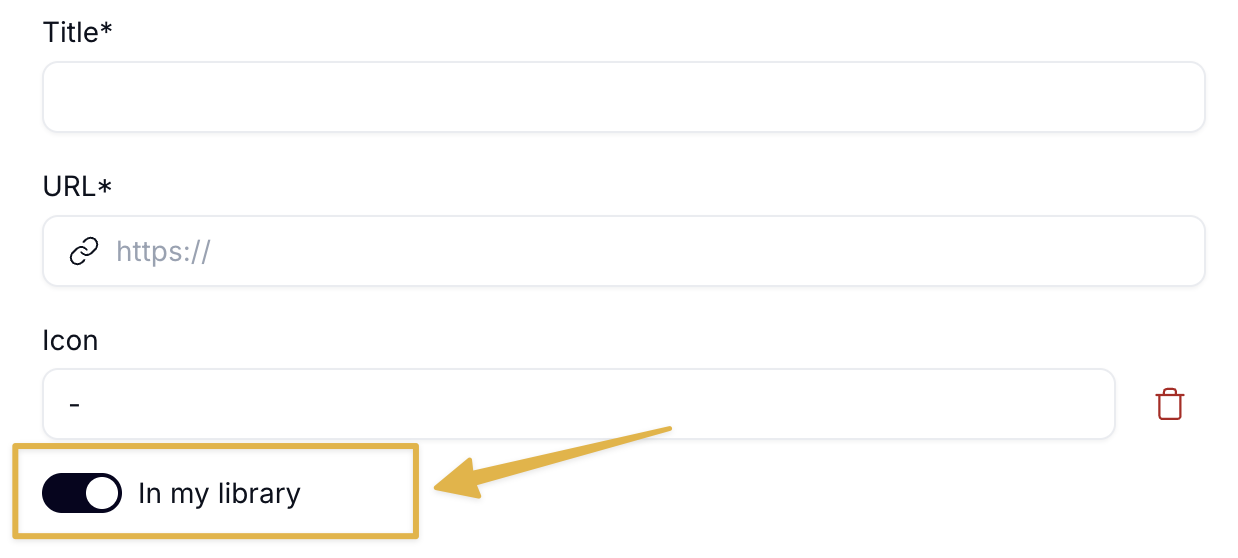
Content you create directly in a step lives only in that step. To make it available in your library and in other templates, toggle on In my library when creating or editing it.
To share files with your client, click Add files on the step and upload them from your device.

Removing files from the step doesn't delete them. The originals stay in your library.
A Flow keeps its own copy of the template's content. Editing a library item or a template doesn't change Flows in progress.
Forms are the exception. A Flow always uses the current version of the form.
When you edit… | The change applies to | Flows in progress |
|---|---|---|
A form | Everywhere the form is used | Updated |
A library link, embed or note | Your library, workspaces and templates | Not changed |
A template | Flows you start from now on | Not changed |