A flow is a template in action for one client. Once you start it, you follow its progress from the Flows tab.
Open the template and click New Flow, or click Start Flow on the template in the list.
Give the flow a title. Note: If you leave it empty, the flow is named after the template.
Pick a person for each role used by a step, such as a contact for an external role, a team member for an internal role.
Click Start.
Hubflo emails the person assigned to step 1 right away and everyone else is notified when their turn comes.

The Flows tab lists every flow with its status, its progress (completed steps out of total), its current step and its participants. You can filter by template, search by contact or flow name, and sort by any column.

Open a flow to see its details:
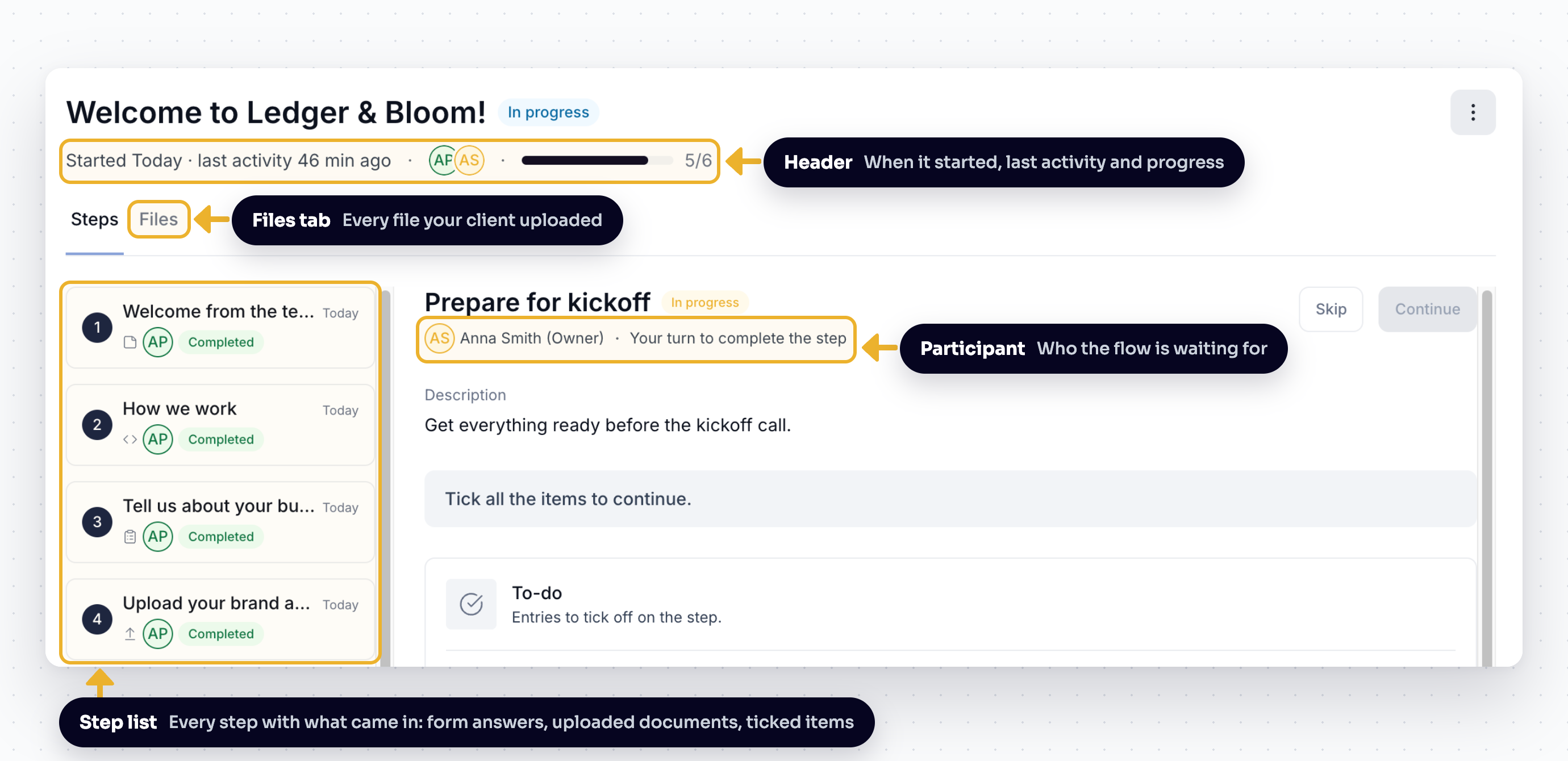
The header shows when the flow was started, the last activity and the progress bar.
Participant circles show who the flow is waiting for or who has completed it.
The step list below shows every step with what came in, things like form answers, uploaded documents, ticked items.
The Files tab shows every file uploaded by participants in each step that required uploads.
Participant cards are color-coded:
Color | Status |
|---|---|
Yellow | In progress |
Gray | Waiting, not messaged yet |
Green | Finished with the flow |
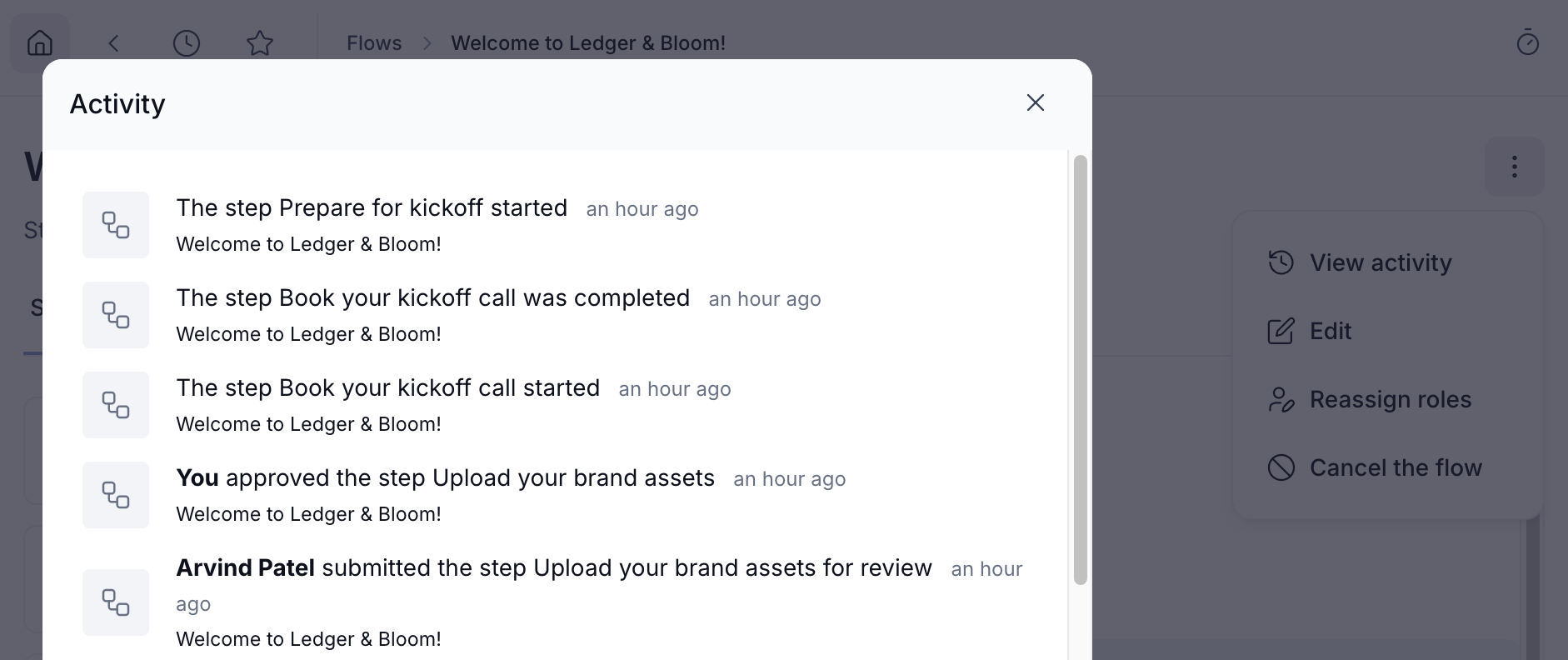
To see everything that happened on a flow, open the three-dot menu (⋮) and click View activity. It shows who approved, rejected or skipped a step, who reassigned a role, who reset a link, and who cancelled the flow.
When a step is set to "the client completes the step, then a team member approves it", it shows Needs review once the client has submitted it. The person who started the flow and the contact owner get an in-app notification.
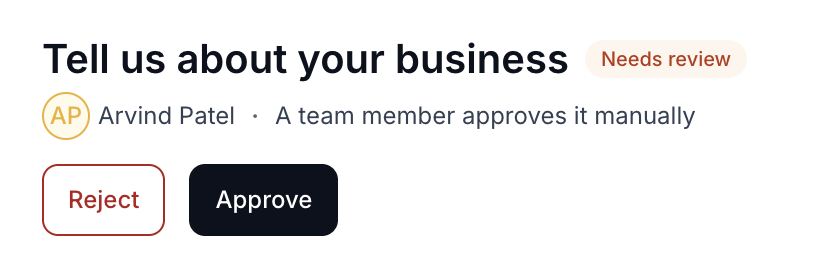
Open the step, check what the client sent, then:
Approve to move on. The person assigned to the next step is notified.
Reject and explain what needs to change. Your message is emailed to the client and shown at the top of the step. They can then submit it again.
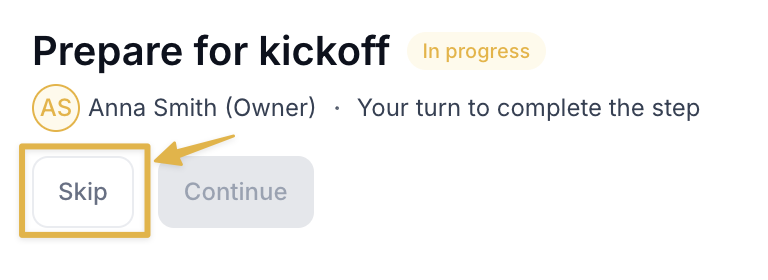
If a step isn't needed for this client, click Skip on the step. The person won't be asked to complete it, and the flow moves on to the next step.
Open the flow three-dot menu (⋮)
Choose Reassign roles
Select the new participant from the dropdown menu
Only steps that aren't completed yet are reassigned. The new person gets their a link by email and starts from the welcome screen. The previous person's link stops working.
Click the participants in the flow header, then next to the participant's link button, click the link icon to copy their link.
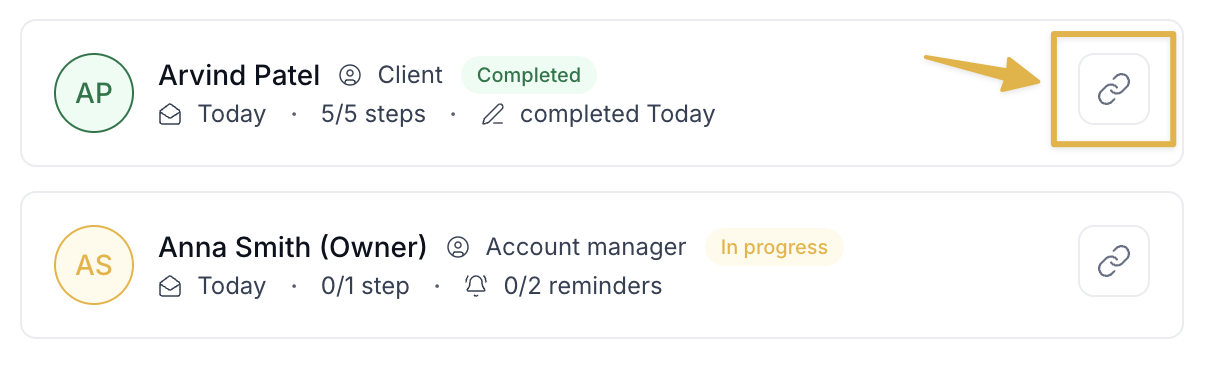
If a link was forwarded or shared by mistake, click the participants in the flow header, then click the three-dot menu (⋮) to the participant, and choose Reset link.
The current link stops working right away, even in a browser where it's already open.
Notifications are not sent automatically.
The next emails the participant receives carry the new link.
Their progress is kept.
Both options are in the flow three-dot menu (⋮).
Edit lets you change the flow's title and its welcome screen (title, description, button label). The template can't be changed once the flow has started.
Cancel stops the flow.

💬 Still have questions? Start a chat with us or email [email protected]. We'll be happy to help.