Share something in a Flow, like a quote, a draft, or a document, and let your client approve it or ask for changes before the Flow moves on. You stay in control of the content, and your client signs off before the next step.
When to use it
An engagement letter or quote to validate before work starts
A deliverable (draft, report, design) to approve before moving on
A document to confirm before your client signs it in the next step

Go to Flows > Templates and open your template.
Select the step that shares your content.
Open the Assignment tab.
Under How does this step end?, select The client approves it, or asks for changes (approval).
Every Flow you launch from this template now includes the approval step.
The step shows a Needs your approval badge. Your client opens the content and clicks Approve or Request changes.
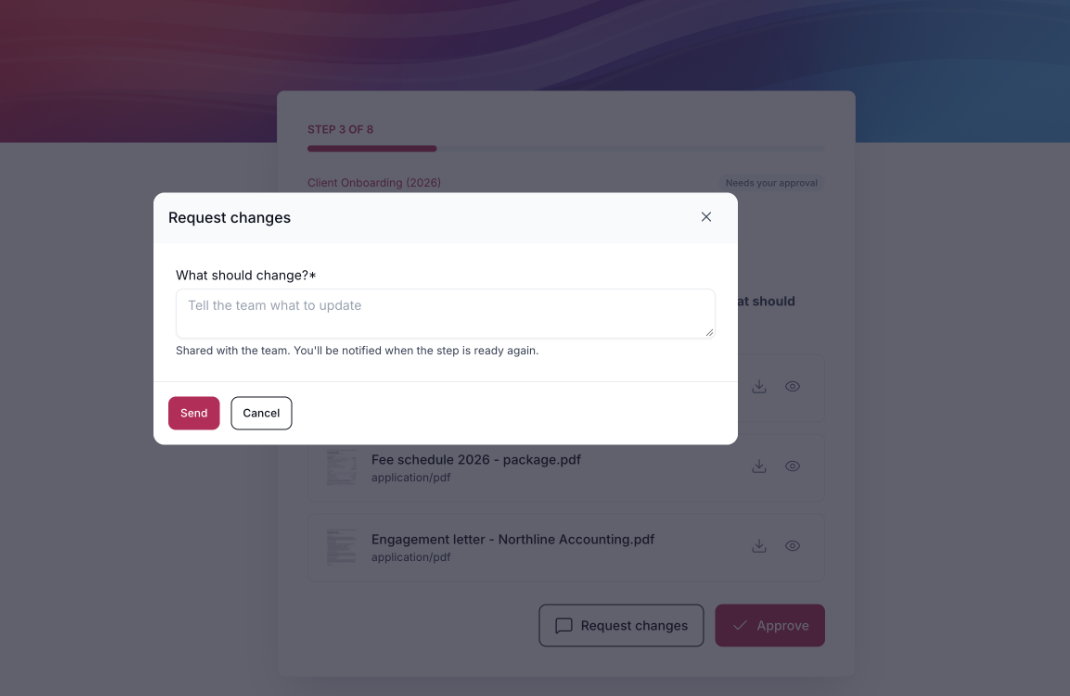
To request changes, they must leave a comment. They’ll see after sending: “Your request has been sent to the team. You’ll be notified when the step is ready again.”
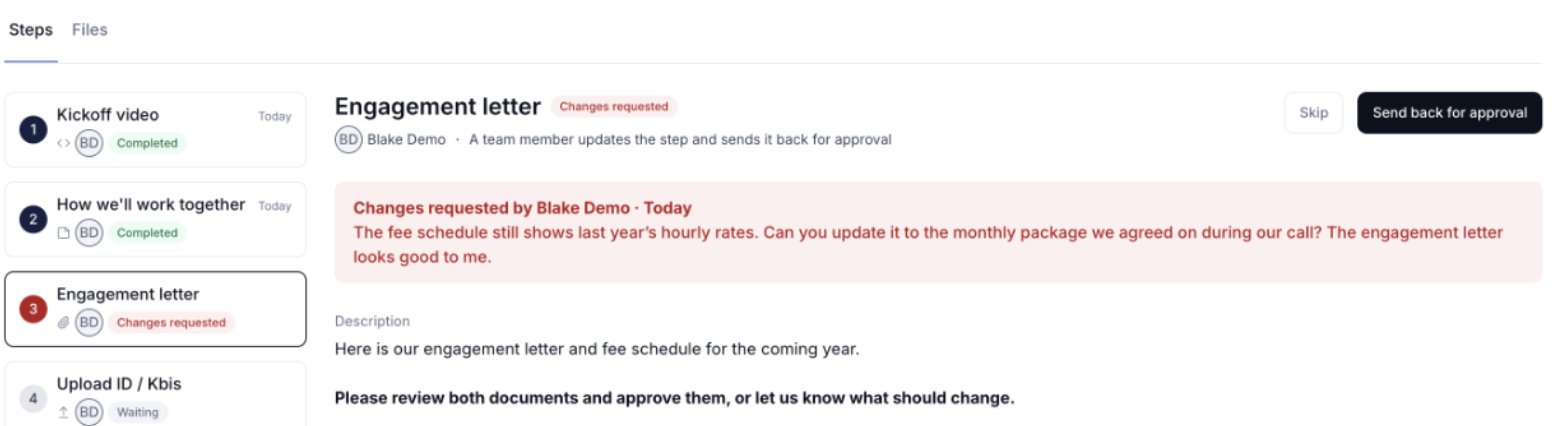
Open the Flow. The step shows Changes requested with your client’s comment.
Click the pencil icon next to the content card to edit it. For Shared files, this reopens the uploader.
Click Send back for approval.
Your client gets an email to review it again and once your client approves, the step shows Approved by [client name] · [date] and the Flow moves to the next step.
When | Who | How |
|---|---|---|
The step opens | Client | |
The step is sent back for approval | Client | |
The client approves | The person who launched the Flow, plus the contact’s owner | In-app + push |
The client requests changes | The person who launched the Flow, plus the contact’s owner | In-app + push + email |
💬 Still have questions? Start a chat with us or email [email protected]. We'll be happy to help.