company logo

Help center

Go to Hubflo
Login
API docsSecurity centerPrivacy policy
All collectionsFlowsUse forms and library content in Flows

Use forms and library content in Flows

Learn what happens when a template reuses a form or a library item, and what you can and can't change afterwards.

A Flow template can reuse things you already have in Hubflo such as forms, links, embeds and notes in your content library. This article explains how to add them to a step, and what happens when you edit them later.

Forms

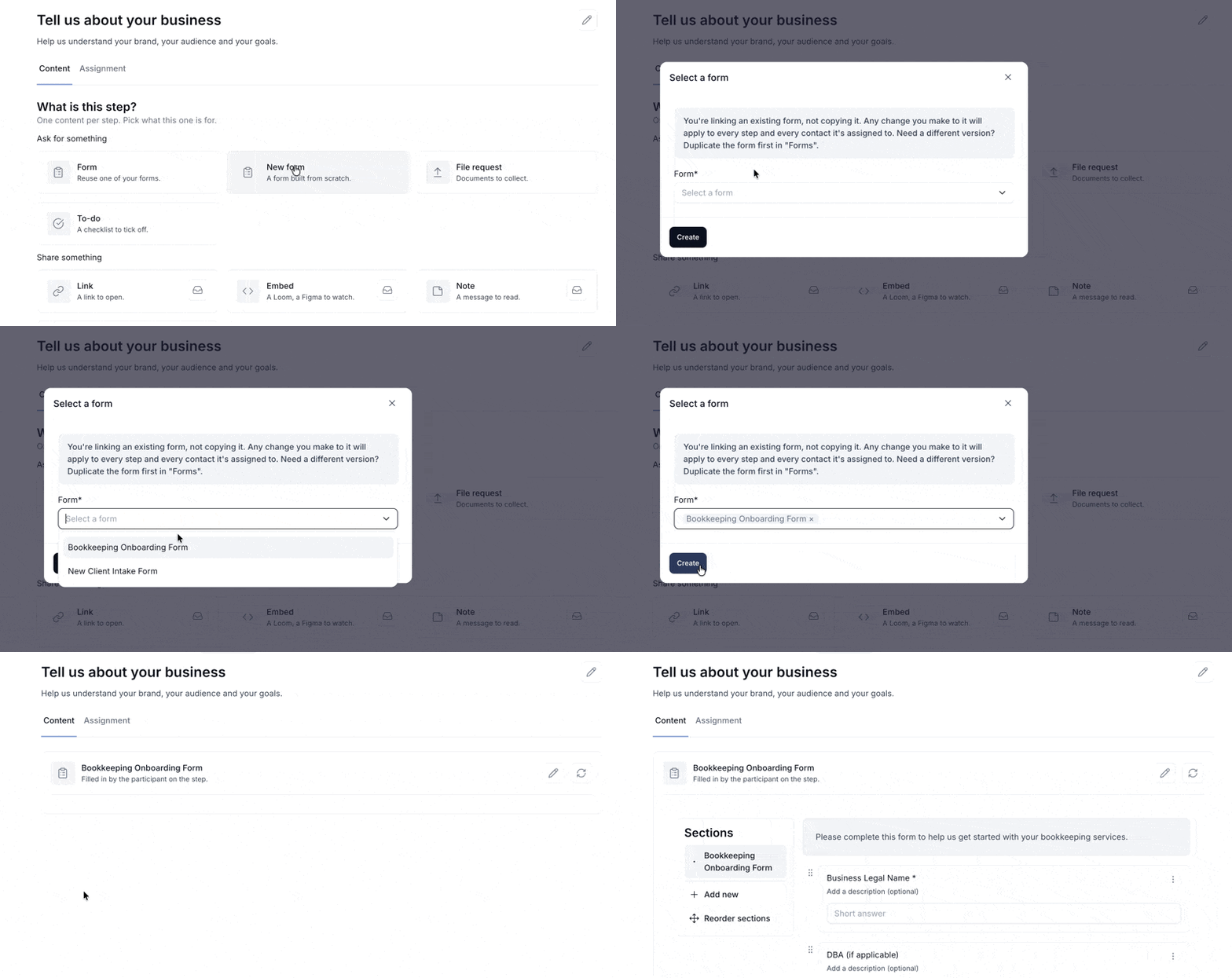
Choose Form on a step to pick one from your Forms.

The step points to the form itself. This means:

  • Answers collected through a Flow show up in Forms, like any other submission.

  • You can edit the form as usual.

The Content tab of “Tell us about your business” shows step-type cards, with “New form” highlighted under “Ask for something.”. Visible: Tell us about your business, Help us understand your brand, your audience and your goals., Content, Assignment, What is this step?, One content per step. Pick what

Archiving a form used in a template

A form used in a template can't be archived. The Archive button is greyed out and tells you which templates use it. To archive the form, first pick another form in those steps.

tip icon
Tip: need a different version of a form for one template? Duplicate the form in Forms first, then select the copy in your step.

Links, embeds and notes

Add an item from your library

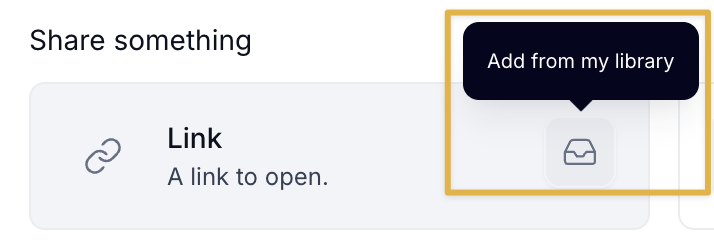
  1. When choosing what the step holds, hover the Link, Embed or Note card.

  2. Click the library icon on its right (Add from my library).

  3. Pick the item. It's added to the step.

Clicking the card itself creates a new item instead. An item picked from your library isn't copied, it simply points to that item.

The Share something screen shows a Link option and a highlighted library icon with the tooltip “Add from my library.”. Visible: Share something, Link, A link to open., Add from my library.

error icon
Important: if you edit a shared item from the template, the change applies everywhere it's used: in your library, in your workspaces and in your other templates. To remind you, the editor shows "This item is shared in multiple locations" with the list of places.

Create an item directly in a step

Content you create directly in a step lives only in that step. To make it available in your library and in other templates, toggle on In my library when creating or editing it.
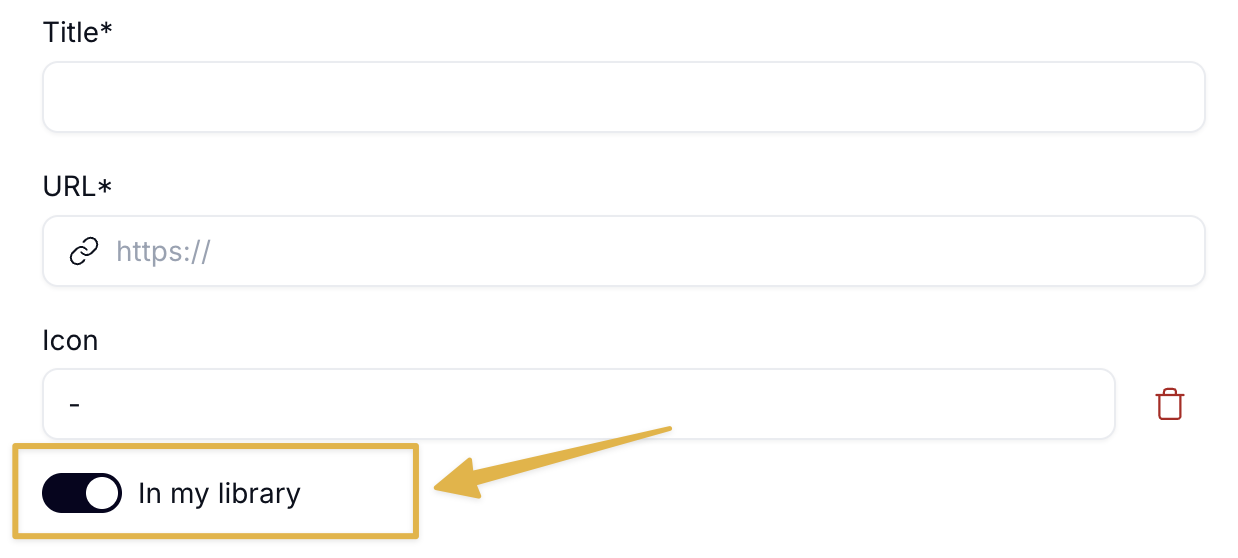
A link form shows Title, URL, and Icon fields, with an arrow highlighting the “In my library” toggle below them. Visible: Title*, URL*, https://, Icon, -, In my library.

Shared files

To share files with your client, click Add files on the step and upload them from your device.

The Shared files section shows files shared with the participant on the step, with buttons to add new files or add files from the library. Visible: Shared files, Shared with the participant on the step., Add new files, Add from my library.

Removing files from the step doesn't delete them. The originals stay in your library.

Flows already started

A Flow keeps its own copy of the template's content. Editing a library item or a template doesn't change Flows in progress.

Forms are the exception. A Flow always uses the current version of the form.

When you edit…

The change applies to

Flows in progress

A form

Everywhere the form is used

Updated

A library link, embed or note

Your library, workspaces and templates

Not changed

A template

Flows you start from now on

Not changed

Related articles

  • Start and manage a Flow

  • What clients see when they access a Flow

  • Notifications and reminders in Flows

Did this answer your question?
😞
😐
😁