Your client portal is often the first thing clients see when they start working with you. This article covers everything that shapes that first impression such as your branding, your public profile, and the welcome experience you set up before they even log in.
Setting up for the first time? See Set up your client portal →
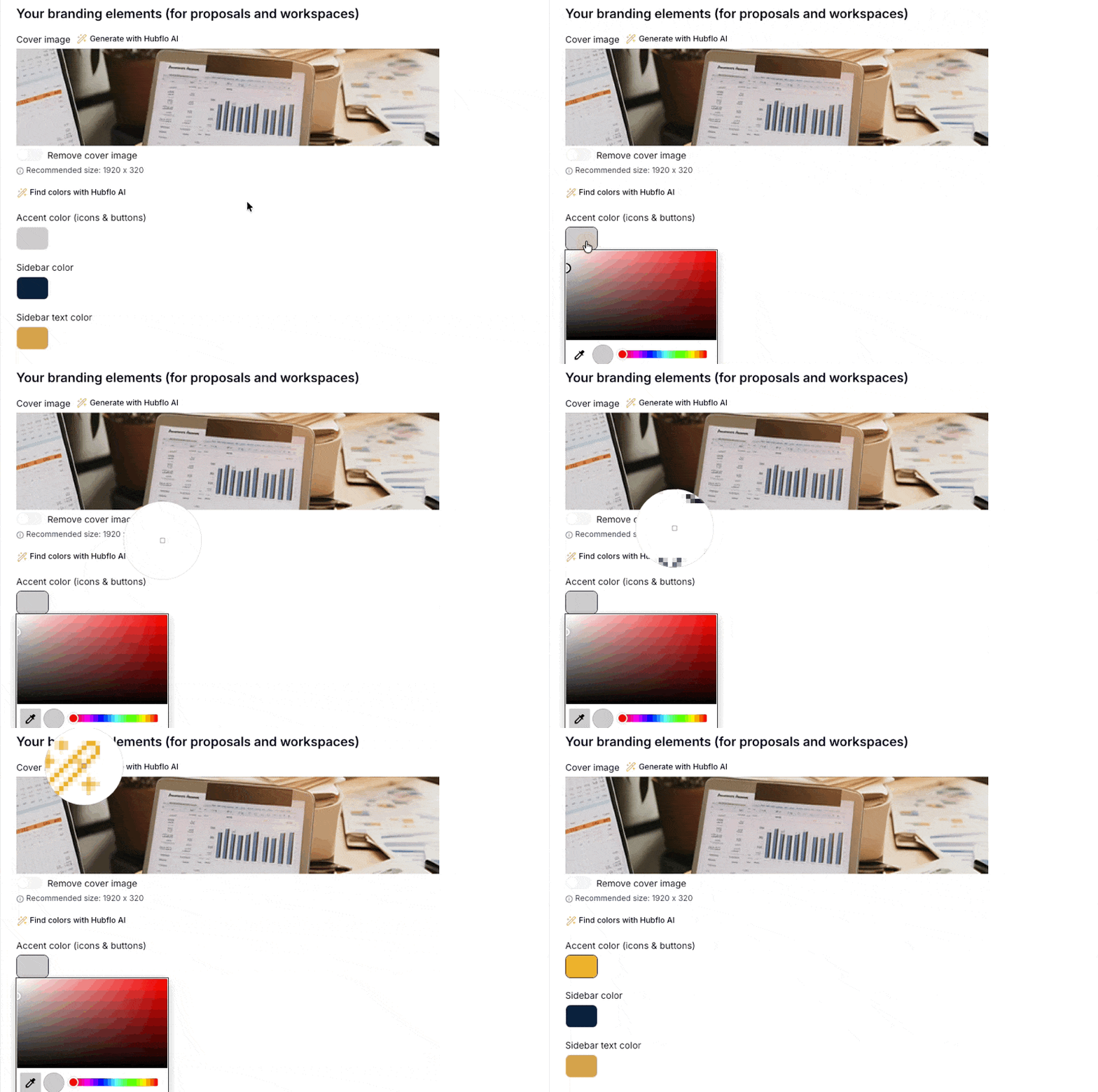
Go to Settings > Appearance to configure how your portal looks across every page your clients visit.
Here's what you can update:
Logo to upload your company logo, displayed across the portal. Recommended size: 300 x 300px.
Company name shown to clients throughout the portal.
Cover image is the banner clients see when they log in. Recommended size: 1920 x 320px.
Accent color is used for icons and buttons throughout the portal.
Sidebar color is the background color of the navigation sidebar.
Sidebar text color is the text color used in the sidebar.

Your public profile is what clients see on the sign-in page before they log in, think of it as your portal's front door.
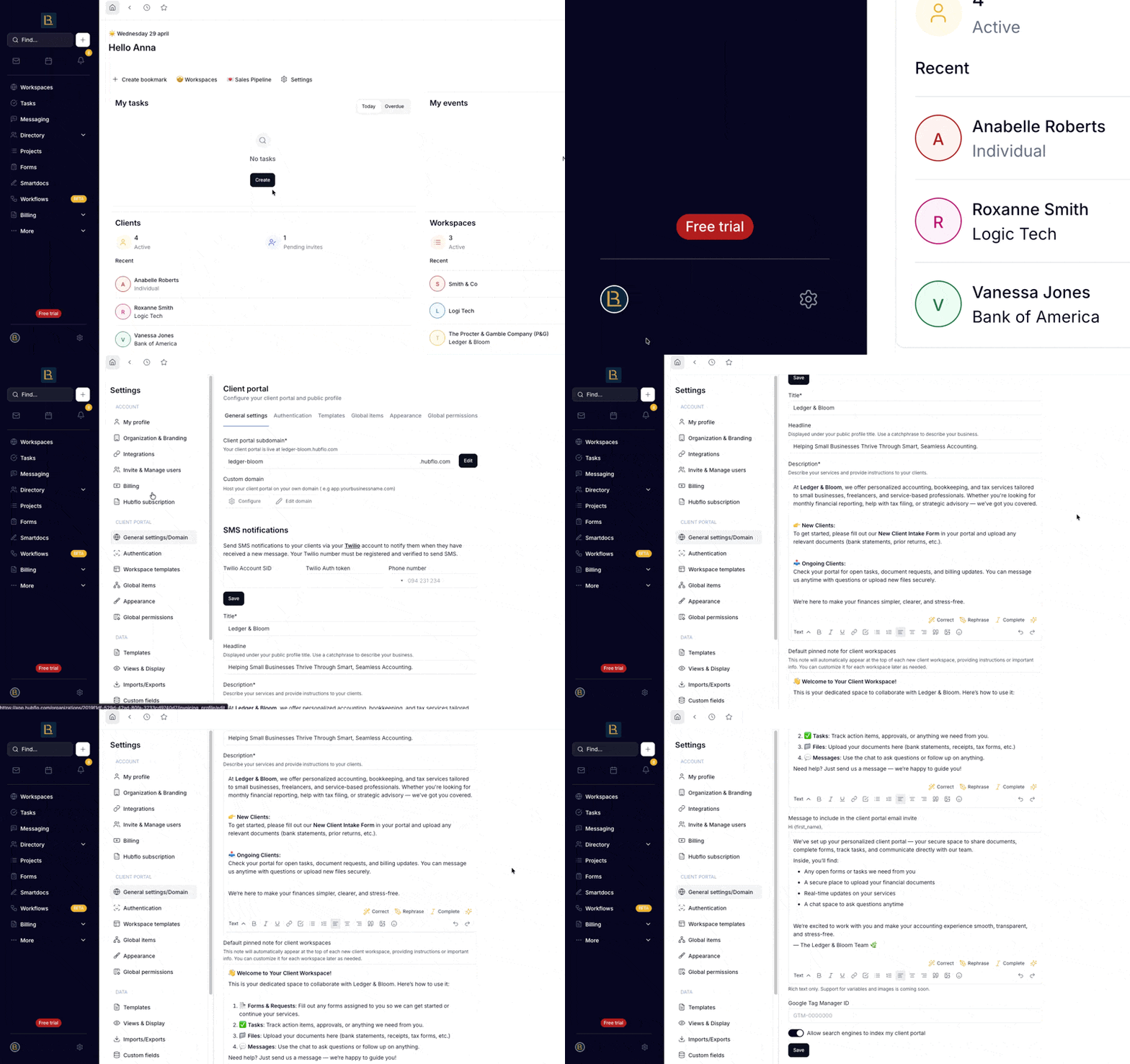
Go to Settings > Domain & general to configure:
Title: your portal name
Headline: a short catchphrase to show under your title
Description: to describe your services or leave instructions for clients arriving at the portal for the first time
When a client receives their invitation to the portal, two things come from what you configure here.
Go to Settings > Domain & general to set up:
Invite email message: the message included in the invite email Hubflo sends to new clients. Use this to set expectations, add a personal touch, or point clients to next steps.
Default pinned note: a note that automatically appears at the top of every new client workspace. It's a good place for a welcome message or instructions. You can customize it per workspace after it's been created.
