A template is the repeatable process blueprint you build once and reuse for every client who goes through the same workflow.
To create a new template, go to Flows in your navigation bar and click New template.
Prefer to see how it works? Follow our step-by-step interactive demo below to watch how a template is created, configured, and launched:
The template builder is divided into three core sections: Welcome Screen, Roles, and Steps.
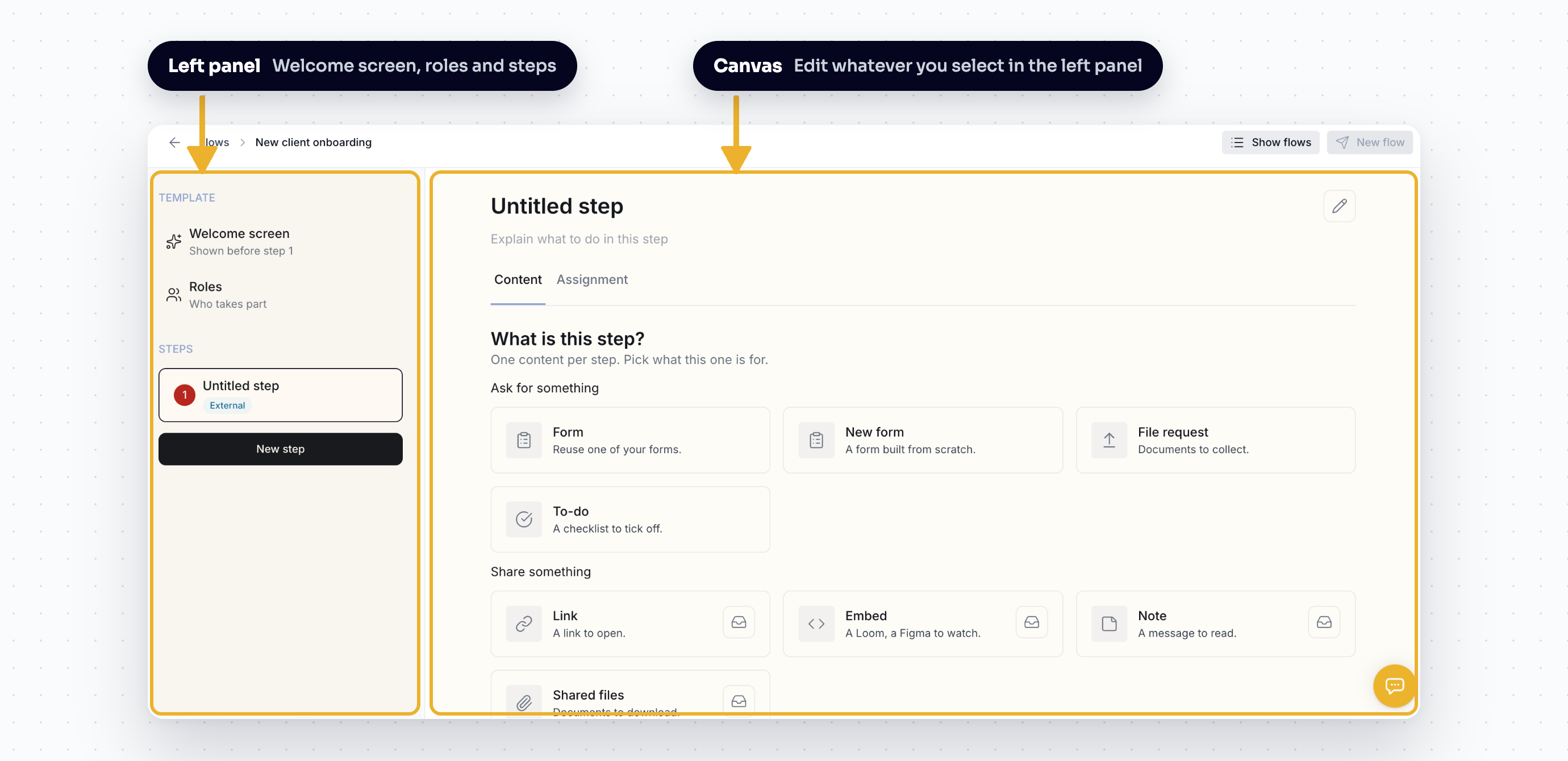
The Welcome Screen is the landing page your client sees when opening their unique link, right before Step 1 begins.
Clients can come back to it at any time by clicking Overview, at the top of their step list. It also lists their steps and shows how far along they are.
Give your template an internal name, then configure the client view:
Welcome Title: (Default: "Welcome!") The primary header for the page.
Description: A brief message explaining what you need from the client and why.
Button Label: (Default: "Get started") The button your client clicks to begin the sequence.
Contact if there's an issue: (Optional) A team member your clients can reach for help. Their name and email show at the bottom of the welcome screen: "Need help? Contact [name] at [email]".
A role represents a function in the process rather than a specific individual (e.g., Client, Preparer, or Reviewer). You will assign specific people to these roles when you launch an active Flow.
External Roles: Played by your clients or external contacts.
Internal Roles: Played by your team members.
Managing roles:
Click Roles in the left panel, then select New role.
Every step in your template must be assigned to a role.
New templates automatically include one external role and one internal role to get you started.

Steps are the sequential actions your client or team must complete. A template can hold up to 200 steps.
Click New step, then the pencil icon ✏ to set:
Step Title: The main header for the step.
Description: Quick instructions explaining what to do in this step.
Button Label: (Default: "Continue") The button that completes or submits the step.
Step content
Select what action this step holds.
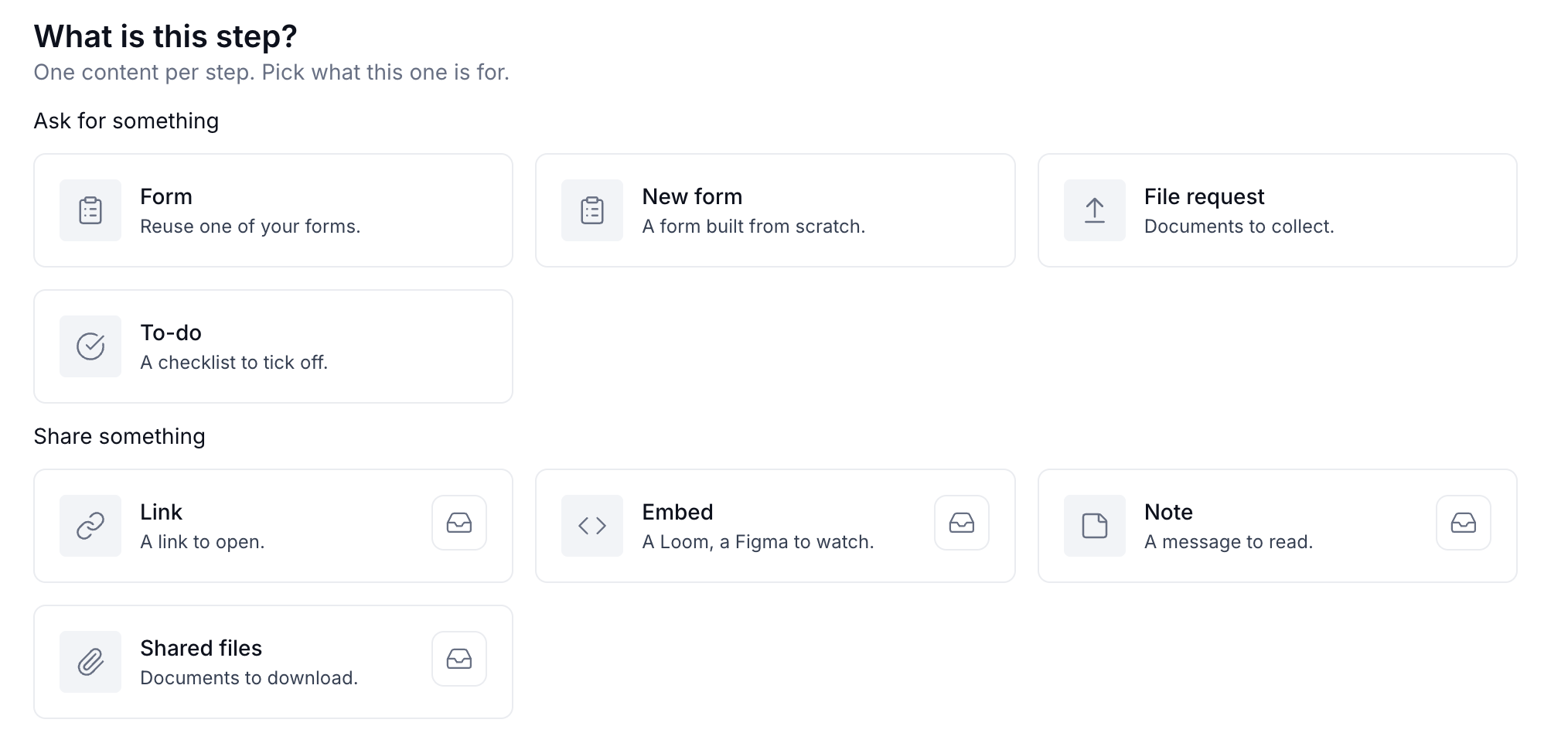
Step content types
Category | Type | Description |
|---|---|---|
Ask for something | Form | Select an existing form or click New form to build one from scratch. (Note: Forms can only be assigned to external roles). |
File Request | Request specific documents for the client to upload. | |
To-do | Create a checklist. Every item must be checked off to complete the step. | |
Share something | Link / Embed / Note | Provide a web link, embedded media, or written text to view or read. |
Shared Files | Provide documents for your client to download. |
Organizing & managing steps
Change Content: Click Change step type 🔄 on the content card to clear the current content and choose a new type.
Reorder: Click and drag step cards in the left panel to change their sequence.
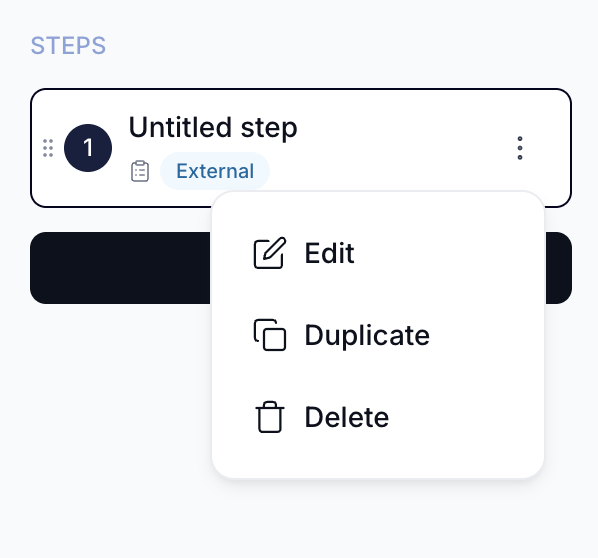
Duplicate or Delete: Click the three dots (...) menu on any step card to duplicate or delete it.
Open the Assignment tab on any step to configure how it behaves:
Who acts on this step? Assign the step to one of your defined roles.
Complete when? For steps assigned to an external role, choose how the step ends:
The client completes the step: The step finishes as soon as the client submits it.
A team member approves it manually: Your team reviews the uploaded documents or form answers before the Flow moves on to the next step.
The client approves it, or asks for changes: For steps that share something (Note, Link, Embed, Shared files), the client approves the content or requests changes with a comment. The Flow only moves on once they've approved. See Get a deliverable approved by your client.
Steps assigned to an internal role are completed directly by the team member who holds it, with no review.
Deadline: Set a due date based on a number of days after the step opens. The assigned person sees the due date on their screen, gets a reminder on the due date, and a follow-up reminder 3 days later if the step is still open. If the deadline is more than a week away, they also get a reminder after 3 days.
Before you launch a Flow, click Preview at the top right of the builder and choose an external role. The preview opens in a new tab and shows the template exactly as a participant of that role will see it: the welcome screen, then each of their steps.
Use Preview as in the banner at the top to switch to another external role.
Buttons and fields are disabled, so nothing can be started or sent from the preview. Form fields aren't shown.
Steps of other roles are locked, just like for your client.
Click New Flow at the top right of the builder to start a live Flow immediately from your template.
In your Templates, click the three dots (...) menu next to any template to:
Edit: Modify the template structure.
Duplicate: Make a copy of an existing template blueprint.
Archive: Hide unused templates. Archived templates cannot be used to start new Flows, but you can restore them anytime from the Archived templates tab.

💬 Still have questions? Start a chat with us or email [email protected]. We'll be happy to help.