Hubflo Studio's AI assistant doesn't only build automations. It can also work in your Hubflo account and connected apps. For example, ask a question or describe a task in plain words, and it will find the answer or create a task on your behalf. It always asks for your approval before it creates or changes anything.
To get started, go to Studio > Home.
Type your question or task in the box, then press Enter or click the arrow.
Answer any questions the AI assistant asks, and approve any changes.
"What's the email and phone number of all the contacts at Acme?"
"Which tasks are overdue in the Martin project?"
"I have a call with Acme in 10 minutes. What's open, what did they answer in the onboarding form, and what's late?"
"Summarize the answers to the kickoff form."
"What are the open tasks and latest files in Acme's workspace?"
"Create a workspace for Acme with folders for Contracts, Deliverables, and Invoices."
"Turn this meeting summary into tasks for the Martin project." (paste or attach the summary)
"Create a client intake form with fields for name, email, company, and budget."
You can also ask the AI to work in the apps you've connected to Studio. For example:
"Send a message in the #onboarding Slack channel to let the team know Acme signed their contract."
"Find Acme's deal in HubSpot and tell me its stage."
"Move Acme's signed contract to the Clients folder in Google Drive."

You can attach files to your message, like meeting notes, a checklist, or a list of items to add. Flo reads them and uses them to do the task, for example turning a checklist into tasks.
Supported file types:
Types: images (PNG, JPEG, GIF, WebP) and PDF
Size: 10 MB per file.
Count: 5 files per message

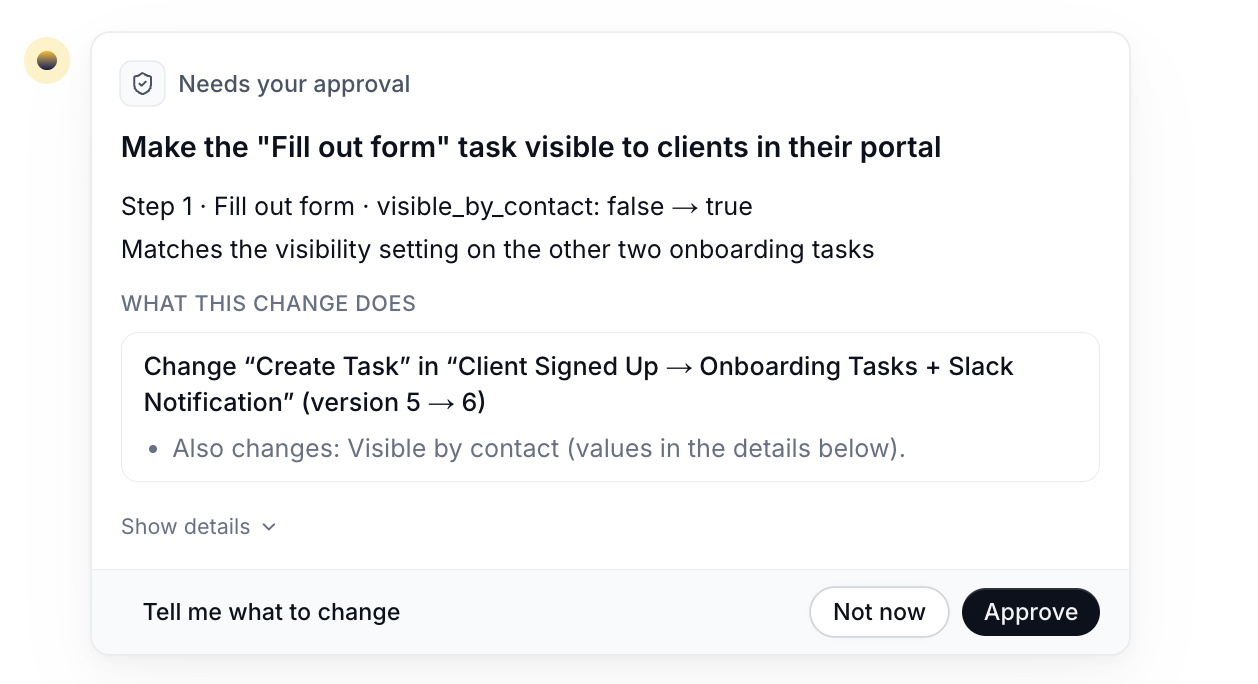
Studio’s AI assistant works in your real Hubflo account, so it checks with you before it creates or changes anything. When it's ready, it shows a Needs your approval card that describes what it's about to do in plain words.
To see the technical details, click Show details.
Be specific. Use the exact names of clients, projects, and forms as they appear in Hubflo.
Clearly describe what you want as a result. For example, "as a list" or "in two sentences."
Check the results. Studio’s AI assistant works with the information in your account, so review its answers before you rely on them, especially before sharing them with a client.
Automate what you repeat. If you ask the AI assistant for the same thing again and again, ask it to turn that task into an automation instead. See Build an automation with Hubflo's AI Assistant.
Flo saves your conversations, so you can leave the page and come back later. Find them under Recent conversations on the Home tab, or click View all to search all of them by title.

Studio’s AI assistant couldn't find a client, project, or form. Check the spelling, and use the name exactly as it appears in Hubflo. If there are several with similar names, tell the AI assistant which one you mean, for example by adding the company name or the URL.
Studio’s AI assistant says it can't use an app. The app isn't connected yet. Go to Studio > Integrations, connect the app, then try again. See Connect apps to Hubflo Studio.
💬 Still have questions? Start a chat with us or email [email protected]. We'll be happy to help.