Each time an automation runs, Studio records it as a run. Runs show you what each step did, so you can confirm that your automation works and fix it if something goes wrong.
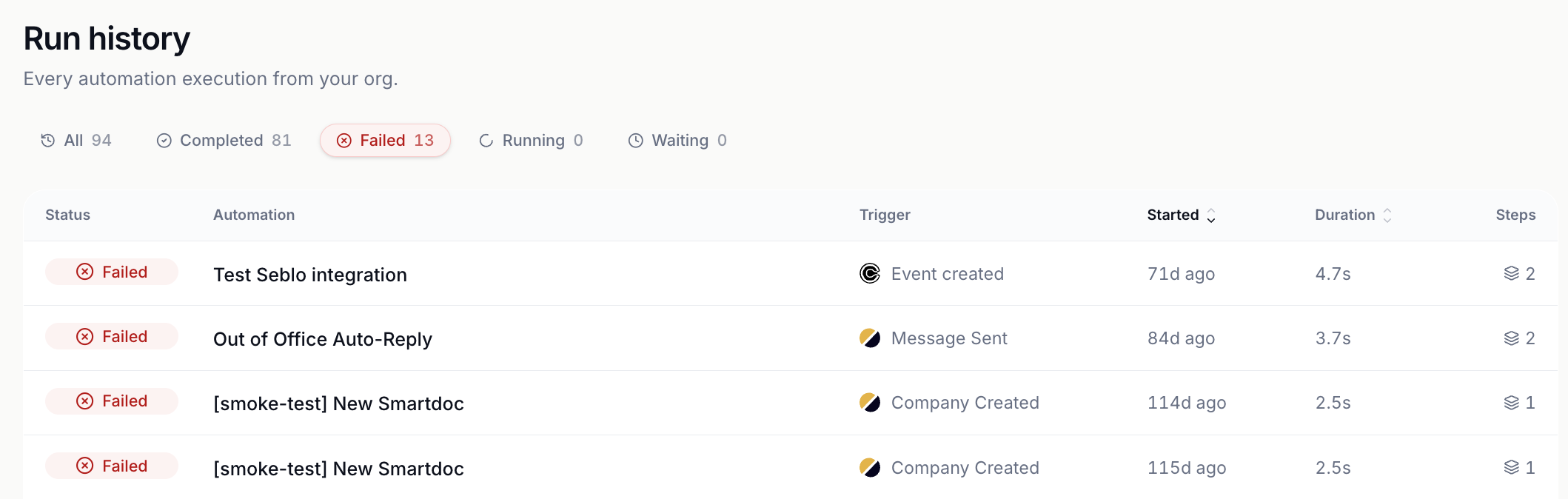

Go to Studio > Runs. The page, called Run history, lists every run in your account, newest first. Your most recent runs also appear under Latest runs on the Home tab.
Each run shows:
Column | What it shows |
|---|---|
Status | Whether the run worked |
Automation | Which automation ran |
Trigger | The event that started it, like a client signing up |
Started | When it started |
Duration | How long it took |
Steps | How many steps ran |
Click a status at the top of the page to see only those runs:
Status | What it means |
|---|---|
Completed | Every step ran |
Failed | A step couldn't finish. Open the run to see which one and why. |
Running | The automation is running right now. |
Waiting | The run is paused at a Wait until or Delay step |
Go to Studio > Runs and click Failed.
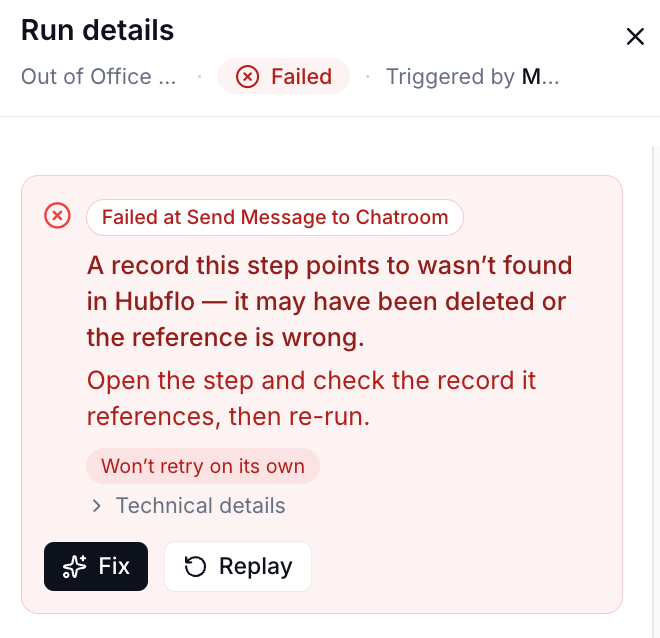
Click the run to open it.
Find the step that failed and read why.
Fix the problem in one of two ways:
Click Fix, and the AI assistant suggests a fix and asks for your approval.
Or fix the step yourself in the editor, then come back to the run and click Replay to run it again.
My Runs list is empty. Runs only appear once an automation is active and its trigger happens. Check that the automation's toggle is on in the editor. If it is, the trigger may not have happened yet, for example no client has signed up since you activated it.
A step that uses another app failed. Check that the app is still connected. Go to Studio > Integrations and reconnect it if needed, then click Replay.
A run failed after waiting. If an automation has a Wait until step, the run fails when the event it's waiting for doesn't happen in time, for example the client never submits the form. By default, a Wait until step waits 90 days, and you can set up less days or up to 365 days in the step's settings.
How do I stop a run? Runs can't be cancelled. Pausing the automation stops new runs from starting; runs already in progress finish.
💬 Still have questions? Start a chat with us or email [email protected]. We'll be happy to help.