Google Tag Manager (GTM) is a free tool from Google that lets you easily add tracking scripts, chat widgets (like Intercom), analytics tools (like Google Analytics or Hotjar), and other custom code to your website.
With Hubflo, you can seamlessly integrate GTM into your client portal, giving you full control over what tools or snippets run and when. This makes it easy to track user behavior, personalize content, and improve your clients' experience.
Install chatbots or live chat (like Intercom, Drift, Crisp)
Track user events with Google Analytics 4
Use retargeting scripts (Facebook Pixel, LinkedIn Insight)
Add A/B testing tools like Google Optimize
Trigger custom scripts on specific steps in your client journey
This article will walk you through how to connect Google Tag Manager to your portal.
You’ll need:
A Google Tag Manager account (it's free)
Your GTM container ID (e.g., GTM-XXXXXXX)—you'll find this in the top-right of your GTM dashboard
In Hubflo, go to Settings > Client Portal > General settings/Domain.
Scroll to the Google Tag Manager ID field.
Paste in your GTM container ID.
Click Save.
That’s it! Hubflo will now load your GTM scripts across your portal pages.
Tip: For security and privacy, Hubflo disables search engine indexing for all client portals by default.
If you'd like yours to appear in public search results, toggle on “Allow search engines to index portal” in Settings > Client Portal > General settings/Domain.
Now that Hubflo is connected, you can start creating triggers and tags for the tools you want to use.
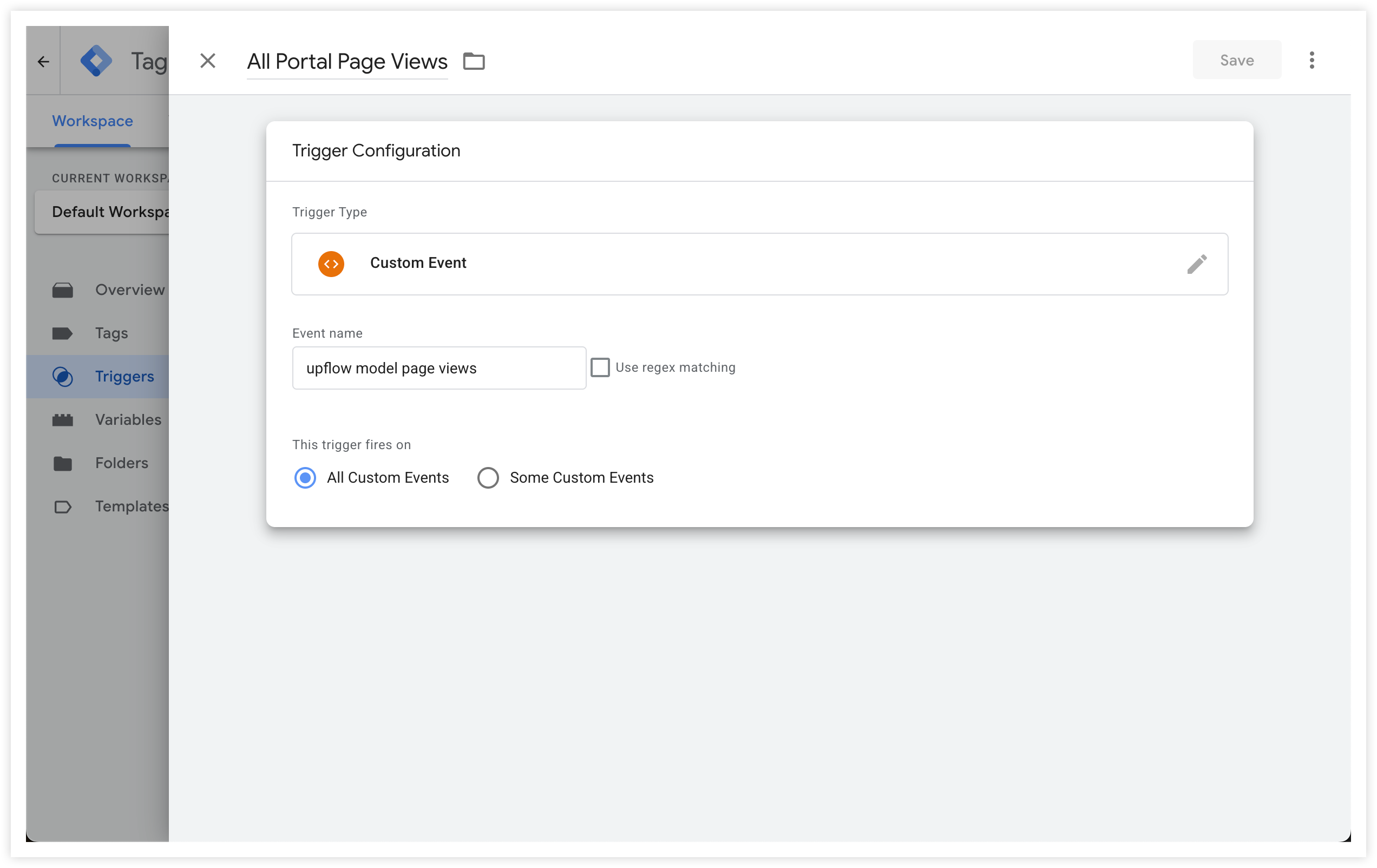
This trigger ensures your tag runs on every page of the client portal:
In GTM, go to Triggers > New.
Name your trigger (e.g., “All Portal Page Views”).
Choose Trigger Type: Custom Event.
In the Event name, enter: upflow model page views
Set the trigger to fire on All Custom Events.
Save.
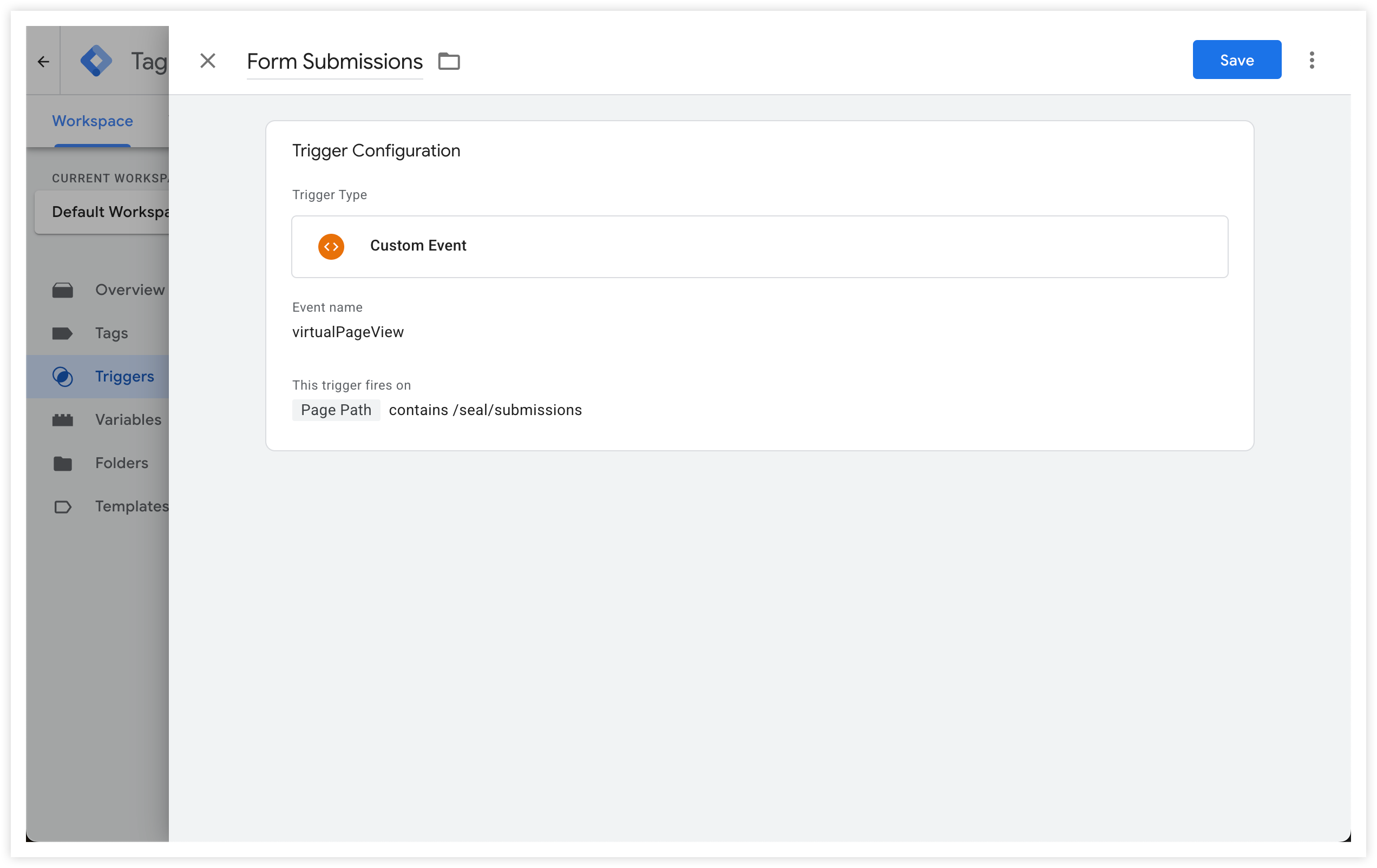
Want to fire a script only on the client dashboard, or a success page? You can target specific URLs:
Navigate to the page in your portal and copy part of its URL (e.g., /seal/submissions).
In GTM, go to Triggers > New.
Choose Custom Event as the Trigger Type.
In the Event name, enter: virtualPageView
Set it to fire on Some Custom Events.
Under conditions, choose:
Page Path
contains
e.g., seal/submissions
Name your trigger descriptively (e.g., “Form Submissions”).
Save.
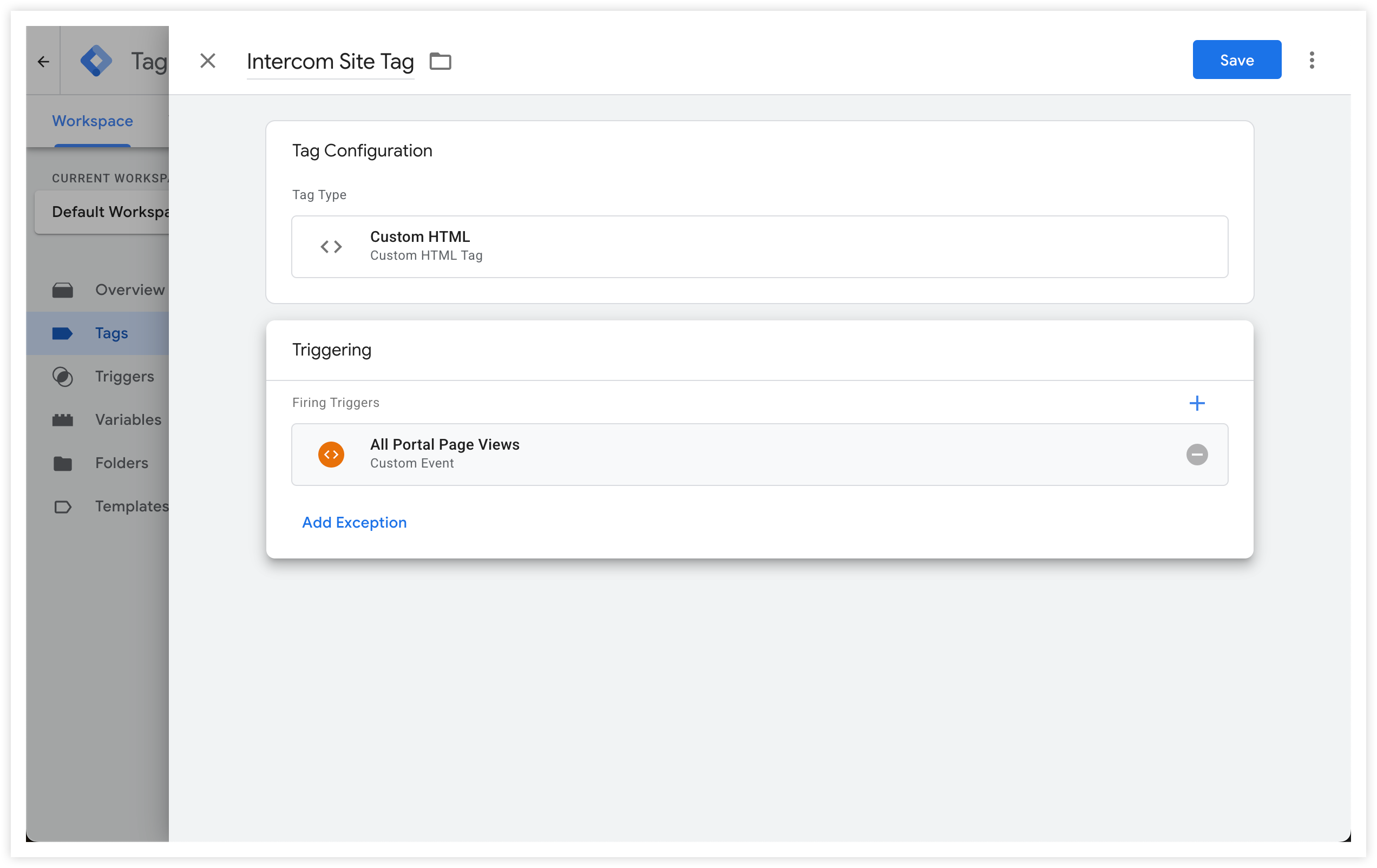
Now let’s add a tool like Intercom, Hotjar, or HubSpot using GTM.
Go to Tags > New in GTM.
Click on Tag Configuration.
Name your tag (e.g., “Intercom Site Tag”).
Choose Tag Type: Custom HTML.
Paste your script (e.g., Intercom or GA snippet) into the HTML field.
Under Triggering, select your global trigger (“All Portal Page Views”). This will ensure the script runs on all portal pages.
Save.
Use this for scripts you only want to run on a particular client view:
Create a new tag as above, with your HTML snippet.
Under Triggering, choose your targeted trigger (e.g., “Client Dashboard Only”).
Save.
If you want a tag to run everywhere except a certain page:
Edit your tag and scroll to Exceptions.
Click Add Exception.
Select a trigger that matches the page you want to exclude.
💬 Need help? Chat with us directly in your Hubflo dashboard or email us at [email protected]—we’re happy to help!