Xero is a leading cloud-based accounting platform trusted by small and medium businesses to manage invoicing, reconciliation, and bookkeeping. By integrating with Xero, you can:
Import your Xero contacts into Hubflo in seconds
Automatically generate Xero invoices every time you bill via Hubflo
Display Xero invoices inside your client’s portal workspace
Whether you're tracking payments or sharing invoices with clients, this integration helps you save time, reduce errors, and deliver a smoother experience.
Before you get started, find your API Key, you’ll need it to authorize the connection.
In Hubflo, go to ⚙️Settings > Integrations
Find the Xero integration and click Activate
Click Connect
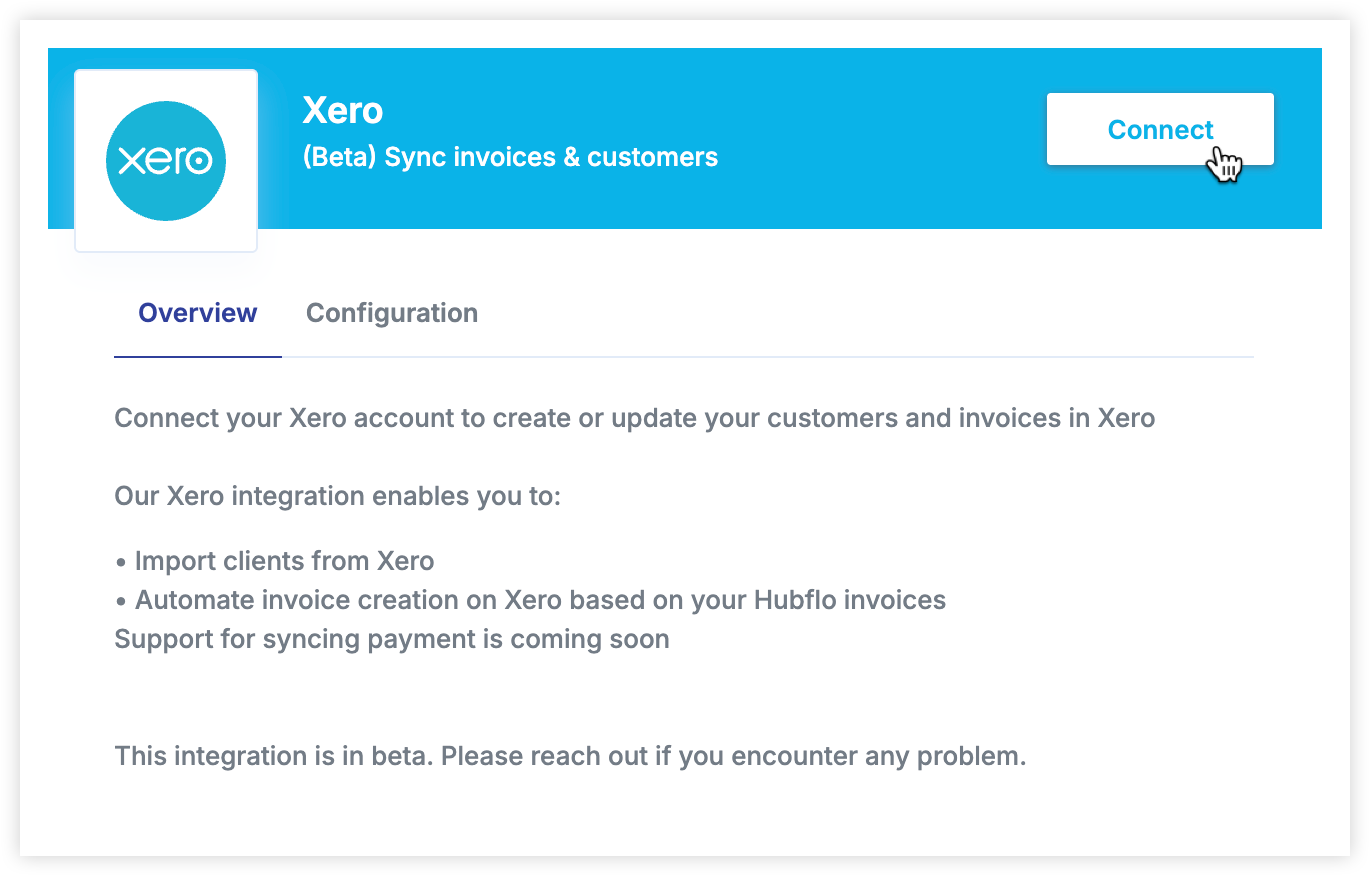
You'll be prompted to log in to your Xero account
Once connected, your Xero contacts will be automatically imported into Hubflo.
Note:
To ensure your contacts are imported correctly, your Xero contacts must:
Be marked as a Customer
Include an email address
Have a first and last name
Be set as Active
Once connected, click on Configuration. You'll find the following options:
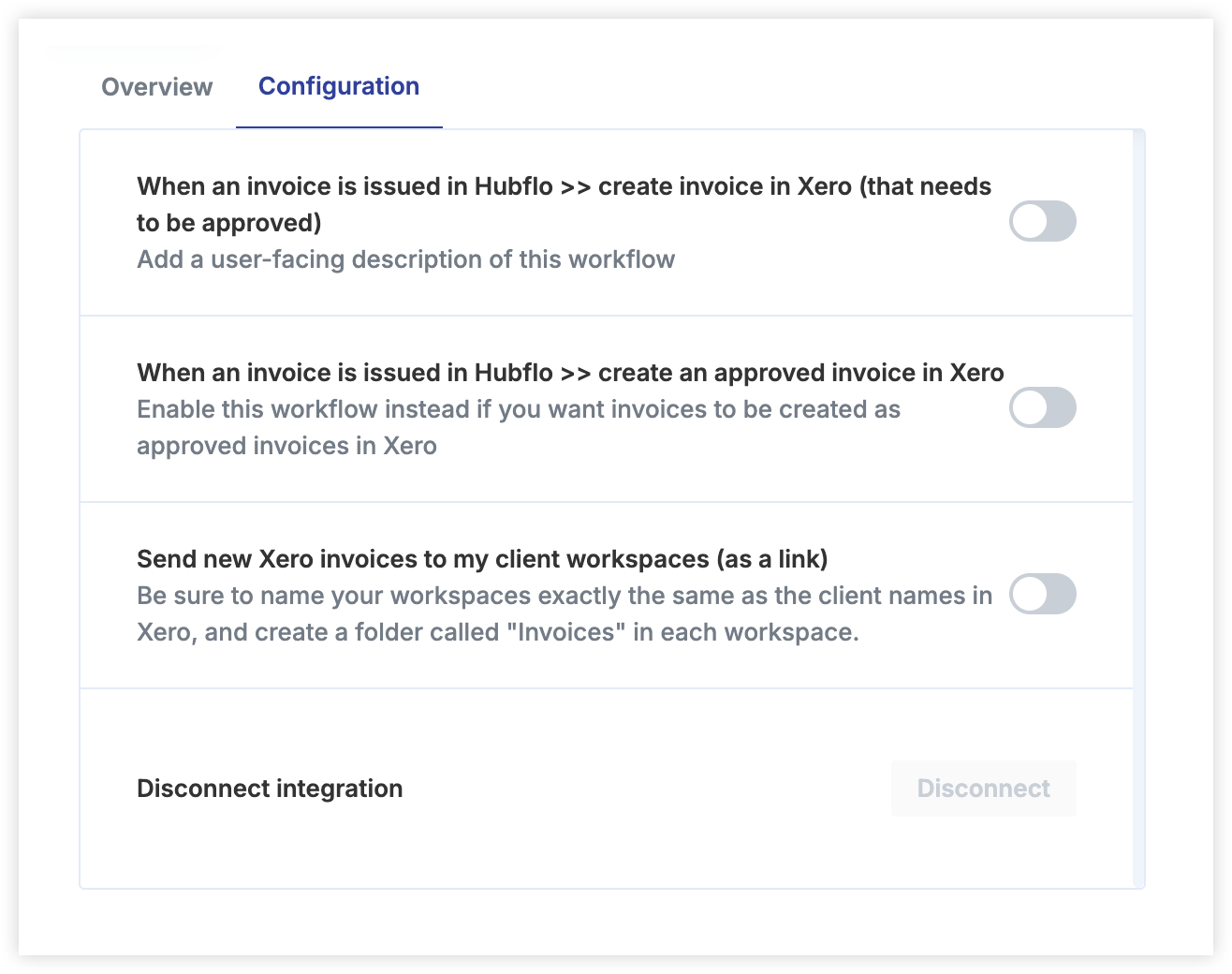
With this option, when an invoice is issued in Hubflo, a matching invoice is automatically created in Xero with status “Awaiting Approval.”
Use this workflow if you want to review and approve invoices manually in Xero before sending them out.
If the contact associated to the invoice doesn't exist in Xero it will be automatically created.
Use this workflow if you prefer invoices issued in Hubflo to be immediately approved in Xero.
This saves time by skipping the manual approval step in Xero.
If the contact associated to the invoice doesn't exist in Xero it will be automatically created.
Display invoices created in Xero directly inside your clients' Hubflo portals.
To set this up:
Make sure the Hubflo workspace name exactly matches the client name in Xero
Create a folder named “Invoices” inside each relevant workspace
Invoices will appear as links your clients can access at any time.
💬 Need help? Chat with us directly in your Hubflo dashboard or email us at [email protected]—we’re happy to help!