
Create a custom view
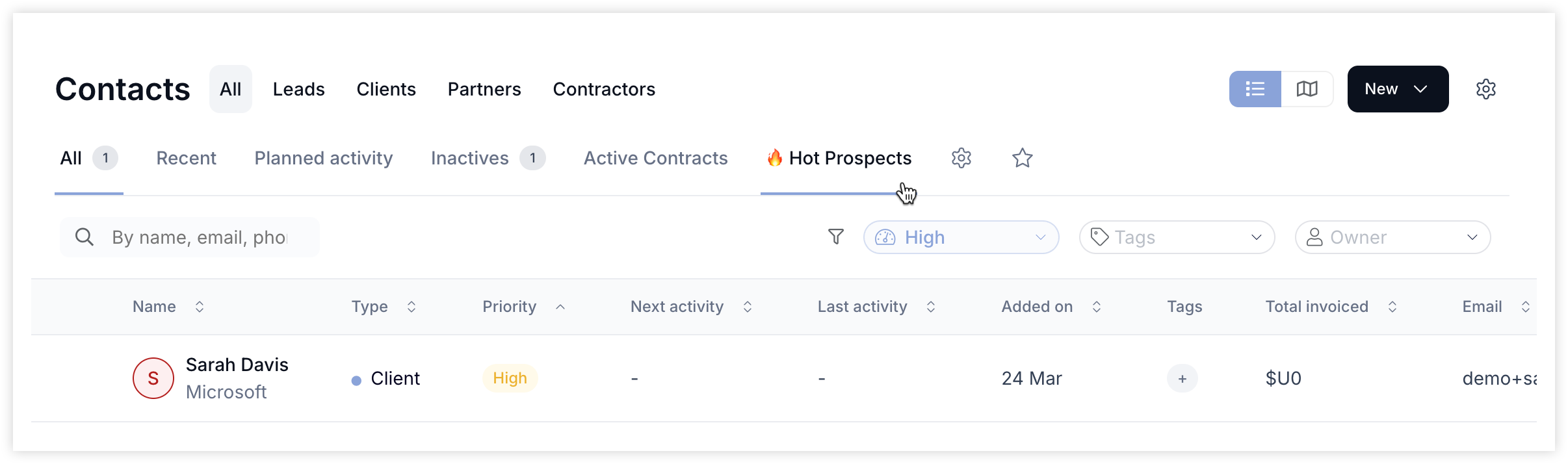
Go to Directory > Contacts or Companies
Apply your filters (priority, tags, owner, and more)
Click the ⭐ star icon to save the view
Give it a memorable name (e.g. "🔥 Hot Prospects")
Manage saved views
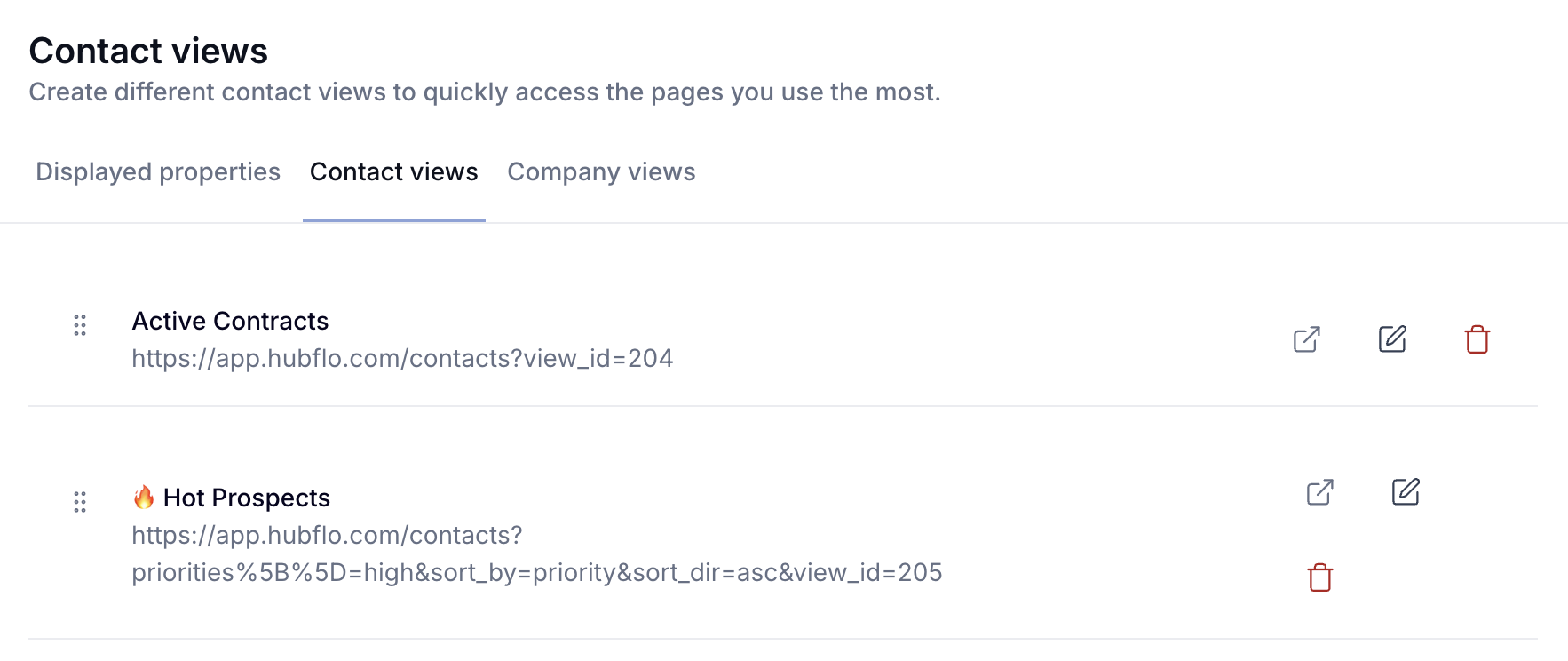
To edit your saved views:
Go to Settings > Views & Displays
Select “Contact views” or “Company views”
From there, you can:
Rename your views
Reorganize them for better access
Delete the ones you no longer need
Visualization options
In the top-right corner, next to the New button, toggle between:
List view: standard table layout
Map view: displays companies as pin drops based on their address. Requires a valid, Google-verified address. Useful for territory planning and location-based work.
Tips:
Use icons and naming conventions to organize your saved views by role or team
Use map view in company views for territory planning or location-based work
Save views for team roles like sales, operations, onboarding, and billing