Hubflo automatically links every proposal to the relevant contact, workspace, and project, so you can always find it from wherever you're working, without having to search.
Contact record → open a contact → go to the Billing tab
Client workspace → open the workspace → go to the Billing tab
Project → open the project → go to the Billing tab
As long as the proposal is linked to a contact, Hubflo takes care of showing it in the right place.
From Billing → Proposals, you can:
Draft
Issued
Accepted
Rejected
Date issued
Date accepted
Contact name
Status | What it means |
Draft | Created but not yet sent to the client. |
Issued | Sent to the client and awaiting a response. |
Accepted | Client has accepted and/or signed. Draft invoices are generated automatically. |
Expired | The proposal was not accepted before the expiration date. Expired proposals appear in the Rejected tab. |
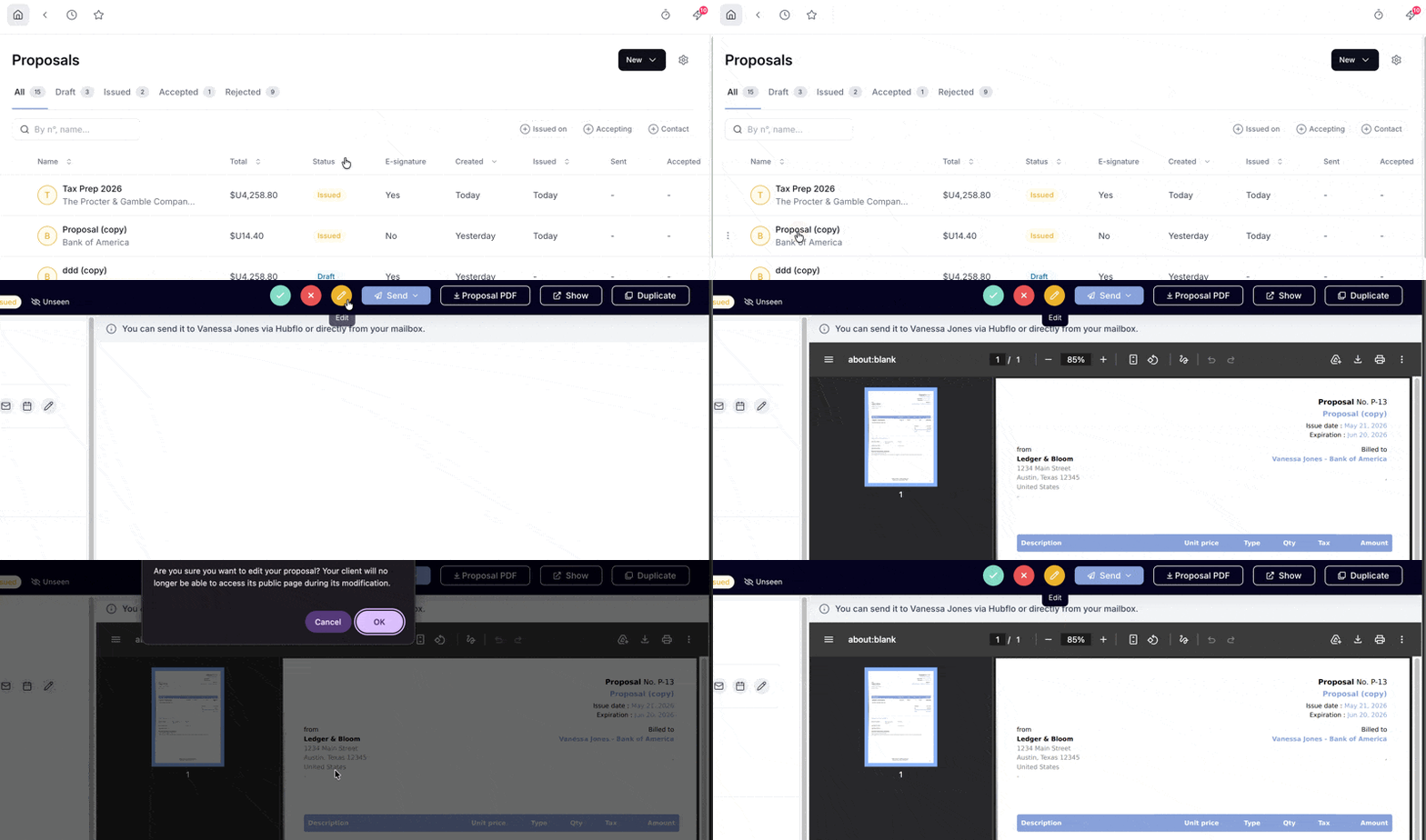
Click the proposal title to open it, then click the orange pencil icon to edit. Make your changes, then click Create the proposal to confirm.

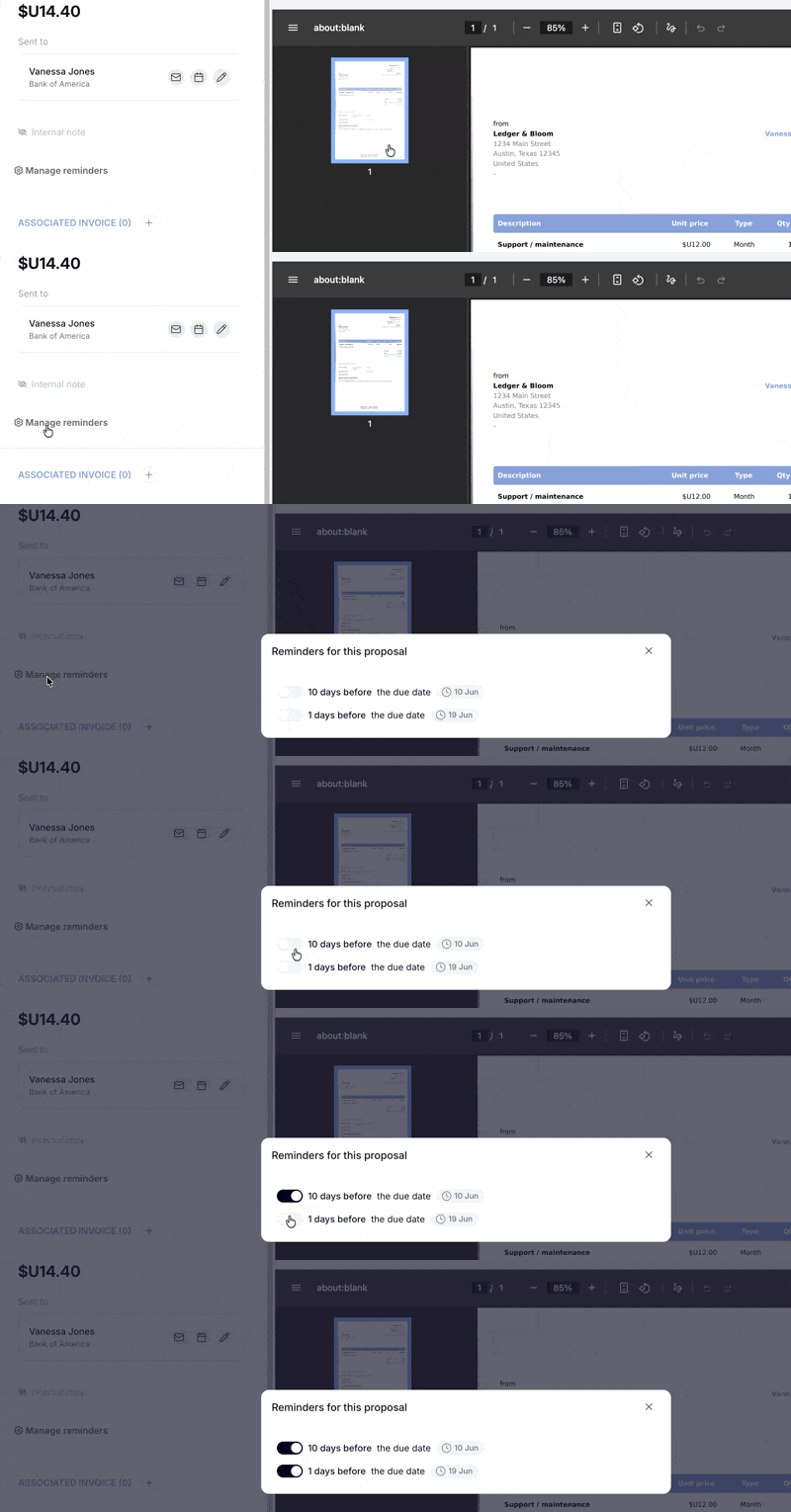
For proposals that are still pending, you can turn on automated follow-up emails for clients:
Open the proposal.
Click Manage Reminders in the left sidebar.
Toggle reminders on or off.

When you open a proposal, you'll find a summary panel and a timeline on the side:
Total (excluding tax)
Total costs
Margin (in dollars and as a percentage)
Time logged
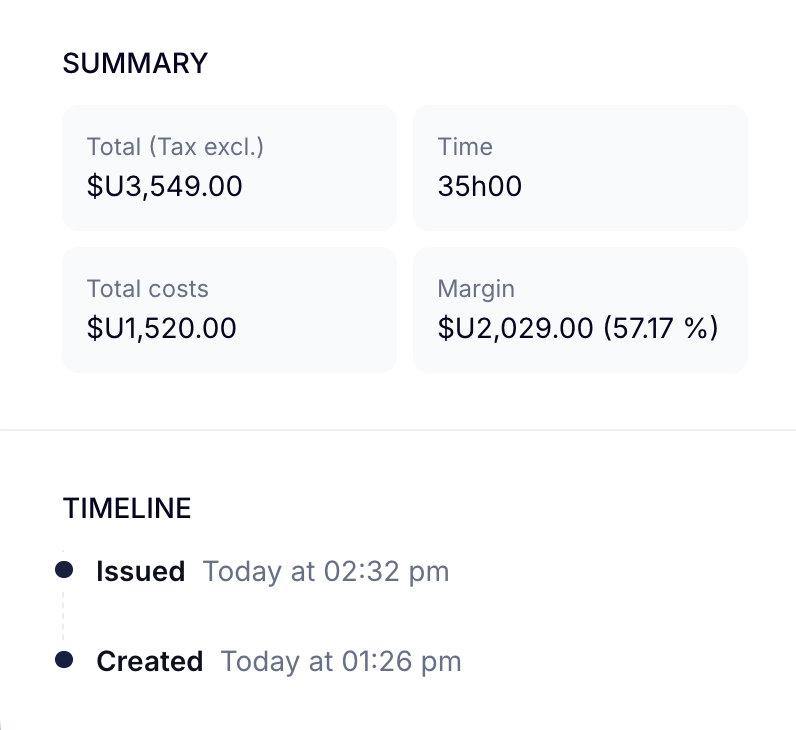
A running log of the proposal's history, when it was created, issued, accepted, and any other status changes, each with a timestamp. Useful for tracking when a client received a proposal and when they responded.
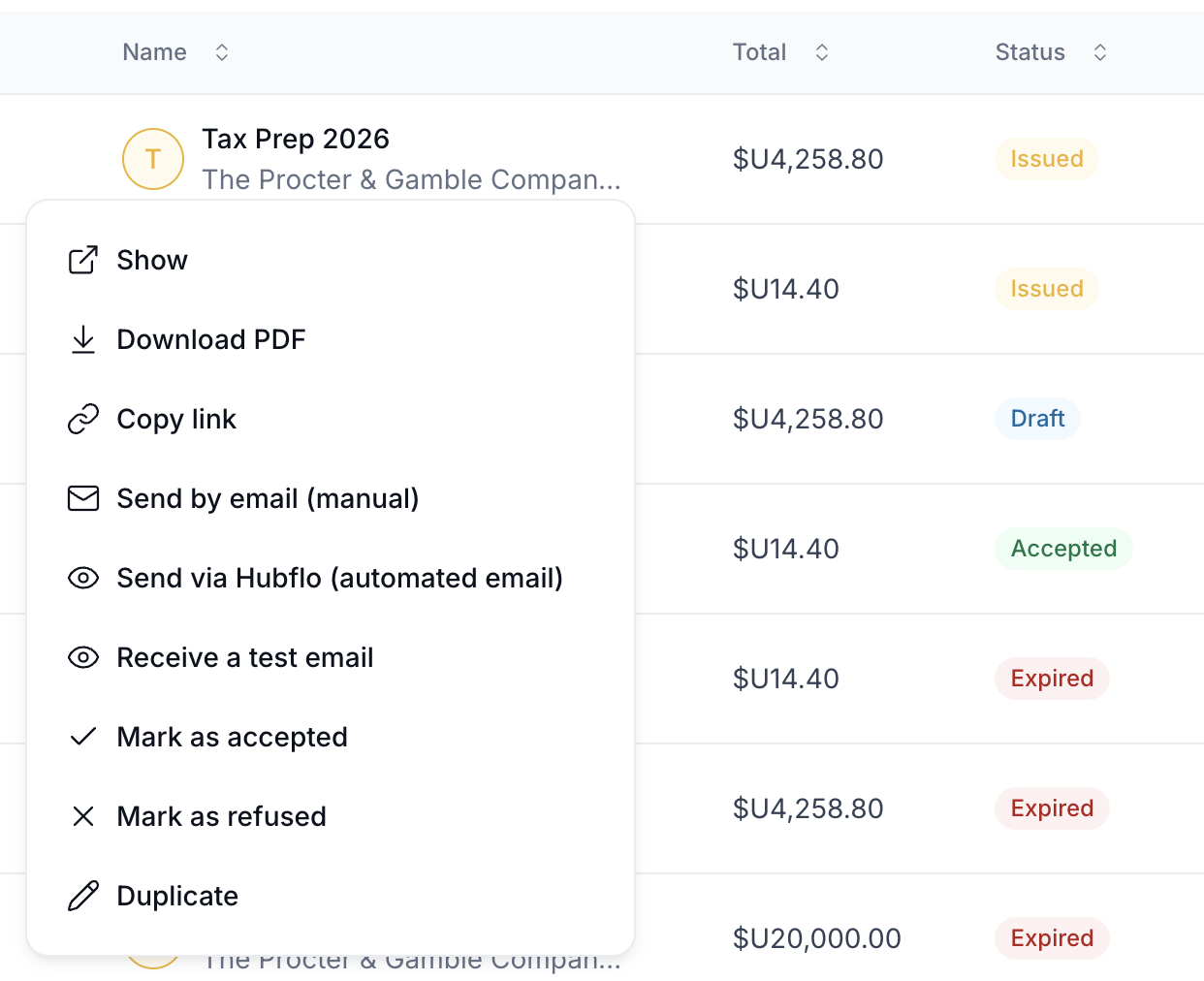
Click the three-dot menu next to any proposal to see available actions: