
You can share any folder in your workspace with people outside your team. By default, folders are private, but you can generate a public link and control exactly what visitors can do with it.
To set up a public link
Go to the Content tab in your workspace.
Select the folder you want to share.
Under Public link, choose a sharing option from the dropdown.
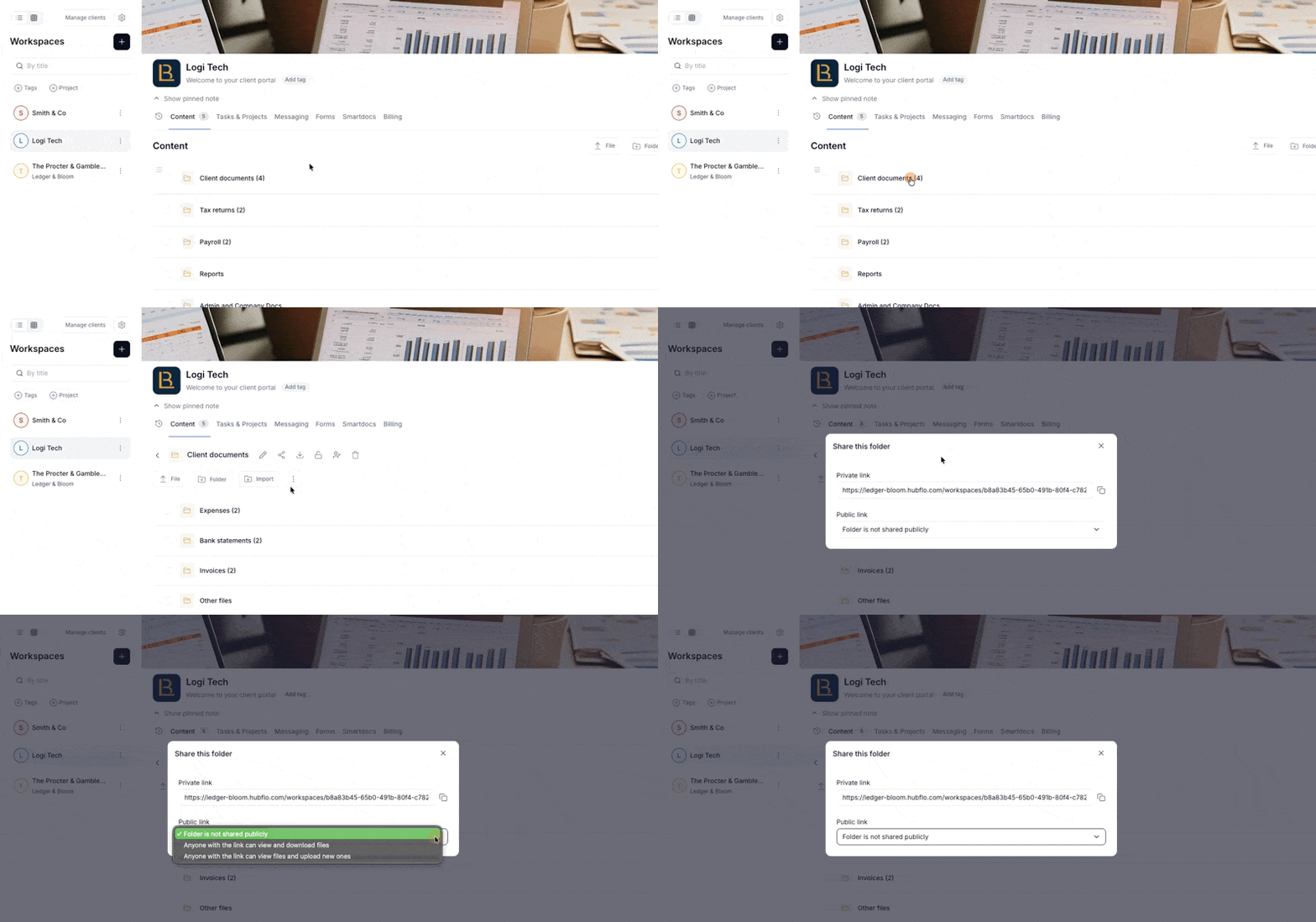
Sharing options
Folder is not shared publicly is the default setting. Only workspace members can access this folder.
Anyone with the link can view and download files generates a public link. Anyone who receives it can browse the folder and download its files. They cannot add, edit, or delete anything.
Anyone with the link can view files and upload new ones generates a public link that also allows visitors to upload files into the folder. They can still view and download existing files. This is useful for collecting submissions or assets from external contributors.