
Send and receive messages
Sending messages
To reach your service provider, go to Messaging in the left sidebar of your portal.
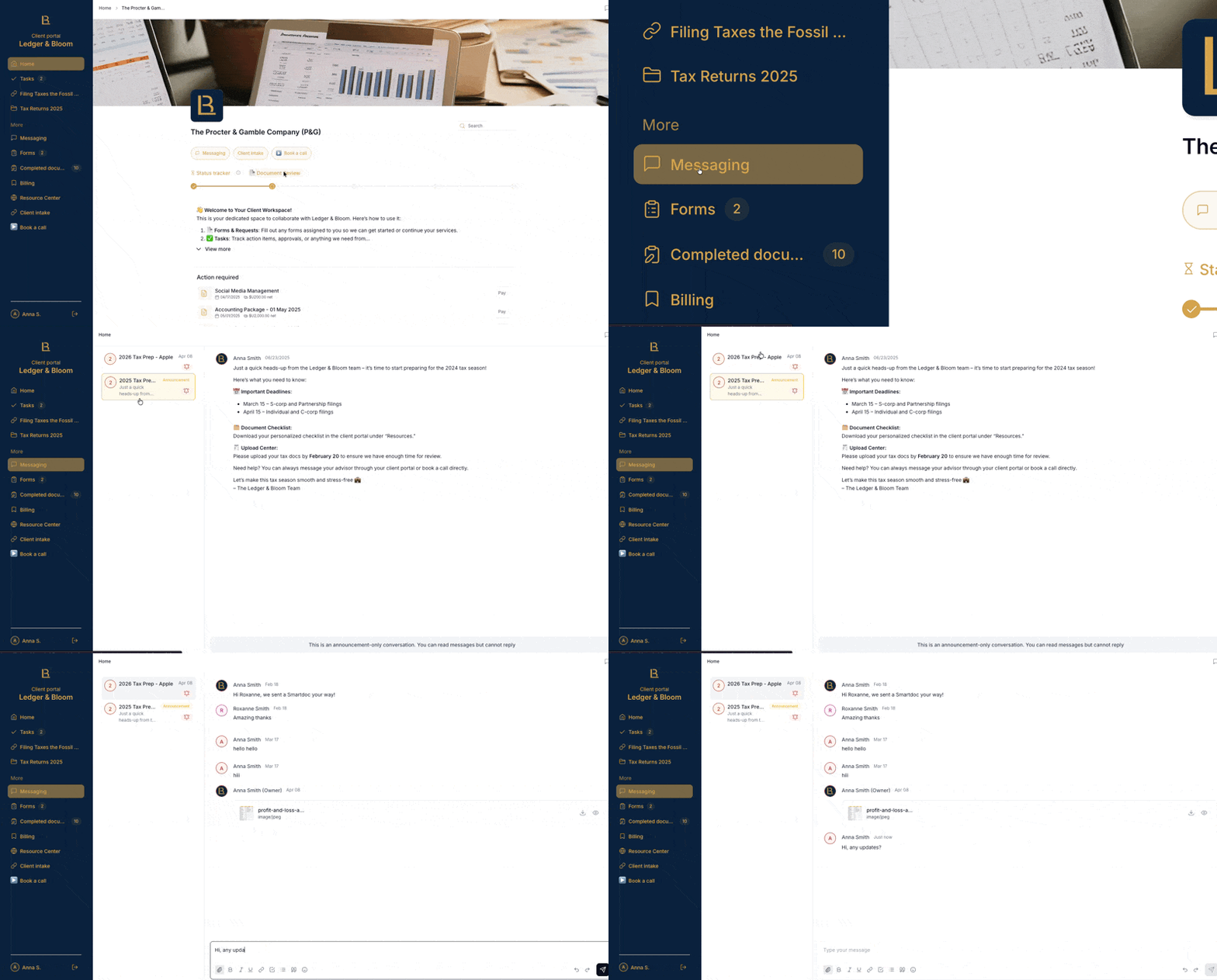
You'll see one or more of the following:
Announcement channels for updates from your service provider only. You won't be able to reply here.
Message rooms where conversations happen. You can send messages, attach files, and share links.
Simply type your message and hit send. Your service provider will be notified automatically, so there's no need to tag or mention anyone.
Receiving messages
When your service provider sends you a message, you'll get an email notification with the subject line "New message for you in your client portal."
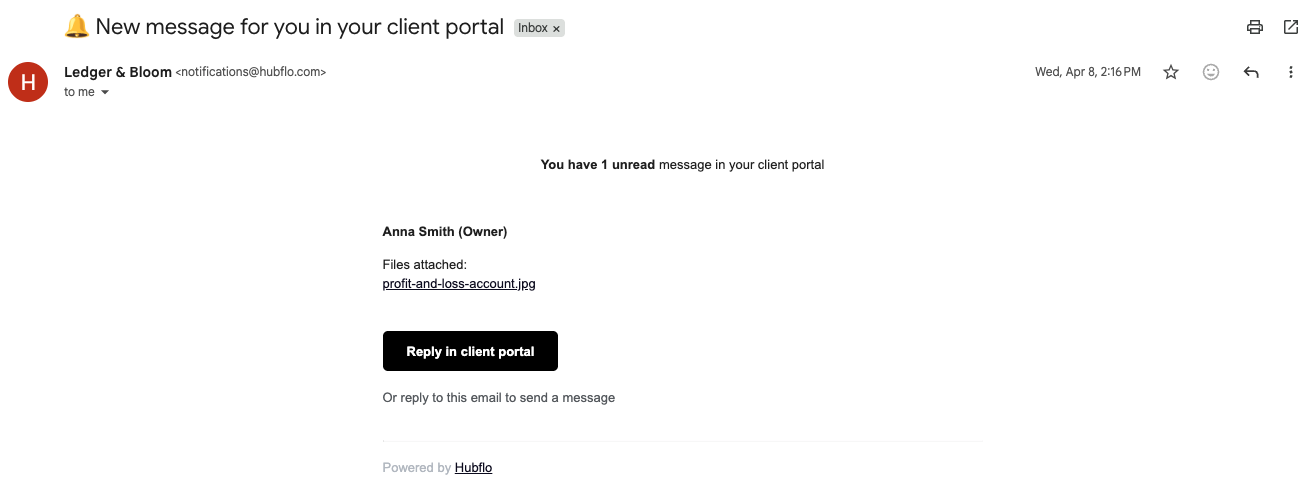
Click the button in that email to open the portal and reply from there.
Important: You may receive automatic email notifications from Hubflo. These emails are sent by the system, not a person, and your reply won't be seen.
Always communicate through the portal instead. Every notification email includes a button that takes you straight to the portal.
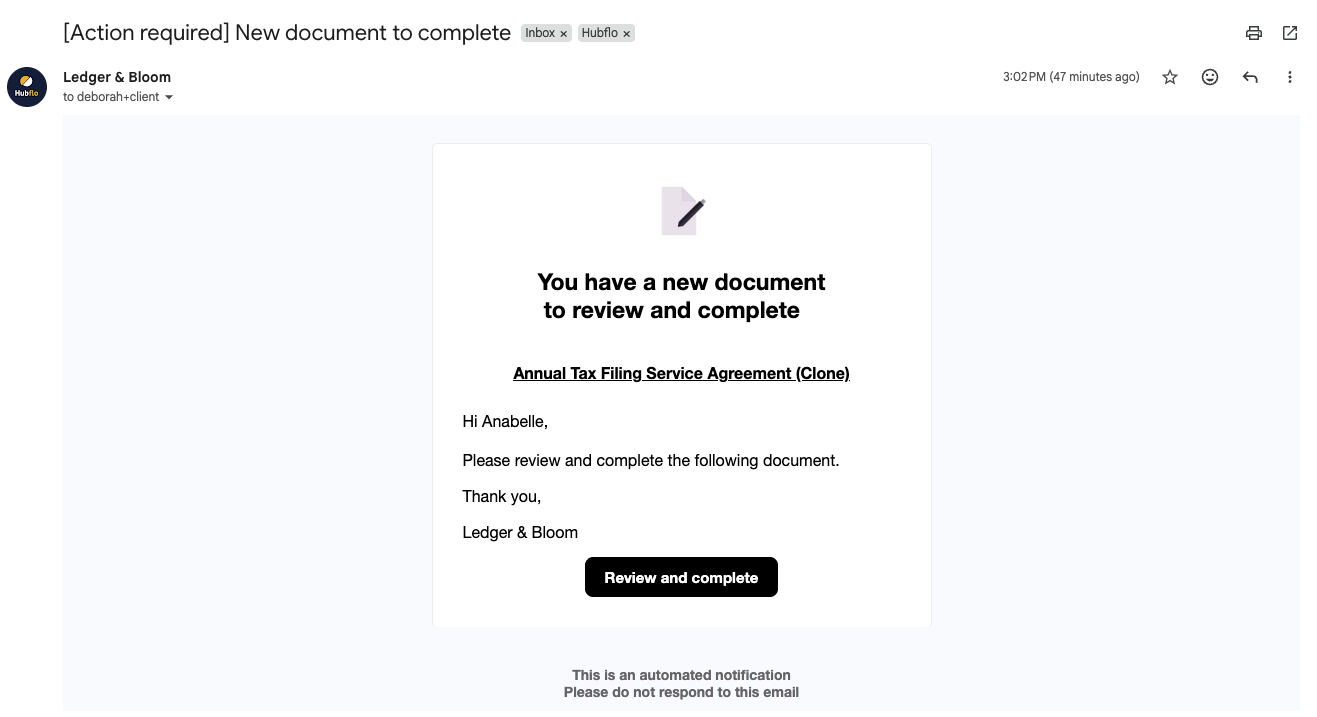
"Action Required" emails
You may also receive notifications with the subject "Action Required". These mean there's something waiting for you, like a document to sign or a form to fill out. Once you complete it, your service provider is notified automatically.
Commenting on tasks
You can also communicate directly within a task.
Go to Tasks in the left sidebar
Open the task you want to comment on.
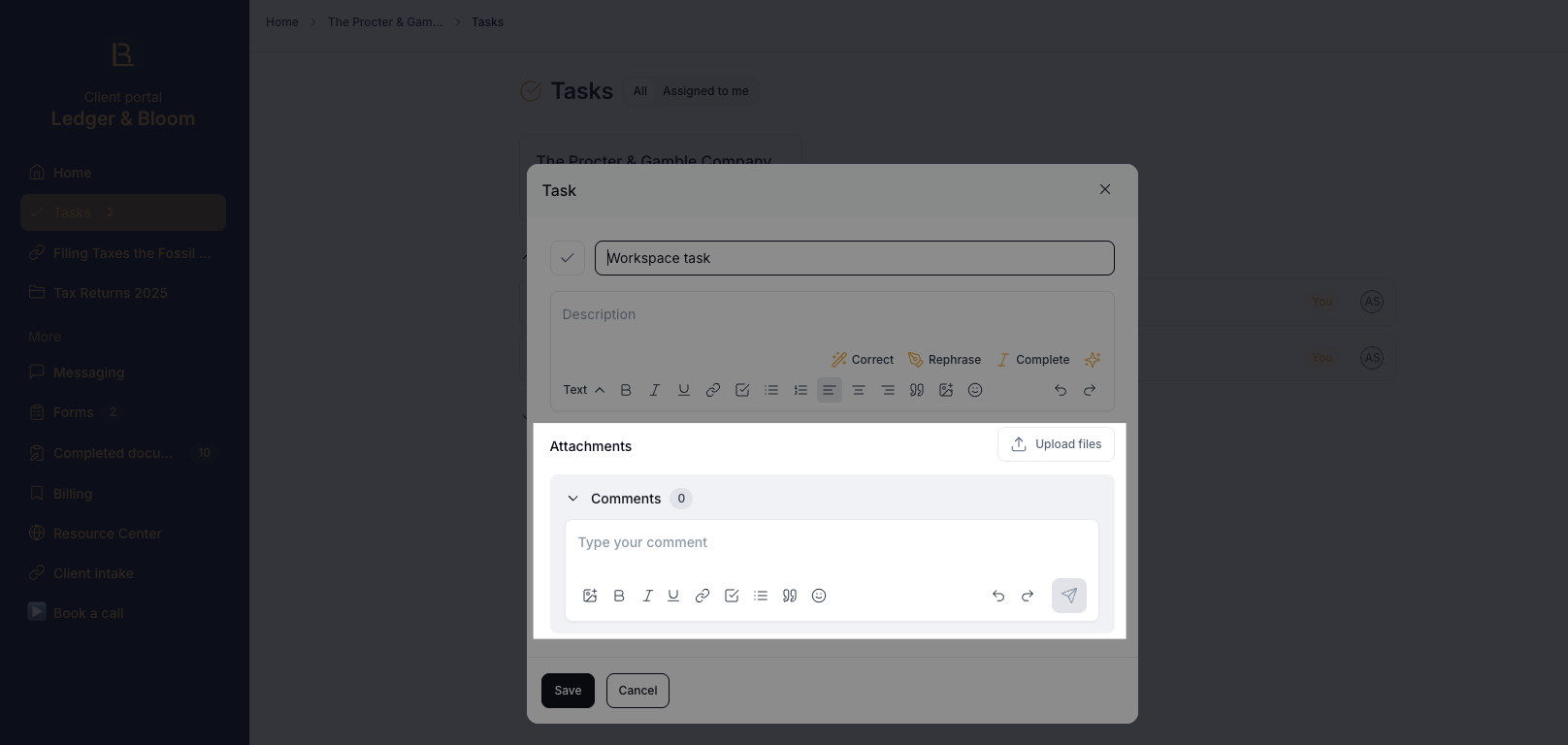
From there, you and your service provider can leave comments, attach files, and share links. Your service provider will be notified when you leave a comment, and you'll be notified when they respond.
For more details on tasks, see Managing your tasks →