Knowledge-Based Authentication (KBA) verifies a signer's identity by asking personal multiple-choice questions sourced from public records, such as previous addresses or phone numbers, that only the signer would know.

How It Works
When a signer receives a Smartdoc with KBA enabled:
They fill out a short form with their personal information
They answer knowledge-based questions sourced from public records
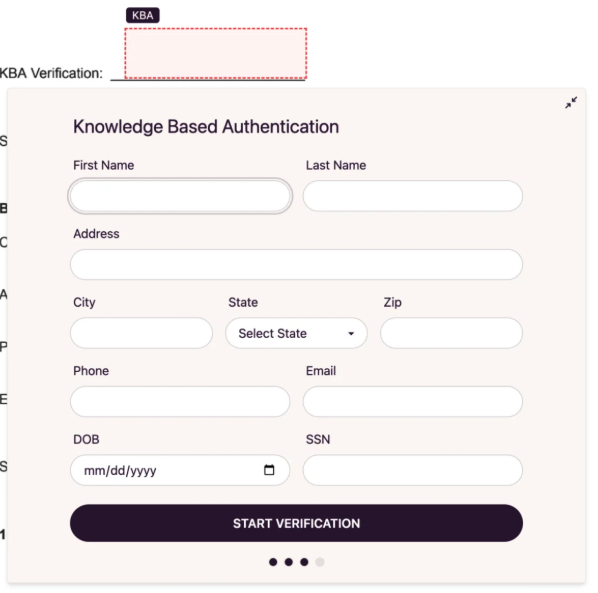
After successful verification, they can proceed to sign and complete the document
Setting Up KBA in Your Smartdoc
Create or edit a Smartdoc
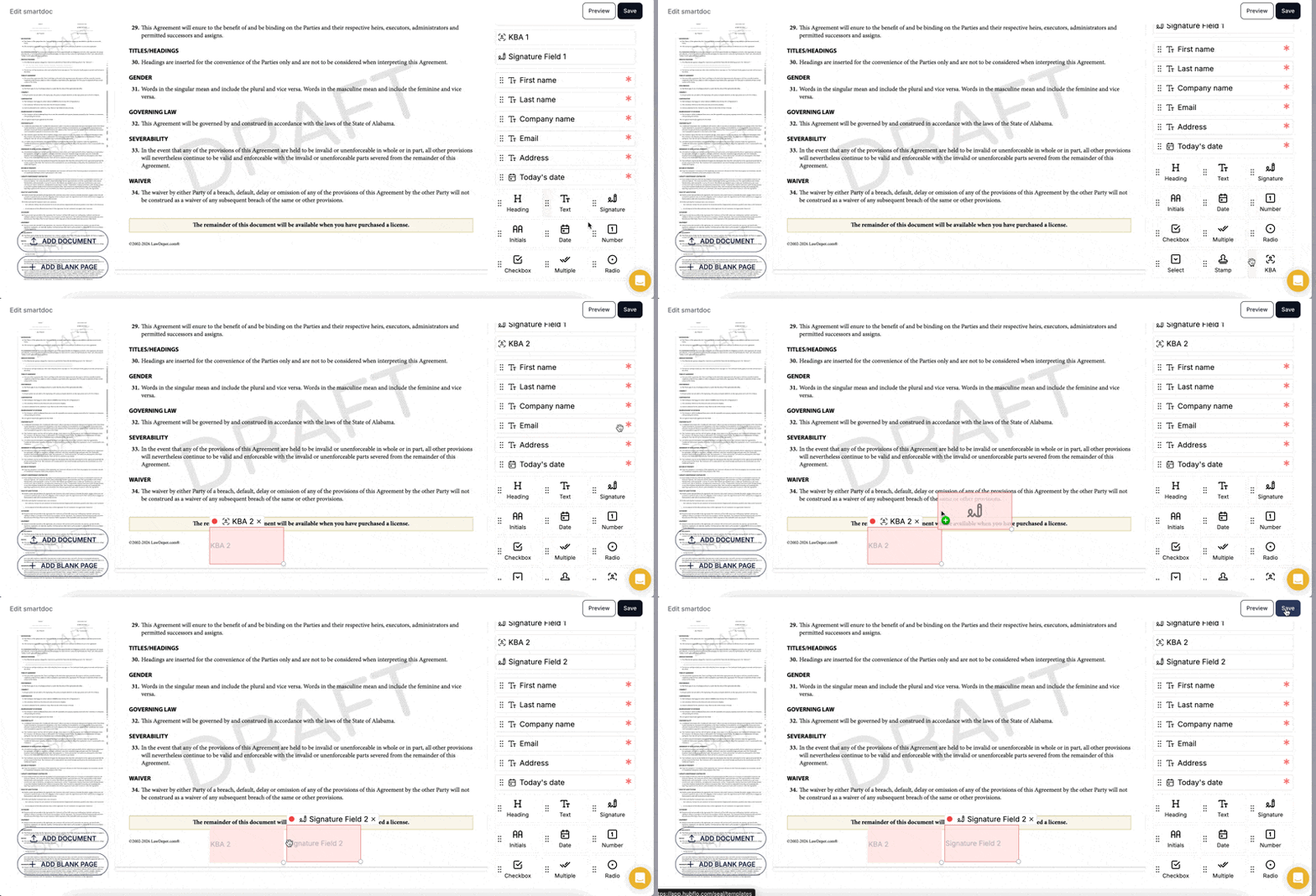
Drag and drop the KBA field from the right-side panel into your document
Place the signature field after the KBA field. This is important: The KBA field must come before the signature field to ensure the signer completes identity verification before signing.
Click "Send" and enter the signer's email address to send the signature request.
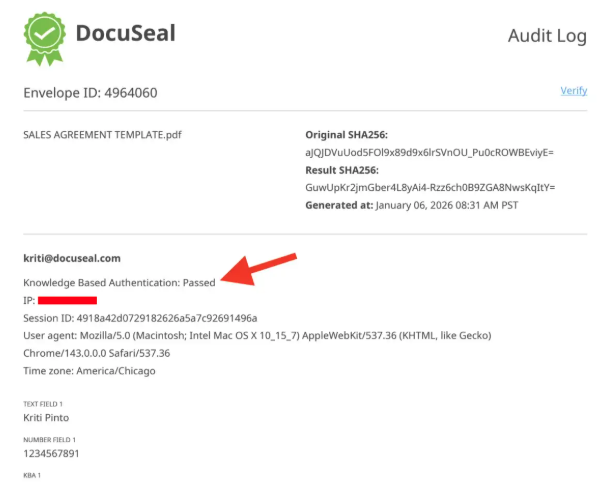
Once the document is completed, you and your client will receive the signed document along with the certificate of signature. The audit log will show "KBA" as the verification method for the signer.