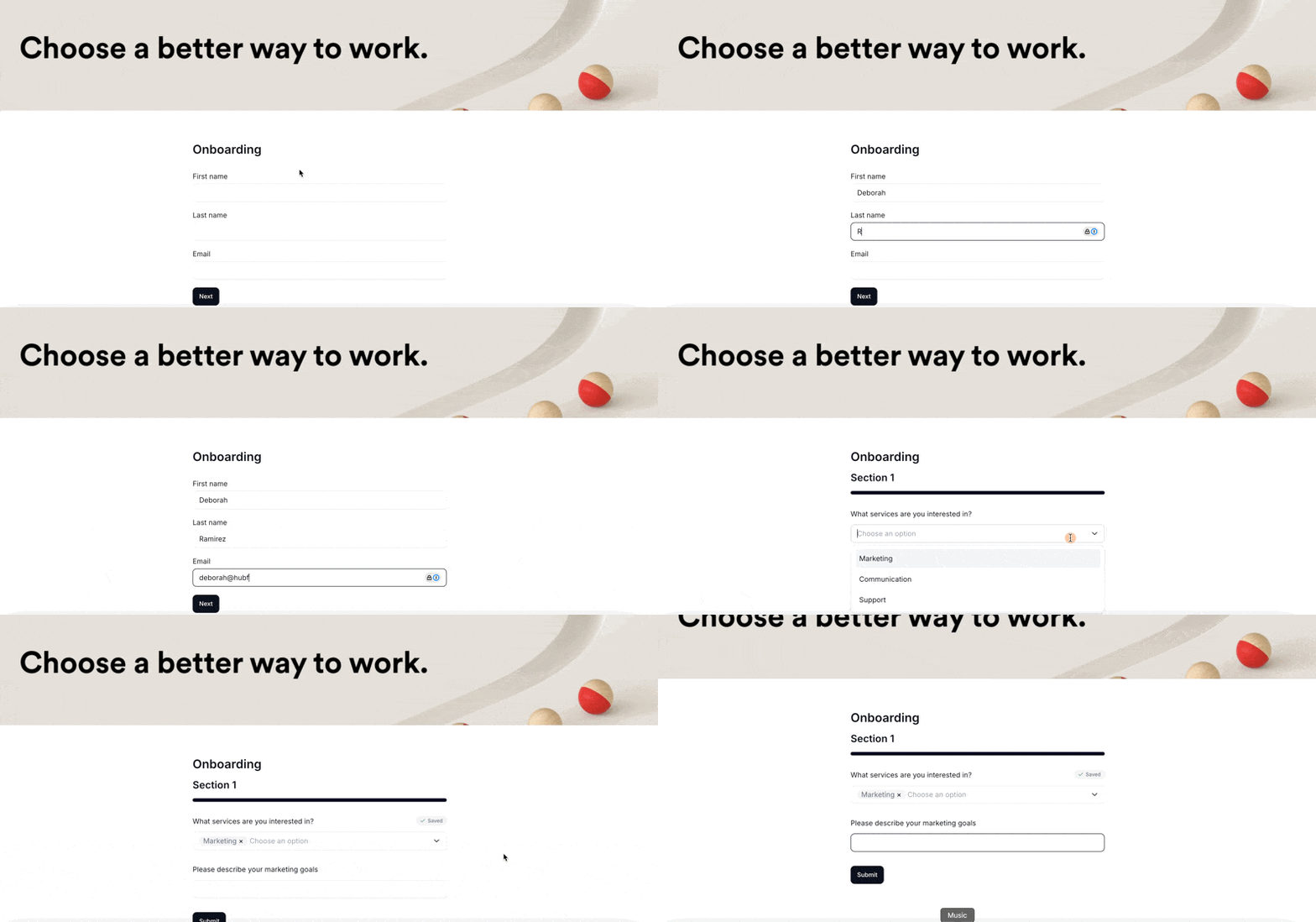
Conditional logic lets you control when questions or form sections appear based on how someone answered earlier in the form. This keeps your forms shorter and more relevant.
For example, if someone selects "Business" as their account type, you can show additional questions about their company. If they select "Personal", those business questions stay hidden.
Each question can have up to 3 conditions. The question that triggers a condition must be one of these types:
Dropdown
Single Choice (Radio Buttons)
Multiple Choice (Checkboxes)
Number
Scale / Rating
The question being shown or hidden can be any type.
Multiple entries questions cannot be used as condition triggers and don't support conditional logic.
Add your trigger question (must be one of the supported types above)
Add the question you want to show or hide
Click Manage Condition on that second question and set up your condition
Note: If Manage Condition is greyed out, the previous question isn't a supported trigger type.
Important: Values need to match the answer choice exactly as it appears in your trigger question. You can only enter one value per condition.
To show a question based on more than one answer, click Manage Condition again and add another condition. You can add up to 3 per question.
When multiple conditions are set, they work as OR logic, not AND, so the question appears if any one of them is met.
To show or hide an entire section based on an answer, click Manage Condition on the section itself and set up your condition.
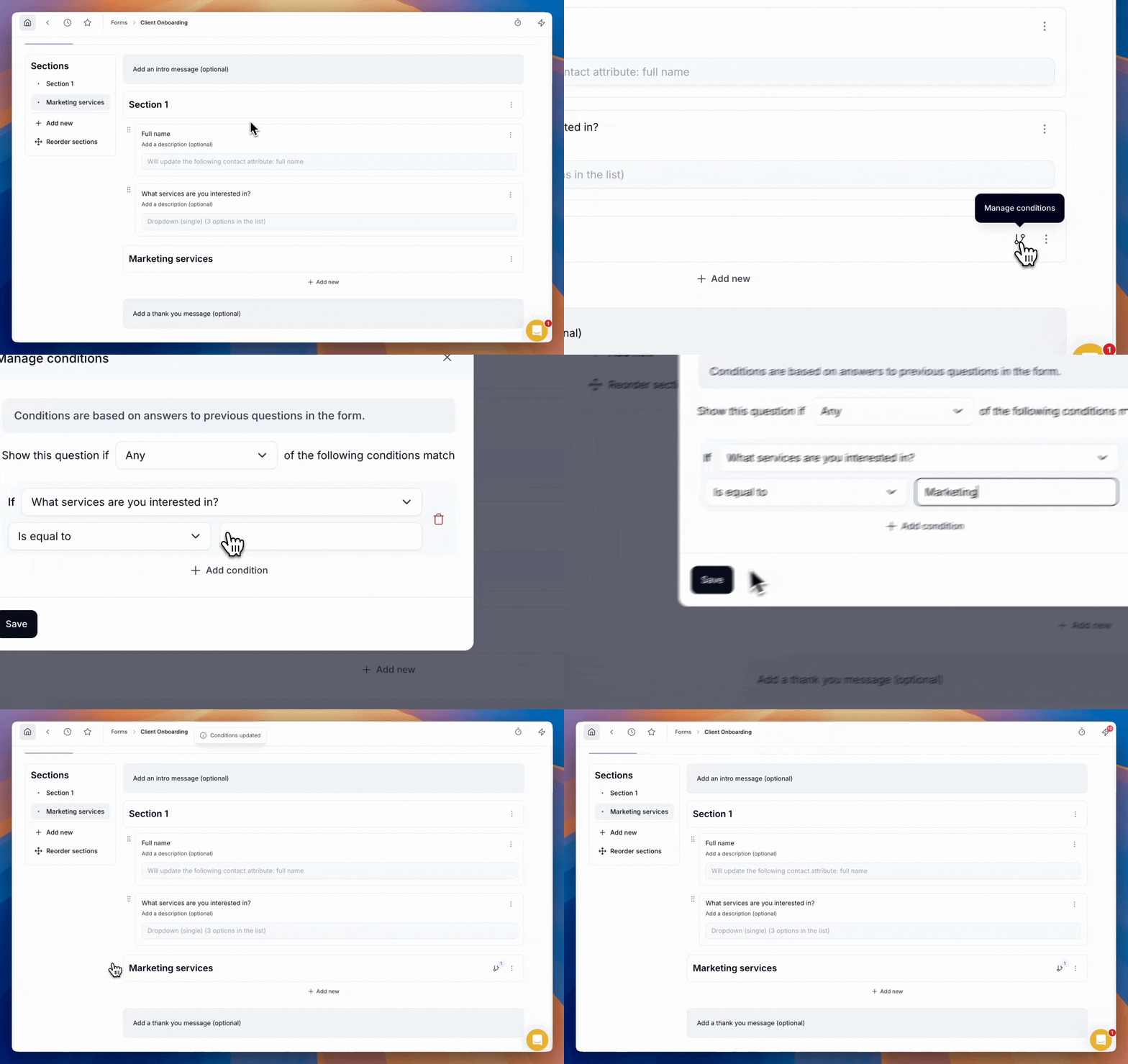
Operators control how the condition checks the answer.
equal: shows the question when the answer matches exactly
different: shows the question when the answer doesn't match
includes: shows the question when the answer contains this value
excludes: shows the question when the answer doesn't contain this value
Is less than
Is greater than
Is less than or equal to
Is greater than or equal to
Let's say you want to ask follow-up questions only when someone is interested in Communication or Marketing services.
Question 1: What services are you interested in? (Select Multiple)
Options: Marketing, Communication, Support
Question 2: Please describe your needs or goals (Text field)
Conditions on Question 2:
Condition 1: Show when "What services are you interested in?" includes "Communication"
Condition 2: Show when "What services are you interested in?" includes "Marketing"
Result: Question 2 appears whenever someone selects Communication, Marketing, or both. If they only select Support, Question 2 stays hidden.