This integration requires the Hubflo Unlimited plan. See Pricing to learn more.
The ClickUp integration keeps your tasks, comments, and statuses in sync between ClickUp and Hubflo, so your team always has the latest information without the manual back-and-forth.
Before you get started, there are two things to keep in mind:
ClickUp List names must exactly match your Hubflo Workspace names for tasks to route correctly.
Tags are what trigger syncing in both directions.
In Hubflo, go to Settings > Integrations and click Activate under ClickUp.
Click Connect and log in to your ClickUp account to authorize the integration.
Select the ClickUp workspace you want to connect.
Important: For tasks to sync between the right places, your ClickUp Folder name must exactly match your Hubflo Workspace name (including capitalization and spacing).
Example: If you have a client called Logi Tech, the ClickUp Folder must be named Logi Tech and the same as the Hubflo Workspace named Logi Tech. This is how the integration knows where to send tasks in each direction.
To send a Hubflo task to ClickUp, add both of these tags to the task in Hubflo:
hubflo
clickup
The task will be pushed to the matching ClickUp folder or list based on the workspace name. If your client folder contain multiple lists, add instructions for our AI to identify the correct list.
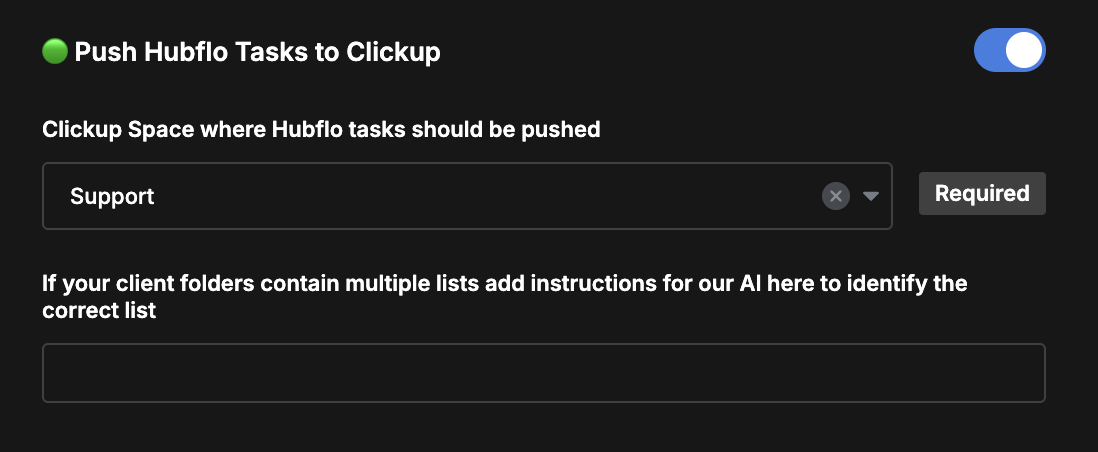
To send a ClickUp task to Hubflo, add the tag hubflo to the task in ClickUp.
This works for both parent tasks and subtasks.
Note: When working with subtasks, add the tags to the parent task first, then to each subtask. Order matters here.
Once tasks are connected, the following actions sync automatically between both platforms:
What happens | What syncs |
Comment added to a ClickUp task with @hubflo included in the comment | Posted as a comment on the Hubflo task |
Client comments on a Hubflo task | Posted as a comment on the ClickUp task |
Task status updated in ClickUp | Reflected in Hubflo (see details below) |
Hubflo uses two statuses: To Do and Done. ClickUp uses three: To Do, In Progress, and Completed.
Here's how they map to Hubflo when a status is updated in ClickUp:
ClickUp status | What happens in Hubflo |
To Do | Tag  |
In Progress | Tag |
Completed | Task is marked as Done |
Note: Status changes only flow from ClickUp to Hubflo, not the other way around.
