Configure your proposal defaults once in ⚙ Settings → Billing and they'll auto-fill in every new proposal. You can always override these per proposal without changing your saved defaults.
Set the business details that appear on your proposal PDFs:
Company name, email, phone, and address
Legal form (e.g., LLC) and registration numbers
Tax ID (optional)

Hubflo automatically assigns a unique, sequential number to each proposal you issue. To configure the format:
Scroll to Numbering for proposals/invoices.
Set your prefix (e.g. P-) and the starting number for your next proposal.
Click Save
Use dynamic variables like #{{year}}, #{{month}}, or #{{day}} in your prefix to include date information automatically:
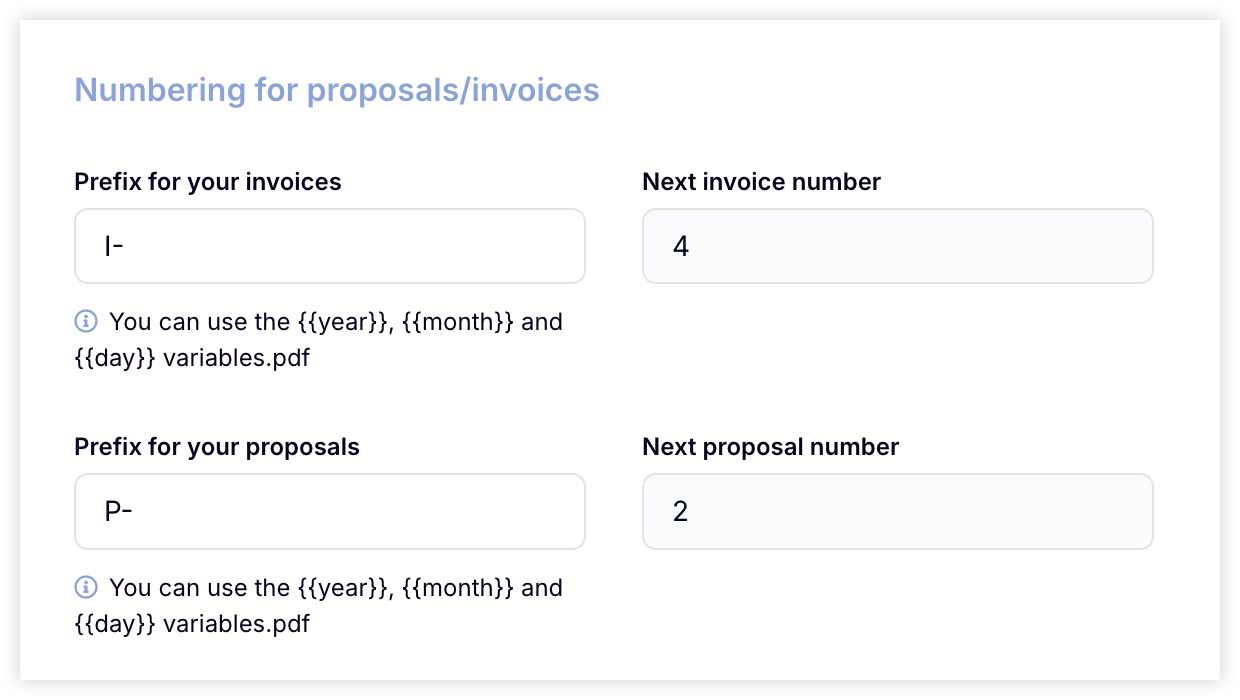
If you've already sent proposals outside of Hubflo, set the next proposal number to continue your existing sequence.
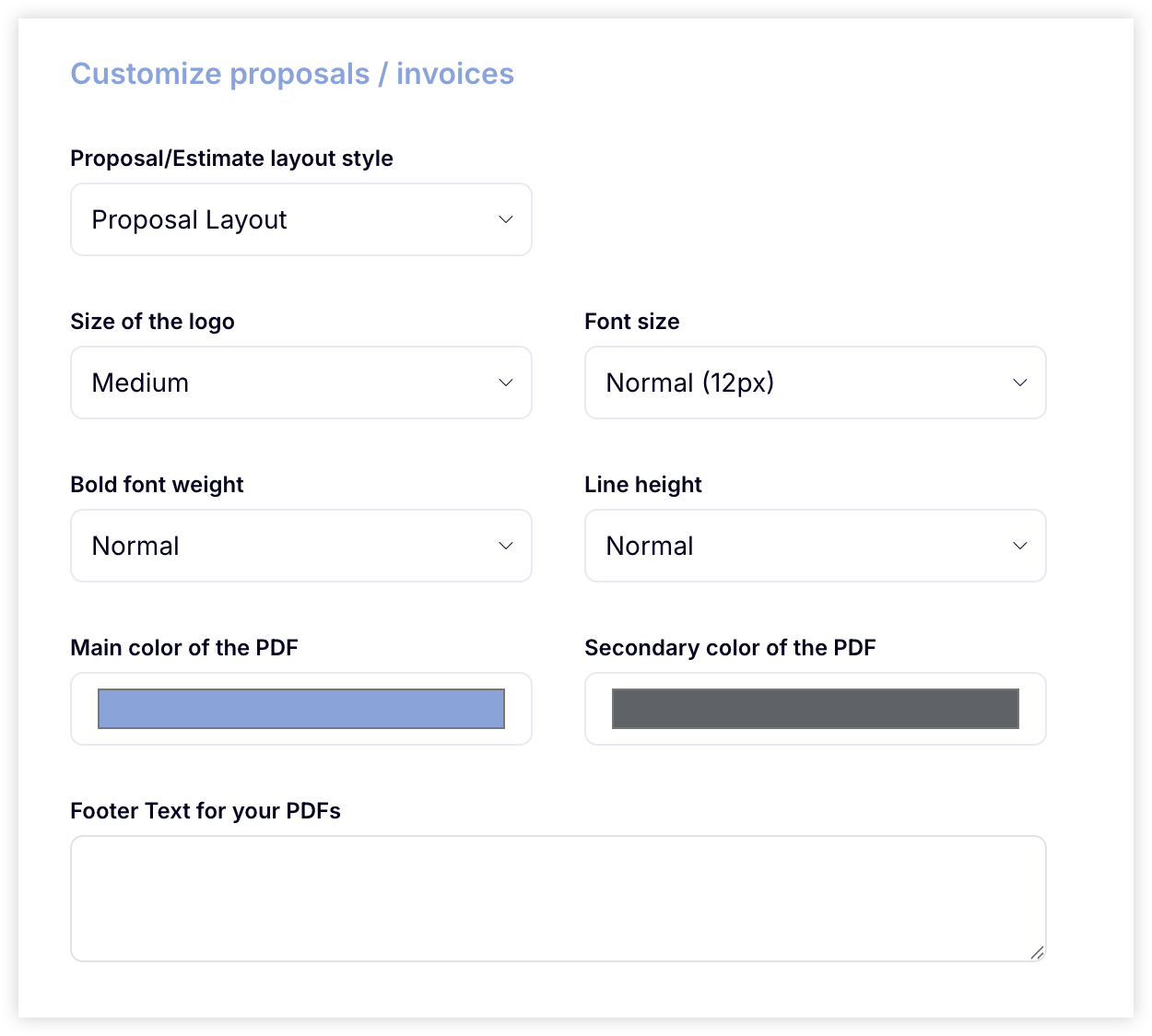
Customize the visual layout of your proposals:
Logo size: Small, Medium, or Large
Font size & weight
Line spacing
Main & secondary colors
Footer text (add disclaimers, terms, or legal notes)
Set up reusable messaging that appears in every proposal:
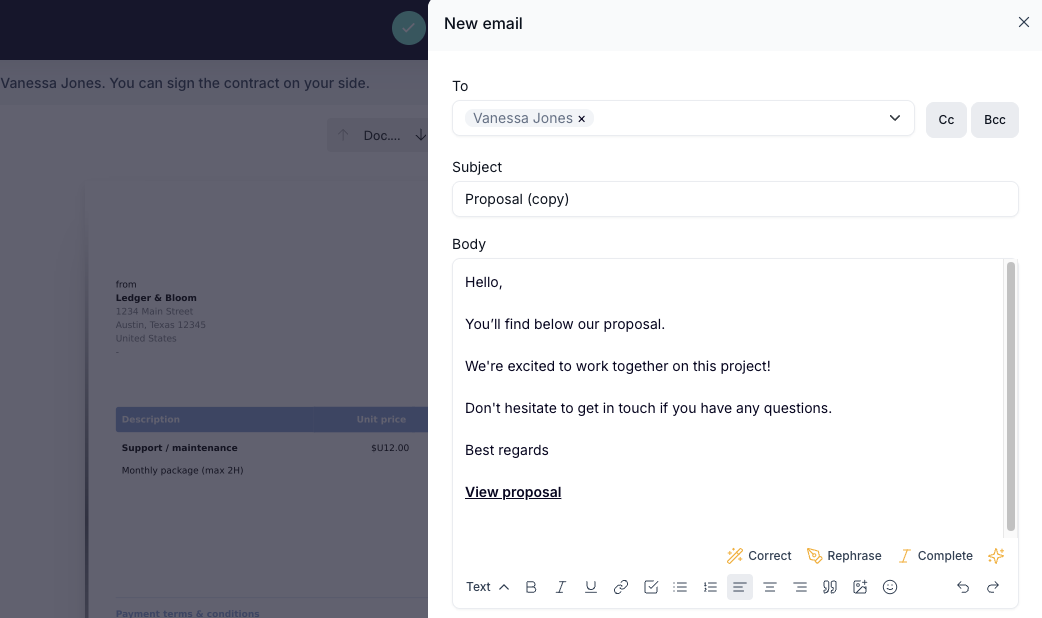
Introduction message shown on the public proposal page and in emails. Not included in the PDF.
PDF comment appears in the downloadable document only. Use it for disclaimers or legal terms.
Pre-fill your standard payment settings so they're ready in every new proposal:
Default VAT rate
Payment terms (e.g. due in 30 days)
Accepted payment methods
Payment instructions and late payment terms
